Editor’s Note (Updated October 28, 2026): This guide explains an image-to-video workflow using ChatGPT-generated images and CrePal. The coffee-can prompts, motion sequence, and revision example below are illustrative, not documented test results. Available settings, generation costs, export options, and usage rights should be checked in the current tool interface before production.
A ChatGPT-generated image can give you a strong starting frame, but turning it into a useful video requires decisions about motion, framing, pacing, and export.
This guide follows one illustrative product example: a vertical image of an iced coffee can that becomes a planned six-second social video. You’ll see the image prompt, preparation checks, motion instructions, a possible failed result, a revised prompt, and the final export checklist.
ChatGPT provides the source image. CrePal’s image-to-video tool provides a workflow for adding motion, previewing the result, and downloading a clip. The important part is checking whether the product remains visually consistent from the first frame to the last.
Why ChatGPT Images 2.0 Is Changing AI Visual Creation
ChatGPT Images 2.0 is important because it improves the first stage of visual production: concept generation. For creators, this means you can describe a product scene, a character, a cinematic frame, or a campaign idea and get a cleaner static visual much faster than before.
That matters because most short-form videos now begin with a strong visual hook. A good first frame can decide whether someone stops scrolling or skips immediately. ChatGPT Images 2.0 gives creators a way to test more visual ideas before committing to a full video production workflow.
For example, a creator can generate a cyberpunk perfume ad, a cozy coffee brand product scene, a virtual influencer portrait, or a storyboard-style cinematic frame. If the image works, it can become the foundation for motion generation.
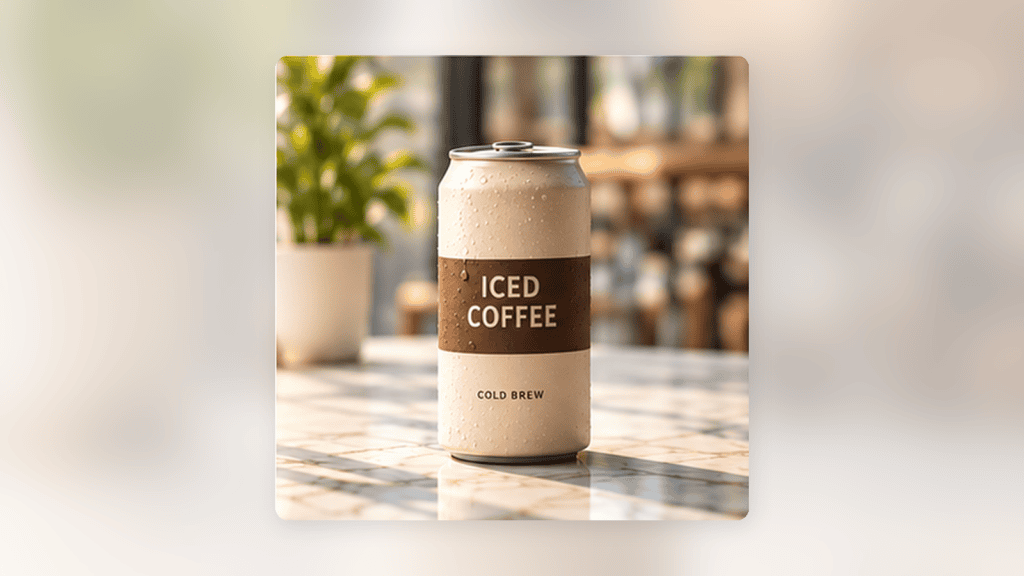
Example source image — iced coffee product concept
A single coffee can sits on a light marble table, with soft morning light entering from the left. The can is centered, the background is uncluttered, and there is enough space around the product for a slow camera movement.
Illustrative source-image concept. Use the actual generated image here, not a product advertisement or an unrelated interface screenshot.
The Missing Step: ChatGPT Images 2.0 Still Creates Static Images
The main limitation is simple: ChatGPT Images 2.0 is still primarily an image generation tool. It helps you create the frame, but it does not automatically turn that frame into a complete video campaign.
A static image can work for thumbnails, posters, and concept art. But if your goal is a TikTok ad, YouTube Shorts post, Instagram Reel, product launch video, or AI influencer clip, you still need motion.
That is where creators often lose time. They download the image, upload it into another tool, write a motion prompt, wait for a clip, export it, open an editor, add captions, adjust pacing, and then repeat everything if the result feels wrong.
CrePal is useful because it treats this as a director-led workflow, not a one-button animation task. Instead of only asking “How do I animate this image?”, the better question is: “How do I turn this image into a complete video asset?”
Best Workflow to Turn ChatGPT Images 2.0 Images into Videos
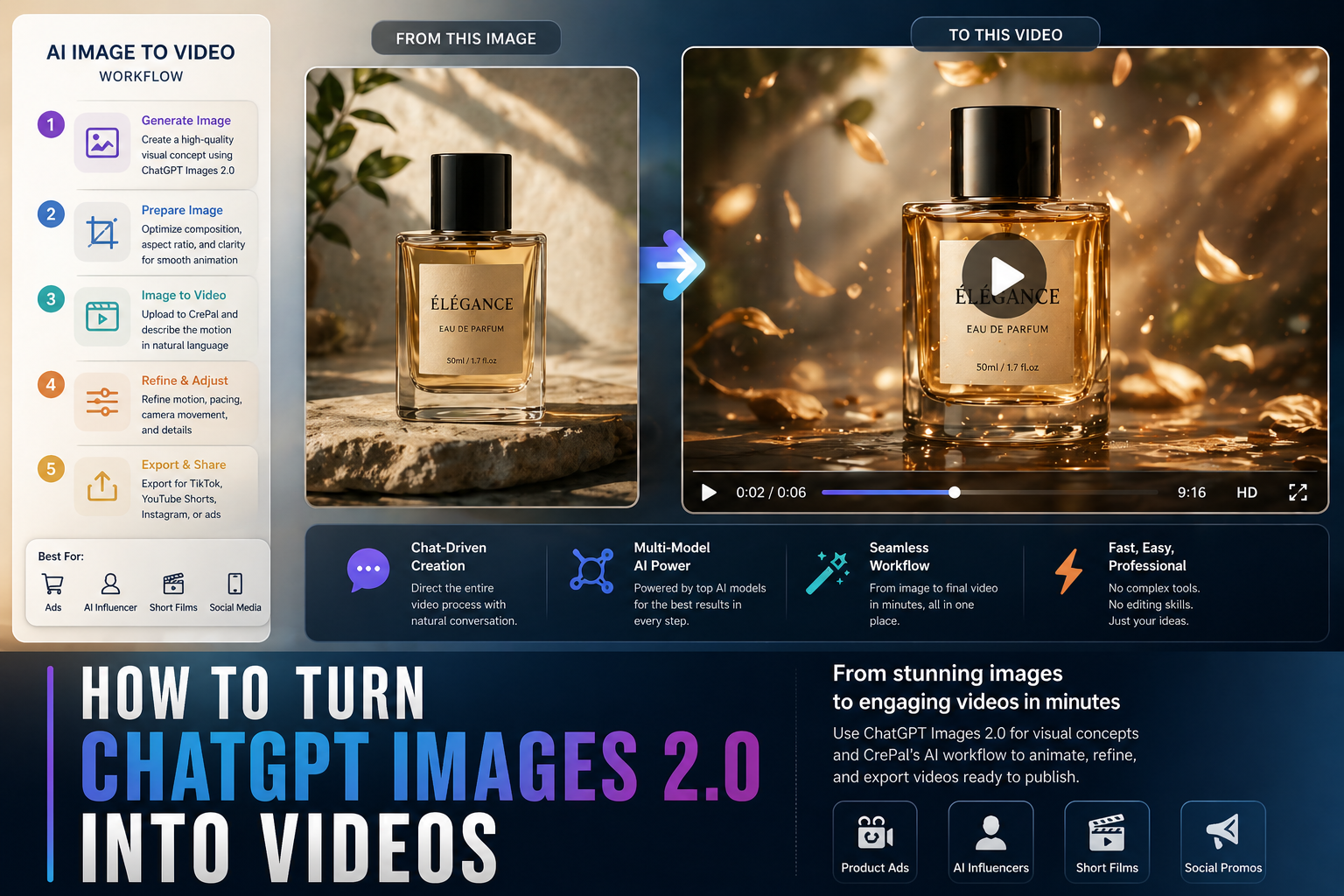
The best workflow is not complicated. The key is to separate the process into five stages: concept, preparation, animation, refinement, and export.
Step 1: Generate a clean visual concept in ChatGPT Images 2.0
For this example, the goal is a six-second vertical product video featuring one fictional iced coffee can. Start with an uncluttered image rather than a complicated scene.
Example ChatGPT image prompt:
Create a photorealistic 9:16 product image of a fictional iced coffee can on a light marble café table. The can has a matte cream body, a plain dark brown band, and a silver top. Soft morning sunlight enters from the left. Keep the can centered, fully visible, and sharply focused against a softly blurred café background. Leave space around the product for a slow camera push-in. Do not add people, extra products, or readable promotional text.
Step 2: Prepare the image for animation
Save the selected image as the starting frame. Before animating it, inspect three details:
- Product identity: The can’s proportions, lid, colors, and decorative band should stay consistent.
- Framing: The complete can should fit within the vertical frame, with room for camera movement.
- Visual defects: Check for distorted edges, inconsistent reflections, unreadable labels, or unintended objects.
If the source image already contains an incorrect product feature, regenerate or correct the image before moving to video. Motion generation is not a reliable way to repair an inaccurate source asset.
For a real client product, replace the fictional packaging with approved reference imagery and verify that the generated image matches the actual product.
Step 3: Use CrePal to turn the image into video
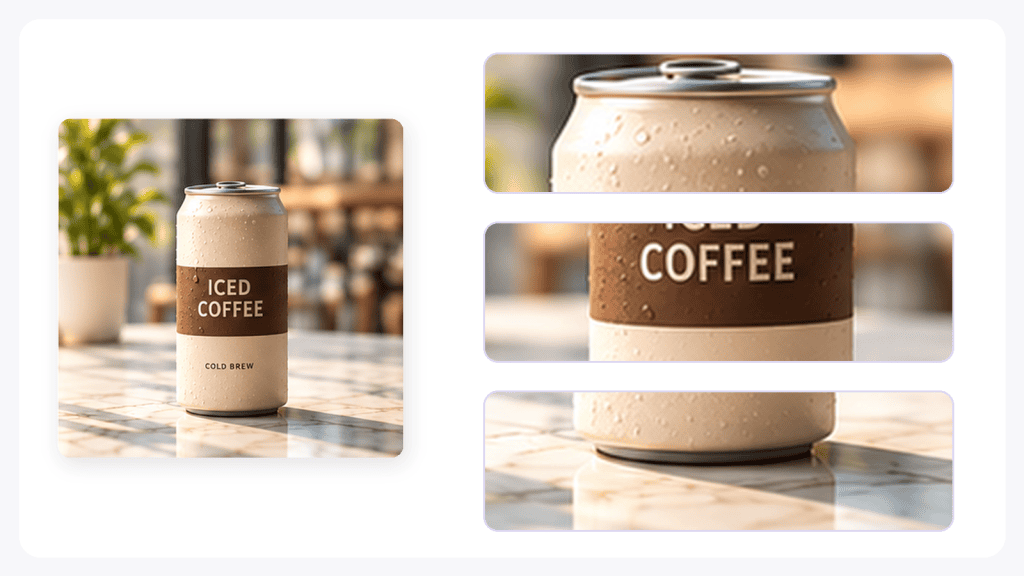
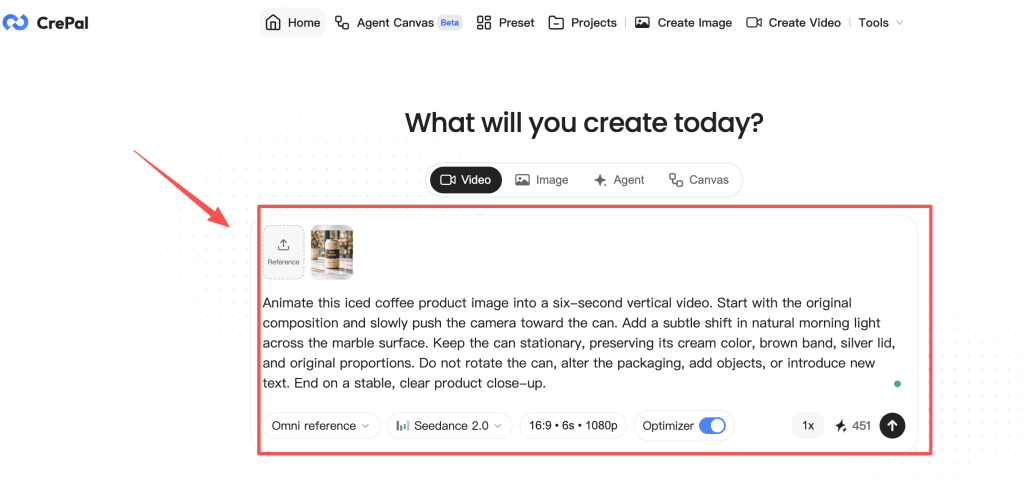
Open CrePal’s image-to-video workflow and upload the approved coffee-can image as the starting frame. Use the available model and duration settings to prepare a short vertical clip. Check the displayed generation cost and available settings before submitting.
The source image establishes the product’s appearance. The motion prompt should tell the video model what changes over time and, just as importantly, what must remain unchanged.
Example motion prompt:
Animate this iced coffee product image into a six-second vertical video. Start with the original composition and slowly push the camera toward the can. Add a subtle shift in natural morning light across the marble surface. Keep the can stationary, preserving its cream color, brown band, silver lid, and original proportions. Do not rotate the can, alter the packaging, add objects, or introduce new text. End on a stable, clear product close-up.
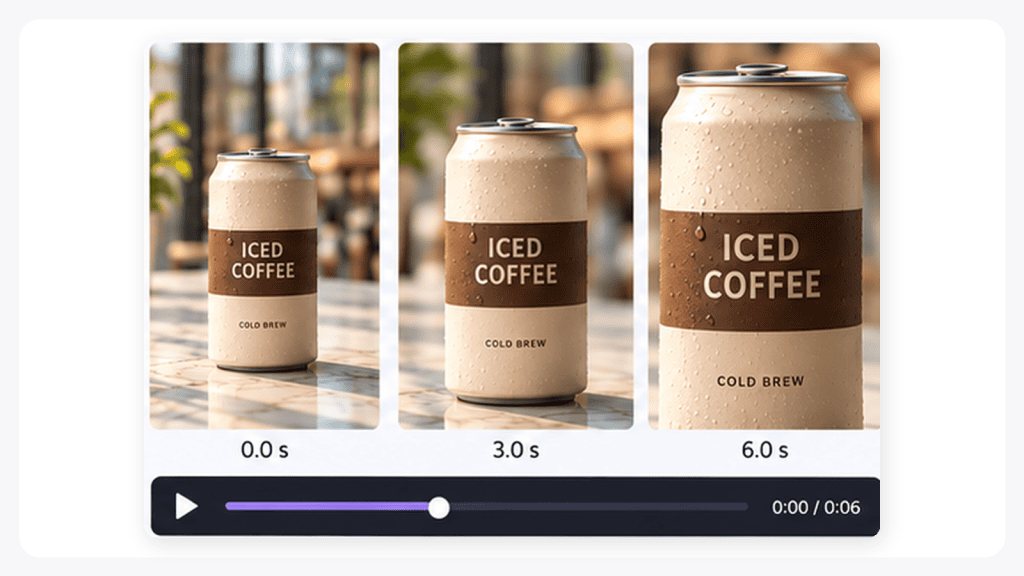
Planned clip sequence:
| Time | Intended shot |
|---|---|
| 0–2 seconds | Original composition with a gentle camera push-in |
| 2–4 seconds | Camera continues forward; subtle lighting change |
| 4–6 seconds | Camera settles into a stable product close-up |
This is a shot plan, not a claim that the model will follow every timestamp exactly. After generation, compare the actual clip with the intended sequence and check whether the product stays recognizable throughout.
Step 4: Refine motion, pacing, and camera movement
Do not approve a clip based only on its opening frame. Review the beginning, midpoint, and ending at normal playback speed, then pause where the product changes.
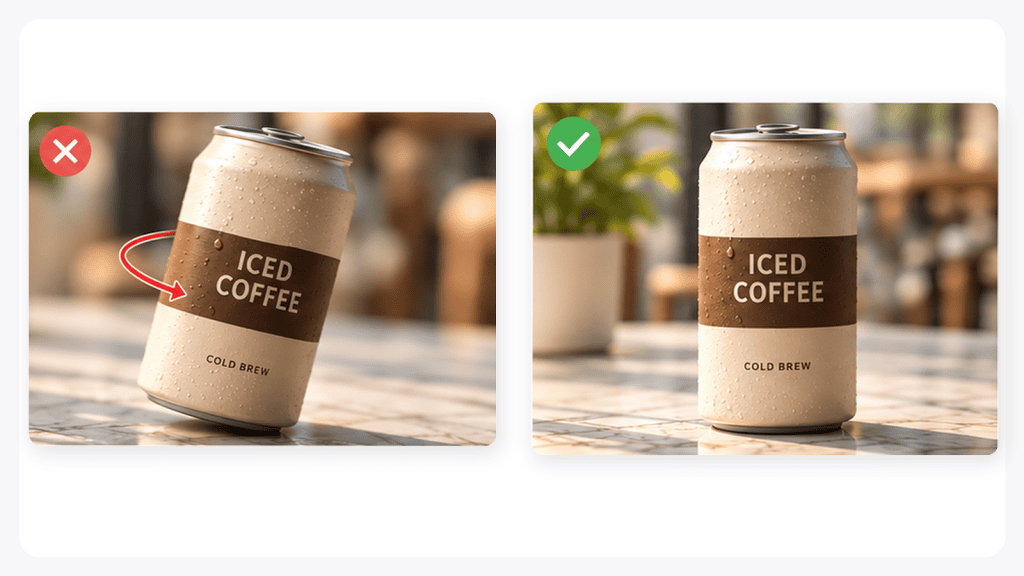
Illustrative failure scenario: Suppose the first draft introduces an unintended rotation. The brown band shifts around the can, and the lid becomes distorted near the end of the camera movement. This would be a reason to revise the clip, even if the lighting looks attractive.
The original prompt asks for a slow camera push-in, but it may help to make the product-stability instruction more explicit.
Revised motion prompt:
Use the same source image. Keep the coffee can completely stationary and preserve its original shape, lid, colors, and decorative band. Use only a gentle, straight camera push-in. Do not rotate the product or change its packaging. Keep the background movement minimal. Finish with a steady product close-up.
Generate another draft using the revised instructions. Compare both versions against the source image rather than assuming the second attempt is better.
If distortion remains, try a shorter movement or a more static shot. Record which prompt and settings produced the selected clip so the decision can be reviewed later.
The rotation and lid distortion described here are hypothetical failure examples, not observed results from a completed CrePal test.
Step 5: Export for TikTok, YouTube Shorts, Instagram, or ads
For this example, the intended deliverable is one six-second, 9:16 vertical product clip for a social media draft. Keep its original purpose in mind: a simple camera movement that draws attention to the can without changing the product itself.
Before downloading, check:
- Duration and framing: The selected clip matches the planned short format, and the can remains fully visible.
- Visual consistency: The cream body, brown band, and silver lid remain stable throughout.
- Motion: The push-in feels continuous, with no sudden movement or distorted final frame.
- Export settings: Confirm the available resolution, file format, and any watermark conditions in the current interface.
- Publishing readiness: Check product claims, music rights, branding, and platform requirements separately.
The target result is a stable product close-up at the end of the six-second shot. Once a real clip has been generated and checked, include the exported video and its verified file settings here.
An AI-generated motion draft is not automatically a publish-ready advertisement. Any commercial product details and usage rights still need approval before publication.
Why CrePal Is a Strong Companion for ChatGPT Images 2.0
ChatGPT Images 2.0 is strong at visual ideation. CrePal is strong at turning those visual ideas into video assets. Together, they create a practical workflow for creators who need speed, control, and publishable output.
Chat-driven video creation
For the coffee-can example, a useful revision is specific: reduce the camera movement while keeping the packaging unchanged. This gives the creator a clearer instruction than asking for a more cinematic result.
Multi-model workflow coordination
Different models and workflows may offer different controls for image references, clip length, motion, and export. Choose based on the required shot and the settings currently available, rather than assuming every model will produce the same result.
Easier image-to-video iteration
Keep the approved source image fixed while changing one motion instruction at a time. This makes it easier to compare drafts and identify whether camera speed, subject movement, or image quality is causing a problem.
Better for social ads and creator workflows
Once the product shot is approved, it can serve as a starting asset for additional edits or formats. Review each new version separately; changing the crop, text, or scene timing may introduce issues not visible in the original clip.
ChatGPT Images 2.0 + CrePal Use Cases
Product ads
A product image generated in ChatGPT Images 2.0 can become a polished ad through CrePal. This works well for cosmetics, drinks, fashion accessories, tech gadgets, and digital products.
The workflow is simple: generate the product scene, upload it to CrePal, add camera movement, refine lighting, and export a short ad. For small brands, this can reduce the time needed to test visual concepts.
AI influencer content
AI influencer content depends on consistency. ChatGPT Images 2.0 can help create the character’s visual identity, while CrePal can animate that identity into short-form video clips.
This is useful for fashion reels, lifestyle posts, fictional brand ambassadors, and virtual creator accounts. The key is to keep the original image clean and consistent before animation.
Storyboards and short films
ChatGPT Images 2.0 can generate storyboard frames, concept art, and character scenes. CrePal can then help creators explore motion, transitions, and pacing.
This is especially useful for creators who want to test a short film idea before producing it fully. A few still frames can become a moving proof of concept.
Social media promo videos
Social media promo videos need speed and clarity. A single image can be turned into a short video with motion, captions, music, and a platform-specific export.
This is where the ai image to video workflow becomes practical. Instead of starting with a blank timeline, creators start with a strong image and build motion around it.
ChatGPT Images 2.0 vs CrePal: What Each Tool Does Best
The data in this section reflects hands-on testing conducted in April 2026. Platform policies, pricing, and free-tier limits may change over time, so always verify final licensing terms on the official website before commercial use.
| Tool | Best For | Main Strength | Limitation |
| ChatGPT Images 2.0 | Static visual concepts | Strong image generation, visual ideation, style exploration | Does not replace a full video workflow |
| CrePal | Full AI video workflow | AI Director Agent, image-to-video workflow, chat-based revision, multi-step creation | Best results still require clear creative direction |
| Mage | Fast image and video generation | Browser-based AI image and video creation with multiple model options | More tool-like than director-led |
| Venice | Private creative generation | Private AI positioning and image/video generation access | Workflow depth depends on the selected model and plan |
| BasedLabs | Quick image-to-video tests | Simple upload-and-animate workflow | Less focused on full campaign production |
| PixelBunny | Flexible pay-as-you-go creation | Image, video, and editing tools without a heavy subscription structure | Better as a flexible toolkit than a guided director workflow |
ChatGPT Images 2.0 and CrePal should not be seen as direct replacements for each other. ChatGPT Images 2.0 is best for generating the visual foundation. CrePal is best for turning that foundation into a complete video asset.
Mage, Venice, BasedLabs, and PixelBunny can also fit into creator workflows, especially for experimentation. But CrePal is the strongest companion when the goal is not just to animate one image, but to build a repeatable ai video workflow for ads, social posts, product showcases, and creator content.
Final Verdict: Use ChatGPT Images 2.0 for Images, CrePal for Video Creation
ChatGPT Images 2.0 is excellent for creating the still image that starts the idea. CrePal is the next step when that idea needs to become a video.
If you are a creator, marketer, small business owner, or AI content producer, the best workflow is not to ask one tool to do everything. Use ChatGPT Images 2.0 to create the visual direction, then use CrePal to animate, refine, and export the final video.
That combination gives you the best of both worlds: strong static visuals and a practical video production workflow. For anyone trying to turn a ChatGPT image into video, CrePal is one of the most natural companions because it helps move from image generation to publishable content.
Start with one strong image. Add clear motion direction. Refine the video through conversation. Then export it for the platform where your audience actually watches.
To continue building faster creative workflows, explore CrePal’s AI video generator and test how a single image can become a complete social-ready video.
FAQ
What is the best way to turn ChatGPT Images 2.0 into video?
The best way is to generate a clean static image in ChatGPT Images 2.0, prepare it for the correct aspect ratio, upload it into an image-to-video tool like CrePal, describe the motion, refine the result, and export it for your target platform.
Can ChatGPT Images 2.0 create videos directly?
ChatGPT Images 2.0 is designed for image generation, not full video production. It can create strong visual concepts, but creators still need an AI video workflow to animate images, control motion, and prepare exports.
Why use CrePal after generating an image in ChatGPT Images 2.0?
CrePal helps turn a static image into a video through an AI Director Agent workflow. It is useful for creators who need motion, camera control, multi-step revisions, and social-ready exports rather than a single still image.
What types of videos can I create from ChatGPT Images 2.0 outputs?
You can create product ads, AI influencer clips, social media promo videos, storyboard tests, short film concepts, brand teasers, and visual hooks for TikTok, YouTube Shorts, Instagram Reels, or paid ads.
Is CrePal better than Mage, Venice, BasedLabs, or PixelBunny?
CrePal is stronger when you need a guided video creation workflow rather than a simple generation tool. Mage, Venice, BasedLabs, and PixelBunny can be useful for testing, but CrePal is more suitable for creators who want image-to-video iteration, campaign-style output, and chat-driven direction.