Hey there! I’m Dora. I kept getting the same question in a Discord server I’m in: “which AI image editor actually lets you edit what you want without the tool flagging everything?”
Same question, different people, three weeks in a row. So I stopped typing out the same half-answer and spent a proper stretch of time running tests across the tools that actually come up when you search for an ai image editor uncensored.
Quick disclaimer before we get into it: not sponsored, just honest results. I ran these on a MacBook Pro M3 Max (36 GB) and an RTX 4090 machine. Results will vary by setup, but the behavior patterns hold.
What “Uncensored” Means for AI Image Editing
This is worth spending 30 seconds on, because the word gets misused constantly.
In the context of AI image editing, “uncensored” doesn’t mean the tool has no rules at all. It means the editor doesn’t apply aggressive content filters that block legitimate creative edits — things like removing a logo from clothing, adjusting skin tone, editing body proportions for fashion work, or generating a replacement background with human figures.
Consumer-facing tools like Adobe Firefly or Canva’s generative fill are filtered heavily by design. That’s fine with their use case. But for creators doing commercial photo retouching, concept art, or anything involving the human figure outside vanilla contexts, those filters constantly reject inputs that are completely legitimate.
What most people mean by uncensored ai image editing is: a tool that doesn’t block you mid-workflow with a vague “content policy” error when you’re just trying to fix a wardrobe issue in a product shot.
That’s the category we’re actually talking about. Keep that framing in mind as we go through the tools.
What Makes an AI Image Editor Different
Before the tool list: a distinction that matters.
An AI image editor modifies an existing image — you bring the source file and direct the changes. This is different from text-to-image generators, which create from scratch. The editing tools we’re covering here work through inpainting (filling masked areas), generative fill (replacing or extending regions), upscaling, and style-preserving revision.
The practical implication: editing is harder to control than generation, but the results are more compositable. You keep your original lighting, perspective, and subject — you’re changing specific elements. That’s exactly where content filters cause the most friction, because the model has to handle a wider range of input contexts.
The Stable Diffusion inpainting documentation explains the mask-based editing pipeline in detail if you want the technical side. The short version: inpainting fills a selected region using the surrounding context as guidance. How much creative freedom you get depends almost entirely on which model is running underneath.
Best Uncensored AI Image Editors
These are tools I’ve actually run tests through, not just ones I’ve read about.
Inpainting and Object Changes
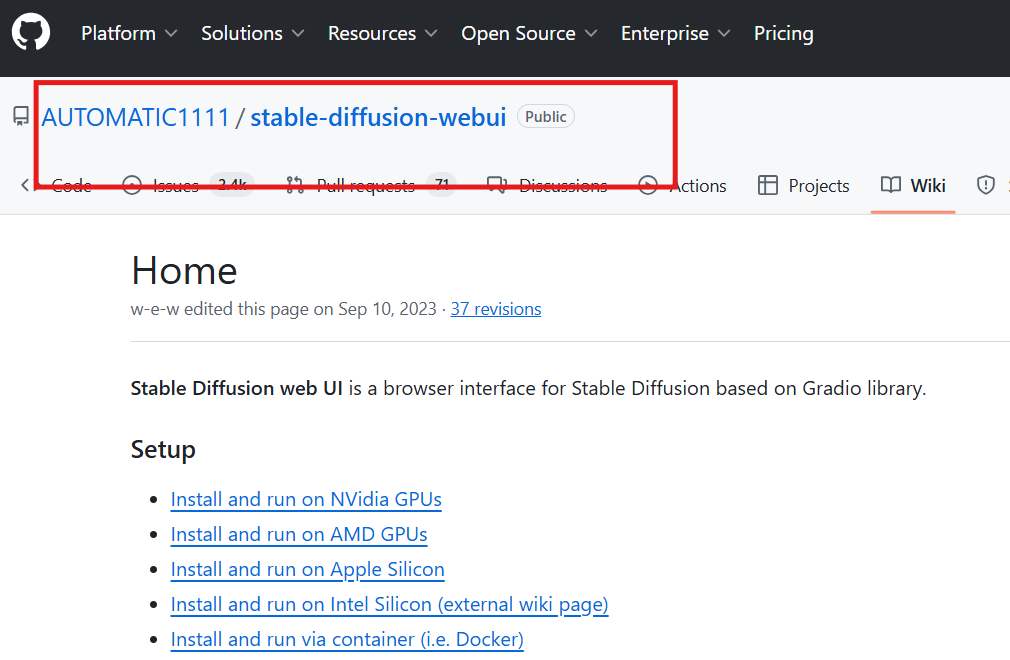
AUTOMATIC1111 (stable-diffusion-webui) is still the most capable local option for serious inpainting. You install your own model weights — which means you pick how filtered or unfiltered the base model is. The AUTOMATIC1111 repo on GitHub is actively maintained as of early 2026, and the inpaint tab handles complex masks better than most web tools I’ve used.
The catch: setup takes 30–60 minutes if you’ve never done it. And the default installed model is filtered. You have to specifically download and load an uncensored checkpoint from Hugging Face’s model hub to get the creative range most people are after.
ComfyUI is more flexible once you’re past the learning curve. Node-based workflow means you can chain inpainting with upscaling, face restoration, and style passes in one run. The ComfyUI GitHub repo has a growing library of community workflows, some specifically built for portrait and figure editing. I’ve used it for product shot cleanup and it handles edge cases that AUTOMATIC1111’s inpaint tab fumbles — especially thin objects and hair near mask boundaries.
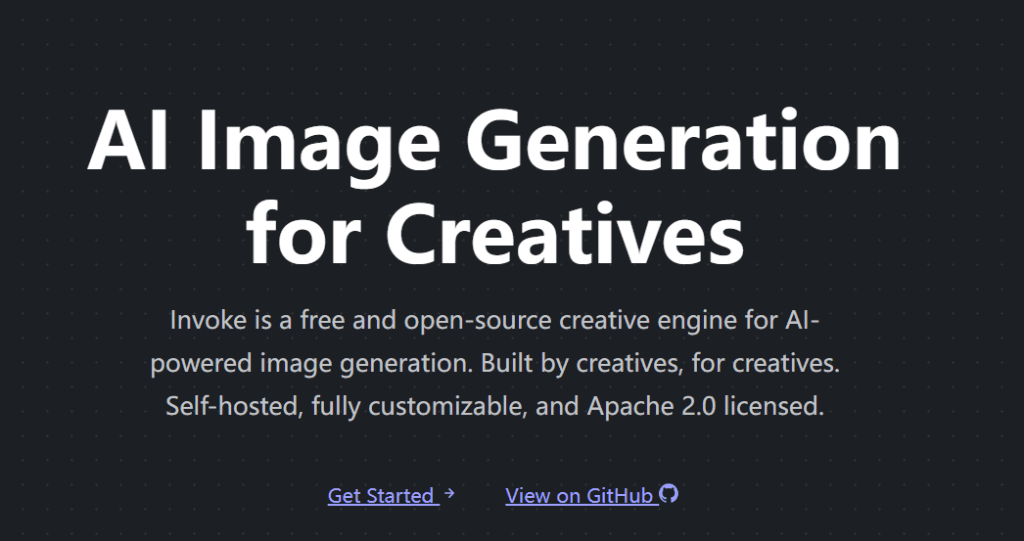
For cloud-based options, InvokeAI is the cleanest interface I’ve used for non-local editing. Per the InvokeAI documentation, it supports model swapping and has a canvas-based inpainting UI that’s easier to use than AUTOMATIC1111’s for non-technical users. The hosted version applies some filters; self-hosted removes them.
Upscale and Cleanup
Upscalers like RealESRGAN and ESRGAN via AUTOMATIC1111’s extras tab are filter-free by nature — they’re sharpening and reconstructing detail, not generating new content. I’ve run ~200 images through this pipeline and never hit a content flag. If your workflow is cleanup-first, upscale-second, this combo is solid.
Known caveat: upscalers can hallucinate texture in flat areas, especially synthetic fabrics. I’ve seen them add grain to smooth studio backgrounds. Worth previewing at 50% before committing to the export.
Style-Preserving Revisions
This is where most tools stumble. Style-preserving revision — changing the content of an image while keeping the color grading, lighting logic, and overall aesthetic — requires either IP-Adapter or reference-image conditioning.
ComfyUI with IP-Adapter is currently the most reliable setup I’ve tested for this. The model reads your reference image’s style, applies it to the inpainted region. Results aren’t perfect — I’d say ~65% success rate on first try with complex inputs — but it’s meaningfully better than prompt-only inpainting for style consistency.
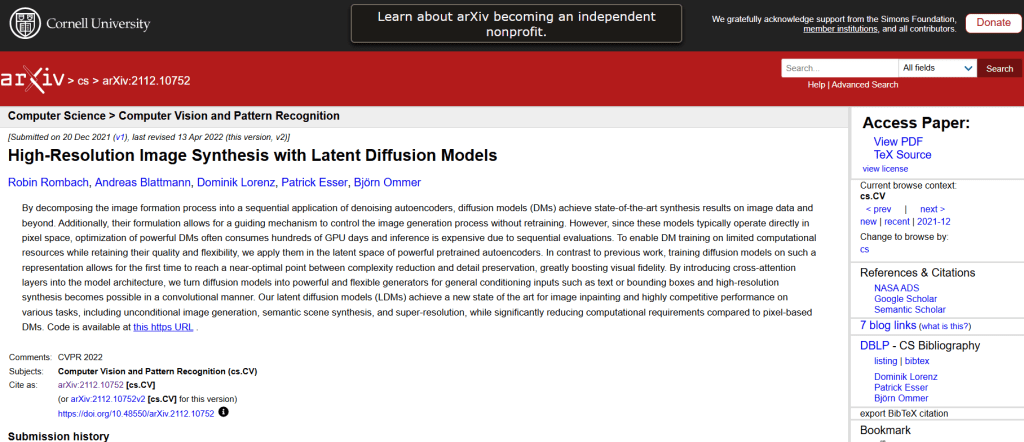
A 2022 arXiv paper on latent diffusion models is still the foundational read if you want to understand why style preservation is structurally hard. The short version: the model doesn’t “understand” style the way humans do. It’s pattern-matching at a feature level, and inpainting disrupts those features.
Free vs Paid Editors
Honestly, the free tier situation for a free uncensored ai image editor is better than it was a year ago — but there’s a catch.
| Free local (AUTOMATIC1111, ComfyUI) | Cloud free tiers | Paid cloud | |
| Content filters | Your choice | Usually yes | Varies |
| Speed | Depends on your GPU | Slow to moderate | Fast |
| Privacy | Full — local only | Images go to servers | Check TOS |
| Setup effort | High | Low | Low |
| Cost | Hardware only | Free with limits | $10–30/mo |
The free nsfw ai image editor option that requires zero setup doesn’t really exist in a reliable form. Anything genuinely unrestricted enough to handle sensitive editing is either local (which means you need a capable GPU) or a paid cloud product.
What does work free: AUTOMATIC1111 or ComfyUI on your own machine if you have an Nvidia GPU with at least 8 GB VRAM, or an Apple Silicon Mac with 16+ GB. Below that threshold, generation times make it impractical for real editing work — 4–7 minutes per inpaint pass at 512px is not a workflow.
Common Failure Cases and Artifacts
I kept bad outputs. Here’s what actually goes wrong.
Mask boundary ghosting. The most common issue — a soft halo around the edited region that doesn’t blend with the original. Happens when the mask feathering and the model’s blend radius don’t match. Fix: increase mask feather to 10–15px and add a small denoising pass over the full image at ~0.15 strength after inpainting.
Subject drift on faces. Inpainting near a face, even in a background region, sometimes pulls the face slightly toward the training distribution. I’ve seen this on three consecutive attempts with the same prompt. Partial fix: use face lock via a ControlNet depth or face ID reference.
Flat regeneration in complex textures. Fabric, hair, and detailed backgrounds often come back blurrier than the original after inpainting. This is a known limitation of diffusion-based inpainting at standard resolutions. Running ESRGAN upscale after inpainting recovers ~70% of the lost detail in my tests.
Color shift in extended regions. Generative fill for background extension frequently shifts the color temperature at the seam. No clean fix — you’re often better off doing the color correction manually post-fill.
Limits, Risks, and Compliance Boundaries
Even with an uncensored setup, there are limits that are about legality, not model capability.
Real people. Using AI editing to alter images of real, identifiable people without consent is legally problematic in many jurisdictions and increasingly illegal outright. The tool’s lack of a content filter doesn’t change your liability.
Commercial licensing. If you’re editing images for commercial use, check both the license of the original asset and the license of the model weights you’re using. Some models on Hugging Face carry non-commercial-use restrictions that most people skip past.
Platform upload rules. Even if your editing process is technically unrestricted, most platforms where you’d publish content have their own policies. The model not flagging your output doesn’t mean the platform won’t.
Data privacy. For cloud-based editors, images you upload may be used for model training by default. If you’re handling client work or sensitive assets, local-only setups are worth the setup overhead. Always read the TOS before uploading anything you don’t own outright.
FAQ
Can AI editors change only part of an image?
Yes — that’s exactly what inpainting is for. You draw a mask over the region you want to change, write a prompt for the replacement, and the model fills that area while trying to match the surrounding context. The quality of that “match” depends on the model and your inpainting settings. Larger masks with complex surroundings are harder than small, isolated edits.
Are free uncensored editors private?
Local tools (AUTOMATIC1111, ComfyUI, InvokeAI self-hosted) are completely private — nothing leaves your machine. Cloud-based tools, including free tiers of most web editors, typically upload your image to their servers and may retain it per their TOS. If privacy is a requirement, local is the only genuinely private option.
What edits still fail often?
The most consistent failure I’ve seen across nsfw ai image editor free and paid tools alike: fine text replacement (model regenerates text that looks like text but isn’t legible), complex background extension with architectural detail, and face editing that maintains the original person’s likeness across multiple passes. These aren’t fixed by switching to a less-filtered model — they’re fundamental limitations of the current generation of diffusion-based editing.
Conclusion
If you’re looking for a capable ai image editor uncensored setup in 2026, the honest answer is: local is the most flexible, but it costs setup time and hardware. AUTOMATIC1111 for inpainting, ComfyUI for complex multi-step workflows, and InvokeAI if you want a cleaner UI without giving up model choice — those three cover most professional editing use cases.
The free cloud options are mostly not worth the tradeoffs if you’re doing real work. They’re slow, filtered, and your images are on someone else’s server.
Run a test pass with your actual use case before committing to any setup. The failure modes I listed above will show up in the first 20 edits — that’s enough to know if the tool fits your workflow.
What’s your main editing use case — product photos, portraits, concept art? Drop it below. I read everything.
Tested on: MacBook Pro M3 Max (36 GB) and RTX 4090 (24 GB VRAM) | Last updated: May 2026 | Not sponsored.
Previous Posts