编者按:以下列出的所有工具、功能和价格限制均已根据官方文档和公开页面核实,截至2026年5月。免费套餐的限制可能会有所变动;请在确定工作流程之前查看每个工具的定价页面。本文不包含任何赞助内容。
You film a 30-second clip. The lighting hits just right for about three frames. You need one of those frames, as a still image — for a thumbnail, a social post, or a hero image on a landing page.
Most people assume you need Photoshop or some desktop tool. You don’t. A good video to image converter does this in seconds, right in your browser.
But not every “video to image” tool actually does video to image. Many AI video platforms are built for the opposite direction — text to video, image to video — and if you land there expecting to extract a frame, you’ll spend ten minutes clicking through menus that don’t exist.
This article walks through three real scenarios where you need stills from video, and what actually works for each one.
Scenario 1: The YouTuber Who Needs a Thumbnail
You’ve exported your video. There’s a moment at 2:14 where the expression, the lighting, and the composition all land. That’s your thumbnail frame. You need to pull it out at the highest resolution . The source video allows — 1080p minimum, ideally 4K if you recorded it that way.
Precision matters here. Scrubbing a video with a play/pause button and hoping you land on the right frame doesn’t cut it. You need frame-by-frame navigation.
What works: CrePal
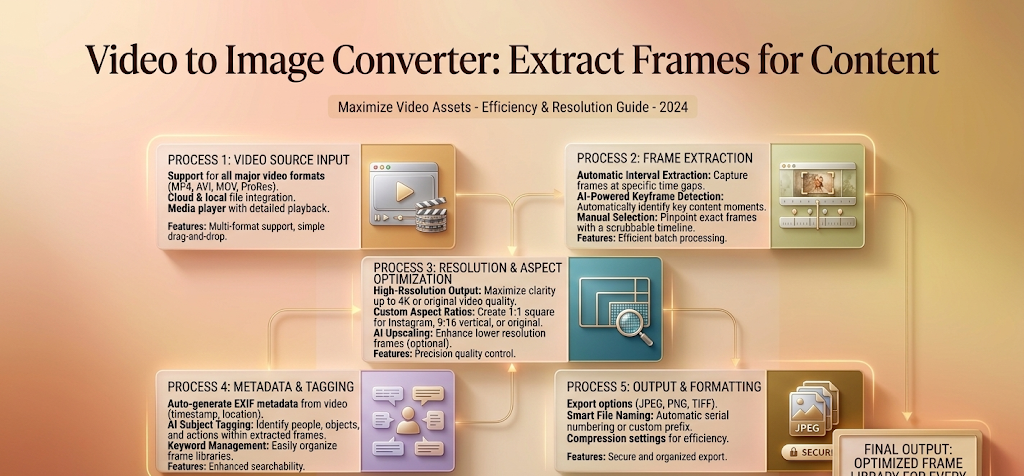
CrePal is built around a full video editor, and its timeline includes frame-level navigation. You open your video in the editor, drag the playhead to the rough timestamp, then use the arrow keys to step forward or backward one frame at a time. Once you land on the exact frame, you export it as a still.
Key details for this scenario:
- Resolution: CrePal exports frames at the source video’s resolution. Upload a 4K clip, and you get a 4K. No downscaling.
- Format: PNG and JPEG export options are available. PNG is the better choice for thumbnails — no compression artifacts, and you can bring it into Canva or Photoshop for text overlays without quality loss.
- Workflow: Upload → open in shot detail→ navigate timeline → frame-forward to exact moment → export as image. Four steps, no external converter needed.
What doesn’t work (and why)
The other tools in this space — Mage, Venice, BasedLabs, and PixelBunny — are primarily AI video generators. Their interfaces are built around prompt-to-video and image-to-video workflows. None of them include a built-in frame export feature.
- Mage generates short AI clips from text prompts. Its player shows the output, but there’s no timeline scrubber with frame-level control and no “export frame” button. You’d need to screen-record the playback and pull a still from the recording — which drops resolution and adds compression.
- Venice is focused on privacy-first AI image and video generation. Same limitation: generated video plays in a viewer, no frame export.
- BasedLabs专注于基于模板的AI视频创作,仅支持播放。
- PixelBunny是一款轻量级的 AI 视频剪辑器和片段生成器。您可以剪辑视频片段,但无法导出单个帧。
If you already subscribe to one of these for AI generation and occasionally need a still, the workaround is to download the video and run it through a separate frame extractor — FFmpeg on desktop, or CrePal’s free tier in the browser. But for the YouTuber scenario where frame extraction is the primary task, a tool without built-in export adds friction.
Scenario 2: The Social Media Manager Who Needs Batch Stills
You have a 90-second product demo video. The marketing team wants 12-15 stills from it — different angles, different moments — to use across Instagram, Twitter, and the weekly newsletter. You need to pull multiple frames in one session without exporting them one by one.
This is a batch extraction problem. The tool needs to let you mark multiple frames on a timeline and export them together.
What works: CrePal
CrePal’s batch frame export lives on the paid plans. The workflow:
- Upload the video to the editor.
- Scrub through the shot detail. Each time you find a frame worth keeping, you download it — CrePal lets you flag multiple downs on the same timeline.
For a social media manager pulling 12-15 stills from a single video, this turns a 20-minute task into roughly three minutes. The exported files are named sequentially by timestamp, which also makes it easy to match each still back to its moment in the source video — useful when someone asks “can we get a slightly earlier frame of shot 4?”
Free tier note: Batch export is a paid feature. The free plan allows single-frame export, which works for Scenario 1 but not for this volume.
What doesn’t work
Again, Mage, Venice, BasedLabs, and PixelBunny offer no frame export at all — single or batch. They are AI generation tools, not extraction tools. If you’re managing social content and working primarily with AI-generated clips from these platforms, your workflow becomes: generate video → download → open in a separate extraction tool → pull frames → use. Two extra steps per video.
Scenario 3: The Educator / Analyst Who Needs Frame-by-Frame Capture
This scenario is different from the first two. You’re not looking for one hero frame or a batch of social stills. You need to step through a video frame by frame and capture specific moments for documentation, analysis, or teaching — for example, a sports coach breaking down a technique, a UX researcher documenting a user test session, or a science educator pulling microscope footage frames for a slide deck.
AI generation is irrelevant here. You’re working with real footage, and the only thing that matters is precise frame-by-frame navigation plus reliable export.
What works: CrePal
The same frame-level timeline navigation that serves the YouTuber scenario applies here. For frame-by-frame analysis:
- Use the arrow keys to move one frame forward or backward.
- The timestamp display shows hours:minutes:seconds:frames, so you can note exact positions (e.g., “frame at 00:03:22:15”).
- Export each frame as you go, or — if you’re on a paid plan — mark all the frames you need and batch-export at the end.
For an educator building a slide deck with 30+ stills from a single video, batch marking saves significant time.
替代方案:FFmpeg(免费,命令行工具)
If you’re comfortable with a terminal and don’t need a browser-based tool, FFmpeg is the standard free option:
ffmpeg -i input.mp4 -vf "fps=1" output_%04d.pngThis extracts one frame per second. For precise frame selection, you use the -ss flag with a timestamp and -frames:v 1 to grab a single frame. It’s fast, free, and resolution-lossless. The trade-off: no visual timeline, no point-and-click navigation, and a steeper learning curve than a browser editor.
For the educator scenario, CrePal is the more accessible choice. FFmpeg is the power-user fallback when you need scriptable, repeatable extraction or are working with dozens of videos.
What doesn’t work
As in scenarios 1 and 2, Mage, Venice, BasedLabs, and PixelBunny don’t apply here. They’re designed for creating AI-generated video content, not for extracting stills from existing footage. If your workflow starts with “I have a video file and I need stills from it,” these tools don’t address that need.
How the Other Tools Fit (If at All)
To be clear about what these tools do and don’t do, here’s a short summary of each, focused specifically on their relationship to video-to-image workflows.
Mage is an AI video generator with strong prompt-to-clip capabilities. If you generate a short AI clip inside Mage and then need a still from it, you’re better off downloading the clip and pulling frames in CrePal or FFmpeg. Mage’s internal player doesn’t export frames. It’s a powerful tool for AI video creation, not for extraction.
Venice focuses on privacy-first image and video generation — no account required, no data retention. Like Mage, it generates video but doesn’t extract frames from it. If privacy is your primary concern and you’re generating AI visuals, Venice is worth a look. For the video-to-image step, pair it with a separate extractor.
BasedLabs offers template-driven AI video creation and an active community around sharing templates. If you’re building short-form AI clips from templates and occasionally need a still, you’ll need an external extraction step. The platform is built for creation and remixing, not frame capture.
PixelBunny is the lightest member of the group — quick AI video trimming, clip generation, and basic editing. It’s useful for fast social cuts but has no frame export feature. Think of it as a trimming tool, not an extraction tool.
The pattern across all four is the same: they’re AI video generators or editors, not video-to-image converters. If you’re already using one for generation, the practical path is: generate → download → extract frames elsewhere.
Which Scenario Matches You?
- You need one high-res frame for a thumbnail. Use CrePal’s free tier. Upload, navigate to the frame, export to PNG. Done in under a minute.
- You need 10-20 stills from one video for social content. CrePal , using batch frame export. The time saved over sing…
- You need frame-by-frame capture for analysis or teaching. CrePal for the visual timeline approach; FFmpeg if you prefer a scriptable command-line workflow.
- You’re already on Mage, Venice, BasedLabs, or PixelBunny for AI video generation. Stick with your tool for creation, but plan on downloading clips and extracting frames separately when you need stills.
The distinction that matters isn’t “which AI video tool is best.” It’s “does this tool have built-in frame export or not?” For the scenarios covered here, that’s the question that determines your workflow.