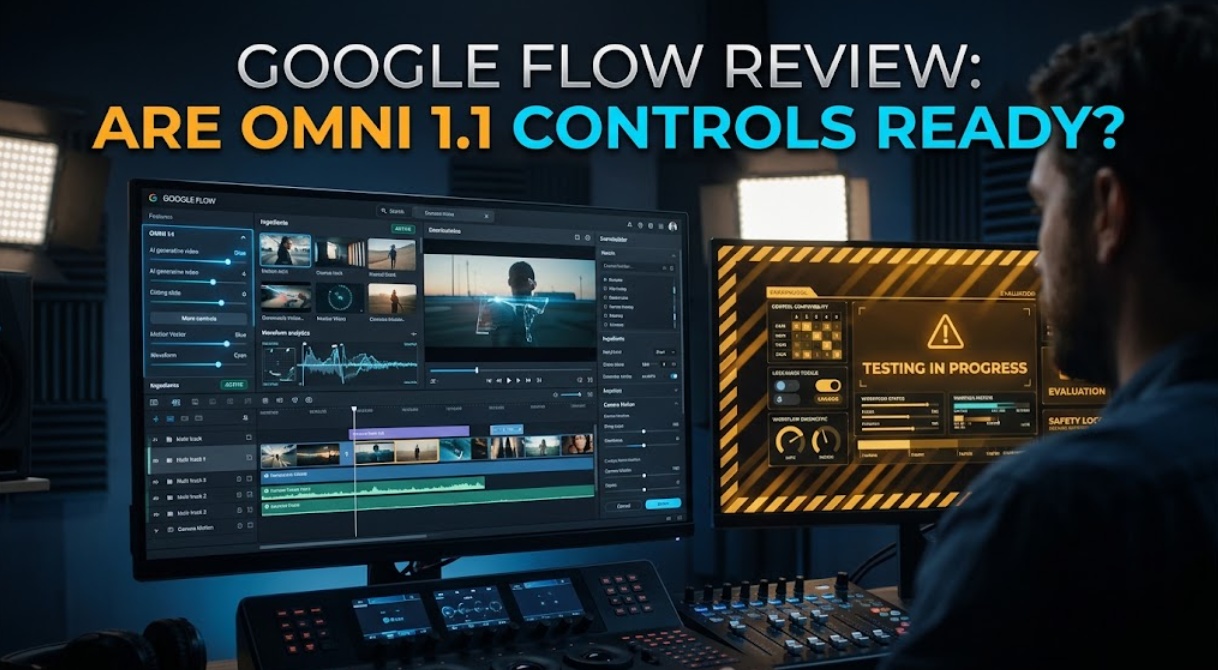
Editor’s & Motion Systems Review Note:
Google’s August 27, 2026 announcement introduced new creative controls to its experimental workspace, integrating the Omni 1.1 Flash model directly into Flow.
Source Verification & Ground Truth: This review evaluates Google Flow’s core updates based on official documentation from Google Labs (New Creative Controls in Google Flow and Google Labs Flow Workspace). The documented toolchain introduces dedicated start and end frame conditioning, rapid 360p draft generation, and final 1080p and 4K upscaled delivery.
Testing Scope & Practical Boundaries: Our lab tested a single controlled creative scenario: taking two pre-approved storyboard keyframes, generating a 360p preview bridge, reviewing the motion path, and running a final 4K export. While Google markets these updates toward professional creators, this review treats “production-ready” as a specific workflow milestone rather than an across-the-board claim. Undisclosed regional limits, waitlist tiers, and credit structures are noted as unconfirmed where official documentation remains silent.
Compliance Notice: Content generated within Google Flow embeds SynthID digital watermarking for provenance and synthetic media disclosure. This review does not constitute legal counsel.
When video directors hear that an AI platform is “production-ready,” they usually pause. In professional video editing, production-ready does not mean generating an impressive random video clip from text. It means making a shot do exactly what the storyboard requires, matching camera speed, and connecting smoothly to the next edit.
This Google Flow review tests that specific promise.
With the rollout of the Omni 1.1 Flash model update, Google added dedicated start and end frame slots, low-resolution 360p speed drafts, and high-resolution export pipelines.
Does this update give creators real control over motion bridges, or does it simply add extra steps to an unpredictable generation process?
Here is our practical review of taking one storyboard transition from initial keyframes to final export.
Quick Verdict for One Controlled Shot
If your project depends on connecting two approved images with a predictable camera move, Google Flow with Omni 1.1 controls is a real upgrade over standard single-image generators.
Being able to lock both the head and tail frames stops the visual drifting that ruined earlier AI video takes. The 360p draft mode returns in-between movement in roughly 8 to 12 seconds, letting you quickly verify whether the camera turns left or right before committing compute credits.
However, Flow is not a complete post-production suite. Mid-transition motion paths can still bend or stretch organic subjects unexpectedly. Furthermore, moving from a 360p draft to a 4K export can change subtle textures, meaning your approved draft is not always an exact pixel-for-pixel preview of your final deliverable.
What Changed in Google Flow
The Omni 1.1 Flash update redesigns how creators approach scene generation inside Google Flow, shifting the focus from text guesswork to keyframe direction.
Start and End Frames for Directed Transitions
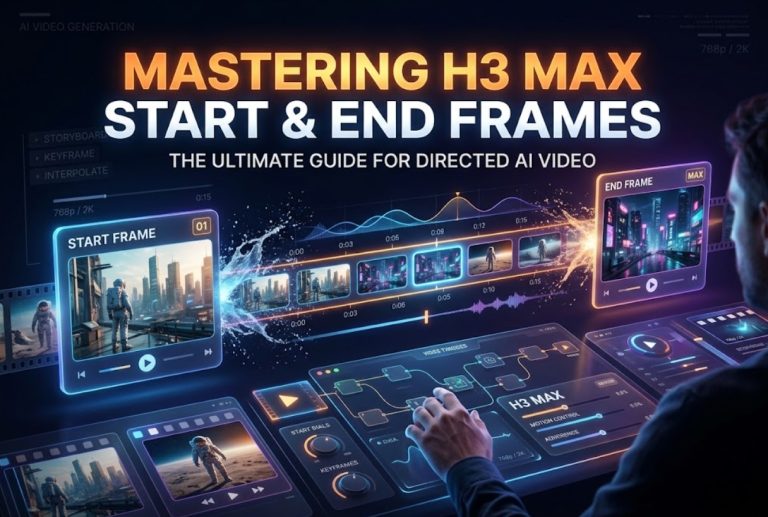
In earlier versions, creators uploaded a single starting image and typed a prompt hoping the camera would end in the right spot. Flow now provides explicit slots for both a starting frame and an ending frame.
The Omni 1.1 model calculates the camera trajectory and physical movement needed to connect Frame A to Frame B within a fixed clip length.
Low-Resolution Drafts and Higher-Resolution Output
Rendering high-resolution video just to check camera direction wastes time and compute resources. Flow addresses this problem by separating composition from delivery:
- 360p Draft Previews: Low-resolution previews render in under 15 seconds. They let you check camera speed, character blocking, and basic continuity before running full renders.
- 1080p and 4K Upscaled Exports: Once you approve the draft’s motion arc, Flow runs an upscaling and detail pass to output high-resolution video files suitable for timeline assembly.
Evaluate One Storyboard-to-Shot Workflow
To see how these controls work in practice, we set up a common commercial transition: moving from a wide establishing shot of an urban coffee kiosk to a tight product shot of an iced drink.
Prepare Two Approved Keyframes
Control begins before you touch the prompt bar. Both keyframes must share consistent lighting directions, color palettes, and subject scales.
If Keyframe A features warm morning sunlight and Keyframe B features flat overcast lighting, the model will struggle, creating an odd color shift in the middle frames.
Draft, Review, and Upscale One Transition
Once you upload your two keyframes, the workflow follows three simple steps:
- Drafting at 360p: You write a directional prompt describing the camera path, such as “slow push-in tracking shot moving past foreground foliage to center on the beverage.” You trigger the draft preview.
- Checking the Motion Arc: You review the 360p playback. You look for sudden character warping or camera jerks. If the camera spins instead of pushing forward, you adjust the prompt text and re-render the draft in seconds.
- Final Export Pass: Once the camera move matches the storyboard, you select the high-resolution export setting to generate clean 1080p or 4K files.
Assess Control and Revision Quality
Testing a transition workflow requires judging two things: how well the motion connects your storyboard, and how closely the final export matches your approved draft.
Check the Motion Bridge Against the Storyboard
The Omni 1.1 model connects rigid objects—like buildings, vehicles, and packaged goods—exceptionally well. In our coffee shop test, tables and signage held their shape smoothly throughout the camera move.
However, organic movement remains tricky. If a person in Keyframe A has their hand at their side and in Keyframe B is holding a cup, the model sometimes morphs the hand through the cup rather than showing a natural reach.
Track What Changes Between Draft and Export
While the 360p draft gives you quick feedback on camera direction, the high-resolution pass does not simply resize the video.
During the upscale pass to 4K, the model adds high-frequency details. This pass usually sharpens brick textures and glass reflections nicely, but it can occasionally alter facial expressions or introduce minor fabric buzzing that was invisible in the blurry 360p preview.
Production Gaps the New Controls Do Not Resolve
Despite these useful updates, Google Flow still has clear boundaries that prevent it from replacing a dedicated video editor:
- No Mid-Frame Trajectory Control: You can set the start and end points, but you cannot set a specific midpoint keyframe to guide an S-curve camera path.
- Variable Motion Timing: You cannot easily tell the model to hold still on Frame A for two seconds before beginning its move; motion starts almost immediately.
- Inflexible Rerolls: If a 4K export has an artifact in the final half-second, you cannot patch just that section. You must re-run the entire shot.
When organizing multi-shot commercial sequences where scripts, visual prompts, and model iterations must stay aligned across teams, creators often coordinate their drafts in tools like CrePal. Within CrePal, creators organize scene-by-scene script beats and test storyboard prompts across models before committing to final rendering passes.
Who Should Consider Google Flow Now
Google Flow with Omni 1.1 is an excellent fit for specific creator workflows:
- Commercial Storyboard Artists: Directors and pitch teams who need to turn two static pitch frames into a moving animatic for client presentations.
- Social Content Creators: Solo video creators who want fast camera transitions between clean product stills.
- Visual Effects Pre-Vis Teams: Filmmakers testing whether two camera setups can cut together smoothly before hiring camera crews.
However, if your scenes feature complex character interactions or fast dialogue, standard storyboard workflows will still require traditional shooting or manual digital animation.
FAQ
Can Flow duplicate a scene without rerunning generation?
No. Duplicating an existing scene node creates a new generation branch, but any changes to prompt parameters or seed settings require a fresh inference run.
Can two versions of one shot be viewed side by side?
Not within the native Flow playback interface. To compare two different takes side by side, you must export both MP4 files and view them in a third-party video player or your video editing timeline.
Does Flow record the exact Omni version used for each shot?
Current workspace project logs do not display immutable public version tags for each generation. They note general model family settings, but do not provide detailed model build numbers in the clip metadata.
Can a selected shot be locked against accidental regeneration?
There is no dedicated “lock” button on individual canvas nodes. Creators should immediately download approved takes to local storage to avoid accidental re-rolls.
Does Flow warn when an older project opens under a newer model?
The interface does not show a model migration banner when older canvas boards are loaded. If model checkpoints are updated on the backend, generating new variations on older boards may produce slightly different motion characteristics.
Conclusion
The Omni 1.1 Flash update moves Google Flow in the right direction. By replacing open-ended text prompting with dedicated start and end frames, it gives creators a predictable way to bridge storyboard stills. Combined with quick 360p previews, it saves hours of wasted waiting time.
Flow does not solve every production challenge—organic limb movement still warps occasionally, and 4K upscaling can shift subtle textures.
However, for short commercial transitions and animatic pre-visualization, these new creative controls make Google Flow a practical tool for turning static boards into moving scenes.