Editor’s & Operational Methodology Note :
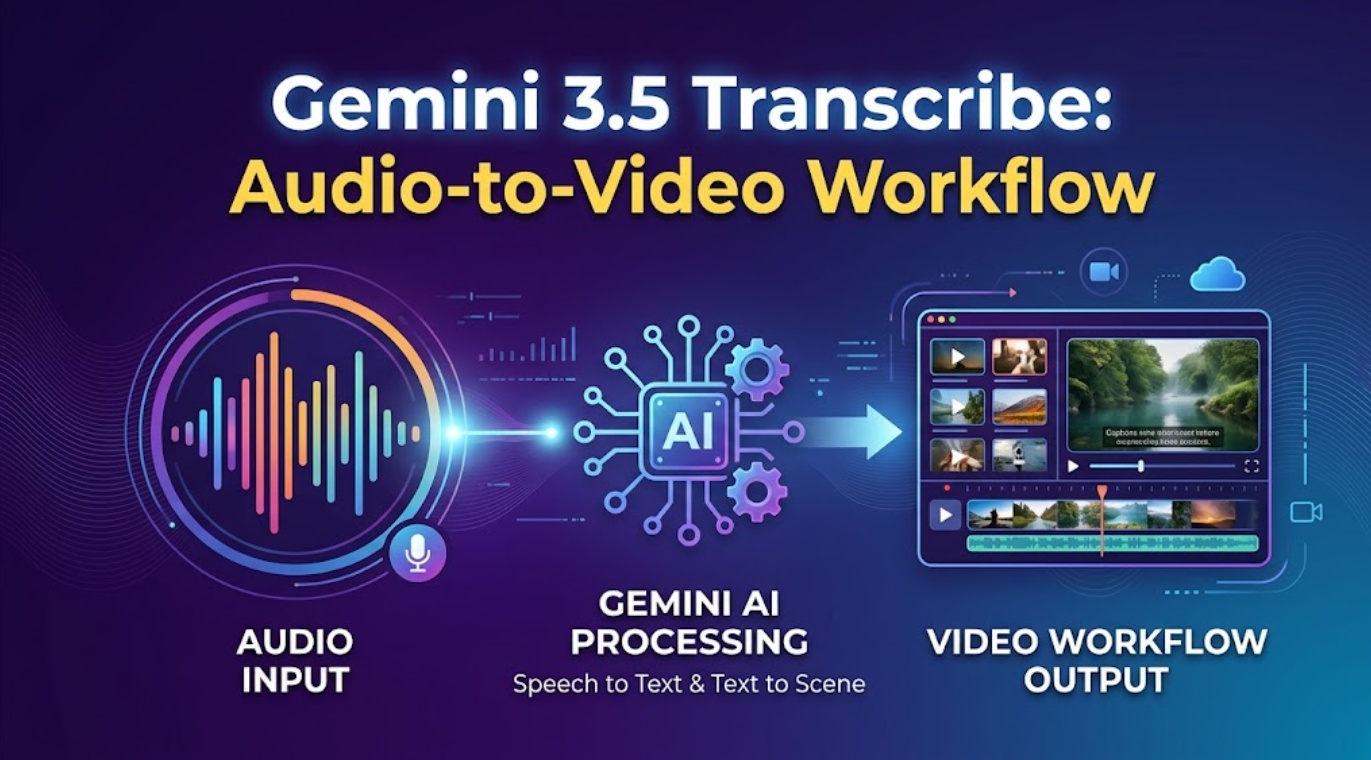
Repurposing long-form audio—such as technical podcasts, keynotes, client webinars, and executive interviews—into engaging video assets is often bottlenecked by manual timestamp logging and erratic speaker tracking. To prevent production errors, creative teams must recognize a fundamental architectural boundary: Google’s Gemini 3.5 Transcribe is strictly a dedicated speech-to-text (STT) inference endpoint; it does not generate storyboards, render video frames, or construct visual scenes. This procedural SOP establishes a disciplined operational chain: processing long-form audio through Gemini 3.5 Transcribe, auditing word-level timing and speaker labels, translating verified dialogue into structured scene briefs, and handing off approved assets to an AI Director environment like CrePal for timeline assembly.
Turning a 45-minute audio recording into punchy explainer videos or episodic social cuts usually stalls during pre-production. Creators waste hours manually scrubbing waveforms to find exact soundbites, matching speaker voices to script lines, and manually synchronizing subtitle tracks.
The launch of Gemini 3.5 Transcribe across the Google AI for Developers platform provides a robust foundation for automated dialogue processing. By delivering native speaker diarization, millisecond word-level timestamps, and custom vocabulary biasing, the endpoint extracts clean linguistic structure from raw audio stems.
However, speech-to-text models cannot plan visual composition or edit video. The following operational workflow details how to ingest raw audio, clean the transcript, build structured scene briefs, and coordinate downstream video generation.
Define One Long-Form Video Output
Before calling an API or uploading multi-gigabyte audio stems, you must define the target deliverable. Attempting to convert an entire one-hour interview into video at once results in narrative incoherence and bloated GPU compute costs.
| Deliverable Scope | Audio Extraction Strategy | Target Video Format |
| Narrative Explainer | 2–3 minute self-contained technical argument | 16:9 Landscape (YouTube / Desktop Web) |
| Social Highlight Clip | 30–60 second dynamic hook with key takeaway | 9:16 Vertical (TikTok / Reels / Shorts) |
| Executive Case Study | Multi-speaker debate or Q&A exchange | 1:1 Square or 16:9 Presentation Deck |
Choose the Audience, Format, and Source Recording
Isolate a single audio segment that answers a specific audience question. Ensure your source file is exported as an uncompressed linear PCM .WAV or high-bitrate .MP3 (minimum 128 kbps, mono or stereo). If pulling audio from recorded Zoom calls or webinar archives, run a noise-reduction pass to remove room reverb before transcription.
Mark Sections That Need Human Approval
Identify compliance boundaries before processing. Any spoken section that references:
- Legal claims, revenue figures, or performance guarantees;
- Specific individuals whose visual likeness or voice requires formal consent;
- Proprietary product roadmaps or unannounced feature sets;
- must be tagged for mandatory editorial sign-off prior to visual generation.
Transcribe the Audio With Editorial Metadata
Staging audio through Gemini 3.5 Transcribe requires passing explicit configuration parameters to extract structural post-production metadata rather than flat, unstructured text.
Bash
# Example cURL request configuring Gemini 3.5 Transcribe with editorial metadata
curl -X POST "https://generativelanguage.googleapis.com/v1beta/models/gemini-3.5-transcribe:generateContent?key=${GEMINI_API_KEY}" \
  -H "Content-Type: application/json" \
  -d '{
    "contents": [{
      "parts": [
        {"file_data": {"mime_type": "audio/wav", "file_uri": "https://generativelanguage.googleapis.com/v1beta/files/SAMPLE_AUDIO_URI"}},
        {"text": "Transcribe this technical interview. Enable speaker diarization, word-level timestamps, and smart capitalization."}
      ]
    }],
    "generationConfig": {
      "speech_config": {
        "voice_turn_detection": true,
        "phrase_biasing": ["CrePal", "Breeze TTS 2", "MiniMax H3", "CUDA Graph"]
      }
    }
  }'
By injecting phrase_biasing, you prevent the acoustic decoder from misinterpreting brand names and proprietary technical terminology.
Clean the Transcript Before Visual Planning
Never feed raw automated speech output directly into a visual generation engine. A human editor must conduct a fast verification pass over the returned JSON payload.
| Review Layer | Common Acoustic Failure | Operational Human Fix |
| Entity Spelling | Misinterpreted technical terms or brand names | Check flagged terms against the project glossary. |
| Speaker Attribution | Overlapping voices assigned to a single speaker ID | Split dialogue blocks and assign explicit speaker names. |
| Punctuation & Cadence | Run-on sentences caused by conversational pauses | Insert periods and commas to establish natural scene boundaries. |
Correct Names, Claims, and Speaker Boundaries
Audit speaker transitions. If Speaker_0 and Speaker_1 converse in rapid back-and-forth banter, ensure conversational turns are cleanly separated. Verify that numerical claims (e.g., “$1.4 million”) and individual names match project documentation.
Keep Timestamps Linked to Approved Text
Maintain the structural linkage between the verified text and the original millisecond timestamps (start_time / end_time). Stripping timestamps turns your transcript into a static document, forcing downstream editors to manually re-align audio transients inside the editing timeline.
Turn Approved Segments Into Scene Briefs
Once the dialogue transcript is verified, translate spoken paragraphs into modular visual scene briefs. Each brief defines the visual narrative that supports the spoken narration.
┌────────────────────────────────────────────────────────────────────────┐
│                   Transcript-to-Scene Conversion Map                   │
├────────────────────────────────────────────────────────────────────────┤
│ TIMESTAMPS: 00:01:14.200 ──► 00:01:21.800 (Duration: 7.6s)             │
│ SPEAKER: Dr. Aris (Lead Architect)                                     │
│ DIALOGUE: "By moving the inference pipeline to compiled CUDA graphs,   │
│           we cut Time to First Audio from 140 milliseconds to 40."     │
│                                  │                                     │
│                                  ▼                                     │
│ SCENE BRIEF 03 (Visual Staging):                                       │
│ • Shot Type: Macro 35mm tracking push-in on server rack telemetry      │
│ • On-Screen Text: "140ms ➔ 40ms Latency Reduction"                     │
│ • Visual Subject: Clean data center corridor, glowing emerald status   │
└────────────────────────────────────────────────────────────────────────┘
This structural translation establishes clear visual intent for every audio beat, preventing generative models from producing irrelevant B-roll.
Build and Review the Video Draft
Because Gemini 3.5 Transcribe outputs text rather than pixels, creators hand off the approved scene briefs and timecoded audio stems to a dedicated video orchestration platform like CrePal.
Within CrePal’s AI Director workspace, the production pipeline comes together:
- Scene-by-Scene Ingestion: Approved dialogue snippets and their scene briefs are imported directly into the storyboard timeline.
- Visual Generation Steering: CrePal coordinates downstream foundation video models (such as MiniMax H3, Luma Ray, or Google Veo) to synthesize matching visual B-roll that adheres strictly to the camera trajectories outlined in each scene brief.
- Temporal Locking: The generated visual takes are dynamically locked against the original spoken audio stems, ensuring visual cuts align with the speaker’s vocal downbeats.
Package Captions, Sources, and Edit Notes
The final step is assembling the verified asset package for publishing or handoff to a master non-linear editor (Premiere Pro, DaVinci Resolve):
| Package Deliverable | Technical Formatting | Operational Role |
| Synchronized Captions | UTF-8 .SRT or .VTT file derived from word timestamps | Frame-accurate on-screen subtitles and accessibility tracks. |
| Dialogue Stem | 48 kHz / 24-bit linear PCM .WAV container | Master dialogue track aligned to the project timeline origin. |
| Video Cut Draft | 1080p / 4K MP4 generated via downstream director | Assembled multi-scene animatic or finalized social explainer. |
| Edit Decision Notes | CSV marker list with speaker IDs and cut points | Provides manual editors with timecoded logging and chapter boundaries. |
FAQ
Can Gemini preserve chapter markers from long-form source audio?
The transcription API does not automatically parse embedded ID3 chapter tags from audio containers. However, you can instruct the prompt layer to identify natural topic shifts and output estimated timestamped chapter headings based on conversational content.
Can Gemini 3.5 Transcribe identify non-speech sound events?
Gemini 3.5 Transcribe focuses primarily on linguistic decoding. While it can transcribe explicit vocal utterances (like laughter or audible pauses), dedicated acoustic event detection (such as distinguishing door slams, applause, or ambient traffic) is not exposed as a formal classification parameter in the base STT endpoint.
Can one transcript feed several platform-specific video cuts?
Yes.Because the transcript preserves absolute word-level timestamps, you can isolate multiple sub-segments (e.g., a 30-second vertical cut for TikTok and a 3-minute horizontal explainer for YouTube) from a single master transcription JSON file.
Does Gemini accept embedded audio from uploaded video files?
Yes. Through the Gemini Files API, you can upload video containers (such as .MP4 and .MOV). The service automatically strips and processes the internal audio stream without requiring manual audio demuxing beforehand.
Can teams reuse Gemini vocabulary lists for recurring shows?
Yes.Phrase biasing arrays (custom dictionaries) can be modularly saved in your client application code and injected into every API call for recurring podcasts or technical series to ensure consistent terminology handling.
Conclusion
The Gemini 3.5 Transcribe video workflow bridges the gap between unstructured spoken audio and structured visual production. By utilizing Gemini’s specialized acoustic decoding to generate speaker-diarized, word-level timestamped transcripts, creators eliminate the tedious manual friction of audio logging.
Connecting this verified text to structured scene briefs and downstream AI Director platforms like CrePal allows video teams to systematically repurpose podcasts, webinars, and interviews into broadcast-ready video content with full narrative consistency and temporal precision.