Editor’s & Video Post-Production Note:
Transparency & Ground Truth Disclosure: This guide compares two specific video workflows in Pika’s creation suite: Camera Director and Motion Transfer. Pika officially hosts these dedicated specialized web apps at create.pika.art/apps/camera-director and create.pika.art/apps/motion-transfer. Camera Director re-shoots an existing continuous video clip by altering camera framing and camera trajectories.Motion Transfer animates a static character photo by driving its movement from a source video clip.
This comparison evaluates input requirements, production targets, and inspection criteria for a single shot. It does not rank overall platform video quality or compare pricing tiers. All uploaded character images and reference videos must have verified usage rights. This article does not constitute legal or licensing advice.
Source Verification & Official Documentation:
Pika App Specifications: Verified against Pika’s official web interfaces (Pika Camera Director and Pika Motion Transfer). Confirmed native behaviors: Camera Director requires one existing video clip (recommended 4–10 seconds) to render alternate shot framing (from extreme wide to close-up) and camera moves. Motion Transfer pairs one character photo with one driving video clip to transfer physical motion and facial performance, offering an optional toggle to retain the driving clip’s original audio track.
CrePal Video Workspace: Documented at CrePal Video Workspace as a video-first AI Director framework that coordinates multi-angle shot lists, character reference anchoring, and timeline assembly across external generative engines.
When editing a short commercial or narrative sequence, you will often find that a single shot on your timeline does not work.
Perhaps your actor delivered a great performance, but the framing is too wide to show their facial reaction. Or the camera movement is steady, but your character’s movement looks awkward, stiff, or off-beat.
In earlier AI workflows, fixing either problem meant starting completely over from a text prompt. You lost the original actor, the lighting, and the setting.
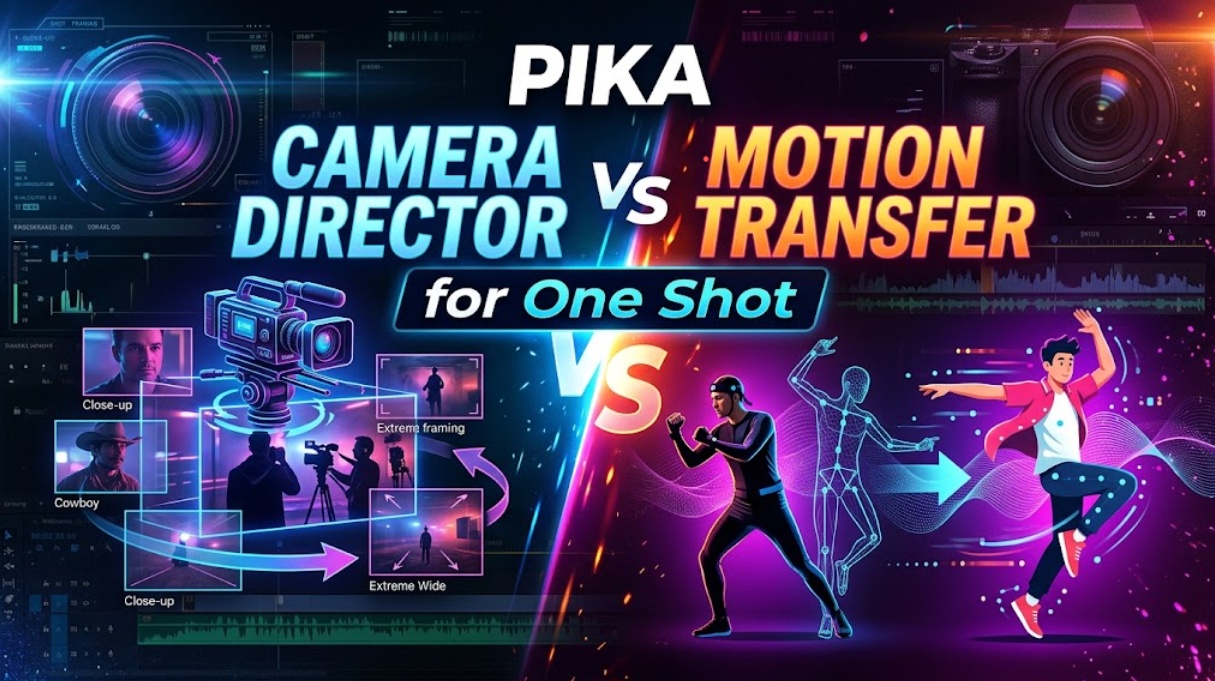
Pika offers two dedicated apps to solve this single-shot bottleneck: Camera Director and Motion Transfer. While both tools change how an existing shot behaves, they solve opposite production problems.
Here is how to pick between Pika Camera Director and Motion Transfer, verify your inputs, and check your generated assets before cutting them into your final edit.
Quick Choice for One Existing Shot
When you need to fix a single shot, base your decision on what needs to change:
- Choose Camera Director if your scene performance, lighting, and subject action are already correct, but you need a different perspective. It keeps the original scene activity while generating a new camera angle—such as a close-up, an extreme wide view, or an orbital pan.
- Choose Motion Transfer if you have a specific character design that needs to perform a complex physical movement. It transfers the body motion, gestures, and pacing from a reference video clip onto a static character portrait。
If the camera is in the wrong place, pick Camera Director. If the character is moving the wrong way, pick Motion Transfer.
What Input Does Each App Need?
Each app relies on a different set of visual starting assets. Preparing clean input files ensures the engine renders stable results without digital warping.
Camera Director starts from a clip
Pika Labs AI
Camera Director requires a single, continuous video clip as its sole primary input.
For reliable results, feed the app a clip between 4 and 10 seconds long that contains no internal cuts.The app needs to see clear spatial depth and recognizable objects to calculate a realistic alternate angle.
Once your clip is uploaded, you select a target shot framing card (such as Medium, Close-Up, or Cowboy shot) and choose a camera trajectory (such as static hold, pan, or tilt).
Motion Transfer pairs a character image with a move
Pika
Motion Transfer requires two distinct assets working together:
pikalabstudio.com
- A Character Image: A high-resolution photo or portrait of your subject.The image should show the character against a clear background with readable body posture and clear facial features.
- A Motion Reference Clip: A video clip featuring the exact physical action you want the character to replicate—such as a specific dance step, a combat swing, or a brisk walk.
The reference clip acts as a performance skeleton, guiding the character image through the action frame by frame.
What Changes in the Result?
Understanding which visual parameters the model alters helps you set realistic expectations for your cut.
Framing and camera movement
Pika Labs AI
When you run a clip through Camera Director, the environment, subject wardrobe, and broad action remain anchored to the original scene.
Pika Labs AI
What changes is the camera coordinate and lens perspective. Selecting a close-up crops into the scene and calculates fine facial details.() Selecting an extreme wide shot prompts the model to expand the outer edges of the room or landscape while keeping the subject positioned correctly.
The action timing stays locked to the original video.
Character performance
Motion Transfer keeps your character’s visual identity—hair, clothing, facial structure—while completely replacing their movement.
The character in the still photo adopts the posture, head turns, limb positioning, and facial expressions seen in the reference clip. The camera angle and environment are largely dictated by how the motion reference clip is framed.
The character performs the action beat for beat, matching the tempo of the driving footage.
What Should You Check Before Cutting?
AI video tools can introduce small visual glitches when re-rendering movement. Inspect your rendered clips before bringing them into your editing timeline:
- Inspect Edge Stability: Look closely at the boundaries where the character meets the background. In Camera Director, check whether wide-angle expansions cause wall textures or background horizons to bend unnaturally. In Motion Transfer, check whether rapid hand or foot movements cause limbs to blur or disconnect from the torso.
- Verify Facial Likeness: In Motion Transfer, ensure the character’s facial features stay recognizable during expressive dialogue or fast head turns, rather than morphing into the face of the actor in the driving clip.
- Review Spatial Scale: When using Camera Director to pull back into a wide shot, check whether props and furniture maintain realistic proportions relative to your actor.
Once you verify your raw outputs, organize them inside a unified production timeline.
When producing multi-scene commercials or short films where camera angles, character references, and prompt revisions must stay aligned across a team, creators coordinate their assets in tools like the versatile CrePal workspace. Within CrePal, creative teams can map approved Camera Director angles and Motion Transfer takes to specific scene cards, attach camera motion prompts, and build an editable video draft ready for final post-production finishing.
FAQ
Can I save a Camera Director angle as a separate file?
Yes. Every new camera angle generated through Camera Director renders it as a standalone video asset.() You can preview the generated shot in your project dashboard and download it as an independent MP4 file to use as alternate B-roll or coverage in your video editor.
Does Motion Transfer keep the source clip’s sound?
Yes, Motion Transfer includes an optional audio retention control. If your driving reference clip contains dialogue, music, or practical sound effects that match the physical performance, you can toggle audio inclusion on during generation to keep the sound synced with the rendered video.
Can Camera Director keep the same product label readable?
Only if the label was clear in the original clip and the new angle remains close enough to resolve text. Extreme perspective changes or wide-angle re-shoots often soften fine typography. For hero packaging shots where brand logos must stay crisp, combine Camera Director with dedicated image-anchored workflows like the Pika Product Ad app.
Can a Pika Character Studio image be used in Motion Transfer?
Yes.() You can generate or refine a character portrait inside Pika’s Character Studio, download the approved character sheet or still, and upload that exact image into Motion Transfer as your character reference. This helps maintain character continuity across multiple action shots.
10X AI Expo
Are commercial rights the same for both app outputs?
Commercial rights in Pika are tied to your overall account subscription plan rather than the specific app tool used.Paid tiers (such as Creator or Pro plans) include commercial usage licenses for generated video outputs. In all cases, you must possess full legal rights or explicit consent for any uploaded face photos, character designs, or driving video clips.
Conclusion
Choosing between Pika Camera Director and Motion Transfer comes down to identifying which creative element on your timeline needs fixing.
If your actor gave the right performance but the scene needs better visual coverage, cutting back and forth, or an intimate close-up, use Camera Director to reshoot the camera angle.() If your visual setup is solid but your character needs to execute a complex, rhythmic, or athletic movement, use Motion Transfer to drive their performance from a reference video.
Treating both tools as specialized correction passes—rather than generic video generators—gives you precise editorial control over every individual shot in your film.