Editor’s & Commercial Video Production Note:
Transparency & Ground Truth Disclosure: This guide covers a creator-led production method for planning and generating short product videos using Pika’s ChatGPT integration and specialized creation apps. Pika officially provides conversational video workflows through its ChatGPT integration and dedicated interfaces such as the Product Ad app. These tools generate standalone video clips from product images, reference clips, and text briefs.
They do not automatically assemble a multi-scene commercial, balance multitrack audio, or guarantee one-click final edits. The multi-shot shot plan, camera selection, and quality audits described below are creator-designed steps. CrePal is referenced strictly as an illustrative downstream AI Director workspace where teams organize approved clips, shot cards, and timeline conform drafts. This article does not constitute legal, copyright, or commercial licensing advice.
Source Verification & Official Documentation:
Pika ChatGPT Integration & App Suite: Verified against Pika’s official product interfaces and integration documentation (Pika ChatGPT Connector and Pika Product Ad App). Confirmed features include chat-driven video generation, prompt-conditioned clip rendering, image-to-ad transformation, and shot variations based on uploaded media. Official terms confirm that generation runs consume user account credits and require verified commercial subscriptions for client ad use.()
CrePal Video Workspace: Documented at CrePal Features as a video-first AI Director framework that coordinates scene-by-scene script breakdowns, shot list drafting, and revision handoffs across external generative video engines.
When marketing teams try to create an AI product video, the process often goes wrong before generation even begins.
A marketer opens a chat window, types “make a luxury watch commercial,” and hits generate. The AI returns a clip where the watch dial warps, the brand logo changes font, and the camera spins uncontrollably. Without an approved product brief and a clear shot list, conversational video generation becomes an expensive slot machine.
Using the Pika ChatGPT product film workflow offers a much more reliable path.
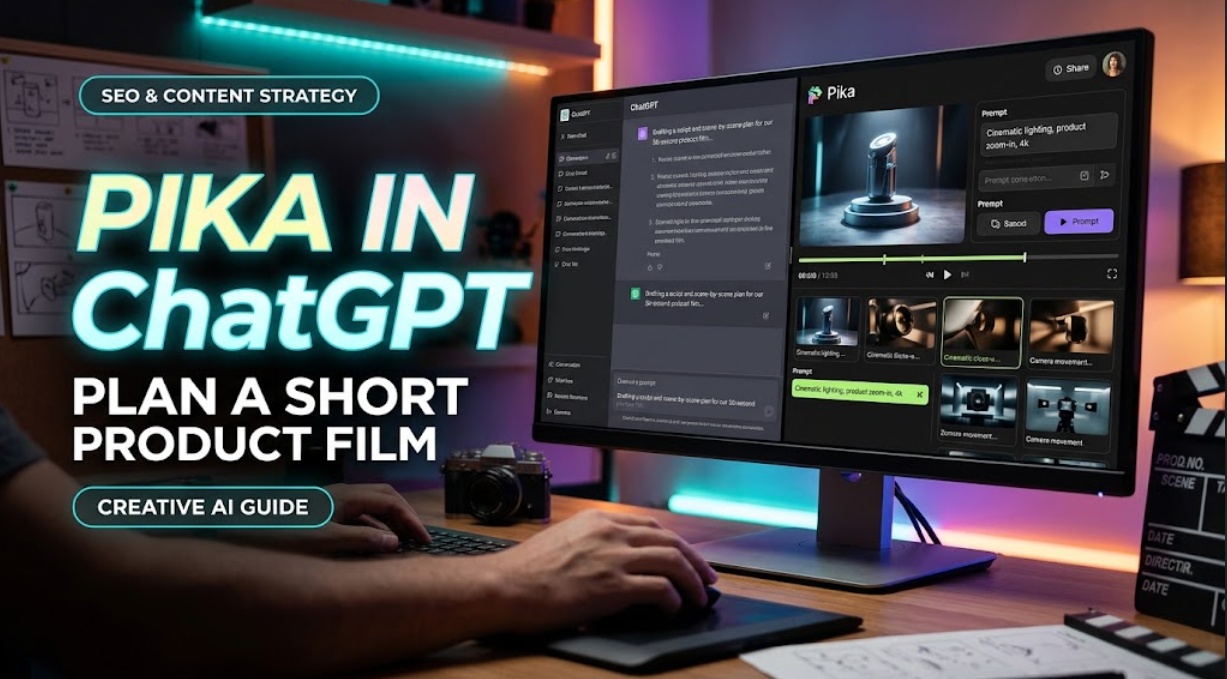
By connecting Pika’s generative video toolset inside ChatGPT, creators can draft technical prompts, trigger specialized generation apps, and produce product clips directly within their conversational workspace.
However, AI tools do not build finished commercials in one click. To make a film that actually sells a product, you must start with a focused brief, choose the right Pika generation method for each shot, and manually check your clips before editing.
Here is how to plan, generate, and review a short product film using Pika inside ChatGPT.
Start With One Product Film Brief
A successful commercial film is built around a single clear message. Before prompting Pika, define exactly what your product film needs to achieve.
Choose the product claim and audience
Never try to highlight five features in a 15-second product spot. Select one primary product claim that addresses a specific audience need.
For example, if you are advertising an insulated travel tumbler:
- The Audience: Commuters and outdoor weekend travelers.
- The Core Claim: 24-hour ice retention in extreme heat.
- The Emotional Tone: Rugged, premium, and reliable.
Having this claim locked in text gives your chat prompts a clear creative compass.
Select the shots the film needs
A clean product spot requires a tight three-to-four-shot progression. Instead of generating random clips, plan the exact visual beats your story needs:
- Shot 1 (Hero Establishing Shot): A wide or medium shot introducing the product in its natural environment (e.g., sitting on a hot vehicle dashboard in direct sun).
- Shot 2 (Macro Detail / Feature Proof): An extreme close-up showing the physical material, cold condensation beads, and etched logo.
- Shot 3 (Action / Dynamic Motion): A fast camera move showing the product in use, such as hands lifting the tumbler and taking a drink on a sunny ridge.
- Shot 4 (Hero Lockup / Payoff): A centered studio-style beauty shot with clean lighting, leaving room for on-screen text or a brand logo.
Choose the Pika App for Each Shot
Different shots require different generative inputs. Pika provides multiple specialized paths inside its ChatGPT integration and web workspace.() Picking the right tool for each shot saves time and preserves visual consistency.
A product ad from an approved product image
For your beauty shots and detail frames, use the dedicated Pika Product Ad workflow.
Text-to-video models often hallucinate product shapes and misspell brand names. The Product Ad app solves this by using your real, approved packshot as an image anchor.
- Upload a high-resolution, transparent PNG or clean studio photograph of your product.
- In ChatGPT, invoke the Pika integration: “Create a Product Ad clip using this uploaded tumbler image. Place it on a sunlit rock ledge with light dust motes floating in the air. Slow orbital camera motion around the container.”
- Pika preserves the physical geometry, color, and packaging details of your uploaded asset while animating the environment and lighting around it.
A new angle from an existing clip
When you need visual continuity between scenes, do not start from zero. Use an approved clip to generate your next camera angle.
If your Shot 1 camera move turned out well, feed that approved generation back into the chat as a reference. Ask Pika to shift the camera perspective: “Using this generated clip as a style and lighting reference, create a close-up tracking shot moving along the side of the tumbler from left to right.”
Iterating from existing assets keeps the lighting style, color temperature, and surface reflections consistent across your cut.
Review the Clips Before the Edit
AI video models rarely deliver flawless clips on the very first attempt. Before bringing files into your timeline, review every second of footage.
Check product identity and readable details
Inspect your generated video frame by frame, looking closely at your product:
- Logo and Typography: Did the brand name warp, blur, or turn into random gibberish?
- Edge Geometry: Does the product container hold a straight, rigid edge, or does it bend rubbery during camera moves?
- Material Integrity: Do metallic surfaces look reflective and solid, rather than melting into the background texture?
Any clip where the product itself looks distorted must be flagged immediately.
Mark shots that need a new take
Sort your generated outputs into three simple production buckets:
- Approved: The product looks sharp, the motion is steady, and the duration fits the edit plan.
- Usable With Cropping: The first two seconds look great, but the final second has artifacting. You can trim this shot in your video editor.
- Retake Needed: The camera moved too violently or distorted the product logo. Re-roll this shot with reduced motion intensity settings.
Once you have your approved takes, bring them together in an organized workflow. When managing multi-shot campaigns where product images, prompts, and shot lists must stay synchronized across teams, creators coordinate their files in tools like the versatile CrePal workspace. Within CrePal, creative teams can map approved Pika clips to individual storyboard beats, track prompt revisions, and build an editable video draft ready for final sound and color post-production.
FAQ
Does the Pika app in ChatGPT use my Pika credits?
Yes. Generations run through the Pika ChatGPT integration or MCP connector are linked to your Pika account and draw from your standard Pika credit balance.Verify your active plan tier and available credits before launching multi-clip batches.
Do generated assets appear in the Pika library when created in ChatGPT?
Yes. Generations created via the conversational integration sync automatically with your cloud Pika library. You can review, organize, upscale, or re-download your video clips from either the ChatGPT chat thread or your main Pika web workspace dashboard.
Which file types can I upload for the product image?
Standard web image formats, including PNG, JPEG, and WebP, are supported for product uploads. For optimal results in the Product Ad workflow, use a high-resolution transparent PNG or an isolated studio packshot on a clean white background to prevent unwanted background artifacts.
Can I download separate clips for timeline editing?
Yes. Each completed generation can be downloaded as an individual, unwatermarked MP4 video file on eligible plans. You can import these individual clip files directly into Premiere Pro, DaVinci Resolve, or Final Cut Pro for final trimming, color matching, and sound design.
What happens to uploaded product images after generation?
Uploaded media files are stored within your private project assets inside your Pika account to allow for prompt iterations and rerolls. However, platform data retention policies and commercial usage rights depend on your active subscription tier.Always review Pika’s current Terms of Service and Privacy Policy before submitting confidential or unreleased product designs.
Conclusion
Creating a compelling commercial with Pika in ChatGPT is about production discipline, not prompt magic.
By defining a single product claim, mapping out a four-shot storyboard, and anchoring your visuals with the dedicated Product Ad workflow, you keep your brand’s physical identity intact.
Treating each generated video clip as a raw take—auditing edge stability and assembling approved clips on a structured timeline—ensures your final product film looks intentional, professional, and ready to convert customers.