Hey guys, I’m Dora. This all started with a tutorial clip I filmed six months ago. Good footage, solid lighting—except someone (me, obviously) had baked in some subtitles that were now completely wrong. I needed them gone. Not blurred. Not cropped out. Gone.
So I went down the rabbit hole. Tested every free AI tool I could find that claimed to remove text from video. And here’s what I learned: some of them actually work. Most of them… don’t. And a few will quietly ruin your footage while telling you everything looks great.
This guide covers:
- What’s actually possible in 2026
- The best free AI tools to remove text from video
- When AI fails (and what to do instead)
Burned-in text vs. soft subtitles
This is the distinction that trips up most people—and it matters a lot before you pick a tool.
Soft subtitles (also called closed captions) are a separate layer. They’re stored as an SRT file or a subtitle track inside the video container. You can turn them off in a media player, strip them in a basic editor, or just delete the .srt file. No AI required. Honestly, if this is your situation, just open VLC or Handbrake and you’re done in two minutes.
Burned-in text is a different beast. This is text that’s been rendered directly into the video frames—the same pixel layer as your actual footage. Subtitles that came baked in from an export, watermarks from stock platforms, timestamps from a camera, lower-thirds from a past edit, or hardcoded captions from social media platforms. There’s no separate track to delete. The text is the video, frame by frame.
This is where AI tools come in—and also where things get genuinely complicated.
Other types you’ll commonly run into:
- Watermarks and logos — usually semi-transparent branding in a corner
- Timestamps and date overlays — camera-generated, typically in a fixed position
- Lower-thirds and titles — animated or static, often spanning 30–60% of the frame width
- Dynamic annotations — moving callouts or pop-up labels that track with the footage
The cleaner and more static the text, the better your results will be. That’s not me hedging—it’s just physics.
Can AI Really Remove Text from Video?
Short answer: yes, with conditions.
The underlying technology is called video inpainting. The AI analyzes the pixels around the text area, figures out what the background probably looks like underneath, and reconstructs it—frame by frame, across the whole clip. When it works, it’s almost magical. When it doesn’t, you get a blurry smear or a flickering patch that’s somehow more distracting than the original text.
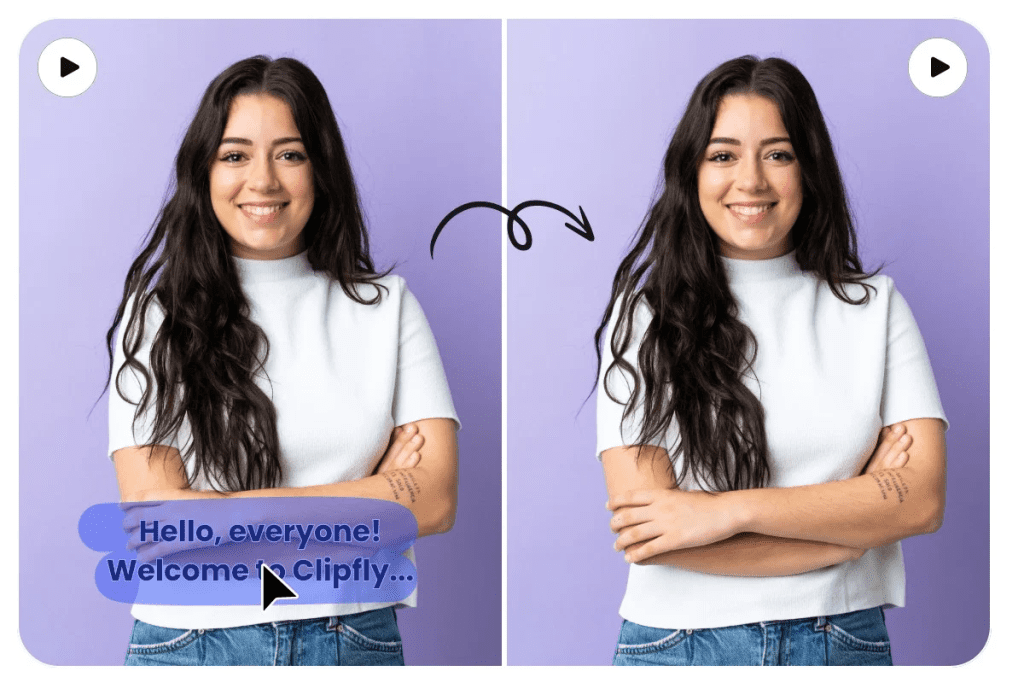
Research published in Artificial Intelligence Review on transformer-based video inpainting describes the core challenge well: video is fundamentally harder than images because the reconstruction has to stay temporally consistent. One slightly wrong frame in the middle of your clip creates a visible flicker. The AI isn’t just painting once—it’s painting thousands of times and making sure each frame agrees with the ones before and after it.
Modern tools have gotten genuinely good at this. The results on simple cases (static text on a clean background, short clips) are often clean enough that you’d never know the text was there. But “good at this” doesn’t mean “perfect at everything,” and I’ll get into the failure cases in a bit.
Best Free Tools to Remove Text from Video
Tool 1 — Vmake AI (Browser-Based, Best for Burned-In Subtitles)

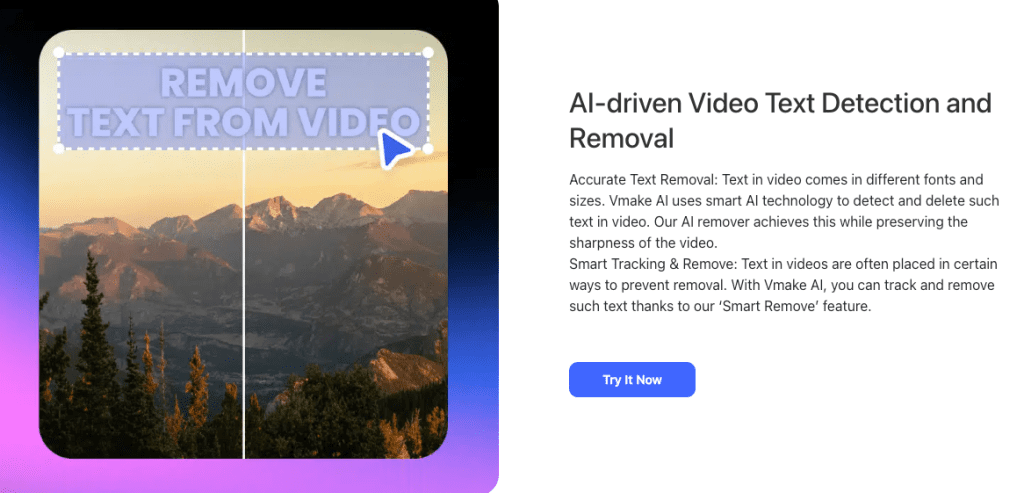
Vmake’s text removal tool is where I’d send someone who needs this done today, without installing anything or reading a manual.
Upload your file (MP4, MOV, AVI, MKV supported, up to 2GB on the free plan), and the AI scans it frame-by-frame. It auto-detects watermarks, hardcoded subtitles, timestamps, and overlays. You get three options: Smart Remove (clears both watermarks and text), Remove Watermark only, or Remove Subtitles only. Preview before downloading.
The free tier lets you process videos and download the first five seconds at no cost. Downloading full-length videos requires credits. For most people who just need to check if the tool actually works on their footage, the preview alone is worth the two-minute upload time.
What it’s good at: Hardcoded subtitles in a consistent position, watermarks in corners, timestamps. It genuinely handles these better than I expected—multiple user reviews mention it outperforming competitors specifically on “baked subtitles.”
Where it struggles: Animated text that moves across the frame, text sitting directly on a face or detailed texture, and any text over a busy, constantly-shifting background.
My experience: I ran my broken tutorial clip through it. The subtitles were at the bottom of the frame over a relatively plain background. The result was clean—not perfect if you zoomed in to 200%, but absolutely fine for publishing. Processing took about four minutes for a 90-second clip.
Tool 2 — Fotor Video Text Remover (Browser-Based, Good for Shorter Clips)
Fotor’s video text remover uses a brush-based selection approach. Instead of auto-detecting everything, you paint over the text you want removed and let the AI figure out what belongs underneath.
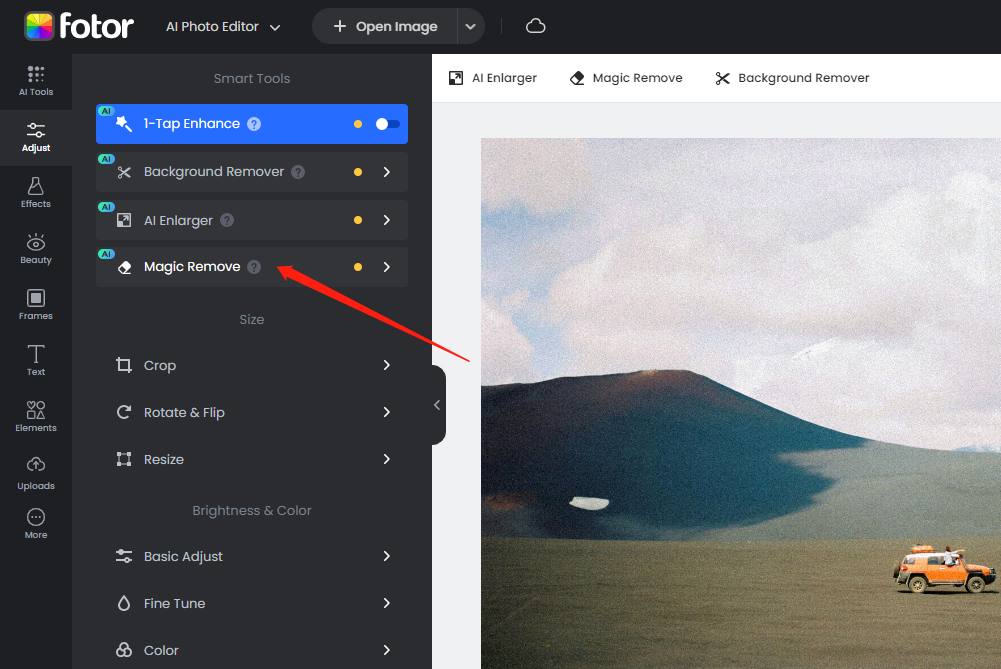
This gives you more control—you decide exactly what gets erased, which means you’re less likely to accidentally remove something you want to keep. The tradeoff is that it’s more hands-on and takes a bit longer.
Supports MP4 and MOV. Output goes up to 4K resolution, which is genuinely useful if you’re working with high-resolution footage. The tool also claims to preserve original video quality during the removal process, and in my limited testing on a short clip, the output quality held up well.
Best for: Situations where you have multiple types of text in the frame and want to selectively remove only certain parts. Also solid if you’re working with footage where auto-detection is likely to miss something.
Limitation to know: I noticed this tool performs better on clips under two minutes. Longer footage seemed to slow things down noticeably, and I’d want to test more before recommending it for anything over five minutes.
Step-by-Step: Remove Text with Vmake AI
Here’s exactly how to do it—no fluff.
Step 1: Prepare your clip
Trim your video down to just the section that needs text removed before uploading. This isn’t mandatory, but it cuts processing time significantly and makes the preview more useful. A 10-second clip processes in under a minute. A 10-minute clip takes considerably longer.
Step 2: Upload to Vmake
Go to vmake.ai/delete-text-from-video. Click upload or drag and drop your file. You can upload up to three videos at once if you have a batch to process—handy if you’re cleaning up a series of clips.
Step 3: Choose your removal mode
Once uploaded, you’ll see three options:
- Smart Remove — tackles watermarks and subtitles/text simultaneously. Use this if you have multiple text elements or aren’t sure what category your text falls into.
- Remove Watermark — focused on semi-transparent logos and branding overlays.
- Remove Subtitles — specifically targets hardcoded subtitle text at the bottom of the frame.
For most use cases, Smart Remove is the right pick.
Step 4: Preview the result
This step matters. Before downloading anything, watch the preview carefully. Look for:
- Visible smearing or blurring where the text was
- Flickering or inconsistency in the background between frames
- Any remaining ghost of the original text
If the preview looks off, try a different mode. If it still looks wrong, the background complexity might be beyond what the AI can cleanly handle—and you’ll need a different approach (more on that below).
Step 5: Export and download
If the preview is clean, choose your format and download. The free plan gives you the first five seconds. Full-length export requires credits.
Limitations: When It Won’t Work Cleanly
I want to be straight with you about this, because every tool’s marketing page is going to tell you results are “seamless” and “artifact-free.” They’re not. Not always.
Here’s when AI text removal genuinely struggles:
Text over complex, moving backgrounds. If the text is sitting over someone’s face, a crowd scene, or any background with lots of motion and texture, the AI has to reconstruct something it can’t reliably guess. What you’ll often get is a blurry patch, a smeared texture, or temporal inconsistency where the reconstructed area looks different frame-to-frame.
Large text covering significant screen area. A small timestamp in the corner? Easy. A massive title card that takes up 40% of the frame? The AI is essentially making up a large chunk of your video from scratch. Results vary wildly.
Animated or moving text. Text that slides in, scrolls, or moves across the frame is harder to track and harder to reconstruct behind. Some tools handle this better than others, but it’s universally more challenging than static text.
Low-resolution source footage. Inpainting at lower resolutions gives the AI less context to work with. This tends to produce more visible artifacts at the edges of the removed area. As one guide on AI inpainting technique points out, higher-resolution sources consistently produce better reconstruction results.
Text with transparent or semi-transparent edges. Drop shadows and glows on text create fuzzy boundaries that are harder to cleanly separate from the background. The results often have a slight halo or softening at the edges.
The honest benchmark: if you zoom in to 100% on the processed video and look carefully at the area where text was removed, you’ll usually see something. The question is whether it’s invisible at normal viewing size—and for simple cases on decent source footage, it often is.
When to Use Inpainting Instead
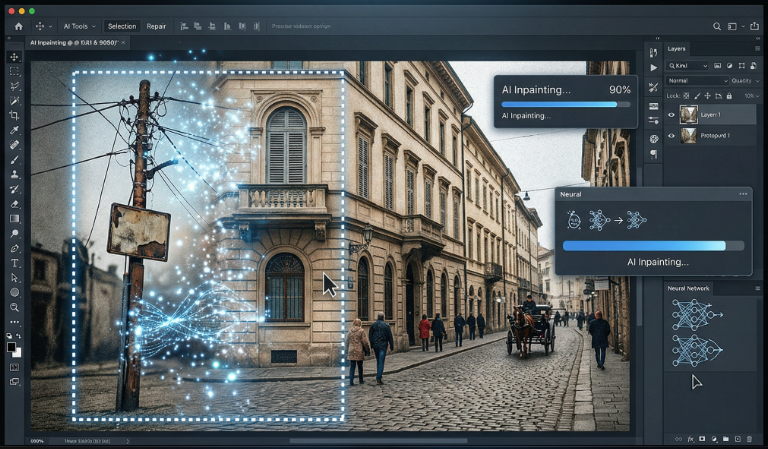
If the browser tools are leaving visible artifacts and you need cleaner results, the next step up is proper video inpainting—either with a more powerful browser-based tool like Runway’s inpainting feature, or with a desktop workflow.
The key difference: dedicated inpainting tools give you more control over the mask (the area you define for removal) and often use more sophisticated reconstruction models. You paint the mask more precisely, and the AI has more parameters to work with.
A few scenarios where inpainting is worth the extra effort:
- Text is sitting over a face or important detail
- You’re working on client work or anything that will be scrutinized at full resolution
- The background underneath the text is complex enough that the auto-removal tools left obvious artifacts
- You need to remove a large element, not just a small text overlay
The tradeoff is time and, often, cost. Most serious inpainting tools use a credit system, and processing a longer clip with a complex mask can burn through credits quickly.
If you’re in this situation and working with more ambitious removal tasks, it’s also worth knowing that cutting-edge research tools—like Netflix’s VOID video inpainting model released in early 2026—are pushing what’s possible for physics-aware, large-area video removal. These aren’t consumer tools yet, but the gap is closing.
One more thing worth saying: if your text is burned into footage over a solid or near-solid background (think a talking-head video against a clean wall), and the text removal is leaving artifacts you can’t fix—sometimes the fastest solution is just to add a text overlay on top. Sounds like a step backward, but a clean new subtitle track in the right font looks far better than a smeared background that catches the eye every time someone watches.
Conclusion
The short version: yes, you can remove text from a video for free in 2026, and the results are often clean enough to use. Vmake is my starting point for burned-in subtitles and watermarks in standard positions. Fotor is worth trying when you want manual control over exactly what gets removed.
Both tools are browser-based, require no installation, and get you to a result in minutes rather than hours.
Just go in knowing the limits. Static text on a clean background: excellent results. Complex, moving backgrounds with large text elements: you’ll see artifacts, and you might need to take a different approach. That’s not a knock on the tools—it’s just where the technology is right now.
I keep these bookmarked. When I have a clip with broken subtitles or an unwanted watermark, they’re the first things I open.
FAQ
Q: Can I remove text from a video for free? Yes — tools like Vmake and Fotor offer free previews or limited exports. You can test results before paying, but full-length downloads usually require credits.
Q: What is the easiest way to remove text from video? Use an automatic tool like Vmake. Upload your video, select “Smart Remove,” and preview the result. It’s the fastest option if your text is static.
Q: Can AI remove burned-in subtitles completely? Sometimes — if the subtitles are on a clean, static background, results can look nearly invisible. On complex scenes, you’ll likely see minor artifacts.
Q: Will removing text affect video quality? Slightly — most tools may introduce minor blur or smoothing where the text was. In many cases, it’s not noticeable during normal playback.
Previous Posts: