In early 2026, a 15-second clip of a chef chopping onions quietly broke the internet. Shot under harsh kitchen lights, with perfect cinematic depth and razor-sharp motion, it looked unmistakably like it came from a $50,000 cinema camera.
Except it didn’t.
The caption underneath read: “Made with Kling AI. No editing.”
These words extremely triggered my intension to spend the following weeks putting Kling AI through every brutal test I could think of. Not gentle demos. Real projects. Real deadlines. Real frustrations.
This is the no-hype review of what actually works, what still falls apart, and whether Kling is finally useful for serious creators in 2026 — or just another impressive toy.
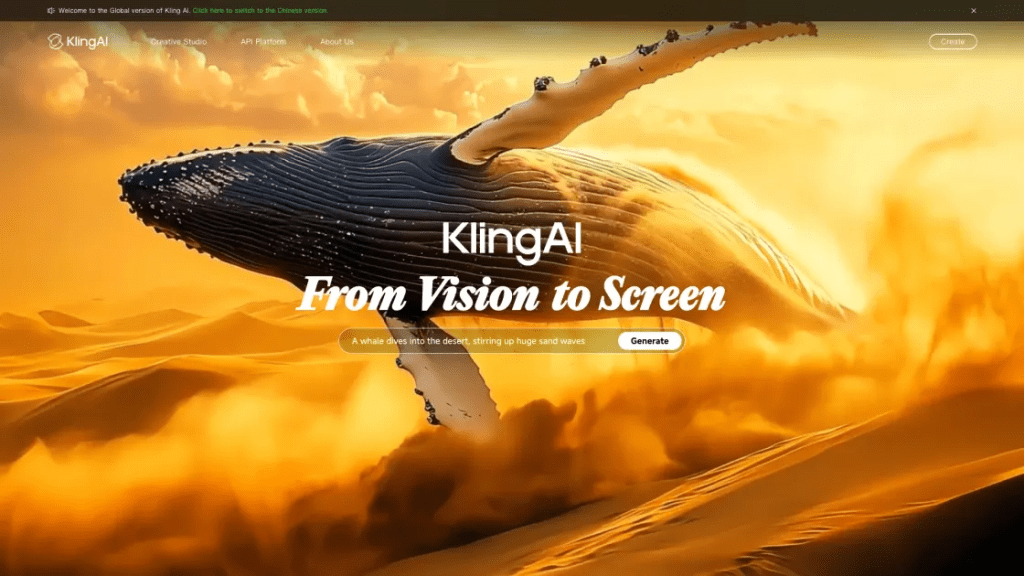
What Is Kling AI Video Generator?
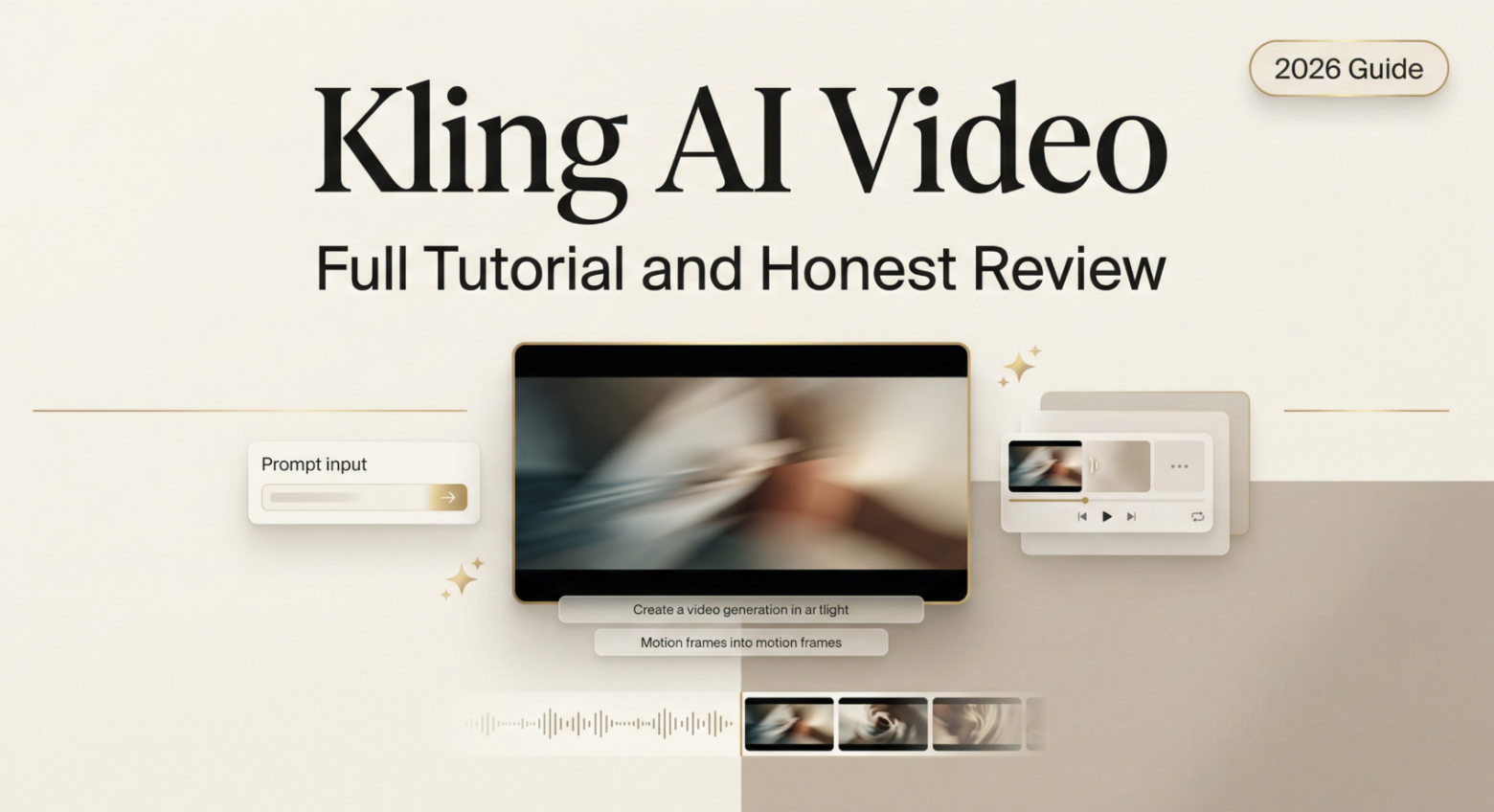
Kling AI is an advanced AI-powered video generation platform from Kuaishou Technology that transforms text descriptions and static images into cinematic-quality videos using a Diffusion-Convolutional Neural Network architecture combined with a 3D Spatiotemporal Joint Attention Mechanism — which is a fancy way of saying it actually understands how motion works across space and time, not just frame to frame.
Launched in June 2024, the platform has rapidly attracted over 6 million users globally. For context: that growth happened while most of us were still figuring out whether AI video was even worth taking seriously.
The current flagship is Kling 2.6. The big deal with this version? It introduced simultaneous audio-visual generation — videos now generate with synchronized voiceovers, dialogue, sound effects, and ambient sounds in one pass. Before that, you’d generate a silent clip and layer audio separately. This changes the workflow significantly for social creators.
There’s also Kling Video O1, released the same month. Unlike standard generators that rush to produce a result, O1 uses Chain of Thought reasoning to “understand” the physics and logic of your prompt before rendering — and it also enables text-based editing of existing videos, letting you swap objects, change backgrounds, or remove elements without reshooting.
What does all that mean practically? The tool is no longer just a clip generator. It’s edging toward a lightweight production pipeline.
Free Plan vs. Paid: What You Actually Get
Let me save you the confusion the credit system usually causes.
The free tier gives you 66 daily credits with no credit card required. That sounds generous until you realize a 10-second video in Professional Mode costs 70 credits. So the free plan gets you roughly one decent video per day — enough to evaluate whether the tool works for you, not enough to actually produce content regularly.
Here’s how the paid plans break down as of March 2026:
| Plan | Price/month | Monthly Credits | Max Resolution | Audio Generation | Watermark |
| Free | $0 | 66/day (rollover) | 540p | No | Yes |
| Standard | ~$10 | 660 | 720p | Yes (Kling 2.6) | No |
| Pro | ~$37 | 3,000 | 1080p | Yes | No |
| Premier | ~$92 | 8,000 | 1080p | Yes | No |
Source: Kling AI official pricing page, verified March 2026
For paid plans with commercial use rights, Kling AI Standard at $10/month offers the lowest entry price among major platforms as of 2026. That’s genuinely competitive.
The catch everyone complains about: credits expire and don’t roll over on paid plans. Users have called this frustrating, especially when a creative block month means wasted credits. I don’t love this either. Budget accordingly.
One more heads up: some users on the free plan report that video generations get stuck at 99% or just fail — but still consume daily credits. I hit this twice during testing. Annoying, but not a dealbreaker.
How to Generate Videos with Kling AI
Image to Video
This is where Kling genuinely surprised me. Upload a still — product photo, portrait, AI-generated image, anything — and the model animates it with surprisingly natural motion.
My test: I uploaded a flat-lay shot of a coffee cup on a wooden table. Within four minutes, I had steam rising, a subtle camera push-in, and ambient warm lighting that looked like something from a lifestyle brand shoot. I didn’t touch any advanced settings.
Here’s the basic workflow:
- Go to Kling AI → select “Image to Video”
- Upload your reference image (JPG/PNG, up to 10MB)
- Write a motion prompt — be specific about what moves. Example:
"Slow camera pull-back, steam rising from the cup, warm morning light shifting slightly, no people" - Set duration: 5s or 10s (Standard plan); longer on Pro+
- Choose Professional Mode (costs more credits but the quality difference is real)
- Hit Generate — expect 3–8 minutes depending on server load
The Elements system is worth knowing about. This feature lets you combine up to 4 reference images to maintain character consistency across generated videos — solving a persistent challenge in AI video where your main character morphs between clips. If you’re building a series or brand content with recurring characters, this is a major workflow unlock.
Text to Video
Text-to-video is more hit-or-miss, but the ceiling is high when your prompt is strong. The platform processes prompts up to 2,500 characters, allowing detailed instructions that specify subjects, actions, settings, lighting, and camera movements — and it can even extract abstract concepts like loneliness or tension and map them to visual storytelling.
My working prompt structure:
[Subject + action] + [environment/setting] + [lighting/mood] + [camera movement] + [style]Example that worked well:
“A young woman in a yellow raincoat walks alone down a wet cobblestone street at night. Neon reflections in the puddles. Slow tracking shot from behind. Cinematic, slightly desaturated color grading.”
What I got: a genuinely moody 10-second clip that I could drop into a short film reel without embarrassment.
What failed: anything with multiple people interacting closely, fast-moving action sequences, or highly specific product text (logos especially). The model still struggles with these — and honestly, so does every other tool in this space right now. Understanding how diffusion models handle complex scene composition helps set realistic expectations for what’s achievable with today’s text-to-video tech.
One tip I learned the hard way: use negative prompts. Adding "no watermarks, no text overlays, no CGI look, no slow motion" meaningfully improved my output consistency.
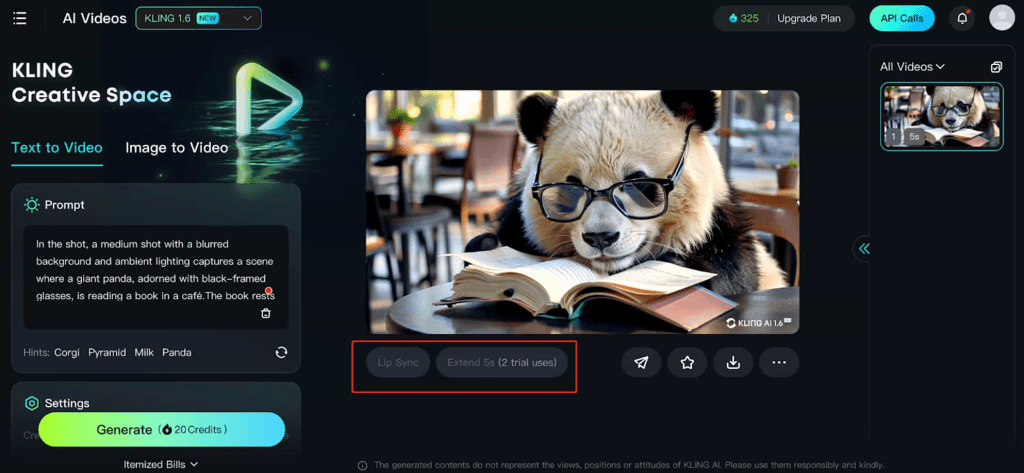
Output Quality: Sample Results
After three weeks and hundreds of generations, here’s my honest breakdown:
What looks genuinely good:
- Close-up portrait animation (skin texture, micro-expressions)
- Nature and environment shots (water, fire, clouds)
- Product lifestyle content — especially food and fashion
- Vertical video formats for social platforms — Kling has strong understanding of trending visual styles that make content feel current and platform-native
What still looks rough:
- Complex hand and finger movements
- Multi-person crowd scenes
- Anything requiring precise text legibility in frame
- About 30% of generations come out low quality or resembling rough animations, which burns through credits fast when you’re regenerating
Generation speed varies between 2–15 minutes depending on clip length, complexity, and server load. During peak hours (early afternoon US time), I consistently waited 8+ minutes for a 10-second Professional Mode clip. Plan your workflow around that.
Kling AI Strengths and Weaknesses
What it does well:
- Video length: Up to 3 minutes through the video extension feature — significantly longer than most competitors offering 10–35 second maximums. This is genuinely rare and useful for narrative content.
- Integrated audio: Kling 2.6’s native audio generation means you get footsteps, ambient sound, even dialogue baked in. The AI sound effects tool generates audio that matches your video — footsteps, wind, traffic, music. It’s not perfect, but for quick content it saves significant time.
- Pricing: The best credit-to-dollar ratio in this tier. $10/month is accessible.
- Character consistency via the Elements system
What frustrates me:
- The credit system is unpredictable for budgeting. A single Pro Mode video at 4K tier costs significantly more than a Standard one — and the costs aren’t always obvious until you’re mid-workflow.
- Trustpilot reviews average 2.8/5, with recurring complaints about credits expiring, failed generations still consuming credits, and difficulty canceling subscriptions.
- Cloud-only. No local generation option. If Kuaishou’s servers are slow, you wait.
- Occasional access restrictions — I hit a few unexplained generation failures with no error message.
Kling AI vs. Runway vs. Hailuo
Here’s where I’ll be direct, because “it depends” isn’t actually useful.
| Feature | Kling 2.6 | Runway Gen-4.5 | Hailuo 2.3 |
| Max video length | 3 minutes | ~40 seconds | ~30 seconds |
| Starting price | ~$10/month | ~$12/month | ~$9.99/month |
| Native audio | Yes (Kling 2.6) | No | No |
| Physics accuracy | Good | Good | Excellent |
| Character consistency | Excellent (Elements) | Strong (Gen-4) | Good |
| Post-generation editing | Limited | Strong (Aleph model) | Limited |
| Best for | Social/longer content | Professional editing | Human subjects |
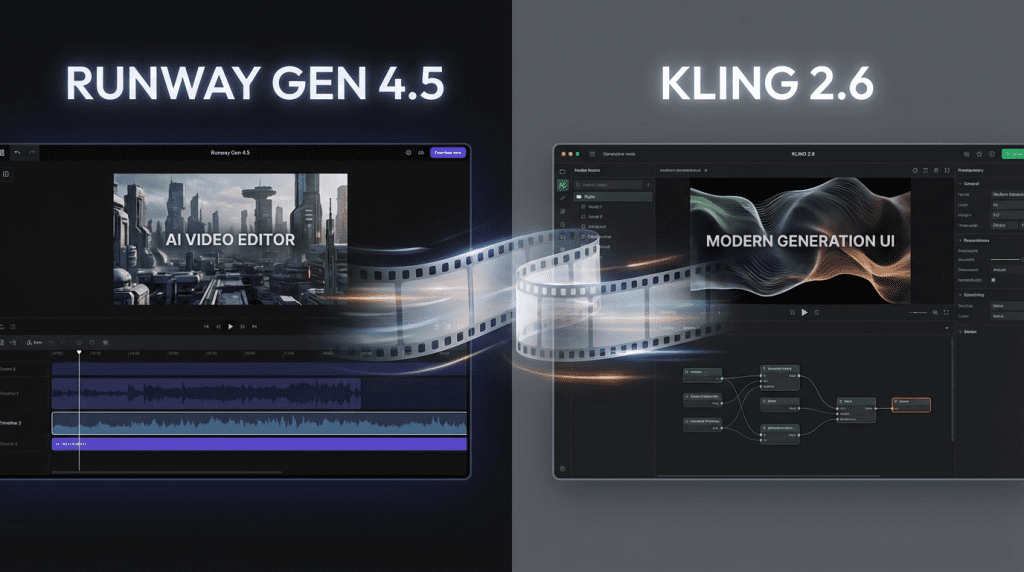
Runway is the best pick for professional-level control — its Aleph model lets you adjust framing, remove elements, and edit post-generation in ways Kling currently can’t match. If you’re doing polished commercial work, Runway’s toolset justifies the higher per-credit cost.
Hailuo AI (by MiniMax) is essentially a physics engine dressed as a video generator — it simulates how materials actually behave, like water surface tension or how silk moves differently from cotton. Prompt fidelity is unusually high. For product content where realistic material behavior matters, Hailuo often edges ahead.
Kling’s lane? For short-form content — TikTok, Instagram Reels, YouTube Shorts — Kling 2.6 is the strongest choice, especially with native audio baked in and the longest available clip length. It’s also the most accessible entry point if you’re price-sensitive.
For a deeper read on how these models handle physics-heavy scenes like fire and water, Pulze’s video model comparison ran structured side-by-side tests worth bookmarking.
Who Should Use Kling AI?
After three weeks of real testing, here’s my honest recommendation by creator type:
Use Kling if you’re:
- A social media creator making consistent short-form content
- A marketer who needs product lifestyle clips without hiring a production crew
- A blogger or indie creator who wants B-roll and visuals that aren’t stock footage
- Someone who needs longer AI clips (the 3-minute max is genuinely unique)
- On a tight budget and willing to trade some consistency for affordability
Look elsewhere if you’re:
- Running professional campaigns where output consistency is non-negotiable
- A filmmaker who needs precise post-generation editing control (go Runway)
- Someone who primarily creates product content where material physics matter (go Hailuo)
- Uncomfortable with Kuaishou ownership for client data reasons
The Kuaishou data question is real — a recurring theme in creator communities is discomfort with Chinese ownership for client work. If that affects your workflow, it’s worth factoring in before committing to a plan.
Conclusion
Kling AI in early 2026 is the most accessible serious video generator on the market. The $10 entry point, native audio in Kling 2.6, the 3-minute video length, and the Elements character system are genuinely differentiated features — not just marketing bullets.
But it’s not the tool for everything. The credit system punishes inconsistent usage, quality has a meaningful variance rate, and the post-generation editing gap is real compared to Runway.
My personal use case: I keep it for social content and B-roll. On deadline-heavy weeks when I need five clips fast and they don’t have to be flawless, it saves me. For anything client-facing or where quality consistency matters, I still reach Runway.
Start with the free tier at Kling — 66 daily credits is genuinely enough to see whether this fits your workflow before spending a dollar. For a broader understanding of where AI video generation is heading, Kuaishou’s ongoing research in generative video models offers useful context on the technical direction the whole field is moving.
FAQ
Q: What’s the difference between Standard Mode and Professional Mode?
Standard Mode uses fewer credits and generates faster, but the output quality is noticeably lower. Professional Mode costs about 2x the credits but produces results worth actually using. Most creators I know skip Standard entirely for anything they plan to publish.
Q: Can I use Kling AI for commercial projects?
Yes, on all paid plans. Free plan generations are watermarked and not licensed for commercial use. Always verify the terms for your specific plan tier before client work.
Q: What is the Kling AI Elements feature?
Elements lets you upload up to four reference images to maintain character or subject consistency across multiple generated clips. It’s particularly useful for creators building content series with recurring characters or branded personas — something most other generators still struggle with.
Previous Posts: