Editor’s & Audio-Visual Systems Note:
Transparency & Ground Truth Disclosure: This guide outlines a pre-production audio handoff checklist for creators and editors preparing to build a music video around an original or properly authorized YuE2 audio track. YuE2 is an open-source foundation model series for music generation and audio editing; it does not generate video clips, animate characters, or assemble visual storyboards. Structuring the audio handoff, logging export versions, and mapping visual cuts are human editorial steps. Where platform-specific exports, separated stem files, or direct audio imports into downstream video tools like CrePal are not universally standardized across open-source checkpoints, capabilities are stated conditionally. Summaries of musical composition rights, cover permissions, and open-source model licenses are provided for general orientation only, do not constitute legal advice, and must be verified against official YuE2 repositories and rights-holder agreements prior to commercial distribution.
Source Verification & Ground Truth:
YuE2 Music Generation Architecture: Verified against official YuE open-source research repositories (HKUST-Audio / YuE on GitHub and related YuE2 model releases). Documentation confirms lyrics-to-song generation, style conditioning, vocal/accompaniment modeling, and music editing capabilities. Standard outputs render as audio waveforms (such as WAV or MP3 files), while separated stem availability and metadata logging depend on the specific inference script or hosted interface used.
CrePal Video & Music Workflows: Documented at CrePal Features and our companion production guides (Music Video Script Planning and AI Music Video Production Workflow).
Every music video editor has lived through the same frustrating setback. You spend three days generating AI visuals, matching camera cuts to drum hits, and timing lip-sync close-ups to the chorus. Then the songwriter sends a message: “Hey, I tweaked the bridge in YuE2—use this new audio file instead.”
Suddenly, every single visual cut on your timeline is off by two seconds.
When planning a YuE2 music video, the biggest mistakes happen before a single visual prompt is ever written. Because YuE2 makes it fast to generate new arrangements, adjust scores, and test vocal takes, audio versions can multiply quickly. If your team starts visual production before locking down the audio handoff, you risk wasting hours of video generation credits on a track that is still changing.
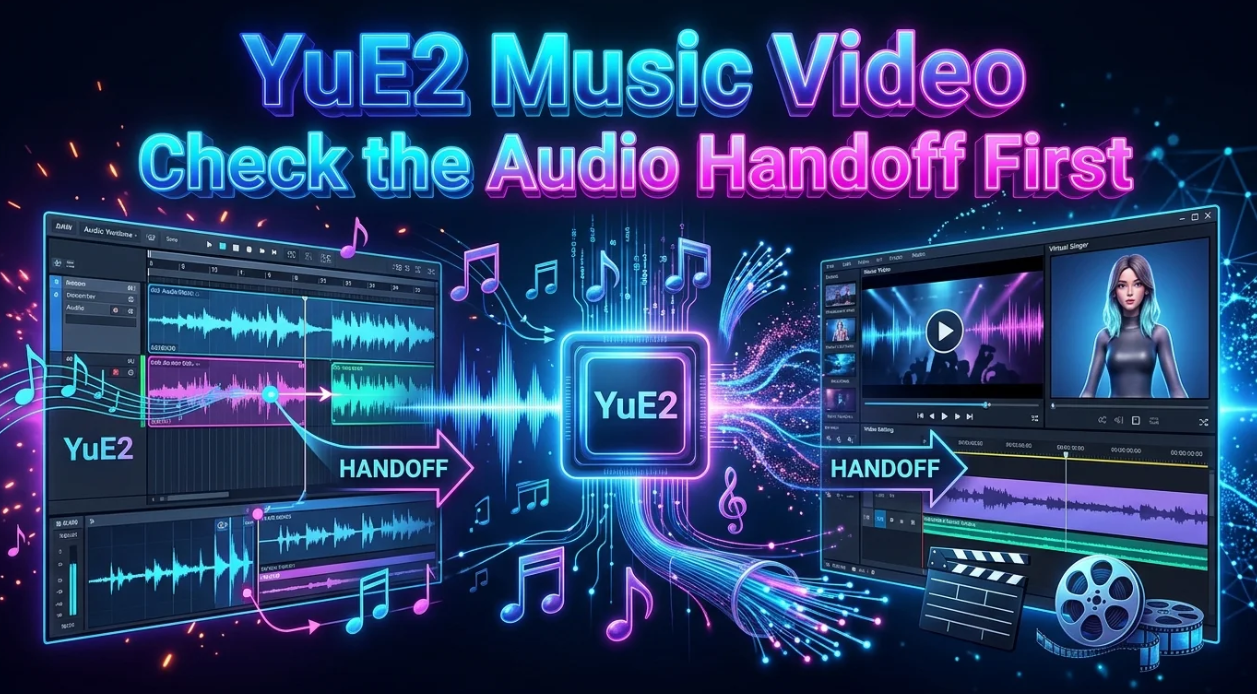
Before you write a storyboard or generate a single video frame, run your track through this practical audio handoff checklist to lock the version, verify the files, and confirm your rights.
Which YuE2 Audio Version Is Approved for Video?
Music production is iterative, while video editing requires a locked timeline. The first step in any handoff is separating active music experiments from the single audio master approved for picture.
Record the approved file and any later edit
Never accept an audio file named final_song_v2_new.wav without written context. Establish a clear handoff record for your authorized song before moving to visual planning:
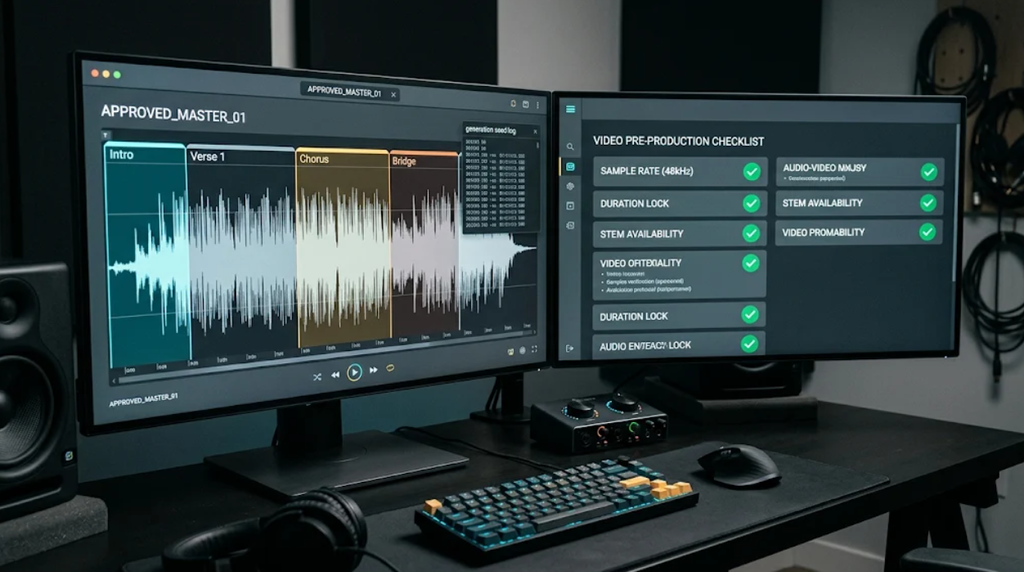
- Exact File Name and Checksum: Log the exact filename, sample rate (such as 44.1 kHz or 48 kHz), and total track duration down to the millisecond.
- Generation Configuration: Save the exact lyrics sheet, genre tags, style prompts, and random seed used to create that specific YuE2 render, in case you ever need to trace how the audio was built.
- Lock Status: Explicitly confirm with the song creator whether the arrangement is picture-locked. If the musician still plans to edit the score or swap vocal takes in YuE2, hold off on generating tight lip-sync or beat-locked visual shots until that edit is finished.
Treating the audio track like a locked film reel prevents your visual team from chasing a moving target.
What Can the Video Editor Actually Receive?
Once a version is approved, the video editor needs to inspect the actual files delivered in the handoff folder rather than assuming what YuE2 exported.
Confirm the export files currently available
Depending on whether the creator ran YuE2 locally or used a hosted web interface, the available audio exports can vary. Check what sits in your handoff folder today:
- Full Stereo Mix: Confirm you have an uncompressed master file (like a 16-bit or 24-bit WAV) alongside any compressed MP3 preview. Editors need clean waveforms to see drum transients clearly on a timeline.
- Separated Stems (If Available): Check whether your specific YuE2 pipeline exported isolated vocal and instrumental tracks, or only a single stereo mixdown. If separated stems are not available in your setup, the video editor will need to rely on visual waveform peaks or external stem-separation tools to time vocal lip-sync shots.
- Lyric and Section Timestamp Sheet: Ask the music creator for a plain-text lyric sheet marked with rough timestamps for the intro, verse, chorus, bridge, and outro.
Flag timing changes that require a new visual cut
If a musician goes back into YuE2 to revise a section after visual planning has started, do not simply drop the new audio file under old video clips. Flag any change that shifts rhythm or structure:
- Bar or Beat Additions: Adding even a two-beat pause before the chorus shifts every downstream visual cut out of sync.
- Tempo or Groove Adjustments: Changing the rhythmic feel or BPM means camera motion speeds and cut pacing must be re-timed to match the new energy.
- Lyric Phrasing Edits: Altering a single word or vocal cadence invalidates any close-up lip-sync shots planned for that line.
Whenever timing shifts, mark the exact timestamps affected so the visual team only re-works the impacted scenes instead of rebuilding the entire sequence.
Check Rights and Access Before Production
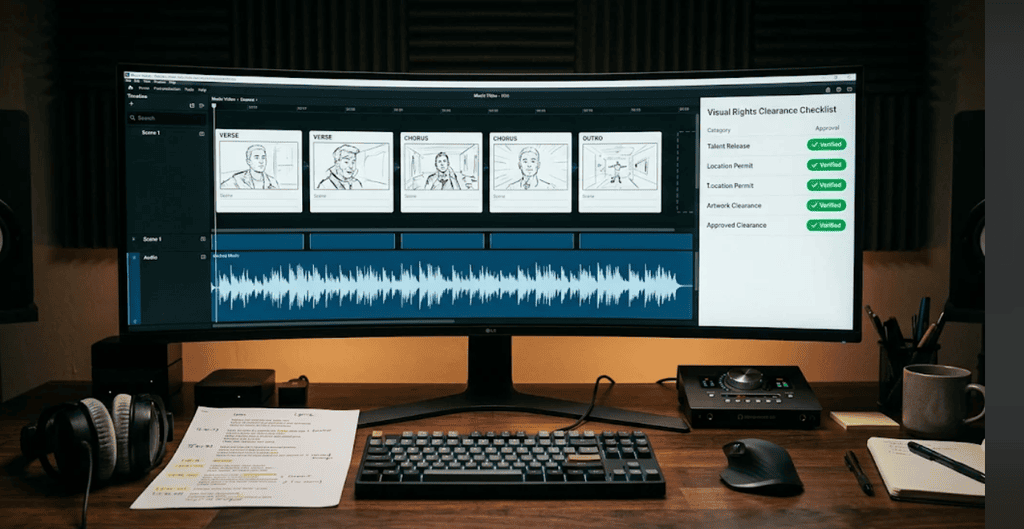
Generating visuals around a song involves two separate layers of legal responsibility—the audio rights and the visual rights. Clearing both before rendering saves major headaches later.
- Underlying Composition and Cover Rights: If your YuE2 track is an original song written entirely by your team, document your authorship. If the track is a cover, remix, or adaptation built on someone else’s melody or lyrics, confirm you hold explicit synchronization and distribution permissions from the original rights holders.
- Model License and Commercial Terms: Check the exact license attached to the specific YuE2 model weights or hosted platform used to generate the audio, as open-source research weights and third-party web wrappers can carry different commercial usage rules.
- Visual Likeness and Brand Clearance: Ensure any reference photos, character designs, or brand assets used in your upcoming video scenes are properly licensed. Note: This checklist is for workflow orientation only and does not constitute legal advice; always verify current platform terms and rights-holder agreements before publishing commercially.
Once your audio handoff is verified and locked, you are ready to build your visual plan. You can structure your song sections into a visual narrative using our guide on writing a music video script, map out your full multi-scene assembly in our AI music video production workflow, or organize scene cards and reference frames inside CrePal’s AI Director workspace (importing your approved audio track according to your current project export settings).
FAQ
Does YuE2 itself generate video footage?
No. YuE2 is a music and audio generation model series focused on lyrics-to-song synthesis, vocal performance, and musical editing. It outputs audio files only and does not generate video clips, storyboards, or visual animations.
How should a team handle clipping heard in the delivered audio file?
If you hear digital distortion or volume clipping in the delivered YuE2 track, ask the music creator to re-export the audio with lower output gain or headroom before starting video work. Fixing severe digital clipping inside a video editor rarely restores clean sound quality, and locking picture to a flawed audio file forces messy audio swaps later.
Does editing a YuE2 score preserve the audio approved for video?
Not necessarily. Editing a musical score, changing instrumentation, or modifying vocal phrasing in YuE2 creates a new audio render that may subtly shift transient timing, reverb tails, or section lengths. Always treat any edited score as a brand-new audio version that requires re-verification before locking video cuts.
Can a YuE2 cover retain its source melody while changing the arrangement?
Yes, style transfer and arrangement conditioning workflows in the YuE family are designed to adapt musical accompaniment and vocal styling while following target melodic structures. However, retaining a recognizable melody from an existing copyrighted song still requires proper rights clearance from the original musical composition owners before commercial release.
Which YuE2 artifacts can verify the approved audio’s generation settings?
Depending on how YuE2 was run, teams should archive the exact prompt text, formatted lyrics file, style tags, model checkpoint version, generation seed, and any exported JSON or log metadata produced during inference. Storing these files alongside the approved WAV master ensures full traceability during post-production.
Conclusion
A smooth YuE2 music video starts long before you open a video generator. By treating the audio handoff as a formal checkpoint—locking one approved audio version, verifying available WAV and stem files, flagging any timing changes, and clearing musical rights—you protect your editing timeline from costly re-renders.
Once your audio master is safely locked in place, every storyboard frame and camera cut you build will land right on the beat.