How you doing? This is Dora! The moment I saw the LTX 2.3 announcement drop in my Discord feed, I immediately went to the GitHub page instead of the model page. I was looking for the Desktop app. A fully local, open-source, non-linear AI video editor that runs the whole LTX 2.3 engine on your machine — no cloud, no subscription, no API fees — sounded either too good to be true or genuinely the most interesting release this year.
Spoiler: it’s real. It’s also very much in beta. This review covers what the app actually does, where it works well, and where it’ll frustrate you if you go in with wrong expectations.
What the Desktop App Is (and What It Isn’t — Not a Full Editor)
Let me be direct about this upfront because the marketing language can mislead you.
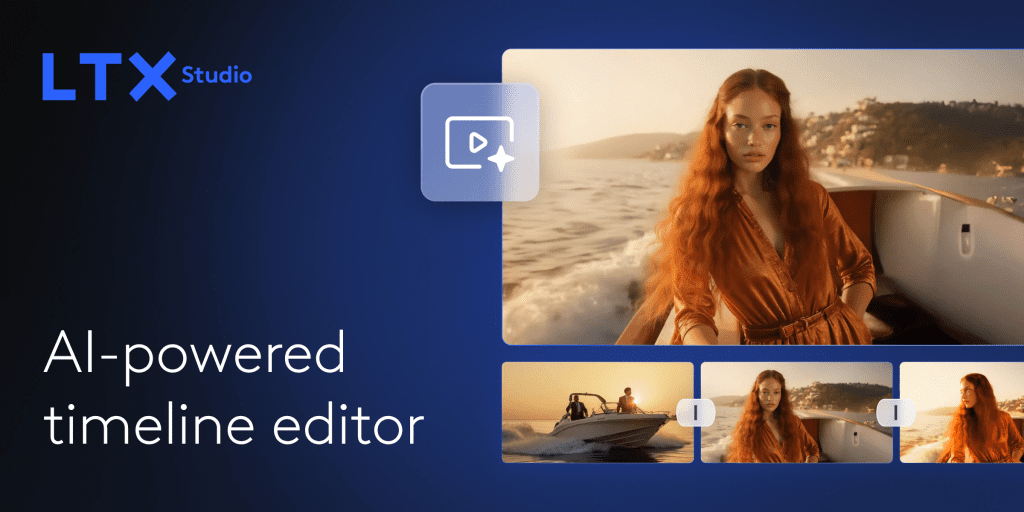
Earlier this year, LTX Desktop emerged as the first true AI-Native Non-Linear Editor (NLE). Unlike traditional editors that bolt on AI features, LTX is built around the LTX 2.3 multimodal model, which generates synchronized video and audio in a single pass. It is fully local and open-source, meaning zero subscription fees and total privacy.
That last part is what sets it apart. Your footage doesn’t leave your machine. No API call for generation. No cloud upload.
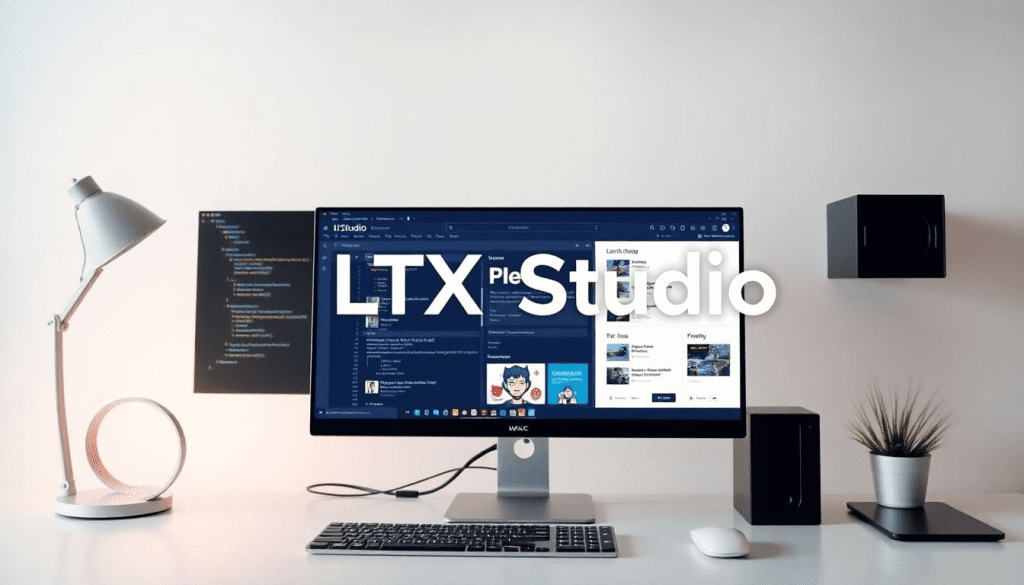
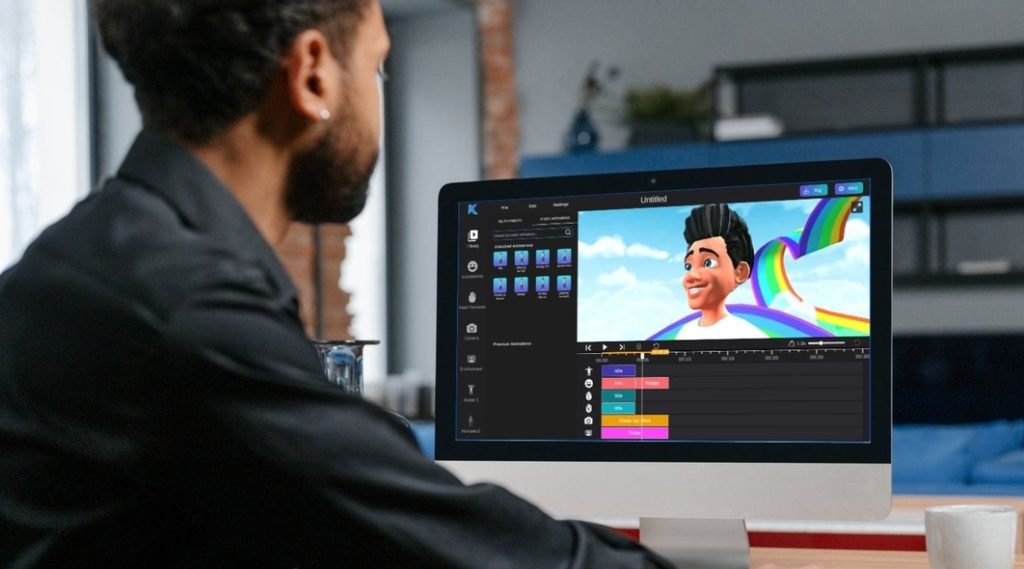
But here’s what it isn’t: it’s not a replacement for DaVinci Resolve or Premiere. LTX Desktop is an open-source, AI-powered video production suite currently in beta that combines a full non-linear editor with on-device AI generation — including text-to-video, image-to-video, audio-to-video, retake, image generation, and timeline import from professional NLEs. The editing tools are functional but minimal. Think of it as a generation-first workspace where you can also trim and sequence clips — not a full color grade and audio mix suite. For that, you export and finish elsewhere.
What it does brilliantly is make the generation-to-timeline loop extremely fast. Generate a clip, review it, retake a section, sequence it — all without leaving the app or waiting for a cloud render queue.
System Requirements and Download
For local video generation on Windows, the system requires Windows 10 or 11 (x64) along with an NVIDIA GPU that supports CUDA and has at least 32GB of VRAM, although more VRAM is recommended for better performance. The system should also have at least 16GB of RAM, with 32GB recommended, and sufficient disk space to store the model weights and generated video files.
That 32 GB VRAM spec is the official gate — but the community has already found ways around it. An RTX 3070 laptop (8 GB VRAM) can run the app with the community-optimized fork and reduced resolution settings. Expect slower generation times and a 720p ceiling, but it works.
macOS: LTX Desktop is supported on Apple Silicon Macs (M1 and later). Currently, generation on macOS runs via the LTX API rather than locally on the GPU. Support for local GPU inference on macOS is planned for a future release. That means Apple Silicon users get the interface and timeline tools, but generation calls out to Lightricks’ servers — which requires an API key and incurs usage costs for video generation (text encoding via API is free).
AMD / Intel GPUs: Not currently supported for local inference. If this affects you, there’s a tracking issue on the LTX Desktop GitHub repository where you can add your vote.
Download: Option 1 — Installer (recommended): Download the latest .exe from GitHub. The app auto-detects your hardware and walks you through downloading model weights on first launch. The model download is large — plan for 20–40 GB depending on which checkpoint variants you pull. Make sure your models subfolder has space before you start.
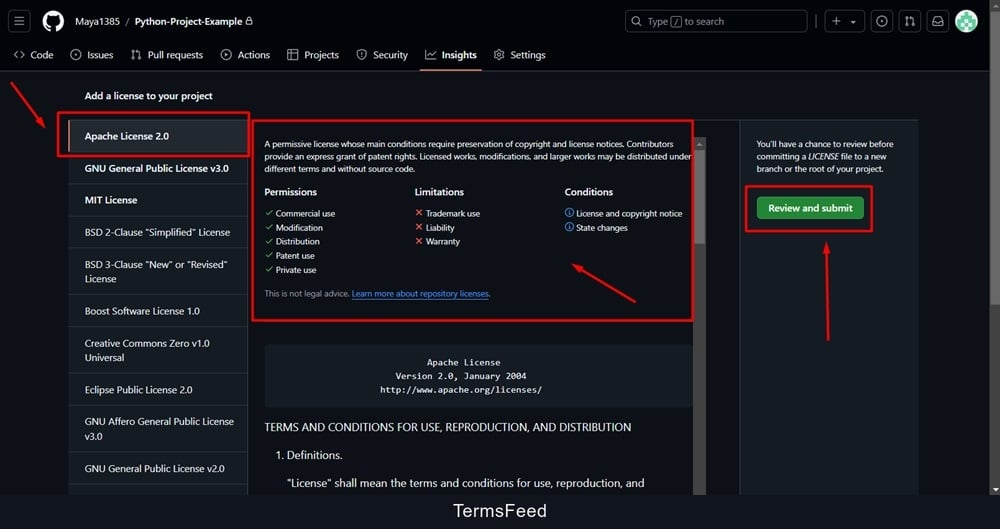
Licensing: LTX Desktop is free and open source, licensed under Apache 2.0. The LTX-2.3 model is free for companies under $10M in annual revenue. Above that threshold, contact Lightricks for commercial terms.
Core Features Walkthrough
T2V in the App
Text-to-video in LTX Desktop is handled through a prompt panel that sits alongside your timeline. You write your prompt, set resolution and duration, choose Fast or Pro render mode, and hit generate. The clip appears directly in your project bin.
Fast mode is for iteration — lower quality, faster feedback, useful for testing motion and composition. Pro mode runs the full generation pass and delivers the output quality the model is actually capable of.
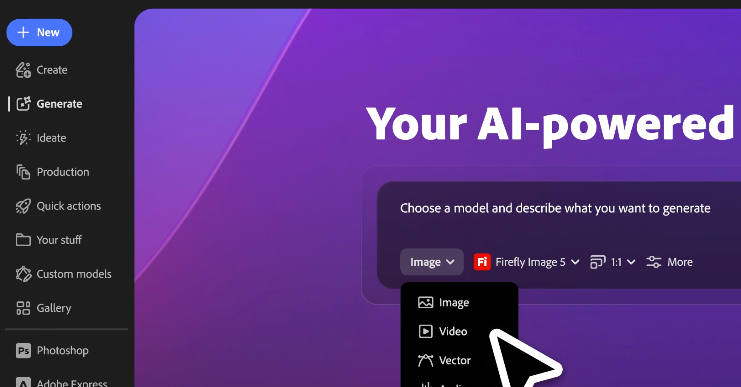
One thing I genuinely appreciate: the official system requirements documentation recommends using the LTX API for text encoding even in local mode, because it speeds up inference and reduces VRAM overhead. Text encoding via API is completely free — only video generation via API incurs cost. On a 24 GB card, enabling free cloud text encoding and running generation locally gave me noticeably faster iteration cycles than fully local operation.
Generation times I measured on an RTX 3090 (local, Pro mode):
| Resolution | Duration | Approx. Time |
| 512×768 | 5 sec | ~2–3 min |
| 768×1152 | 5 sec | ~5–7 min |
| 1024×576 | 8 sec | ~8–11 min |
| 1080×1920 (portrait) | 5 sec | ~6–9 min |
For comparison, on an RTX 4090, a 10-second 4K clip with 30–36 diffusion steps completes in 9–12 minutes. The same clip on an RTX 3090 takes roughly 20–25 minutes. For rapid iteration, 1080p drafts render in 2–4 minutes on an RTX 4090.
I2V in the App
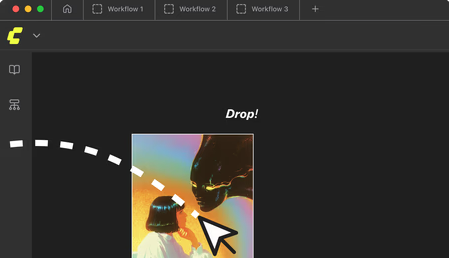
Image-to-video takes a reference image and animates it — camera push, subject motion, atmospheric movement. You upload the image, write a motion prompt, and the app generates a clip that starts from your frame.
The quality here is genuinely impressive when it works. LTX 2.3 fixed a major bug from earlier versions where I2V clips would freeze or go static mid-way through — the rebuilt motion training means movement stays more natural throughout the clip.
Known caveat: I2V still has occasional over-application of the Ken Burns effect — the camera will drift noticeably even when you didn’t intend a camera move. If this happens, lower your motion strength setting and re-generate. It’s a known issue the team is actively working on.
Upscaler in the App
The Desktop app includes both the spatial and temporal upscalers accessible directly from the clip context menu — no node graph required, no manual workflow wiring. Right-click a generated clip, select “Upscale,” choose spatial (2x resolution) or temporal (2x frame rate), and the app runs the upscale pass and replaces the clip in your timeline.
This is the biggest UX advantage over ComfyUI for the upscaler specifically. In ComfyUI, setting up the two-stage pipeline takes time, even with official workflow templates. In the Desktop app, it’s two clicks. For creators who just want clean output without building a node graph, this alone is a strong argument for the Desktop app.
The quality of the upscaler output matches what I measured in ComfyUI — the same models running the same passes. You just don’t have to configure anything.
What’s Missing vs ComfyUI (Advanced Workflows, Custom Nodes)
This is where experienced users will hit the ceiling.
The Desktop app is intentionally simplified. There’s no node graph, no custom node support, no ControlNet integration, no IC-LoRA pipeline, no way to wire in depth maps or canny edges for structural control. The 2026 roadmap includes IC-LoRA integration for precise structural control and the Bridge Shots feature powered by Gemini that generates missing transition footage between clips — but as of March 2026, these aren’t in the stable release.
In ComfyUI, you can chain multiple passes, mix checkpoints, inject ControlNet conditioning mid-pipeline, run custom post-processing, and save arbitrarily complex workflows. None of that is available in the Desktop app. What you see in the UI is what you get.
What’s also missing:
- LoRA loading (no fine-tuned style or character LoRAs in the current stable build)
- Custom VAE selection
- Negative prompt weighting controls beyond basic settings
- Batch generation queue with different parameters per clip
- Export to formats other than standard MP4
The team has a community-driven roadmap on GitHub Discussions — if something is missing that matters to you, it’s worth adding your vote there.
Performance and Speed (Local Benchmark Notes)
Running on an RTX 3090 (24 GB VRAM) with the fp8 checkpoint:
| Task | Setting | Time |
| T2V, 512×768, 5 sec, Fast | Local fp8 | ~90 sec |
| T2V, 512×768, 5 sec, Pro | Local fp8 | ~2.5 min |
| T2V, 1024×576, 8 sec, Pro | Local fp8 | ~9 min |
| I2V, 768×512, 5 sec, Pro | Local fp8 | ~3.5 min |
| Spatial upscale, 512→1024, 5 sec | Local | ~2 min |
For RTX 40-series users, NVFP4 precision delivered roughly a 25–30% improvement on an RTX 4090. On an RTX 3090, NVFP4 fell back to emulation paths and only shaved ~7–10%. If you’re on a 40-series card, switching to NVFP4 in the app settings is worth doing before anything else.
The Desktop app also runs LTX roughly 18–19x faster than WAN 2.2 on comparable hardware — a benchmark Lightricks confirmed at launch. If you’ve been using WAN for local generation, the speed difference is immediately noticeable.
Who the Desktop App Is Best For
The Desktop app is the right choice if:
- You’re a content creator or short-form video producer who needs T2V and I2V output without learning node-based workflows
- You want full privacy — your footage, prompts, and outputs stay on your machine
- You’re generating primarily for social formats — native portrait 1080×1920 support is a first-class feature, not a workaround
- You’re on Windows with an NVIDIA GPU and have at least 16 GB VRAM with a community fork, or 24+ GB for the official build
- You want Retake — non-destructive regeneration of specific timeline sections is a genuinely powerful feature that doesn’t exist in ComfyUI without custom workflow work
It’s less suited for you if you need custom LoRA loading, ControlNet, complex multi-pass workflows, or integration with other pipeline tools.
ComfyUI vs Desktop App: When to Use Which
| Scenario | Best Choice |
| First time testing LTX 2.3 | Desktop App |
| Quick social content, portrait video | Desktop App |
| Timeline-based editing + generation | Desktop App |
| Privacy-sensitive client footage | Desktop App |
| Custom LoRA / ControlNet workflow | ComfyUI |
| Two-stage upscale with full control | ComfyUI |
| Batch generation, complex pipelines | ComfyUI |
| API integration or programmatic output | ComfyUI |
| Low VRAM (under 16 GB) with full control | ComfyUI + GGUF |
The honest answer: most creators will start with the Desktop app and eventually open ComfyUI when they hit a specific limitation the app can’t address. That’s the right progression. There’s no reason to learn ComfyUI upfront just to use LTX 2.3 — the Desktop app covers the majority of everyday use cases cleanly.
Verdict
The LTX 2.3 Desktop App is the fastest path to usable local AI video generation as of March 2026. The interface is genuinely well-designed for the use case — generate, review, retake, sequence — and the one-click upscaler alone saves meaningful setup time compared to ComfyUI’s two-stage pipeline. The privacy model (full local inference, no cloud dependency) is real and matters for professional workflows.
The beta status is also real. Missing features — LoRA support, ControlNet, advanced export options — will matter to some creators. And the official 32 GB VRAM requirement puts it out of reach for a lot of consumer hardware without community workarounds.
FAQ
Q: Is the LTX Desktop App really free to use?
A: Yes — the app is open source under Apache 2.0, and local inference has no per-generation cost. The only paid component is if you use API-based video generation (required on macOS or unsupported hardware). Text encoding via API is always free. For commercial use, the free tier covers organizations under $10M annual revenue; above that, contact Lightricks for licensing terms.
Q: Do I need to know ComfyUI to use the Desktop App?
A: No. The Desktop app has its own interface and doesn’t require any node graph knowledge. If you want advanced control over the generation pipeline (custom LoRAs, ControlNet, multi-stage workflows), you’ll eventually want to learn ComfyUI — but for standard T2V, I2V, and upscaling, the Desktop app handles everything through its own UI.
Q: What’s the minimum VRAM to run LTX Desktop locally on Windows?
A: The official requirement is 32 GB VRAM. Community builds and forks have demonstrated local generation on cards as low as 8 GB (RTX 3070 laptop) at reduced resolution (720p and below). For comfortable 1080p generation in Pro mode, 16–24 GB is the practical floor using the fp8 checkpoint.
Previous Posts: