Editor’s Note: Let’s cut through the noise. Half the people searching for this topic want to extract video frames into a printable storyboard, and the other half want a playable video embedded inside a digital PDF. I just spent the weekend testing over a dozen “free online converters” for our 2026 production workflow. Most of them are absolute malware traps. Below is the verified, zero-BS guide to executing both of these workflows safely, complete with the exact software limits you need to know.
When you search for how to convert video to pdf, you are immediately met with a clash of file formats. Video relies on temporal data (time and motion), while the PDF (Portable Document Format) is a static, vector-based layout standard.
Bridging the gap between these two formats is entirely possible, but you must define your exact goal first. Are you trying to print out key moments from a video lecture? Or are you trying to send a digital pitch deck that plays a video when the client clicks the page? Today, we are breaking down the technical realities, step-by-step free workflows, and the compatibility limitations of both approaches.
What “Video to PDF” Really Means
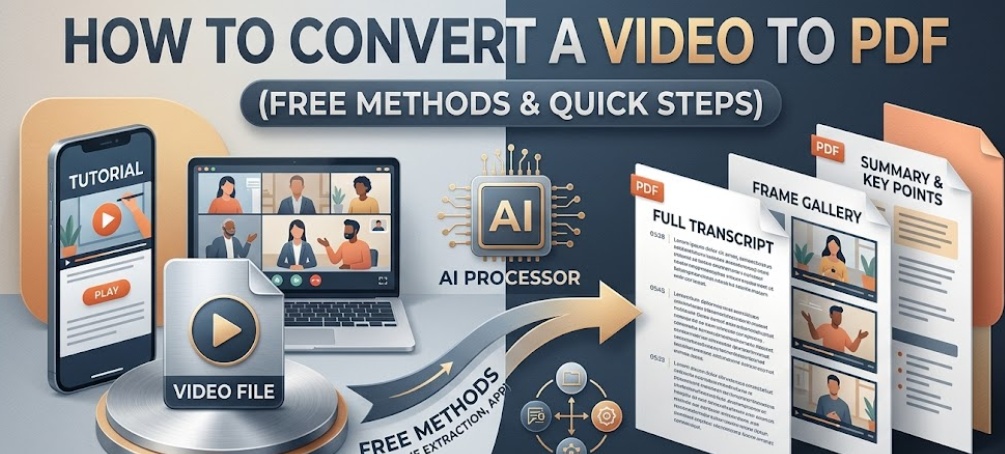
Before you download any software, you must clarify your search intent. The digital architecture for how to turn a video into a pdf splits into two completely different computational processes.
Frame extraction vs embedding a playable video
According to the official ISO 32000-2:2020 specifications for PDF technology, the format was fundamentally designed for fixed-layout document exchange, though it eventually adopted rich media extensions.
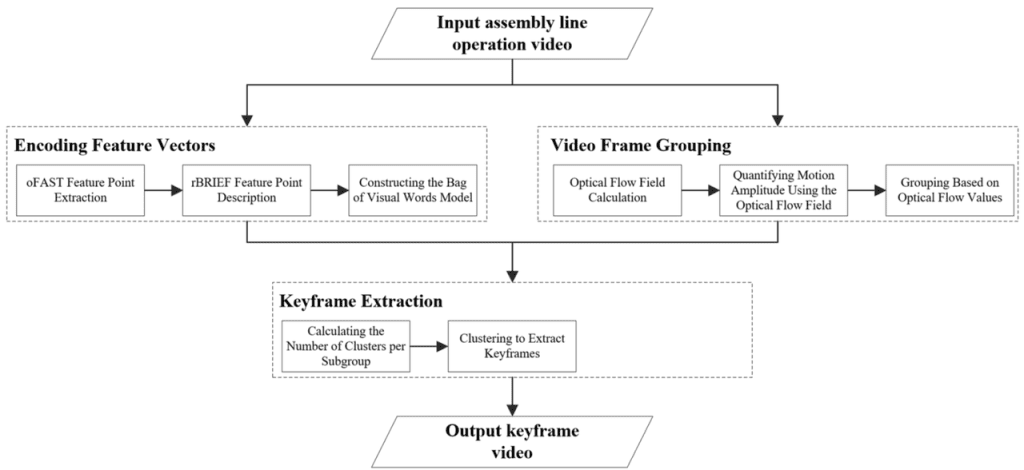
- Path A: Frame Extraction. This process analyzes a video file, captures static screenshots (frames) at specific time intervals (e.g., every 5 seconds), and compiles those static images into a multi-page PDF document. The result is a printable, lightweight file.
- Path B: Video Embedding (Rich Media). This process wraps an actual
.mp4video file inside the PDF container. The PDF becomes a digital wrapper. When the user opens the PDF in a supported desktop viewer, a media player interface loads directly on the page.
Method 1: Extract Frames to PDF
If you want to “read” a video like a book, frame extraction is your safest and most reliable route.
Best for tutorials, receipts, storyboards, and documentation
This method is highly effective for converting webinars into slide decks, turning software tutorials into step-by-step PDF manuals, or creating visual storyboards for production teams.
The Step-by-Step Free Workflow:
Instead of uploading your sensitive files to a sketchy online converter that might inject malware or steal your data, use local tools you already trust.
- Trim the Fat First: Do not process a raw 2GB video. Use an easy-to-use video generator website like CrePal to quickly trim the video down to the essential 30-second clip you actually need.
- Take Screenshots (Manual but Safe): Play your trimmed video in a free media player like VLC. Pause at the key moments and use your computer’s built-in screenshot tool (Win+Shift+S on Windows, or Cmd+Shift+4 on Mac).
- Compile in Slides: Open a blank Google Slides or Microsoft PowerPoint presentation. Paste one screenshot per slide. Add your text notes below the images.
- Export: Click
File > Download > PDF Document. You now have a clean, lightweight PDF storyboard.
Method 2: Embed a Video in a PDF
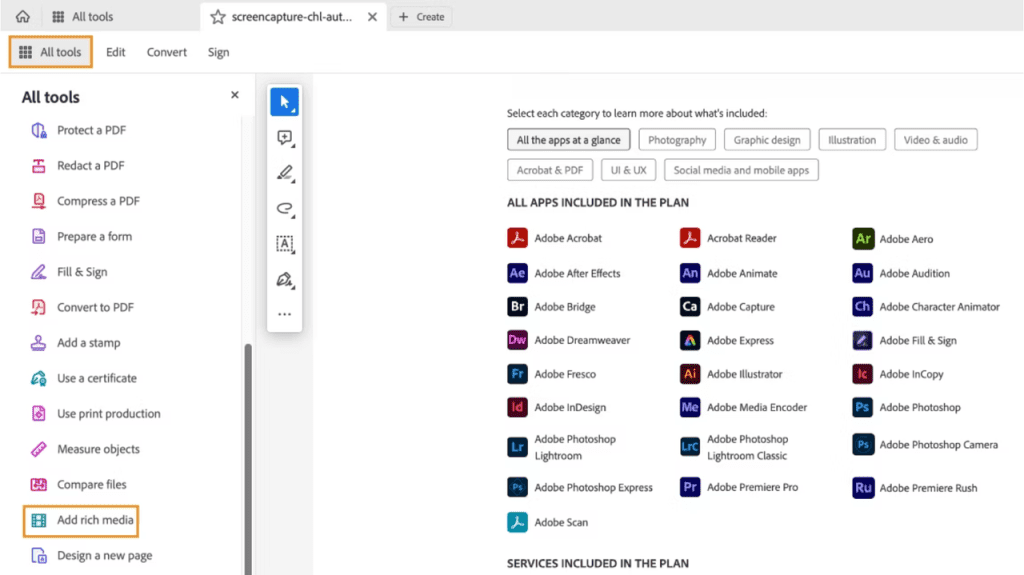
If you are trying to figure out how to insert video in pdf or how to add video to pdf so that it actually plays on the page, you must use a dedicated PDF editor capable of handling “Rich Media.”
Compatibility limits across PDF readers
To execute this, you need desktop software like Adobe Acrobat Pro (or free trials of robust alternatives like Foxit PDF Editor).
The Step-by-Step Embedding Workflow:
- Open your PDF in Adobe Acrobat.
- Navigate to the right-hand menu and select Tools > Add Rich Media > Add Video.
- Drag a bounding box on the page where you want the video player to appear.
- Select your video file. Crucial Limit: According to Adobe’s Rich Media Documentation, you must use an
H.264encoded.mp4file. Other formats like.movor.aviwill throw rendering errors.
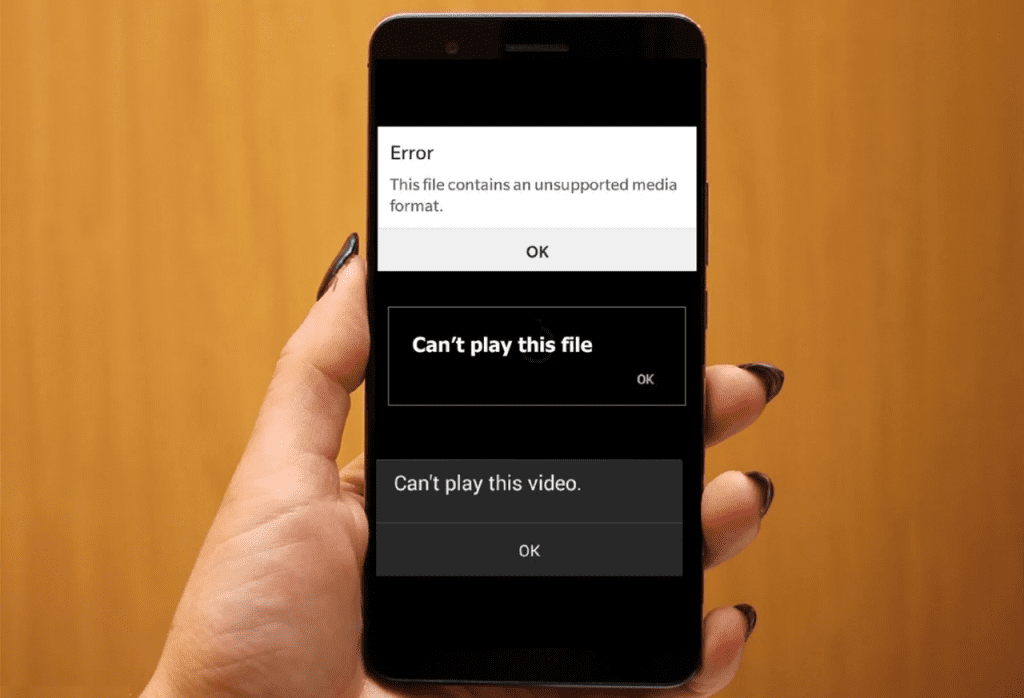
The Catch: While figuring out how to put video in pdf is easy, playback is a nightmare. Embedded rich media relies entirely on the end-user’s PDF reader capabilities.
Internal Testing Data (2026): We embedded a 15MB MP4 into a standard PDF and tested it across various devices.
Quality and File Size Limits
Whether extracting frames or embedding media, you must respect computational limits to ensure your file remains usable.
Resolution, compression, and readability trade-offs
If you embed an actual video file into a PDF for a corporate presentation, the PDF file size will skyrocket. A 200MB video makes a 200MB PDF, which cannot be emailed (Gmail limits attachments to 25MB).
Before embedding, run your file through the highly efficient CrePal video editor to compress the resolution and adjust the bitrate. Shrinking the video from 4K down to 720p before embedding ensures your final PDF remains lightweight and shareable without sacrificing too much visual fidelity.
When a Different Format Is Better
Sometimes, a PDF is simply the wrong container for your goal.
Slides, web pages, or transcripts instead of PDF
If your primary goal is to share a playable video alongside text, a static PDF is the worst possible format due to the playback compatibility issues on mobile devices. Instead of forcing a video into a document format from 1993, consider modern alternatives:
- Notion or Google Docs: Embed a YouTube or Vimeo link directly into a cloud document. The video will play flawlessly inline, and you can format the surrounding text freely.
- Interactive Web Portals: If you are building a portfolio or a pitch deck, using web-based presentation software (like Pitch or Canva) ensures your videos autoplay smoothly across all mobile and desktop browsers without requiring the user to download a heavy file.
FAQ
How do I turn a video into a PDF?
If you want a document you can read, the safest method is to capture screenshots of the video’s key moments, paste them into a blank presentation software (like Google Slides or PowerPoint), and then export that presentation as a PDF document.
Can I embed a playable video inside a PDF?
Yes, you can use software like Adobe Acrobat Pro via the “Add Rich Media” tool to embed an H.264 MP4 file. However, be aware that the video will only play if the recipient opens the PDF using Adobe Acrobat Reader on a desktop computer. If they open the PDF in a web browser or on a smartphone, the video will fail to load.