Editor’s & Cinematic Sound Systems Note:
Transparency & Practical Framework Disclosure: This guide details a creator-led audio design method for short narrative films, animated shorts, and commercial pitches. StepAudio 3 Gen is an audio foundation model developed by StepFun; it is not a video editor and cannot directly ingest visual storyboard images or video frames. The workflow described here relies on human directors extracting text-based audio briefs from visual shot lists before audio synthesis. CrePal is referenced strictly as an illustrative upstream AI Director workspace where creators organize visual boards, script beats, and sound cues. This article does not constitute legal, copyright, or commercial licensing advice.
Source Verification & Ground Truth:
StepAudio 3 Gen Technical Specifications: Verified against StepFun’s official project release page (StepAudio 3 Gen Project Page) and technical research report (StepAudio 3 Gen Technical Report on arXiv). Official documentation confirms that StepAudio 3 Gen can generate spoken dialogue, discrete foley effects, environmental ambience, and musical cues within a unified temporal soundscape. It also supports isolated sound effect generation, multi-event sequential ordering, and relative event timing. The technical paper does not document multi-track stem splitting from a single mixed pass, native video frame reading, or automated timeline conforming.
CrePal Video Workspace: Documented at CrePal Features as a video-first AI Director framework that coordinates scene-by-scene script breakdowns, shot list drafting, and revision handoffs.
Production Safety Notice: All voice prompts, reference audio tracks, and music cues must use original or fully authorized material. Never submit unconsented voice recordings of living individuals, and always conduct human ear audits before publishing.
When directors create an AI short film, visual storyboards usually come first. You lock your camera angles, block your characters, and approve your visual mood. But when you try to add sound, production often falls apart.
Relying on generic stock sound libraries leaves your film feeling empty. Dropping disconnected sound effects onto your timeline takes hours of manual trimming. In a tense dramatic scene, if the footsteps do not match the echo of the room or the background rain drowns out the actor’s whispered line, the scene loses its emotional impact immediately.
Using StepAudio 3 Gen sound design offers a new way to solve this scene-level audio challenge.
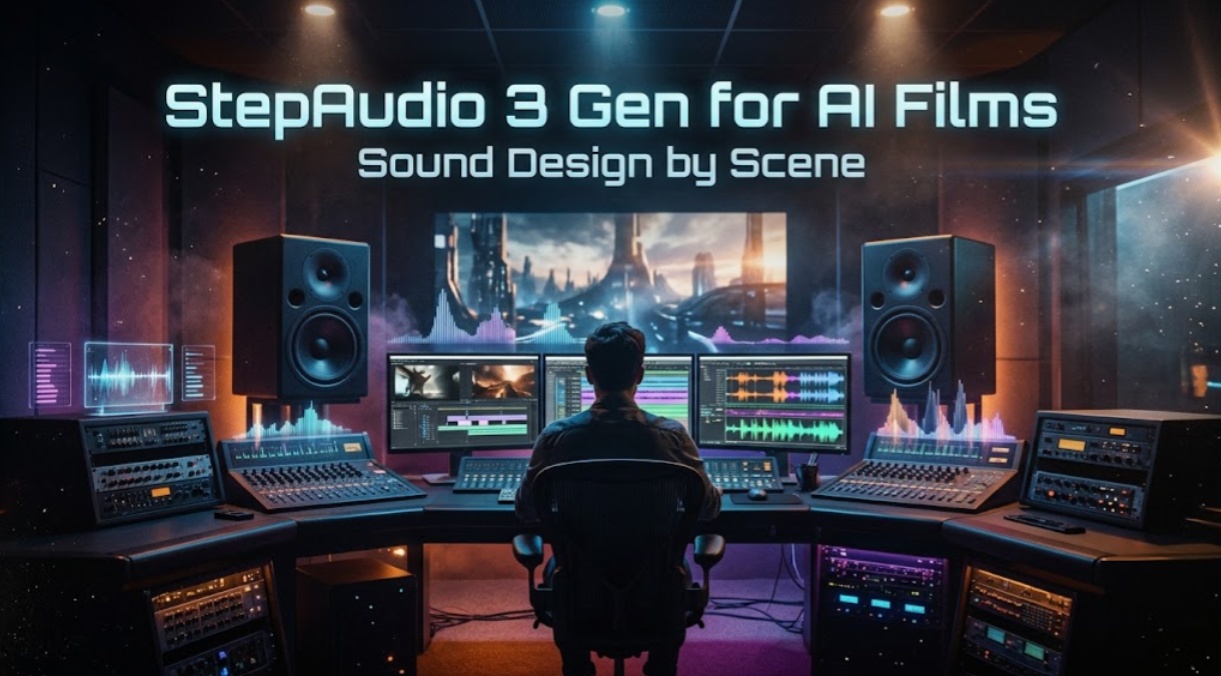
Developed by StepFun, StepAudio 3 Gen can organize dialogue, room ambience, practical action foley, and musical undertones inside a unified timeline soundscape from text descriptions.
However, an audio model cannot read a visual storyboard on its own. You cannot simply upload an image and expect a finished movie soundtrack. You must translate your visual storyboard into a scene-by-scene audio brief, choose the right generation strategy, and manage your editing handoffs carefully.
Here is how to design and structure cinematic sound by scene using StepAudio 3 Gen.
Turn the Storyboard Into a Scene Audio Brief
Sound design begins with translation. Before writing audio prompts, you must convert the visual information in your storyboard into descriptive text cues.
Separate Dialogue, Ambience, and Action Cues
Look at each scene card in your storyboard and break its audio requirements into three distinct categories:
- Spoken Dialogue: The exact words spoken, the character’s vocal tone, pitch, and emotional delivery (such as a tense whisper or a breathless shout).
- Environmental Ambience: The acoustic space holding the scene. Is it a cavernous concrete parking garage with a damp slapback echo, or a quiet carpeted study with faint radiator hum?
- Physical Action Foley: The concrete sound effects triggered by movement on screen, such as heavy combat boots crunching on wet gravel or a brass key turning in a rusty lock.
Keeping these three elements separated in your scene notes gives you precise control over what the model should generate.
Place Each Cue Against the Shot and Story Beat
Audio requires clear chronological order. In your written brief, map the relative timing of every sound event to match your visual cuts:
- Beat 1 (0 to 2 seconds): Establishing wide shot. Low hum of distant traffic with light wind blowing through telephone wires.
- Beat 2 (2 to 5 seconds): Cut to character walking. Heavy footsteps approach from the left stereo field.
- Beat 3 (5 to 8 seconds): Close-up. The footsteps stop abruptly, followed by a sharp metallic click of a lighter and a quiet breath.
StepAudio 3 Gen’s architecture is designed to handle relative sequential timing. Describing the sequence of events in your prompt allows the engine to arrange acoustic events naturally across the timeline.
Build a Sound Plan for Every Scene
A convincing film soundscape needs acoustic depth. Describing raw sounds is not enough; you must describe how those sounds interact with the physical space.
Describe Characters, Space, Mood, and Timing
When prompting StepAudio 3 Gen, write prompts that define acoustic dimensions:
- Space and Reverberation: Specify the room geometry. Tell the model whether the dialogue occurs in an open outdoor valley or a cramped wooden attic.
- Proximity to Camera: Define acoustic perspective. An actor talking close to the lens needs dry, intimate vocal warmth, while a background figure requires lower volume and slight room reflection.
- Atmospheric Mood: Anchor the emotional weight with subtle sonic textures, such as an ominous low-frequency drone or a light, airy melodic shimmer.
Carry Audio Motifs Across Scene Changes
To keep a multi-scene film cohesive, carry signature sound elements across cuts.
If Scene 1 ends inside a rain-soaked car and Scene 2 steps outside onto the sidewalk, keep the rain sound texture consistent while increasing its volume and sharpness. Maintaining these recurring sonic motifs prevents your short film from sounding like an unorganized collection of random sound clips.
Choose a Mixed or Layered Workflow
When working with StepAudio 3 Gen, creators face an essential production decision: Should you generate the entire scene’s audio in a single pass, or generate individual layers separately?
Use a Unified Mix for Fast Story Review
StepAudio 3 Gen can generate dialogue, environment, and foley together in a single audio render.
This unified mix workflow is ideal for early story animatics, pitch decks, and fast client reviews. You submit a single prompt detailing the dialogue, the echoing room, and the footsteps. The model returns a complete soundscape in seconds.
This allows directors to evaluate scene pacing and emotional tone immediately without spending hours editing multiple audio tracks.
Use Separate Production Layers When Revisions Need Control
The drawback of a unified mix is revision cost. If a client loves the background wind and footsteps but asks to change a single spoken word, you cannot mute the voice. You must re-roll the entire prompt, which alters the ambient background and foley timing.
For final film production, use a layered production workflow:
- Pass 1: Generate the dialogue lines cleanly with minimal background reverb.
- Pass 2: Generate the environmental room tone and background weather texture.
- Pass 3: Generate isolated action foley effects (footsteps, impacts, prop handling).
Generating separate audio passes takes more time, but it protects approved elements when client revisions arrive.
Review the Sound Against the Picture
Once your audio renders are complete, bring them into your visual timeline to verify alignment.
Check Timing, Continuity, and Scene Transitions
Lay your generated audio beneath your video draft in your editing suite. Check three primary synchronization points:
- Impact Sync: Does the sound of the closing car door hit at the exact frame the door latches on screen?
- Perspective Consistency: When the camera cuts from a wide shot to an extreme close-up, does the dialogue get closer and clearer?
- Transition Flow: Does the background ambience cut off abruptly at the edit point, or does it fade naturally into the next scene’s acoustic space?
Log Changes Before the Next Video Draft
If a sound event misses its visual mark by half a second, do not immediately re-generate the audio.
Use your video editor to trim or ripple-edit the visual cut slightly to match the natural rhythmic timing of the audio. Often, adjusting the video edit by a few frames to match audio pacing creates a much smoother cut than fighting generative audio seeds.
When organizing complex narrative projects where visual storyboard prompts, scene-by-scene script beats, and sound cues must stay aligned across teams, creators coordinate their drafts in tools like the versatile CrePal workspace. Within CrePal, creative teams can organize scene cards, review script timing against shot lists, and attach approved audio notes before handing off clean assets to final video post-production.
Set the Boundary of the Workflow
Understanding the technical boundaries of StepAudio 3 Gen prevents costly production bottlenecks:
A Unified Mix Does Not Guarantee Separate Stems
While StepAudio 3 Gen can place multiple sound types on a single generated timeline, it does not output separate multitrack stems (isolated vocal, isolated foley, isolated music) from a single unified pass. If your post-production workflow requires dedicated stems for professional surround-sound mixing, you must generate those layers through deliberate, separate generation prompts.
Keep Final Audio Review and Editing Outside the Model
Generative audio engines are creation tools, not mastering suites:
- No Frame-Level Snapping: StepAudio 3 Gen operates on text-based sequential cues; it cannot read video timecode or lock sound events to exact video frames automatically.
- Volume Balancing: The internal balance between spoken dialogue and background noise can vary between generations.
- Mastering and EQ: Final frequency adjustments, dialogue de-essing, dynamic range compression, and loudness normalization must always be completed in a dedicated non-linear video editor or digital audio workstation (DAW).
FAQ
Does StepAudio 3 Gen have an official public generation interface?
StepFun has published official technical demonstration pages, code repositories, and research papers detailing the StepAudio 3 Gen model. However, direct public web generation interfaces and enterprise API access availability depend on StepFun’s active developer platform release schedule. Creators should check StepFun’s official developer portal for current access tiers.
Which languages and voice styles does StepAudio 3 Gen document?
According to official technical reports, StepAudio 3 Gen focuses strongly on bilingual Chinese and English natural speech synthesis. It supports a diverse range of vocal emotions, dialects, whispered delivery, and conversational speaking styles across various age profiles.
Can StepAudio 3 Gen use reference audio or cloned voices?
The underlying StepAudio model architecture includes few-shot audio conditioning capabilities, allowing it to adopt acoustic properties from short audio prompts. When deploying voice synthesis commercially, creators must hold full authorization for any reference voice sample used.
Which audio formats, sample rates, and durations are supported?
Standard technical implementations output high-fidelity broadcast audio (typically 24 kHz or 48 kHz uncompressed WAV files). While the model can generate extended sequences spanning dozens of seconds, commercial sound designers recommend generating scene clips in 5-to-15-second blocks for easier timeline editing.
What commercial-use terms apply to StepAudio 3 Gen audio?
Commercial exploitation rights depend on the specific license terms under which StepAudio 3 Gen model weights and API endpoints are accessed. Always verify StepFun’s official terms of service and model licensing agreements before publishing monetized or client-commissioned video projects.
Conclusion
Creating convincing cinematic sound for AI films is about thoughtful planning, not accidental luck.
By using StepAudio 3 Gen sound design, creators can move away from unorganized stock audio clips and build custom, scene-specific soundscapes that match their creative vision.
Whether you choose a fast unified mix for rapid client pitch animatics or separate production layers for surgical revision control, structuring your sound design by scene ensures your final AI film connects with real emotional weight, narrative clarity, and sonic depth.