
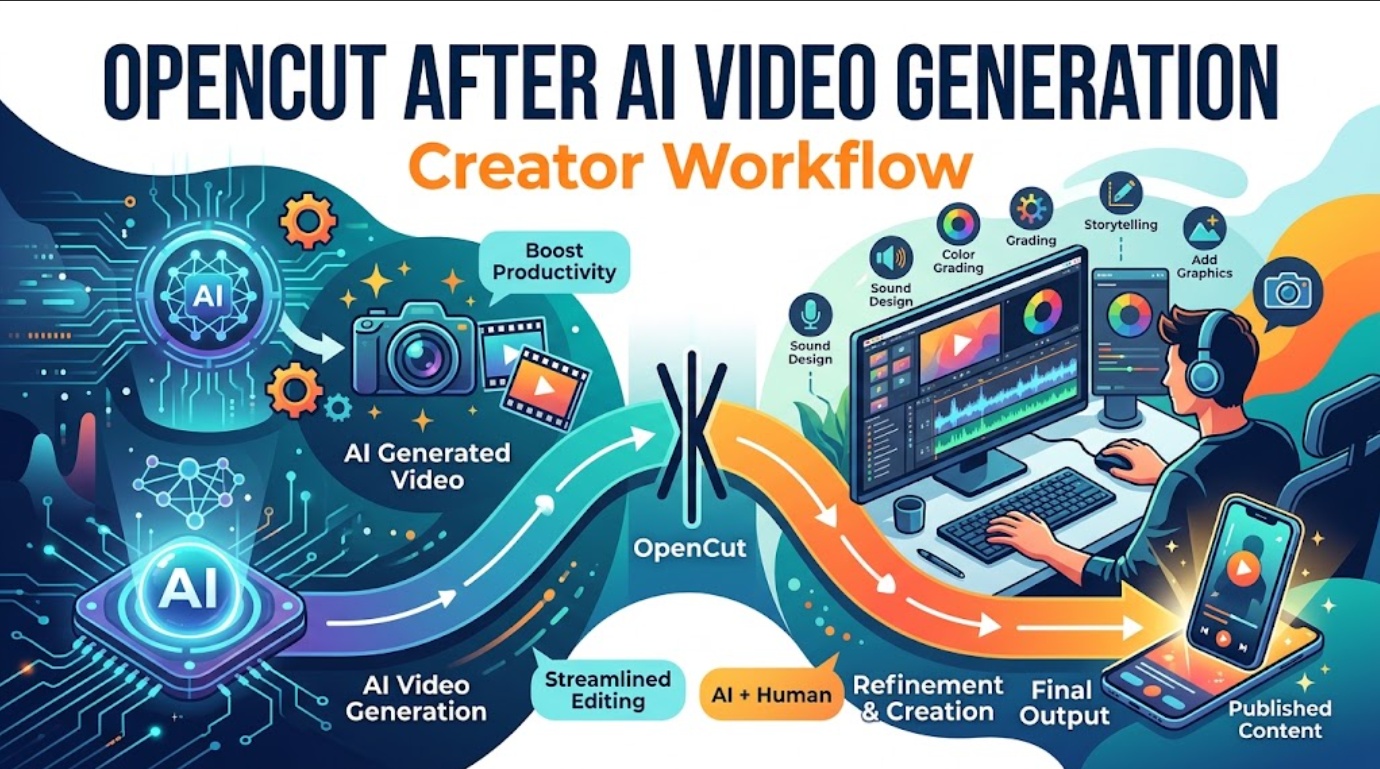
Editor’s & Project Status Note:
Generative video models (such as MiniMax H3, Luma Ray, and Google Veo) output short, isolated video clips, leaving creators with the challenge of assembling these fragments into a cohesive, publishable narrative. Open-source advocates frequently point to OpenCut as a privacy-centric, paywall-free desktop alternative to CapCut. However, before adopting it for daily production, creative teams must distinguish between software versions: the main OpenCut codebase is undergoing an architectural rewrite from the ground up. Features like an Editor API, headless automation, Model Context Protocol (MCP) servers for AI agents, and custom third-party plugins are on the upcoming roadmap. The currently functional build remains the legacy opencut-classic codebase, hosted live at opencut.app. This guide evaluates how to assemble a tight post-generation rough cut using OpenCut’s usable feature set without assuming unreleased capabilities.
In AI video production, generating clips is only the first half of the pipeline. A typical 30-second commercial or social explainer requires splicing together four to six isolated generative takes, stripping synthetic audio glitches, aligning a voiceover stem, and applying animated lower-thirds.
For solo creators and small agencies, traditional non-linear editors (NLEs) like DaVinci Resolve or Adobe Premiere Pro often introduce excessive project bloat for a quick rough cut. Conversely, popular consumer web and mobile editors increasingly gate basic trimming tools, watermark removal, 1080p exports, and timeline layers behind recurring monthly subscriptions.
This operational friction has accelerated adoption of OpenCut AI video assembly pipelines. Operating under the MIT license, OpenCut processes media entirely client-side via WebAssembly (WASM) and browser GPU compositing, ensuring that proprietary, unreleased video assets never leave your local machine.
This hands-on tutorial details the exact step-by-step workflow required to stage raw AI clips, assemble a locked rough cut on OpenCut’s multitrack timeline, and cleanly export your final video.
Quick Verdict for Post-Generation Editing
OpenCut is a practical, lightweight utility for assembling a fast rough cut from 3 to 6 AI-generated video takes. If your goal is to trim bad generative frames, arrange clips on a simple multitrack timeline, drop in an audio voiceover stem, and export a clean MP4 without watermarks or subscription paywalls, the web deployment at opencut.app handles the job cleanly.
However, it is not yet a complete replacement for high-throughput studio editors. The project is in the middle of a foundational codebase split. Advanced automation, proxy workflows, scriptable timeline APIs, and nested sequences belong to the unreleased rewrite. Today’s stable version is limited to essential manual editing, basic text titling, and local canvas rendering.
Understand OpenCut’s Current Project Status
Adopting open-source tooling requires tracking repository health and version realities:
| Operational Parameter | opencut-classic (Current Usable State) | Ongoing Rewrite (opencut-app/OpenCut) |
| Primary Codebase | TypeScript / Next.js / Initial WASM bindings | Unified Rust Core / GPUI Desktop / Web / Mobile |
| Hosting & Access | Live at opencut.app & Docker self-host | In development; staging planned at new.opencut.app |
| Supported Features | Multitrack timeline, clip split/trim, basic text | Plugin architecture, Editor API, Headless rendering |
| AI Automation / MCP | None (100% manual user assembly) | MCP server support for autonomous AI agent control |
| Maintenance Status | Archived / Bug fixes only | Active primary development branch |
The Usable Classic Version
Creators wanting to edit today must look to opencut-classic. This build provides a familiar browser-based or local containerized canvas inspired by mobile short-form editors. It processes video files locally via browser memory and WebAssembly (WASM), ensuring that proprietary AI clips are never uploaded to a third-party server for processing.
The Ongoing Rewrite and Roadmap
The main repository is being rebuilt around a platform-agnostic Rust core. While developers are designing this rewrite to support headless video rendering, an MCP server for AI agent orchestration, and programmatic timeline scripting, these features are not active in the current stable build.Creators should not build automated daily client delivery around features that exist solely in pull requests.
Prepare a Small Set of AI-Generated Clips
AI video models frequently produce minor temporal morphing or static frames during the first 12 frames (generation spin-up) or final 24 frames (motion decay). Preparing your footage before timeline assembly prevents wasted effort:
┌────────────────────────────────────────────────────────────────────────┐
│                   Pre-Ingestion Clip Staging Matrix                    │
├────────────────────────────────────────────────────────────────────────┤
│ 1. INSPECT HEAD & TAIL   Identify frame warping or static decay        │
│                                  │                                     │
│ 2. STANDARDIZE SPECS     Confirm matching aspect ratios (9:16 or 16:9) │
│                                  │                                     │
│ 3. CONVERT CONTAINERS    Ensure web-compatible H.264 / AAC MP4 assets  │
│                                  │                                     │
│ 4. STAGE AUDIO STEM      Pre-render mastered voiceover (e.g. 48kHz WAV)│
└────────────────────────────────────────────────────────────────────────┘- Format Normalization: Confirm all generated clips share the same aspect ratio (e.g., vertical 9:16 for TikTok/Reels or landscape 16:9 for YouTube). Mixing canvas dimensions in lightweight editors can cause unexpected letterboxing.
- Container Compatibility: OpenCut’s client-side browser pipeline operates best on standard H.264-encoded MP4 files. If your AI video generator outputs raw WebM or ProRes files, transcode them to MP4 via FFmpeg prior to browser import to avoid browser-decoding bottlenecks.
Assemble One Short Rough Cut
Open opencut.app in a Chromium-based browser (Chrome, Edge, or Brave) with hardware acceleration enabled.
┌────────────────────────────────────────────────────────────────────────┐
│                  OpenCut Classic Multitrack Timeline                   │
├────────────────────────────────────────────────────────────────────────┤
│ TRACK 3 [TEXT]   ├── Subtitle Beat 01 ──┤├── Subtitle Beat 02 ────────┤ │
│ TRACK 2 [VIDEO]  ├── AI Clip 01 ──┤├── AI Clip 02 ──┤├── AI Clip 03 ──┤ │
│ TRACK 1 [AUDIO]  └───────────── Master Voiceover Stem ────────────────┘ │
└────────────────────────────────────────────────────────────────────────┘
Trim, Order, and Review the Timeline
- Drop Media on the Canvas: Drag your 3 to 5 staged clips into the media library and drop the master voiceover stem onto Audio Track 1.
- Set the Audio as the Anchor: Because generative video clips lack real-world production timing, align the visual story to your spoken dialogue. Play back the voiceover track first to identify narrative cut points.
- Top-and-Tail Trimming: Drag your video clips onto Video Track 2. Use the split tool (
Bladeshortcut or scissors icon) to slice away unstable starting and ending frames. Snap the trimmed clips together to follow the voiceover’s thematic transitions.
Add Essential Audio and Captions
- Audio Balancing: Adjust clip audio levels. Since generative clips occasionally output unwanted synthetic background noise, mute the native audio tracks on Video Track 2, letting your master voiceover stem drive the mix.
- Manual Text Cards: OpenCut Classic provides standard text overlays. Add headline markers or key narrative soundbites to the dedicated upper text track. Note that automated speech-to-text subtitle generation is not natively integrated in the classic branch; Subtitles must be keyed manually or pasted as short phrase cards.
Review and Export the Finished Short
Before exporting, scrub the playhead across every cut point:
| Quality Gate | Review Checkpoint | Operational Fix |
| Cut Coherence | Check for abrupt motion jumps between adjacent takes. | Trim 6–10 frames off the cut to hide perspective shifts. |
| Edge Clipping | Verify vertical safe zones (avoiding TikTok/Reels UI bounds). | Reposition text overlays within the central 80% screen area. |
| Audio Sync | Ensure dialogue cadences resolve before visual transitions. | Nudge the incoming clip boundary to align with speech downbeats. |
Click Export in the top navigation panel. In OpenCut Classic, rendering runs directly on your local hardware using client-side WebAssembly and GPU compositing. Keep the browser tab active during export to prevent background process throttling by your operating system.
Know When Another Editor Is Still Necessary
OpenCut fills a specific niche: fast, unencumbered, private assembly of rough drafts. It is essential to recognize where its functional ceiling sits:
┌────────────────────────────────────────────────────────────────────────┐
│                   Post-Generation Tool Selection                       │
├───────────────────┬────────────────────────────────────────────────────┤
│ PRODUCTION TASK   │ RECOMMENDED SOFTWARE ENGINE                        │
├───────────────────┼────────────────────────────────────────────────────┤
│ Rapid Social Cuts │ **OpenCut Classic** (Zero paywalls, fast trims)    │
│ Complex VFX/Color │ **DaVinci Resolve / Premiere Pro** (Full grading)  │
│ AI Directed Stems │ **CrePal** (Scene planning & generative director)  │
└───────────────────┴────────────────────────────────────────────────────┘
When projects expand into multi-scene commercial narratives requiring character continuity, scene-by-scene script breakdowns, and generative model coordination, manual video editing is only the final step.
Teams often manage the upstream pre-production phase inside specialized orchestration platforms like CrePal. Within CrePal, creators utilize an AI Director framework to break scripts into structured storyboards, orchestrate foundation video models, and align takes to scene pacing. Once the approved visual takes are synthesized, creators can pull those structured clips into OpenCut for final local assembly and trimming.
Does OpenCut support proxy media for slower computers?
No. OpenCut Classic does not currently generate low-resolution proxy files. For smooth playback on lower-spec hardware, pre-transcode high-bitrate 4K AI video clips to 1080p H.264 before importing them into the editor.
Can OpenCut projects include nested timelines in the current build?
No. The classic version supports a flat multitrack canvas. Compound clips, nested sequences, and adjustment layers are architectural features planned for the unified Rust rewrite.
Does OpenCut preserve generation metadata inside project files?
Project states are saved as localized JSON data within browser storage. OpenCut tracks file references, in/out trim points, and track positions, but it does not automatically extract or display prompt parameters embedded in generative video files.
Can teams relink missing AI clips after moving folders?
Because the web client links to browser-cached blobs or specific local paths, moving source files across directories can break media links. Keep all generated clips and audio stems within a single dedicated project directly during production.
Does OpenCut support collaborative comments without a hosted server?
No. OpenCut Classic is an offline-capable, single-user editing interface. It does not offer cloud-based frame-accurate review or collaborative multi-user timeline syncing.
Conclusion
The OpenCut AI video pipeline offers a clean, privacy-conscious solution for stitching short-form generative clips into finished video rough cuts. By cutting out subscription paywalls and watermarks, OpenCut Classic serves creators who simply need a reliable timeline to trim artifacts, align voiceovers, and export social-ready media.
While enterprise workflows and automated batch rendering await the completion of the project’s Rust rewrite, understanding the capabilities and boundaries of the classic build allows creators to build a fast, zero-cost finishing pipeline today.