I was halfway through building a fake comic strip at midnight when I realized I’ve been making this so much harder than it needs to be.
Six separate image generations. Six different faces on what was supposed to be the same character. By panel four, my protagonist had somehow become a completely different person with different cheekbones. I’ve been doing AI image work long enough that this was just… expected. Character drift has been the wall every creator hits the second they try to do anything sequential. Then GPT Image 2 dropped on April 21, 2026, and I had to rethink that assumption.
Hey there, it’s Dora. I’ve been working through this specifically from a storyboard and multi-panel workflow perspective — and what I found is that it helps in very specific ways, while still breaking in others.
Why GPT Image 2 works for storyboards and comics
The single biggest blocker for sequential AI image work has always been character drift — generate the same character twice from scratch and you get two different faces. It made multi-panel comics feel like a toy experiment, not a real workflow.
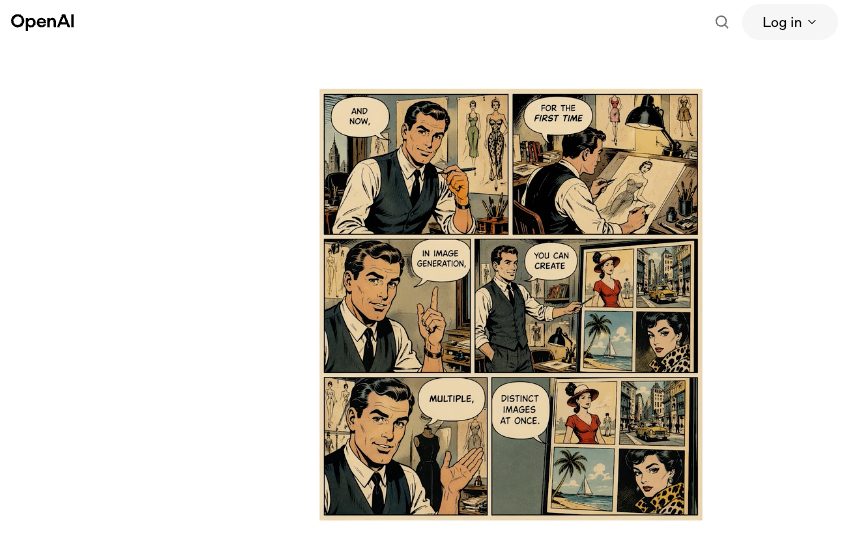
GPT Image 2 directly addresses this. When thinking mode is enabled, the model can generate up to eight coherent images from a single prompt, keeping the same character, face, outfit, and proportions consistent across the full set. As OpenAI’s official launch announcement confirms, the feature maintains “character and object continuity” across the batch — that’s one prompt, multiple frames, shared visual identity throughout.
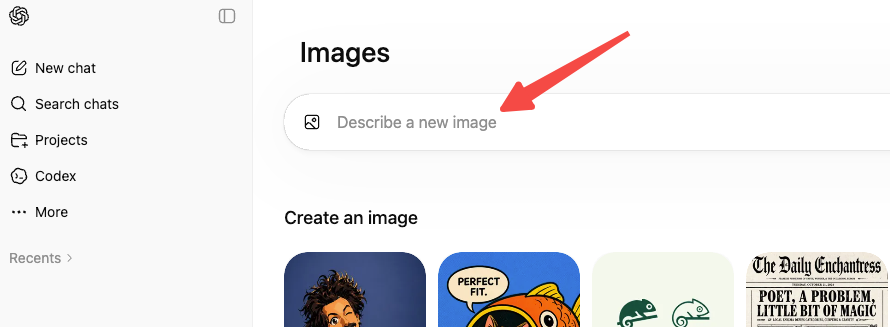
For storyboards specifically, this changes the math. Before this, building a 6-panel sequence meant: generate panel 1, extract the character reference, pray the next generation matched, repeat until you gave up or burned through your patience. Now the output is a set, not a sequence of separate coin flips.
The other upgrade that matters here is text rendering. If your comic panels need speech bubbles, labels, or panel titles — GPT Image 2 handles those cleanly. Legible typography inside AI-generated images was basically unusable before this model. OpenAI’s prompting guide for gpt-image-2 identifies “reliable text rendering with crisp lettering, consistent layout, and strong contrast inside images” as one of the model’s core production strengths.
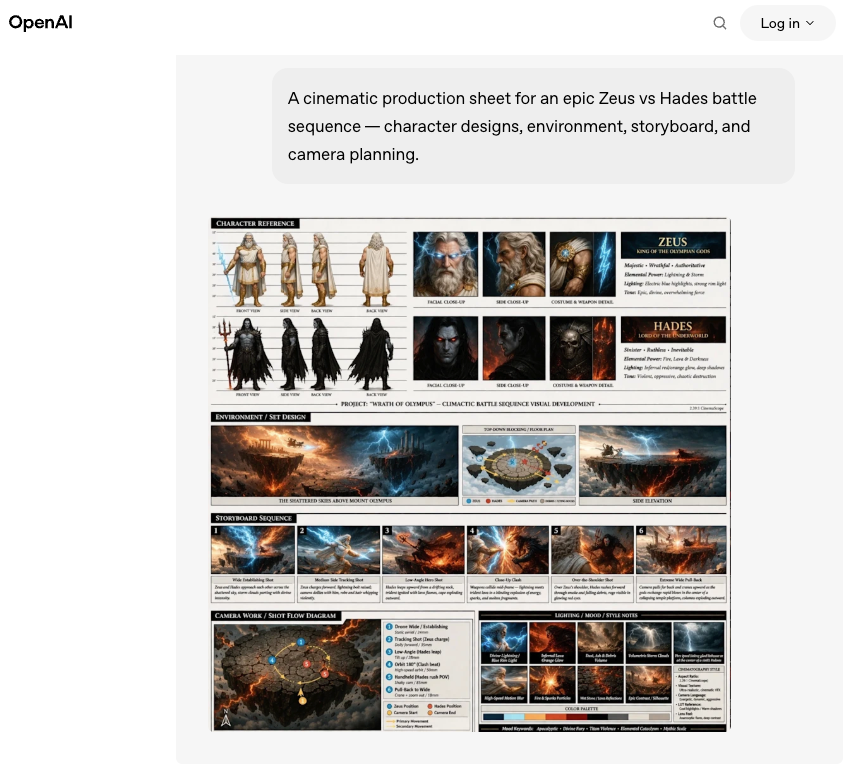
There’s also a practical grid trick worth knowing: you can prompt GPT Image 2 to produce a 3×3 nine-panel storyboard as a single image, rather than 9 separate files. Because all nine panels exist on one canvas, the model treats them as one unified composition — same character appearance, same color palette, consistent visual language across every frame. The panel borders, gutters, and layout are part of the prompt.
What you need before you start
Access path and when to use thinking
GPT Image 2 is available inside ChatGPT and via the OpenAI image generation API under the model name gpt-image-2. The API supports stable resolution up to 2K — 4K output is currently in beta and may produce inconsistent results.
Two modes ship with this model:
- Instant mode — fast, available to all ChatGPT users including the free tier. Good for quick panel drafts and single character sheets.
- Thinking mode — slower (15–60 seconds depending on prompt complexity), restricted to Plus, Pro, and Business subscribers. Before generating, the model plans layout, checks object counts, can pull live references from the web, and self-verifies outputs. This is also the mode that unlocks multi-image batching — up to eight images per prompt.
For storyboard and comic work where cross-frame continuity matters, thinking mode is the one worth using. The extra time pays off in fewer retries.
Step-by-step workflow for multi-panel output
Set the visual style and characters
Before you touch a storyboard prompt, build your character anchor first. This is a single-image prompt that locks your character’s appearance — face, outfit, proportions, distinguishing features. Be specific. “Woman in her 30s with short dark hair, blunt bangs, freckles across her nose, orange knit sweater” beats “a young woman.” The more defined the anchor, the more the model has to hold on to across panels.
Example character anchor prompt:
A children’s book illustration of a main character — a small forest outlaw, green hooded tunic, soft brown boots, belt pouch. Kind expression, gentle eyes, brave but warm. Carries a small wooden bow. Storybook style, white background.
Once you have an output you like, save it. You’ll use it as a reference image input for multi-panel requests.
OpenAI’s gpt-image-2 cookbook explicitly recommends this “character anchor” approach — a reusable reference that ensures visual continuity across scenes and poses while allowing environmental variation. The key instruction pattern: “Using this exact character design, show the character in [new scene].”
Build panels and camera changes
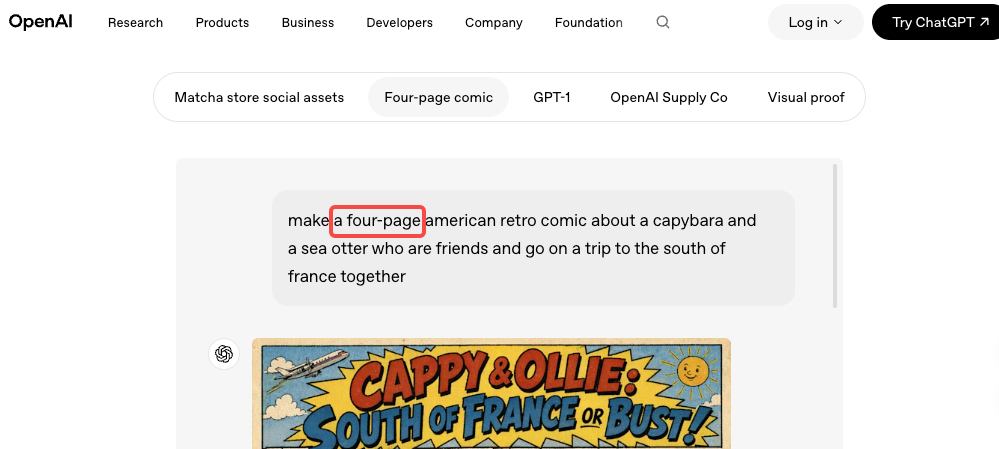
For a multi-panel or storyboard prompt, structure it panel by panel. Every panel description should restate the visual invariants — character appearance details stay the same, but the scene, pose, and camera angle change.
Example 4-panel comic prompt:
A 4-panel comic strip, ligne claire style. Female engineer, short black hair, glasses, blue hoodie. Panel 1: stares at laptop with coffee. Panel 2: screen shows error. Panel 3: slams laptop shut. Panel 4: back with fresh coffee. Consistent character, clean black panel borders, white gutters.
For the 3×3 grid approach:
A 3×3 nine-panel storyboard page. [Character description]. [Panel 1 description]. [Panel 2]… [Panel 9]. Bold black borders, white gutters, 1:1 aspect ratio, comic book layout.
Use 1:1 aspect ratio for grid-based storyboards. The square format keeps every panel proportional. 9:16 works for vertical mobile storytelling; 16:9 stretches panels into ribbons, which looks wrong for comics.
Camera vocabulary that works well in prompts:
- “wide establishing shot” / “medium shot” / “close-up on face”
- “over-the-shoulder angle” / “low angle looking up” / “birds-eye view”
- “camera cuts to” (in narrative panel descriptions)
Keep continuity across scenes
Continuity degrades with complexity. The more panels you have, the more characters you introduce, and the more scene changes you make — the higher the chance something drifts. A few tactics that actually help:
Restate invariants every iteration. If you’re refining through chat, repeat the character details in every follow-up prompt. The model doesn’t automatically remember what mattered to you two messages ago. “Same character — short dark hair, blue hoodie, glasses” needs to appear in each request, not just the first one.
Reduce scope per batch. Instead of one 12-panel sequence, split it into two 6-panel batches and use the last panel of batch one as the reference image input for batch two.
Use image-to-image for continuity anchoring. Upload a generated panel and use it as the reference for the next one. Per OpenAI’s images and vision documentation, you can pass multiple images in a single request — the model processes them at high fidelity and uses them to anchor visual identity in the new output.
Describe what shouldn’t change, not just what should. A line like “keep the character’s outfit and face identical to previous panels — only the background and pose change” does more than you’d expect.
Limits, risks, and trade-offs
Cross-image consistency is genuinely better than it was — but it’s not solved. A few things to plan around:
Drift still happens across large sets. Eight consistent panels in thinking mode? Strong. A 20-panel narrative sequence split across multiple prompts? The face will shift somewhere. Budget for a manual correction pass on long-form work.
Multiple characters are harder. The eight-image consistency feature works best with one main character and a stable environment. Two or more characters with distinct appearances in the same frame increases drift probability. This isn’t GPT Image 2-specific — maintaining multi-view identity consistency across varied poses and contexts is a known challenge in generative model research, not a quirk of one tool.
Brand logos need post-production. Exact logos, brand marks, and custom fonts often come out imperfect. These are best added later in tools like Figma or Photoshop rather than generated.
The grid approach locks your layout. Once you generate a multi-panel grid, you can’t easily rearrange or edit individual panels without regenerating the whole set. So shot planning matters upfront.
Thinking mode takes time. Complex storyboard prompts can hit 30–60 seconds. Fine for async batch work. For rapid live iteration, it adds friction.
Alternatives for harder comic workflows
GPT Image 2’s multi-image consistency is strong for short sequences and single-character narratives. But it’s not the right tool for everything.
For multi-character ensemble scenes, Google’s Nano Banana 2 (Gemini 3.1 Flash Image) takes a different approach. Google’s official Nano Banana 2 announcement states the model supports character resemblance for up to five characters and fidelity for up to 14 reference objects in a single workflow, with reference images supplied directly by the user. That explicit reference-based system may give you more predictable control when you have three or more distinct characters who each need to stay on-model across scenes.
For long-form graphic novels (50+ pages), a reference-system workflow — supplying your saved character anchor image at the start of every new session — is more reliable than trusting any model’s in-context memory, regardless of which model you use.
For precise shot-level control where camera angles and compositions need to match pre-defined sketches exactly, GPT Image 2 works well as a style and character reference generator, but final layout assembly is better done in a traditional illustration or compositing tool.
FAQ
Can I use GPT Image 2 for children’s books?
Yes — and it’s one of the stronger use cases. Single character, consistent environment changes, clean illustration styles. The character anchor workflow maps directly to how picture books are structured. The text rendering upgrade also means speech bubbles and simple captions come out legibly most of the time.
Do I need the API, or does ChatGPT work?
ChatGPT works and is easier to start with. The conversational editing loop — generate, chat, refine — is genuinely useful for storyboard iteration. The API makes more sense for batch workflows or integrating generation into a larger pipeline. Free-tier users only get Instant mode; multi-image batching requires a paid subscription.
How many panels can I realistically get consistent in one prompt?
In thinking mode: 6–8 is where the model performs reliably. Beyond that, plan for at least one round of manual review and selective regeneration.
What aspect ratio should I use for storyboard grids?
1:1 for 3×3 grids. 16:9 for widescreen cinematic panels if you’re building them individually rather than as a grid.
Final thought
GPT Image 2 moved the bar for sequential image work faster than I expected. The eight-image consistency set and the grid approach together make multi-panel comic and storyboard work genuinely usable as a first-draft production tool — not just a demo.
It’s not a full solution for long-form narrative work or multi-character ensemble scenes. Drift happens, logos still need compositing, and anything past 8–10 panels will need a review pass. But for children’s book illustrations, short-form storyboards, 4–6 panel comic strips, and sequential ad creative? This is where I’d start.
Build your character anchor first. Use thinking mode for multi-panel outputs. Restate your invariants every time. And plan for that review pass — the consistency is good, but it’s not yet “set and forget.”
Previous Posts: