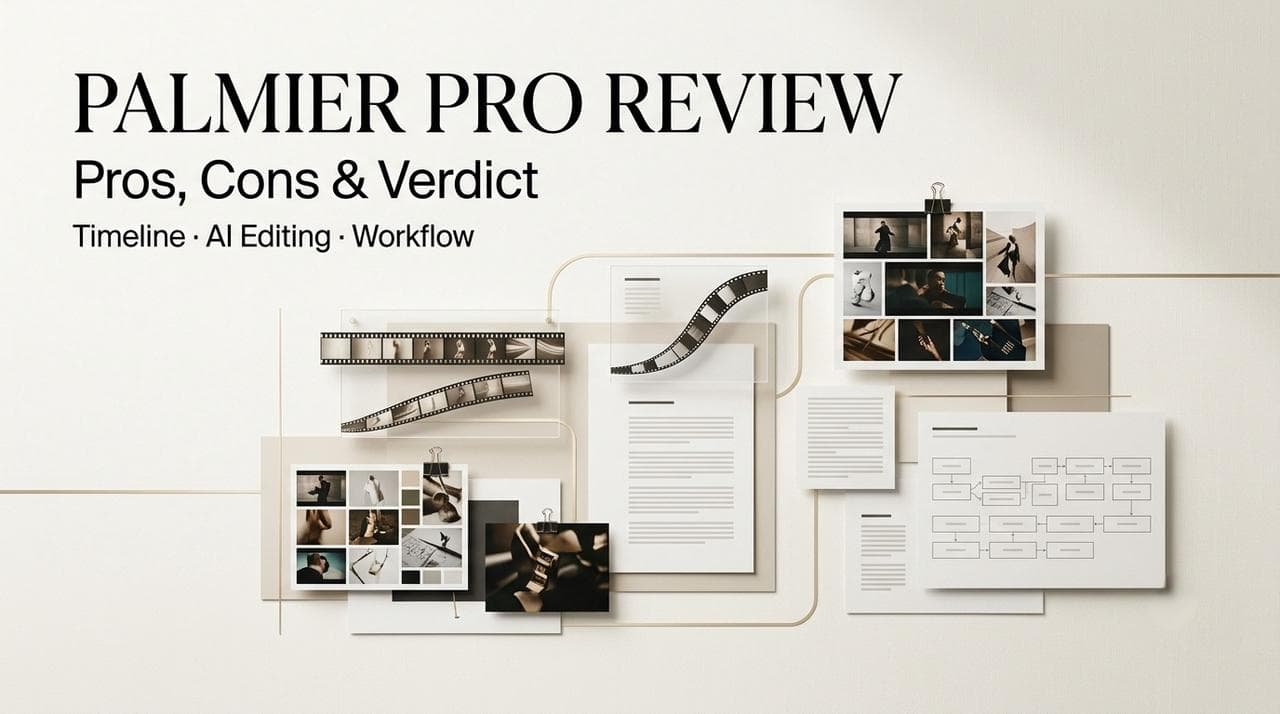
Hi, I’m Dora. A friend dropped a link in our group chat last week with one line: “an editor where Claude edits your timeline.” Naturally, I went down the rabbit hole. This Palmier Pro review is what came out of it — though I’ll be straight with you up front: I haven’t run it on my own machine yet, because it’s locked to a very specific setup (more on that in a second). So this is a hands-off breakdown built from Palmier’s docs, the open-source code, and the team’s demos — not me editing a video at 2 AM. Not sponsored, just honest digging. Here’s what Palmier AI actually is, who it’s for, and the catch nobody’s putting in the headline. The research behind this took about four hours: reading the full official docs, stepping through the GitHub repo’s MCP server code, watching every demo the team has posted, and cross-checking the YC profile. That’s the basis. Take it for what it is — thorough secondary research, not first-hand testing.
Palmier Pro Review: The Quick Verdict
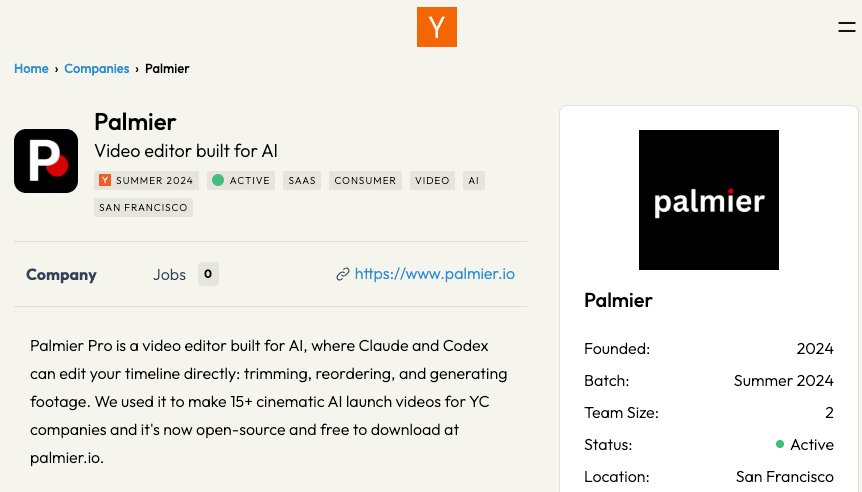
If you’re skimming, here’s the 30-second version. Palmier Pro is a free, open-source macOS video editor with AI generation built right into the timeline, made by a YC-backed two-person team. You generate clips, trim them, and finish the cut in one place instead of bouncing between a generator and Premiere. The big asset: agents like Claude can read and edit your timeline directly. The big catch: it only runs on recent Apple Silicon Macs, and the feature set is bare-bones today.
Who should look closely
Solo creators and small teams already running a generation-heavy AI video workflow — especially anyone editing alongside Claude, Codex, or Cursor. If your downloads folder is a graveyard of final_v3_actually_final.mp4 files and lost prompts, this was built for your exact pain.
Who should skip it (for now)
Windows and Intel-Mac users — it simply won’t run. Editors who need color grading, transitions, motion graphics, or effects, since Palmier doesn’t have those yet. And anyone who needs a polished, stable, do-everything editor today instead of an early v0.
How I Researched This
Because I haven’t installed Palmier Pro yet, I treated this as a technical review rather than a hands-on performance test.
| Source checked | What I used it for |
| Palmier official docs | Setup requirements, generation workflow, export options |
| Public GitHub repo | Open-source scope, MCP server behavior, project structure |
| Team demos | Timeline UX, agent editing flow, generation-in-editor concept |
| YC profile | Company background and funding context |
| GPLv3 license | What the open-source license does and does not cover |
What I did not verify myself: install flow, generation speed, credit burn, export reliability, crash behavior, or real project performance. Those need a proper hands-on follow-up.
What Palmier Pro Is Built to Do
Most AI video tools split your work in two: you generate a clip on the web, download it, then import it into a separate editor — you become the courier running files back and forth. Palmier collapses that loop. It’s an AI video editor where generation lives on the timeline itself.
Timeline-first editing with generation baked in
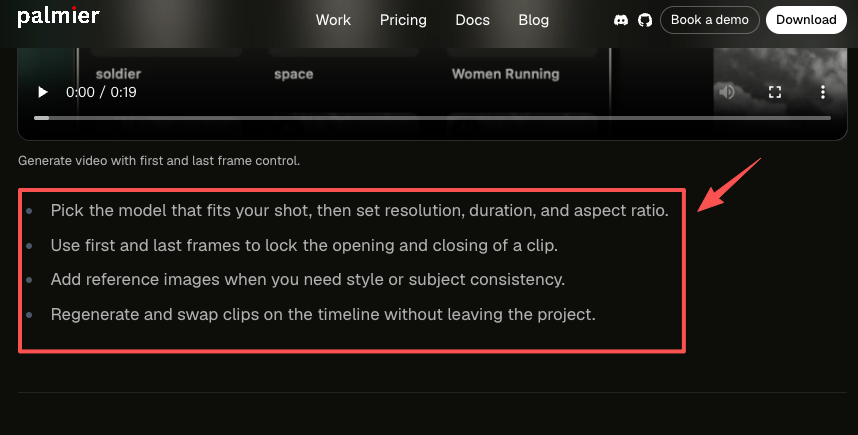
Per Palmier’s official docs, you pick a model, set resolution, duration, and aspect ratio, and generate a clip straight onto a track. You can lock the first and last frame, add reference images for style or subject consistency, then trim, regenerate, or swap the clip without leaving the project. Here’s the part I actually like: the prompt, model, and references stay attached to each clip. So three days later, when you want to tweak one shot, you’re not digging through a folder trying to remember which prompt made the good take.
Mixing real and generated footage in one project
This is the strongest idea on paper. You import your own footage and drop it on the same multi-track timeline as generated clips. Real B-roll, an AI shot, your voiceover — one cut, one export. For creators who shoot some footage and fake the rest (most of us now), that’s genuinely useful instead of a gimmick.
Access, Setup, and the Hardware Catch
Here’s the catch I promised. Palmier Pro is macOS-only, built in Swift, and tuned for Apple Silicon — and it requires macOS 26 (Tahoe) or newer. No Windows. No Linux. No Intel Macs. That one requirement is why I couldn’t test it myself, and it’s the first thing to check before you get excited.
The good news: the editor is free and needs no login. You can download it and cut video like you would in CapCut — account-free. AI generation is the paid part. It runs on credits through a subscription, while the editor stays free. Pricing and credit amounts shift with every model update, so check Palmier’s current pricing page before you budget — I’m not quoting numbers here that could be stale by the time you read this.
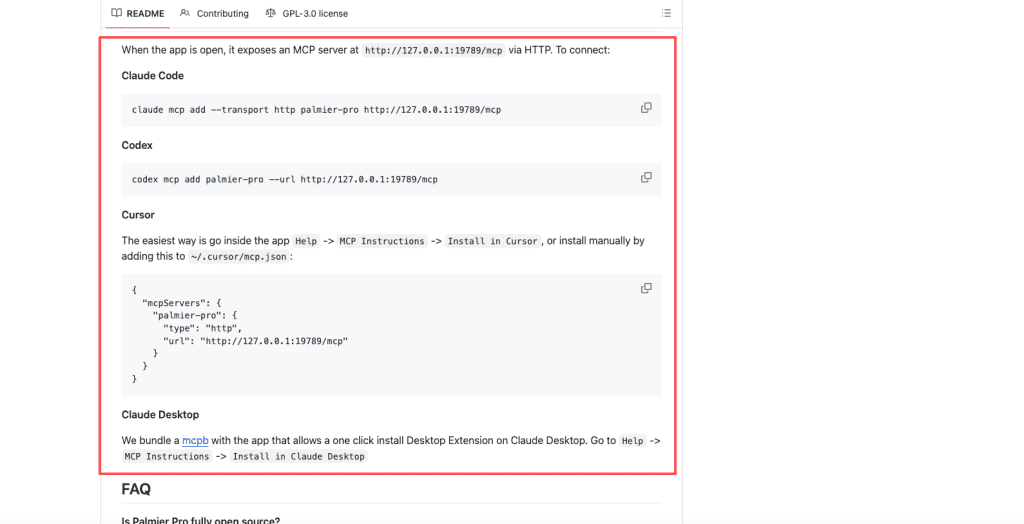
To pull agents in, you enable a local MCP server and connect Claude Desktop, Claude Code, Codex, or Cursor. It’s a one-click install from the app’s Help menu, no account needed for that part either.
Where Palmier Pro Looks Strong
I evaluated Palmier across four dimensions: timeline control, agent scope, exit flexibility, and transparency. Here’s where it lands on each.
Real timeline control plus in-editor generation
A lot of “AI video” tools are slot machines — type a prompt, pray, download whatever falls out. Palmier reads more like an editor. Generating with frame control, first/last-frame locking, and reference images means you’re directing shots, not rolling dice. Because it exports to MP4 (H.264, H.265, ProRes) and an NLE XML for Premiere Pro and DaVinci Resolve, adopting it isn’t a one-way door — you can hand a cut off to a traditional editor for finishing later.
Agent-assisted editing with full project context
This is the headline feature, and it’s a real one. Through the MCP server, Claude or Codex can see your whole timeline and act on it: generate a missing shot, trim dead air, reorder sections, regenerate a clip with a sharper prompt. The editor core and the MCP server are open source under the GPLv3 license — you can read exactly what it does on the public GitHub repo. Only the generation pipeline stays closed. For a tool that hands an agent the keys to your project, that kind of transparency matters way more than it sounds.
Running the four-dimension check:
Timeline control: Strong. First/last-frame locking, reference images, and prompt-attached-to-clip storage mean you’re directing shots, not hoping the generator guesses right. This is where Palmier clearly beats web-only generators.
Agent scope: Narrower than the marketing suggests — and that’s actually good. The MCP layer gives Claude read/write access to timeline structure only. Media files stay local; the agent can’t push exports or reach outside the project directory. Auditable, bounded, and less risky than “AI has the keys to your project” sounds.
Exit flexibility: Partial. MP4 and NLE XML export means you’re not locked in at the clip level. The catch: prompt metadata doesn’t travel with the XML. Generated clips arrive in Premiere or Resolve as flat files — the prompt and model info stays in Palmier. If you think you’ll need to regenerate a shot from inside your NLE later, document the prompt before you export.
Transparency: Better than most. GPLv3 editor core plus public MCP server code means you can audit exactly what the tool does before connecting it to your project. Most AI tools that offer agent access don’t give you that option. It’s not a small thing.
The honest summary: Palmier passes on timeline control and transparency, partially passes on exit flexibility, and the agent scope is bounded in a way that’s reassuring rather than limiting.
My Read on Palmier’s MCP Risk Boundary
The part I cared about most was not “can Claude edit a video?” It was: what exactly can the agent touch?
Based on the public repo and docs, Palmier’s agent layer looks more bounded than the scary version of “AI controls your editor” people imagine.
| Area | What the agent appears able to do | Why it matters |
|---|---|---|
| Timeline structure | Read tracks, clips, prompts, references, and project state | Gives the agent enough context to make useful edits |
| Clip operations | Add, trim, move, regenerate, or adjust clips through exposed commands | Makes the workflow practical, not just decorative |
| Media files | Work with project-linked assets rather than roaming your whole machine | Keeps the scope closer to the project |
| Export/publishing | Not something I would treat as autonomous without checking the current tool surface | Prevents “agent edited and shipped the wrong thing” anxiety |
| External systems | No reason to assume broad access beyond the local MCP interface without verifying setup | Important for teams with client footage or sensitive assets |
That boundary is the most interesting thing about Palmier to me. A fully unbounded agent editor would make me nervous. A local, inspectable MCP layer that edits timeline objects is much easier to reason about.
I still want to see how this behaves on a messy real project. But as a design direction, “agent can touch the timeline, not your whole creative life” is the right instinct.
Bias and Limits of This Review
A few limits matter here.
First, this is not a hands-on benchmark. I haven’t measured generation speed, export stability, credit usage, crash rate, or agent edit accuracy on a real project.
Second, Palmier’s own docs and demos naturally show the tool at its best. The open-source repo helps, because it lets me inspect part of the system directly, but it still does not replace running the app under messy real editing conditions.
Third, because this site also writes about AI video workflows, including CrePal, I’m keeping the comparison focused on workflow fit: timeline-first editing versus brief-first video creation. Different job, different tool.
Limitations and Trade-Offs to Know
Platform and hardware constraints
I’ll say it twice because it’s that important: macOS 26 Tahoe, Apple Silicon, nothing else. The app is also early — version 0.3.5 as of late June 2026 — so expect rough edges, bugs, and fast-moving changes. This is not a mature, battle-tested editor.
Models, credits, and generation dependencies
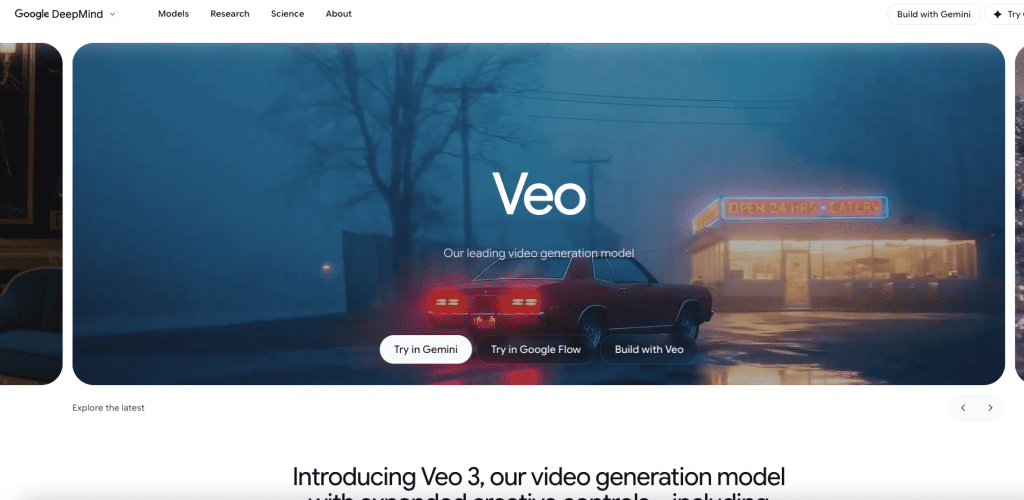
Generation runs through third-party models — Seedance 2.0, Kling V3, Google’s Veo 3.1, Grok Imagine, Nano Banana Pro for images. The variety is genuinely useful for matching model strengths to shot types (Veo 3.1 for photorealistic motion, Kling V3 for character consistency, Seedance for stylized content). But the dependency structure creates a specific risk that’s worth naming: Palmier’s credit pricing, generation latency, and output consistency are all downstream of API decisions made by providers who have no obligation to maintain stable behavior for Palmier’s use case. If Kling changes its API pricing or deprecates a model version, Palmier users absorb that change without necessarily being warned in advance. That’s not a dealbreaker — it’s how most AI tooling works — but it’s a different risk profile than software with first-party generation.
Palmier Pro vs Other AI Video Workflows
| Dimension | Palmier Pro | CrePal | Premiere Pro (AI) |
| Approach | Timeline-first | Brief-first | Timeline-first |
| Agent access | ✅ Claude/Codex via MCP | ❌ | ❌ |
| AI generation | ✅ On-timeline | ✅ Orchestrated | ⚠️ Firefly only |
| Color/effects | ❌ | ❌ | ✅ Full suite |
| Platform | macOS 26 + Apple Silicon only | Web | Win/Mac |
| Price | Free editor + credits | Subscription | Subscription |
| Open source | ✅ Editor + MCP | ❌ | ❌ |
| Best for | Editors who think in tracks + use Claude | Creators who start from a brief | Professional finishing |
Status as of June 2026. Verify current features on each platform’s official documentation.
When timeline-first editing fits better
If your work is shot-by-shot — assembling a real cut from real and generated clips — a timeline beats a chat box every time. This is also where the Premiere Pro AI comparison gets interesting: Palmier’s stated north star is literally Premiere, and the XML handoff means it can feed a Premiere or Resolve finish rather than try to replace it. For editors who already think in tracks and playheads, that’s the natural fit.
When brief-first direction makes more sense
Not every creator wants to touch a timeline. If you’d rather hand over a brief — a prompt, a PDF, a script — and let an agent orchestrate the whole video end to end, a brief-first tool like CrePal aims at that job instead: less manual editing, more “describe the outcome and review it.” The two approaches solve different problems. Which one fits comes down to whether you want to direct shots or direct outcomes — and that comparison deserves its own deep-dive, not a buried paragraph here.
The Honest Verdict
Palmier Pro is one of the more interesting takes on an AI video workflow I’ve seen this year — not because the generation is magic, but because it fixes the part everyone keeps ignoring: the editing. Putting generation and an agent inside a real timeline is the right instinct, and doing it open-source builds the kind of trust most AI tools skip. But it’s early, narrow, and chained to one platform. If you’re on a recent Apple Silicon Mac and already living inside Claude or Codex, it’s worth a download today. If you’re not, keep it on your radar — this is a v0 worth watching, not a v1 to bet your whole pipeline on.
FAQ
What timing or sync issues should editors watch for in Palmier Pro?
The main risk to watch for is duration mismatch. If a regenerated clip comes back slightly longer or shorter than the original, downstream cuts, captions, or audio can drift. I haven’t reproduced this in Palmier myself yet, so treat this as an editing-workflow caution rather than a confirmed Palmier bug.
The safer workflow is to regenerate into a separate track first, compare it against the original, then swap once the timing looks right.
How does the Claude MCP integration in Palmier Pro actually work?
Palmier runs a local MCP (Model Context Protocol) server that exposes your project’s timeline structure — clips, tracks, prompts, references — to agents like Claude Desktop, Claude Code, Codex, or Cursor. The agent can then read the timeline and execute edits: generate a new clip into a specific track, trim a segment, reorder shots, or refine a prompt and regenerate. You enable it from the app’s Help menu; it’s a one-click install with no separate account required. The MCP server code is open source under GPLv3, so you can inspect exactly what it exposes before connecting an agent to your project.
What rights and usage permissions apply to media generated inside Palmier Pro for commercial projects?
Since Palmier routes generation through third-party models — Veo 3.1, Kling V3, Seedance 2.0, Grok Imagine — commercial rights depend on each model provider’s terms, not Palmier’s. Veo 3.1 falls under Google DeepMind’s usage policy; Kling has its own commercial licensing terms. The short version: check the model-level terms for each provider before client delivery, because the rights landscape varies by model and updates faster than most creators expect. Palmier’s own GPLv3 license applies to the editor code, not to the generated output.
What should teams verify after importing a Palmier Pro NLE XML into Premiere Pro or DaVinci Resolve?
Three things worth checking in order: (1) Media relinking — generated clips export as flat video files, so Premiere or Resolve needs to find them at their original path; if you moved files between export and import, relink manually before doing anything else. (2) Frame rate consistency — if your Palmier project and your NLE timeline were set to different frame rates, clips will either drop frames or stutter; match them at project creation, not after export. (3) Prompt metadata — generated clips lose their attached prompt and model info once they’re flat files in an NLE; if you think you’ll need to regenerate a shot later, keep a note of the prompt inside Palmier before exporting.
Previous posts: