I’m Leo. I break AI tools so you don’t have to — then tell you which ones are actually worth it. I needed a cartoon profile picture for a new project. Gave myself an hour, figured it’d be simple. Forty minutes later I’d cycled through three tools, gotten three completely different faces, and still didn’t have one I’d actually use.
The problem isn’t that AI cartoon tools are bad — some of them are genuinely good. The problem is picking the wrong one for what you actually need. A tool built for quick social filters will handle your selfie differently than one designed for consistent profile picture output. Once I sorted that out, I had a usable result in under ten minutes.
Here’s what I figured out: which tools to use, how to run a simple workflow, and why your face sometimes comes out looking like a stranger wearing your hair.
What Photo-to-Cartoon AI Does
Worth clarifying before anything else — because “cartoon” means different things depending on who’s using the word.
In this article, cartoon means western cartoon style: bold outlines, simplified shapes, flat or cel-shaded colors, the kind of look you’d associate with profile picture avatars, Pixar-adjacent renders, or character illustrations. Not anime. Not manga. Not Studio Ghibli watercolor. Those have their own tools and their own training data.
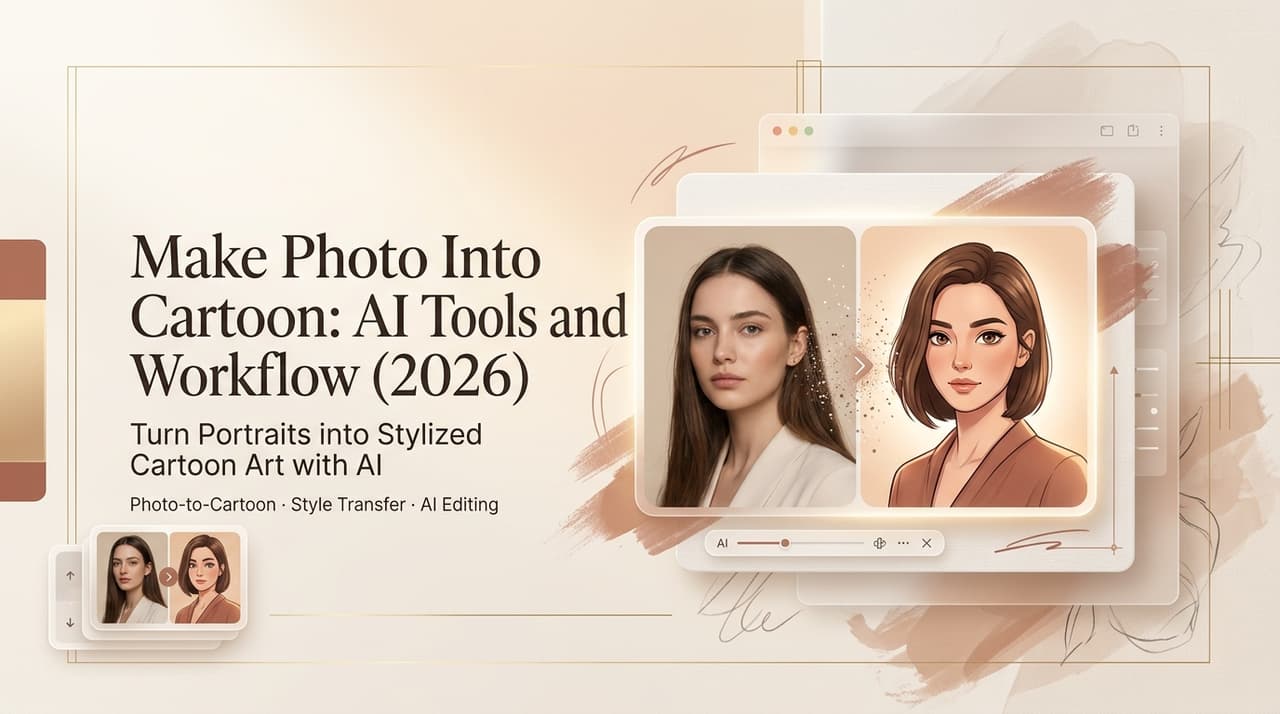
What the AI actually does when you make a photo into a cartoon: it runs your image through a style-transfer model that maps photorealistic features (skin texture, lighting gradients, hair detail) to a simplified cartoon visual language. Edges get boldenened, color ranges get compressed, and facial features get redrawn at a lower level of detail than the original.
The important nuance: this is not just a filter. A real cartoon AI is doing facial landmark detection first, then applying stylization around those landmarks. That’s why a good tool holds your eye shape and jawline across the conversion — and why a bad one just gives you smooth skin and bold lines that could belong to anyone.
Best Tools
There are four categories of people who want to turn a picture into a cartoon: profile picture users, content creators making social assets, people experimenting with sticker designs, and teams creating branded character visuals. The tools below are mapped to those use cases, not just ranked by feature count.
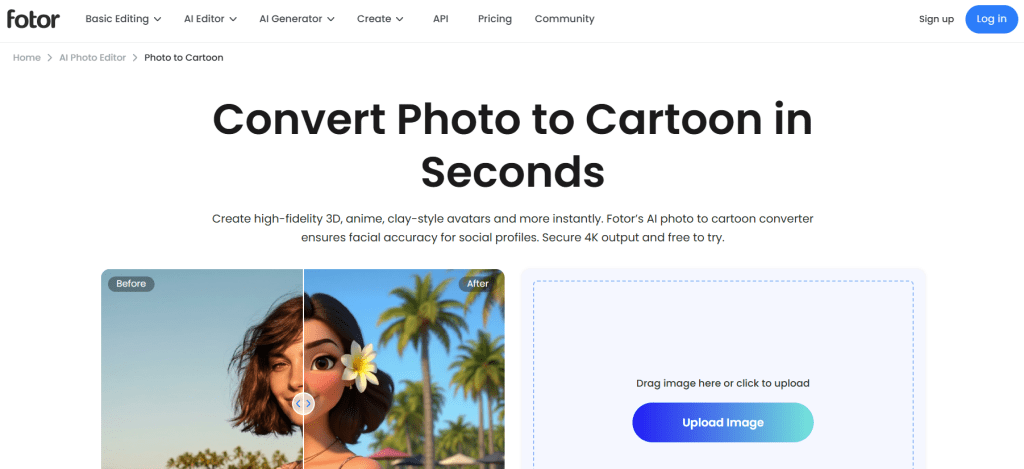
Fotor — Best overall for cartoon profile pictures. The Fotor photo-to-cartoon converter offers a wide range of AI cartoon effects including 3D, comic, Simpson, and Muppet styles with 4K export and no watermark. Facial accuracy is better than most competitors in its price range — it runs landmark detection before applying the cartoon style, which means your features transfer more consistently. Free to try; some effects require a subscription.
Canva (via Cartoonify app) — Best if you’re already in a design workflow. The Canva AI cartoon maker integrates photo-to-cartoon conversion directly into the canvas design. You convert and then immediately place, resize, or combine with other elements. Not the deepest cartoon AI in terms of style variety, but the convenience factor is real if your output is a social post or YouTube thumbnail rather than a standalone avatar.
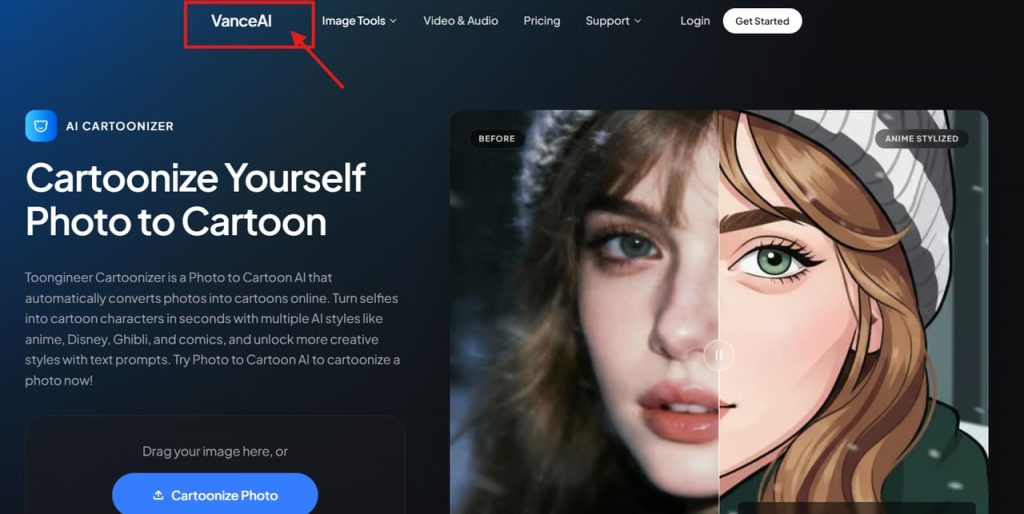
VanceAI Toongineer — Best for style variety. The VanceAI Toongineer Cartoonizer uses stable diffusion under the hood and supports anime, Disney-adjacent, Ghibli, and comics styles alongside western cartoon looks. If you want to test multiple aesthetics before committing, this is the fastest way to do it. Free tier available with watermark; paid tiers remove it.
Fotor vs Toongineer quick comparison:
| Fotor | VanceAI Toongineer | |
| Style range | Western-focused, clean | Wide including anime crossover |
| Facial consistency | High | Medium–High |
| Free tier | Yes (limited effects) | Yes (watermarked) |
| Output resolution | Up to 4K | High-res on paid |
| Best for | Profile pics, avatars | Style exploration |
For free options with no sign-up required: Facewow AI and EaseMate AI both offer image to cartoon converter online free without watermark, no account needed. Output quality is lower than the paid tools, but for quick tests or low-stakes social posts they work fine.
Step-by-Step Workflow
This is how I actually do it now, after wasting time doing it the wrong way first.
Step 1: Prepare your source photo. The most important variable nobody talks about. Your source image matters more than which tool you pick. You want: clean lighting (not harsh shadows across the face), a reasonably neutral background, and the subject filling at least 60% of the frame. Complex backgrounds confuse the style-transfer model — it has to decide what to cartoonize, and it won’t always prioritize the thing you care about.
If you’re working from an existing photo that has a busy background, crop or use a background remover first. Most cartoon AI tools will produce a cleaner result on an isolated subject.
Step 2: Choose your cartoon style before uploading. Don’t upload and then browse styles. Know what you need first. Profile picture for a professional context? Western cartoon, lower saturation, cleaner linework. Sticker for social use? Bolder lines, more saturated, more exaggerated features. Branded character asset? You probably want a tool with style-text prompts (Toongineer supports this) so you can describe what you’re after.
Step 3: Upload and generate. Evaluate on identity, not aesthetics. When you get your first result, the question to ask is not “does this look cool” but “does this look like me.” Check the eye shape, the jawline, the nose bridge. If those features are basically intact, the tool is doing its job. If the face is pretty but unrecognizable, that tool’s style-transfer is overwriting your features rather than stylizing them — try a different style or a different tool.
Step 4: Export at the right resolution for your use case.
- Profile picture (social media): 800×800px minimum, square crop
- Sticker or digital asset: 1000px+ on shortest side, PNG with transparent background if possible
- Printed merchandise: 2000px+ minimum, check if the tool exports at that resolution
Most platform free tiers cap at lower resolutions. If you need print-quality output, a paid tier or a tool like Fotor’s 4K export is worth it.
Step 5: If the first result isn’t right, adjust the source — not just the settings. This was my key mistake. I kept re-running with different style settings on the same source photo. The issue was the photo: a three-quarter angle with uneven lighting. Switched to a front-facing photo with clean light, same tool, first try came out usable.
Using Cartoon Assets in Content
A cartoon profile picture is a starter. Here’s where else these assets actually go:
Social media avatars — The original use case. A cartoon profile picture maker output gives you a consistent visual identity that’s recognizable even at small sizes. Works especially well on platforms where personal branding matters (X, LinkedIn for creatives, YouTube channel art).
Sticker packs — If you cartoon yourself in a few different expressions, you have the foundation of a personal sticker set. This requires the tool to hold facial identity across multiple generations — Fotor and VanceAI both handle this better than quick filter tools.
Content thumbnails — A cartoon version of yourself over a branded background reads differently than a photo. Useful for YouTube thumbnails, course covers, or anywhere you want to soften a photographic presentation.
Branded mascots — Small teams sometimes use a cartoon avatar as a branded character. The workflow here is more involved: you need style consistency across multiple poses and expressions, which usually requires either a tool that supports IP- Adapter style locking or manual iteration with a consistent prompt. Single-click tools don’t handle this well.
One thing worth noting: the output from an AI cartoon filter is generally fine for personal use and content creation. For commercial use — especially if you’re putting the character on merchandise — check the terms of the tool you used. Some platforms claim a license to outputs generated through their service. Canva’s content license terms and Fotor’s terms both spell this out; read them before putting anything on a product you’re selling.
FAQ
How do I make a photo into a cartoon with AI?
Upload a clear, front-facing photo to an AI cartoon tool — Fotor, VanceAI Toongineer, or Canva are the most reliable options in 2026. Select a cartoon style, generate, and evaluate whether the facial features held. If the face looks generic, try a cleaner source photo or a different style setting. Most tools complete the conversion in under 10 seconds.
What is the best free AI cartoon photo tool?
For no sign-up free use: Facewow AI and EaseMate AI both convert photos to cartoons without requiring an account, and neither adds a watermark. For a free tier with more style options: VanceAI Toongineer offers free generations with a watermark. Canva has free cartoon apps within its platform. Quality varies — the completely free no-account tools produce acceptable results for social posts but aren’t 4K-capable.
Can I turn a profile picture into a cartoon avatar?
Yes — that’s the primary use case for most of these tools. The key is choosing a tool with facial landmark detection rather than a blanket style filter. Fotor’s AI cartoon effects specifically mention facial accuracy for social profiles. Use a front-facing photo with clean lighting, and the output should retain your recognizable features in cartoon form.
Why do cartoon filters change facial details?
Because style-transfer models compress visual information. When the AI converts your photo into a cartoon, it simplifies color ranges and edge detail — and that simplification sometimes smooths or alters specific facial features, especially if they fall in areas the model treats as low-priority (ears, chin edges, hairlines). Tools with dedicated facial landmark detection preserve identity better because they anchor the stylization to your specific face geometry first, then apply the cartoon style over it. If your face is coming out generic, the tool probably isn’t using landmark detection — switch to one that does.
Wrapping Up
The short version: to make a photo into a cartoon that actually looks like you, source photo quality matters first, tool choice matters second. A clean, front-facing, well-lit photo through Fotor or VanceAI will consistently outperform a great tool struggling with a poorly lit three-quarter shot.
For profile pictures: Fotor. For style variety: VanceAI Toongineer. For design integration: Canva. For quick free tests: Facewow or EaseMate, no account needed.
The one trap worth avoiding — don’t confuse a cartoon filter with a photo to cartoon AI. Filters apply a texture overlay. Actual AI cartoon converters are rebuilding the image in a new visual language. The difference shows up in whether your face survives the conversion or disappears into it.
Tools and pricing verified May 2026. Free tier features change — check current platform pages before assuming what’s included.
Previous Posts: