I’m Leo. I’ve burned more time than I want to admit trying to work out which “free” video editor is actually free. You download it, spend an hour on a project, hit export — and there’s a watermark right through the center of the timeline. Or the AI caption tool I specifically needed turns out to be a Pro-only feature. Or the mobile app is fine but the desktop version has a completely different feature set.
The AI creator workflow in 2026 involves a specific problem traditional editing software wasn’t built for: you’re often importing generated clips, AI voiceover audio, and synthetic B-roll from multiple sources, then stitching them into something that looks intentional. That’s a different job from trimming GoPro footage. The best video editing software for that job isn’t necessarily the most powerful — it’s the one that handles the formats you’re importing, doesn’t choke on short-clip multi-track timelines, and gets AI-assist features right without paywalling them immediately.
Here’s what I actually found worth using.
What AI Creators Need
This is worth stating clearly because it changes the tool rankings.
Most “best free video editor” lists are written for people editing talking-head YouTube videos or travel vlogs. The software recommendations reflect that. If you’re working with AI-generated content, you have different requirements:
Short-clip multi-track timelines. AI video generators produce 4–16 second clips. A typical project might involve 20–40 of these stitched together with audio, captions, and transitions. Your editor needs to handle a high clip count without lag.
Format flexibility. Different AI video tools export different formats — MP4, WebM, MOV, sometimes unusual codecs. Best video editing software for this workflow imports broadly without needing manual conversion first.
AI caption generation. If your video has a voiceover (AI or human), you need auto-captions. Manually transcribing audio is not a viable workflow at scale.
Vertical and square export. Short-form distribution requires 9:16 and 1:1 alongside 16:9. Some editors handle aspect ratio switching elegantly. Others make you rebuild the entire sequence.
Mobile editing is actually usable. A lot of AI content creation happens on phones. The best video editor for iPhone or Android in this context isn’t a desktop port — it’s software designed for touch-based timeline editing from the start.
Best Free Editors
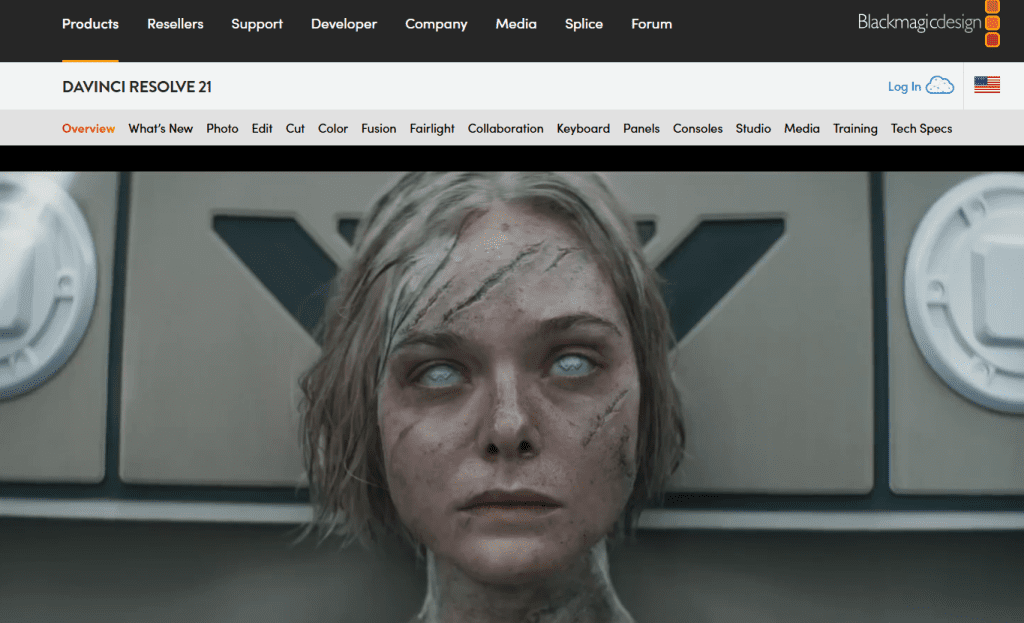
DaVinci Resolve — Best for desktop editing with zero compromise on features. The free version of DaVinci Resolve exports in 4K with no watermark, no trial period, and no export limits. The AI features in the free tier include speed warp, magic mask, and dialogue leveler — real tools, not placeholders. The learning curve is real: the interface is organized into dedicated pages (Cut, Edit, Fusion, Color, Fairlight, Deliver), and it takes a session or two before that makes intuitive sense. But for creators editing longer AI-generated content or anything that needs proper color work, DaVinci is the ceiling for what free software can do.
Worth noting: the Studio paid version adds AI-based noise reduction, super scale upscaling, and multi-user collaboration. You’ll never need them unless you’re running a production team.
CapCut — Best for short-form AI creator workflows. CapCut’s desktop app exports without watermark on the free plan, up to 4K. The AI features that matter for this use case are actually included free: auto-captions with styled text, background removal, auto reframe for aspect ratio switching, and smart cut. It handles the short-clip multi-track scenario better than most alternatives — the interface was designed for high clip-count projects.
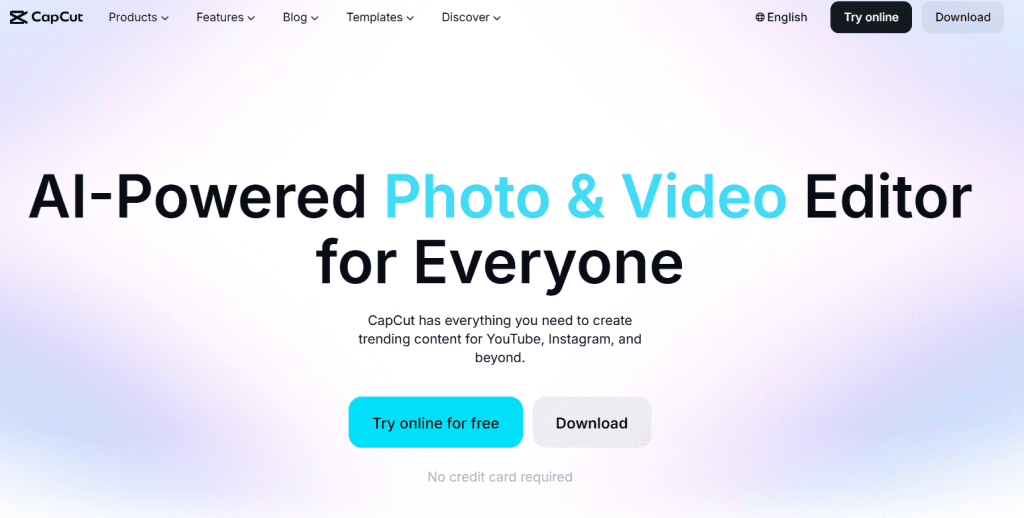
The mobile app works on both iOS and Android, and it’s genuinely usable rather than a stripped-down companion. If you’re the kind of creator assembling AI clips on your phone between other things, CapCut handles it. The caveat: CapCut is owned by ByteDance. If that’s a concern for your data or your audience, DaVinci on desktop and iMovie on Apple devices are the clean alternatives.
iMovie — Best free video editor for iPhone and Mac in a simple package. Pre-installed on Apple devices, exports watermark-free up to 4K, and syncs between iPhone and Mac so you can start on mobile and finish on desktop. The AI features are minimal — there’s no auto-caption, no background removal. But the timeline is clean, format import is broad, and for creators who just need to assemble clips without learning new software, iMovie gets it done. Hard limitation: no Android, no Windows.
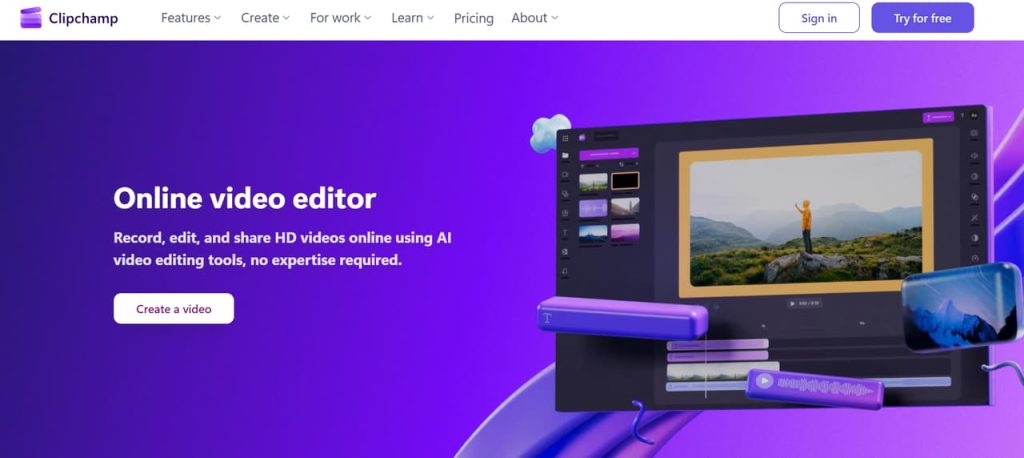
Clipchamp — Best browser-based option. Microsoft’s Clipchamp is built into Windows 11 and also runs in any browser. Free plan exports at 1080p without a watermark. AI features include auto-caption generation and basic background removal. It’s not going to replace DaVinci for complex work, but for creators who want browser-based editing without installing anything, it’s the most capable no-install option.
Kdenlive — Best open-source option for technical creators on any OS. Fully free, no watermark, runs on Windows, Mac, and Linux. Multi-track timeline, 4K support, broad format compatibility. No AI features to speak of — this is a traditional NLE. If you’re a technically inclined creator who wants full local control over your editing environment with no platform dependencies, Kdenlive is the pick.
AI Features
The honest assessment: AI features in free video editing software in 2026 are real, but unevenly implemented and frequently paywalled after the first impression.
Auto-captions — CapCut includes this free on desktop and mobile. Clipchamp includes it on the free tier. DaVinci Resolve does not include auto-caption generation in the free version (it’s in the paid Studio tier). If auto-captions are core to your workflow, CapCut is the default recommendation.
Background removal — CapCut includes it free. Clipchamp has a version of it. DaVinci Resolve’s Magic Mask is available in the free version and is more precise, but more manual.
Auto reframe / aspect ratio switching — CapCut’s Auto Reframe intelligently crops landscape video for vertical formats. This is a real time-saver for creators distributing across multiple platforms. No equivalent in DaVinci free or iMovie.
Silence removal / smart cut — CapCut’s smart cut removes silent pauses from talking-head clips automatically. Useful for AI voiceover cleanup where the generated audio has irregular gaps.
AI-generated B-roll or transitions — None of the free editors listed here do generative AI. They assist with editing existing footage. If you want AI-generated clips integrated into your timeline, you’re generating those in a separate tool and import the output.
| Tool | Auto-Caption | BG Removal | Auto Reframe | Smart Cut | Watermark-Free |
| DaVinci Resolve | ❌ (Studio only) | ✅ (Magic Mask) | ❌ | ❌ | ✅ up to 4K |
| CapCut | ✅ | ✅ | ✅ | ✅ | ✅ up to 4K |
| iMovie | ❌ | ❌ | ❌ | ❌ | ✅ up to 4K |
| Clipchamp | ✅ | ✅ (basic) | ❌ | ❌ | ✅ up to 1080p |
| Kdenlive | ❌ | ❌ | ❌ | ❌ | ✅ up to 4K |
Export and Watermark Limits
The watermark situation in 2026 is cleaner than it was a few years ago — for editing software specifically. The confusion comes from mixing up editing software with AI video generation platforms, which have a completely different and much messier free-tier policy landscape.
For the editors in this article:
DaVinci Resolve free: No watermark. No export resolution cap (up to 4K). The only real limit is that some AI-specific tools (super scale, noise reduction, collaborative editing) are studio-only. For solo creators, the free version is genuinely complete.
CapCut free (desktop): No watermark, up to 4K. The CapCut Pro tier at $9.99/month adds cloud storage and premium effects, but the core editing and AI features are free. Mobile exports are also watermark-free.
iMovie: No watermark, no limits. It’s Apple’s native software with no upsell structure.
Clipchamp free: No watermark, 1080p max. If you need 4K export, you need a Microsoft 365 subscription.
Kdenlive: No watermark, no limits. Fully open-source.
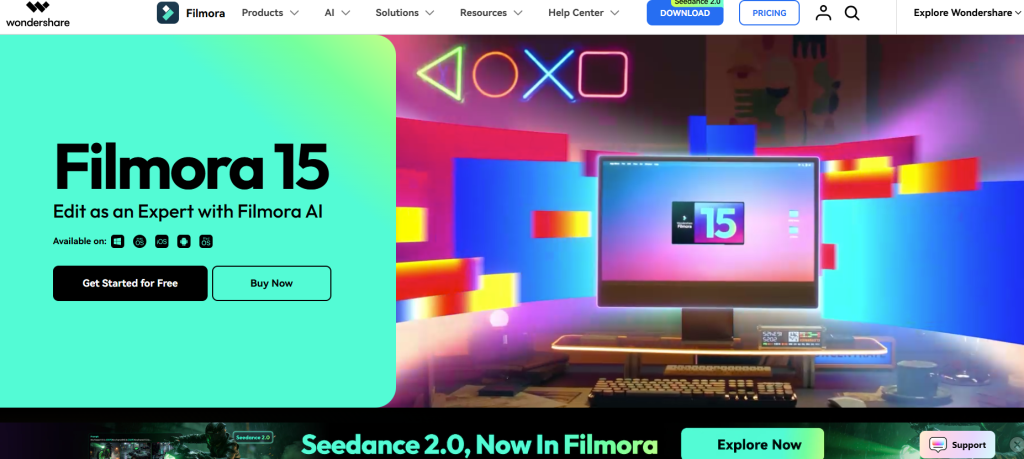
One thing worth flagging: Filmora, which appears on many “best free video editor” lists, watermarks of all free exports. Filmora’s free plan is essentially a trial — you can test every feature but can’t export clean video without purchasing. Know this before you spend time on a project there.
FAQ
What is the best free video editing software for creators?
For AI creator workflows in 2026, CapCut is the most practical pick for most people — free on desktop and mobile, no watermark, auto-captions included, and good short-clip multi-track handling. For creators who need more professional control and are willing to learn a more complex interface, DaVinci Resolve is unmatched: the free version is genuinely complete with no export limits and no watermark.
Which free video editor has no watermark?
DaVinci Resolve, CapCut (desktop and mobile), iMovie, Clipchamp (up to 1080p), and Kdenlive all export without watermarks on their free plans. Filmora and most AI video generation platforms watermark free exports. The distinction matters: editing software and AI generation tools have very different free-tier policies — don’t assume one applies to the other.
Do free video editors include AI features?
Some do. CapCut includes auto-captions, background removal, smart cut, and auto reframe on the free tier. Clipchamp includes auto-captions and basic background removal. DaVinci Resolve includes Magic Mask and some motion effects in the free version, but holds its strongest AI tools (noise reduction, super scale) for the paid Studio tier. iMovie and Kdenlive don’t have meaningful AI features. If AI assist is a core requirement, CapCut is currently the most feature-complete free option.
When should I use an AI video platform instead of editing software?
When your content starts from a prompt rather than footage. Traditional editing software — even with AI assist features — is designed to arrange and refine existing video clips. If your workflow is: write a script → generate video → distribute, you need a generation platform, not an editor. Editing software becomes relevant when you’re combining multiple sources (AI clips, recorded footage, screen recordings, voiceover audio) and need to control the pacing, captions, and visual polish of the assembled result. Many AI creator workflows use both: a generation tool for producing raw clips, and an editor like CapCut or DaVinci for the assembly and finishing pass.
Wrapping Up
For most AI creators right now, the practical stack is this: generate clips in whatever AI video tool fits your use case, import into CapCut for assembly, captioning, and mobile-friendly export. If you’re doing longer-form work that needs color grading or more complex timeline control, learn DaVinci Resolve — the free version is actually free, and it’s the best video editing software at that price point by a meaningful margin.
The one thing I’d push back on: don’t spend weeks evaluating every option. CapCut and DaVinci cover 90% of creator use cases between them. Download both, run one real project through each, and you’ll know within two sessions which one your brain prefers. That’s a better use of an afternoon than reading comparison articles — including this one.
Pricing and feature tiers verified May 2026. Platform policies change — confirm current free tier limits before building a production workflow.
Previous Posts: