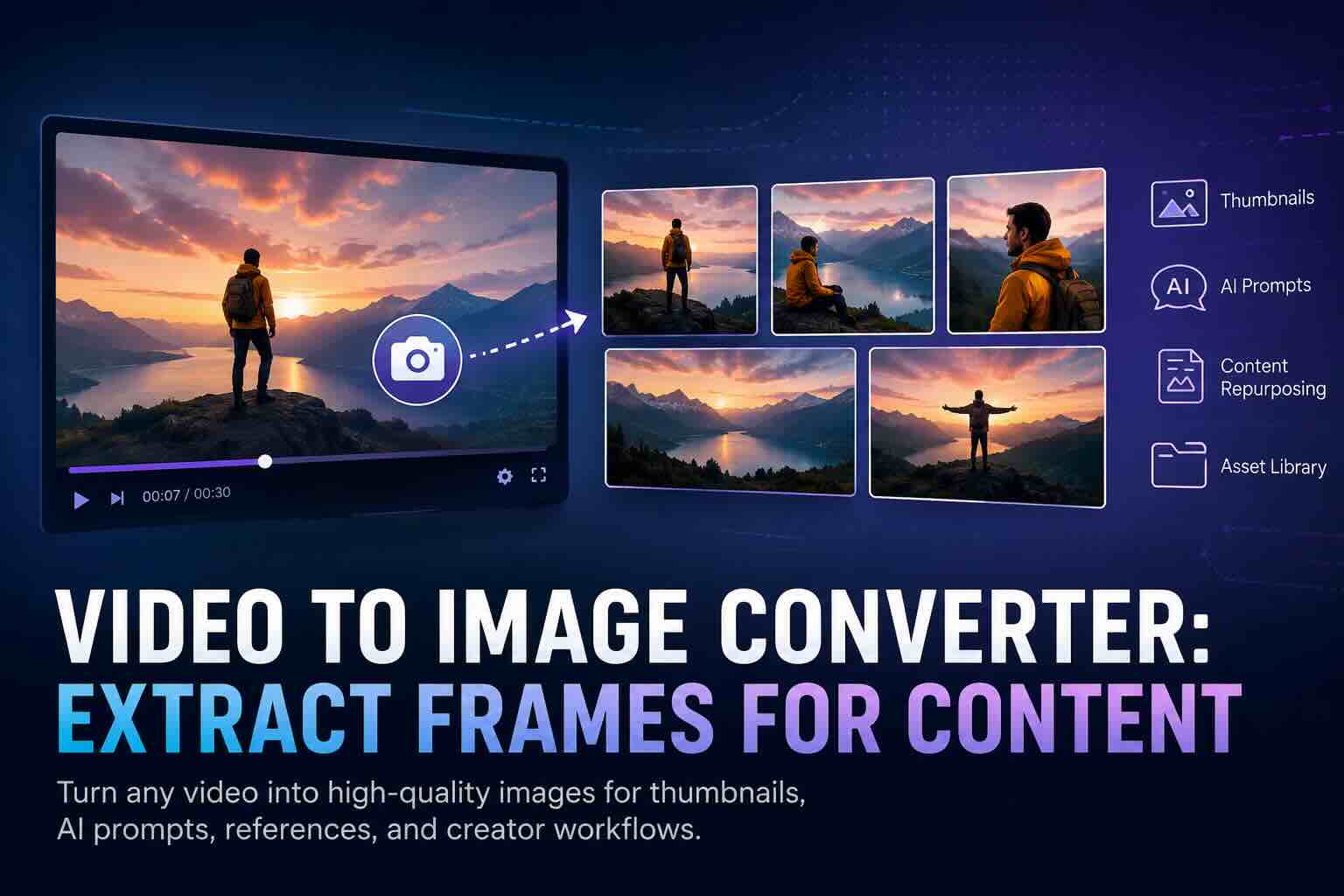
Editor’s Note: All tools, features, and pricing limits listed below were independently verified and re-tested in May 2026 to ensure accuracy regarding watermark policies, pricing, and commercial usage rights.
You have a good video, but the useful parts are trapped inside the timeline. Maybe you need one clean thumbnail, a product still, a character reference, or a frame you can reuse as an AI prompt. Manually pausing, screenshotting, cropping, and renaming files gets boring fast, especially when you need twenty usable images from one clip. A good video to image converter helps you turn motion into reusable assets, and CrePal goes further by helping creators reuse those frames inside a larger AI video workflow. In this guide, you’ll learn why creators extract frames, which tools are worth testing, and how to turn video frames into thumbnails, prompts, references, and new content.
Image description: Screenshot of CrePal’s main AI video creation interface showing the AI Director workflow and video generation entry point.
What is CrePal?
CrePal is an AI Director Agent for end-to-end video creation. Unlike single-purpose tools that only generate clips, convert files, or edit isolated assets, CrePal helps plan, generate, organize, and revise video content through natural conversation. For creators who extract frames from videos, this matters because a frame is rarely the final asset. It often becomes a thumbnail, reference image, prompt input, or new scene idea. CrePal helps connect those steps into one creative workflow, reducing the usual back-and-forth between converters, editors, prompt tools, and video generators.
If your goal is not only to extract a still image, but to reuse it for new AI content, explore CrePal’s AI video workflow early in the process.
Why Creators Extract Frames
Creators extract frames because videos contain useful visual moments that can work outside the video itself.
A strong frame can become a YouTube thumbnail. A product close-up can become an ecommerce asset. A cinematic shot can become a style reference for AI image or video generation. A reaction frame can become a meme, social post, or carousel image.
Honestly, this is one of the easiest ways to recycle content without making it feel lazy.
Image description: Example workflow visual showing one video turning into several extracted JPG frames for thumbnails, prompts, and social posts.
For creators, frame extraction usually solves four problems:
- Thumbnail creation: Pull the clearest emotional or visual moment.
- Prompt references: Use a still frame to guide AI image or video tools.
- Content repurposing: Turn one video into posts, carousels, or ads.
- Creative documentation: Save reference frames for mood boards or client review.
A basic video to frame image converter works when you only need a JPG or PNG. But creators often need more than extraction. They need selection, cleanup, upscaling, prompt writing, and sometimes video regeneration. That is where tools like CrePal, Mage, Venice, BasedLabs, and PixelBunny become more relevant.
You can also pair extracted frames with a broader AI video production process if you want to turn old footage into fresh creative output.
Best Tools
The data in this section reflects hands-on testing conducted in May 2026. Platform policies, pricing, and free-tier limits may change over time, so always verify final licensing terms on the official website before commercial use.
| Tool | Best For | Strength | Limitation |
| CrePal | Frame reuse inside AI video workflows | AI Director Agent connects frames, prompts, scenes, and edits | Not just a simple one-click frame grabber |
| Mage | Fast AI image exploration | Good for turning extracted frames into style variations | Less focused on full video planning |
| Venice | Private AI image and video generation | Strong privacy positioning and creative flexibility | Output control can vary by model |
| BasedLabs | Image-to-video and creator tools | Useful for animating still frames | Some workflows feel tool-by-tool |
| PixelBunny | Pay-as-you-go AI image/video work | Helpful for occasional creators | Less established than larger platforms |
| FFmpeg | Technical frame extraction | Powerful, free, batch-friendly | Requires command-line comfort |
| Kapwing | Browser-based conversion | Easy for quick MP4-to-JPG workflows | Export limits depend on plan |
CrePal
CrePal is the best fit when extracted frames are part of a larger content workflow.
A basic converter can give you still images. CrePal helps you decide what those stills can become. You can use frames as references for new scenes, prompt inspiration, ad variants, or storyboards. This is useful when you are recycling existing video assets into new AI-generated clips.
Image description: Screenshot of CrePal Mini Apps or AI video tools showing multiple creation workflows, such as video editing, music video, and PDF-to-video options.
The main advantage is orchestration. CrePal works more like an AI Director Agent than a single converter. If you extract a frame from a product video, you can use it as a visual anchor for a new product demo, ad concept, or social video. Instead of jumping between five tools, you can keep the creative logic in one place.
For example, a creator can extract a clear product frame, ask CrePal to build a 20-second ad around it, then revise the tone through conversation. That feels much closer to how real content teams work.
Mage
Mage is useful when you want to turn extracted frames into new AI image concepts.
If you pull a frame from a video and want several style directions, Mage can help generate visual variations. It is especially useful for creators who like quick experimentation. The interface is straightforward, and the platform supports image and video generation in the browser.
Image description: Screenshot of Mage’s creation interface showing image or video generation options for experimenting with extracted frame references.
Mage is less focused on full content planning. It works better as a creative sandbox than a production system. I would use it for mood exploration, visual testing, and alternate looks before moving into a structured video workflow.
Venice
Venice is a strong option for creators who care about privacy and flexible AI generation.
Its positioning around private AI makes it relevant when you are working with internal footage, unreleased product visuals, or sensitive creative drafts. You can use extracted frames as inspiration for new visuals or image-to-video ideas.
Image description: Screenshot of Venice’s AI video generation guide or interface showing text-to-video and image-to-video creation options.
The tradeoff is predictability. Like many AI generation tools, the output depends heavily on the model, prompt, and reference clarity. Venice is useful, but you still need a good review process before publishing commercial content.
BasedLabs
BasedLabs is helpful when you want to animate a still frame.
If you extract a strong frame from a video, BasedLabs can help turn that image into a short moving clip. This works well for social posts, AI motion tests, character shots, and quick concept videos.
Image description: Screenshot of BasedLabs image-to-video tool showing upload, prompt, and generated video preview areas.
The experience is practical. Upload an image, describe motion, and generate. For creators, that is often enough. But if you want the frame to become part of a longer story, you may still need a planning tool like CrePal.
PixelBunny
PixelBunny is useful for creators who want occasional AI image and video work without a heavy monthly commitment.
It supports image and video tools, including generation, editing, upscaling, and background removal. That makes it relevant after frame extraction, especially when your still image needs cleanup before becoming a thumbnail or reference.
Image description: Screenshot of PixelBunny’s AI image generator or tool library showing image generation and editing options.
PixelBunny is best for flexible, lightweight tasks. It may not replace a full video workflow, but it can support quick asset recycling.
FFmpeg
FFmpeg is the most powerful free option for technical users.
It can extract one frame, one frame per second, or thousands of frames from a video. The official FFmpeg documentation includes command examples for converting video into image sequences.
For example, a technical user might extract one JPG every second from a product demo, then review the best frames later. The downside is obvious: not every creator wants to use command lines.
Kapwing
Kapwing is a good browser-based option for simple video to image workflows.
It is easier than FFmpeg and does not require installation. You upload a video, choose the frame or output format, and export images. Kapwing’s converter guide is useful for beginners who want a direct process.
Image description: Screenshot of an online video converter workflow showing upload, conversion settings, and JPG output selection.
For fast one-off work, Kapwing is convenient. For heavier creator workflows, I would still combine it with AI tools for cleanup, prompting, and repurposing.
Step-by-Step Workflow
A good frame extraction workflow should be simple. The mistake many creators make is extracting too many frames and then getting lost in the folder.
Here is a cleaner process.
Step 1: Choose the Purpose First
Before using any video to images tool, decide what the frame is for.
Are you making a thumbnail? A prompt reference? A product still? A client approval board?
This choice affects everything. A thumbnail needs emotion and contrast. A prompt reference needs clean composition. A product still needs sharp detail and minimal motion blur.
Step 2: Select the Right Video Moment
Scrub through the clip and look for moments with clear subjects.
Avoid frames with heavy blur, closed eyes, awkward transitions, or compression artifacts. If you are extracting from AI-generated video, watch for warped hands, distorted products, or inconsistent text.
This part sounds basic, but it saves time later.
Step 3: Extract the Frame
Use the tool that fits your comfort level:
- Use Kapwing for quick browser extraction.
- Use FFmpeg for batch extraction.
- Use VLC for manual snapshots.
- Use CrePal when the extracted frame will feed a larger AI video workflow.
For a single thumbnail, manual extraction is fine. For asset recycling, batch extraction is usually better.
Step 4: Clean and Enhance the Image
After extraction, inspect the frame at full size.
Check sharpness, face quality, product detail, background distractions, and text readability. If needed, use an image editor or AI upscaler. This is especially important when extracting from 720p or compressed social videos.
A free video to JPG converter may export the frame correctly, but it will not magically improve quality. You still need to review the image.
Step 5: Reuse the Frame Creatively
This is where extracted frames become valuable.
You can send a selected frame into CrePal as a visual reference, build a new short video around it, or create multiple ad variations. You can also use Mage, Venice, BasedLabs, or PixelBunny to create image variations, animate stills, or test visual styles.
If you are building content from older assets, this is basically asset recycling with a creative upgrade.
Using Frames for Thumbnails and Prompts
Extracted frames work especially well for thumbnails and AI prompts because they already carry visual context.
A good video frame has composition, lighting, subject placement, and mood. That makes it easier to brief an AI model. Instead of writing a long prompt from scratch, you can use the frame as a reference and describe the changes you want.
For thumbnails, look for:
- A clear face or subject
- Strong contrast
- Empty space for text
- A moment that suggests action
- Minimal motion blur
For AI prompts, look for:
- Clean subject boundaries
- Consistent lighting
- Useful background details
- No accidental artifacts
- A style worth preserving
This is where CrePal becomes especially useful. You can use an extracted frame as a reference and ask the AI Director Agent to build a related scene, extend the idea, or create a new video concept. For example, a product frame from an old demo can become a new launch teaser. A travel clip frame can become a cinematic social reel. A talking-head frame can become a thumbnail, hook image, or avatar reference.
The best part is that you are not starting from nothing. You are starting from a visual moment that already worked once.
You can also study official AI image and video tools to understand how different platforms handle reference images, prompt control, and output rights.
Conclusion
A video to image converter is not just a file utility. For creators, it is a content recycling tool.
The simplest use case is extracting a JPG from a video. But the better workflow is bigger: extract the right frame, clean it, use it as a thumbnail, then reuse it as an AI prompt or video reference.
CrePal is the strongest option when your extracted frames need to become new video content. Mage, Venice, BasedLabs, and PixelBunny are useful for image generation, motion tests, and creative variations. FFmpeg and Kapwing are still worth keeping in your toolkit for direct frame extraction.
If you already have videos sitting in folders, start there. One strong frame can become your next thumbnail, ad, storyboard, or AI-generated scene.
Try CrePal for free if you want to turn extracted frames into full video ideas instead of leaving them as static files.
FAQ
How do I convert a video frame into an image?
Use a video to image converter, pause the video on the frame you want, then export it as JPG or PNG. For quick work, use a browser tool like Kapwing. For batch extraction, use FFmpeg. For creative reuse, bring the frame into CrePal and use it as part of a larger AI video workflow.
What is the best free video to image converter?
For technical users, FFmpeg is one of the best free options because it supports batch frame extraction. For non-technical users, Kapwing or VLC is easier. If your goal is to reuse the frame for AI video creation, CrePal is more useful than a simple converter.
Can I extract high-quality thumbnails from a video?
Yes, but the quality depends on the original video. A 4K source gives better thumbnails than a compressed social clip. Choose frames with sharp subjects, clear emotion, and enough empty space for text. Avoid fast-motion frames with blur.
Can extracted frames be used as AI prompt references?
Yes. Extracted frames can work well as AI prompt references because they provide composition, lighting, subject details, and style direction. You can use them in tools like CrePal, Mage, Venice, BasedLabs, and PixelBunny to create new images or videos.
What is CrePal.ai?
CrePal.ai is an AI Director Agent that orchestrates multiple AI video models to create complete multi-scene videos. Just describe your idea, and CrePal helps handle scriptwriting, scene planning, generation, soundtrack, and editing through a guided creative workflow.