Hi everyone, Dora here. I actually found this by accident.
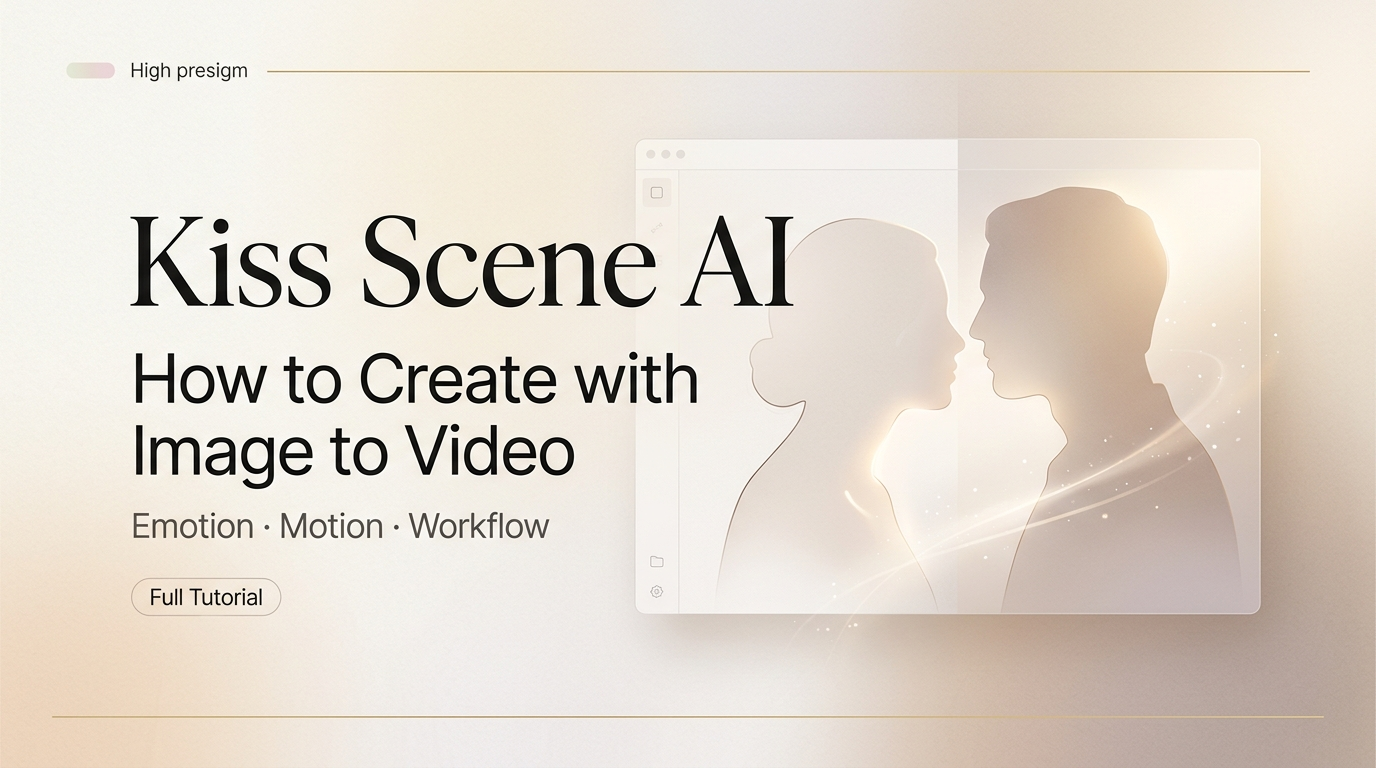
A friend sent a short clip—two animated characters leaning in for a soft kiss. It looked surprisingly cinematic. She told me it came from a single image plus a prompt.
That got me testing image-to-video tools for romantic scenes over a few nights. This guide covers what works, what breaks, and six prompt templates you can use right away.
Not sponsored—just lots of failed renders and a few that turned out great.
What You Can Realistically Create (Set Expectations)
Before you start, here’s the reality of image-to-video AI in 2026:
These models are good at subtle motion—facial expressions, slight head tilts, slow zooms, and soft transitions. But they struggle with complex two-person interactions, especially keeping both faces consistent during close contact.
A natural-looking kiss is still difficult. Most tools can manage the “lean-in,” but the actual contact often breaks—faces warp or shift.
That’s not a dealbreaker—it just means adjusting expectations.
Keep things PG-13 and focus on mood and storytelling. The best results come from moments like a soft forehead kiss, a gentle lean, or the “almost kiss” scene right before contact.
Best Tools for Image-to-Kiss-Video Animation
Tool 1: Kling AI
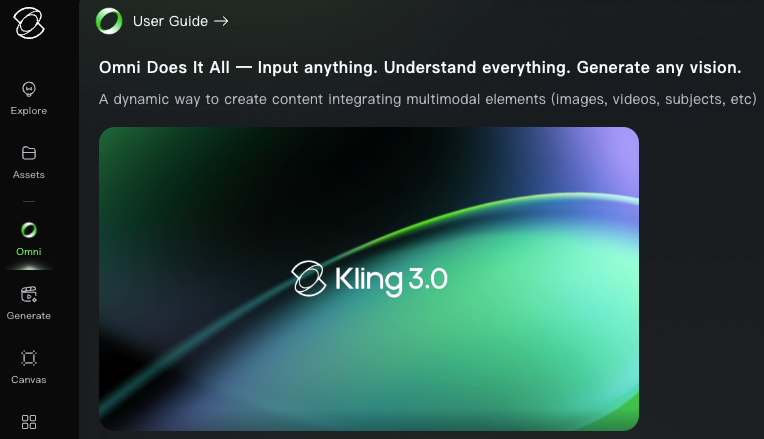
Kling AI is my top pick for this use case.
Its image-to-video feature uses 3D face and body reconstruction, which helps reduce warping—especially important for close-up scenes. In testing, it handled slow lean-ins well, with faces staying consistent and motion feeling natural.
Kling 3.0 (released Feb 5, 2026 by Kuaishou) supports up to 15-second clips and 4K output—but for kiss scenes, under 5 seconds works best.
One reality check: the free tier gives 66 daily credits, but renders can take 20–30 minutes. If you’re iterating a lot, that gets frustrating. The Standard plan ($6.99/month) includes 660 credits and commercial rights, which is useful for client work.
Tool 2: Runway Gen-4
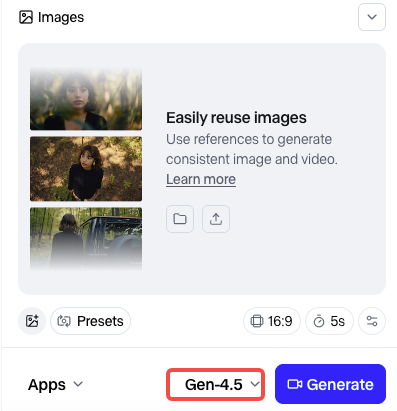
Runway is another strong option.
Its Gen-4 model adds reference-image consistency, so you can keep the same character look across multiple clips—great for series, less critical for single shots.
The interface is polished, and facial close-ups look good. Clips max out at 10 seconds. Just note: credits go fast—you’ll likely need 5–8 tries to get a clean result.
Step-by-Step: Creating a Kiss Scene Video from an Image
Step 1 — Prepare Your Source Image
This step is more important than most tutorials say—I wasted my first few tries using bad source images.
What works: portrait orientation, soft even lighting, clear faces, simple backgrounds. For two characters, keep both faces fully visible with minimal overlap.
What doesn’t: heavy filters, dark images, extreme angles, or faces partly hidden (like hair covering eyes). The AI will guess—and usually get it wrong.
I got much better results using clean AI-generated portraits instead of real photos. AI-to-AI works more reliably with less noise.
Step 2 — Write an Effective Motion Prompt
This is where most people write “make them kiss” and wonder why the output looks like a horror film.
The key is describing motion trajectory, not the end state. Think like a cinematographer giving directions to an actor.
Instead of: “two people kissing”
Try: “slow head tilt forward, eyes closing softly, gentle lean toward each other, camera slowly zooming in, warm cinematic light”
You’re describing movement, speed, camera behavior, and mood — not just the action. The more you treat it like directing a scene, the better the output. On Kling specifically, keeping the prompt focused on camera direction rather than the action itself tends to produce cleaner results — the motion brush handles the what, your words handle the how it looks.
Step 3 — Configure Motion Settings
Most tools give you some version of these controls. Here’s what I’ve learned:
- Motion intensity: Keep it low-to-medium for kiss scenes. High intensity makes faces jitter. I stay around 30–50% on most tools.
- Duration: 3–5 seconds is the sweet spot. Long enough to feel like a moment, short enough that the AI doesn’t have time to drift off-model.
- Camera motion: Slow zoom-in or static. Any fast camera movement during a close facial scene looks chaotic.
- Seed/style consistency: If your tool has a seed or style lock feature, use it for iteration. It keeps the character’s general look stable between attempts.
Step 4 — Iterate and Export
My workflow:
I assume the first render won’t work—motion can be jerky or the contact looks off. I tweak the prompt (adding “slow,” “gentle,” “subtle”) and try again.
By render 3–4, I usually get something usable. Occasionally, render 2 just works—AI can be unpredictable.
Once I have a good clip, I export at the highest resolution and do basic color grading. The raw output is often a bit flat.
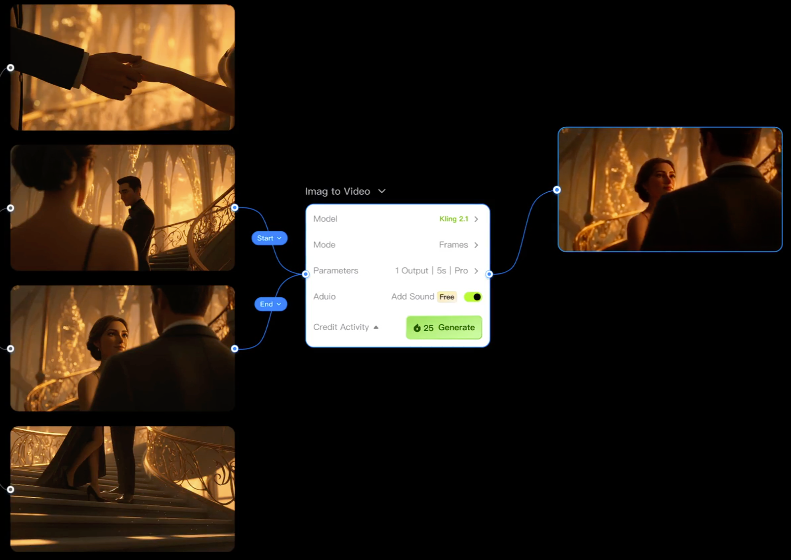
Prompt Templates for Kiss Scene Animations (6+)
These are prompts I’ve actually used. Copy, tweak, test.
- The Gentle Lean-In:“slow head tilt toward each other, soft smile fading, eyes closing gradually, warm golden hour lighting, shallow depth of field, camera very slowly zooming in”
- Forehead Kiss Moment:“character gently pressing forehead to other character’s forehead, tender expression, slow breathing motion, soft indoor lighting, static camera”
- Almost-Kiss Tension:“two faces slowly moving closer together, pause just before contact, soft breath visible, dramatic backlighting, extremely slow motion feel”
- Animated/Stylized Characters:“anime-style slow lean-in, sparkle particles, soft pink lighting, gentle hair movement in breeze, camera slight push-in”
- Cinematic Romance:“cinematic close-up, face tilting up, eyes softly closing, warm diffused light, film grain texture, slow zoom, orchestral emotional feeling”
- Side Profile Kiss:“side profile view of two characters leaning toward each other, shallow depth of field, soft bokeh background, slow motion, warm amber tones”
Common Issues and Fixes
Unnatural Facial Motion
This is a common issue—faces can “melt” mid-motion and look unnatural.
Fix:
- Lower motion intensity
- Use prompts like “subtle,” “slow,” “smooth”
- Avoid heavily edited or over-smoothed faces
If it still happens, switch the source image. Small differences in lighting and sharpness can make a big difference.
Inconsistent Character Appearance
Halfway through the clip, your character’s hair changes color or their face shifts slightly. Frustrating — and very common.
Even top tools are still solving this. Runway Gen-4 focuses on improving character consistency across shots, while Kling 3.0 adds “Subject Binding” to help lock faces and clothing—but neither is perfect, especially in close-ups.
Workarounds: keep clips under 4 seconds, use clear, high-quality source images, and turn up any consistency settings. Often, a short clean clip looped in editing looks better than a longer, unstable one.
Limitations
Let me just say the quiet part out loud.
Two-character contact scenes are still tough. The exact moment of a kiss is where things break—faces distort or you just get an “almost touching” result. But that near-contact moment can still look great.
Models also struggle to keep two characters consistent, especially if they look similar—features can blend in oddly.
Costs add up too. Getting one good clip often takes 5–10 tries, so plan your credits.
Wrapping Up
If there’s one takeaway: use a high-quality source image, keep prompts simple and slow, and don’t expect perfect results on the first try.
When it works, it really works—a short 3-second lean-in with soft lighting can look almost hand-animated. That’s more than enough for storytelling or creative projects.
I’ll keep testing as these tools improve. The gap between “broken” and “beautiful” is closing fast—as highlighted in MIT Technology Review on generative video AI progress.
FAQ
Q: Can AI actually generate a realistic kiss scene from a single image? Not reliably. It handles the “lean-in” well but struggles at the moment of contact. “Almost-kiss” or soft touches (like forehead contact) work best.
Q: What’s the ideal image setup for kiss scene animation? Use a clear, well-lit portrait with both faces visible and minimal overlap. Avoid extreme angles, heavy filters, or blocked features. Clean AI portraits often perform better than real photos.
Q: Why does the face distort during the animation? Usually from too much motion or low-quality input. Lower motion settings and use prompts like “slow,” “gentle,” and “smooth.” If needed, switch to a sharper image.
Previous Posts: