
Already have storyboard cards? Match each one to an action, a framing choice, and image or video references. A focused Pika H3 Flex storyboard plan takes you from existing cards to a first clip and an adjacent-shot check.
If you still need to make or arrange the panel images, this guide to organize reference images for a storyboard covers that earlier step.
What Should the Storyboard Decide Before Generation?
Before generation, decide what happens in each shot, how it is framed, and which details should carry across the cut. Also choose whether to combine the beats in one multi-shot generation or create separate clips for editing.
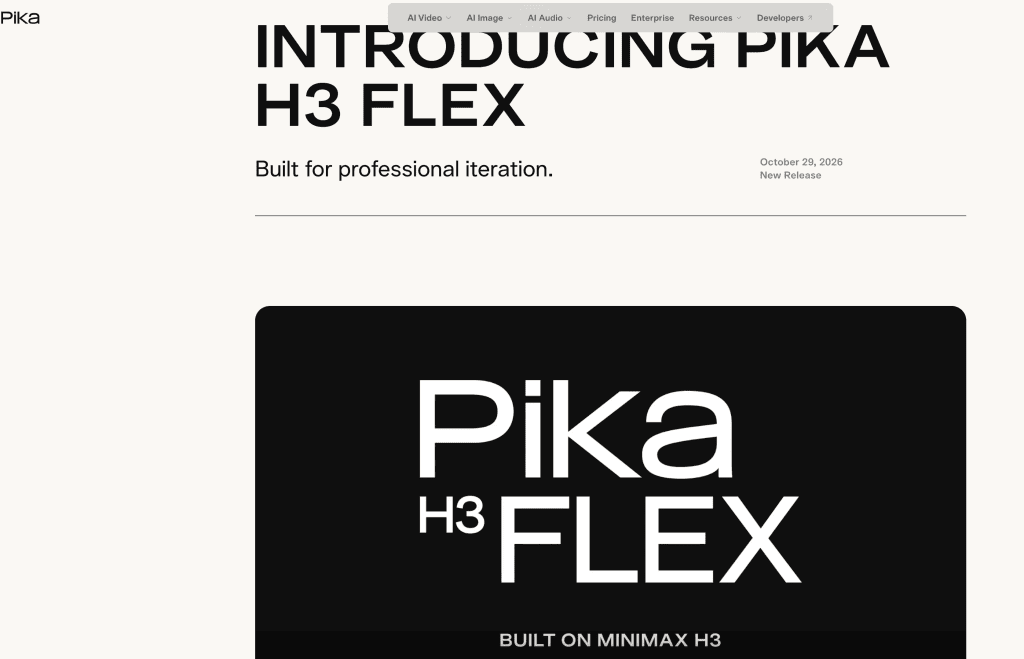
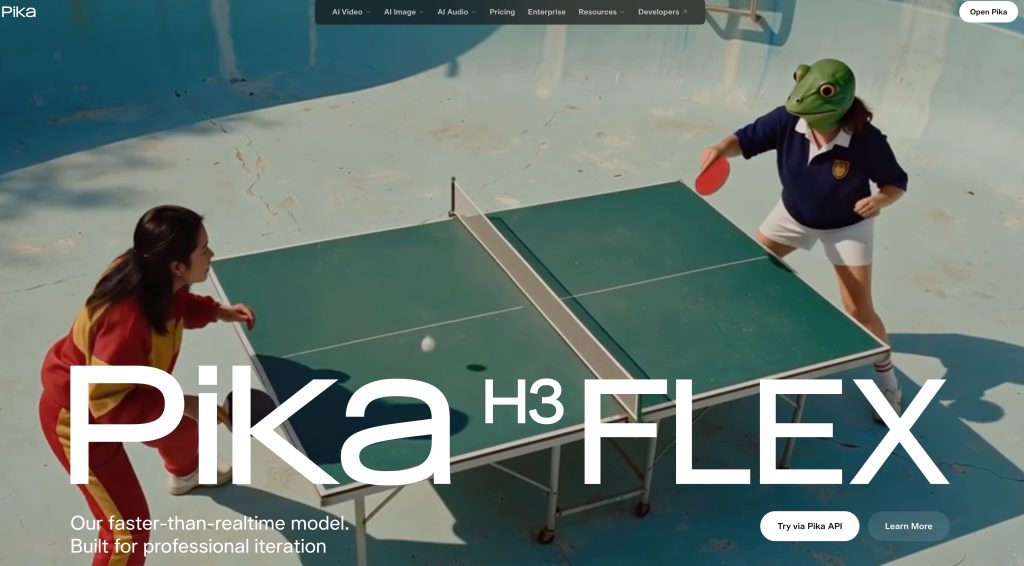
Pika’s H3 Flex launch examples show images and video guiding appearance, setting, or movement. These are demonstrations, not guarantees for every output.
Build a Reference Plan for One Short Scene
Imagine a 12-second handmade-mug scene: it rests on a table, a hand lifts it, then sets it beside a notebook. Turn the existing cards into a shot plan; polished drawings are optional.
Match each shot to an action and framing choice
Give each shot one job. These three beats fit inside one 12-second generation; their timestamps are planned cut points, not guaranteed exact cuts.
| Shot and timing | Action and framing | Reference job |
| 1: 0-4 seconds | Wide shot of the mug on a sunlit table; slow push in. | Room image for setting; mug photo for appearance. |
| 2: 4-8 seconds | Close-up as a hand lifts the mug by its handle. | Mug photo for shape; optional video for the lifting motion. |
| 3: 8-12 seconds | Medium shot of the mug set beside a notebook. | Mug photo for identity; room image for light and background. |
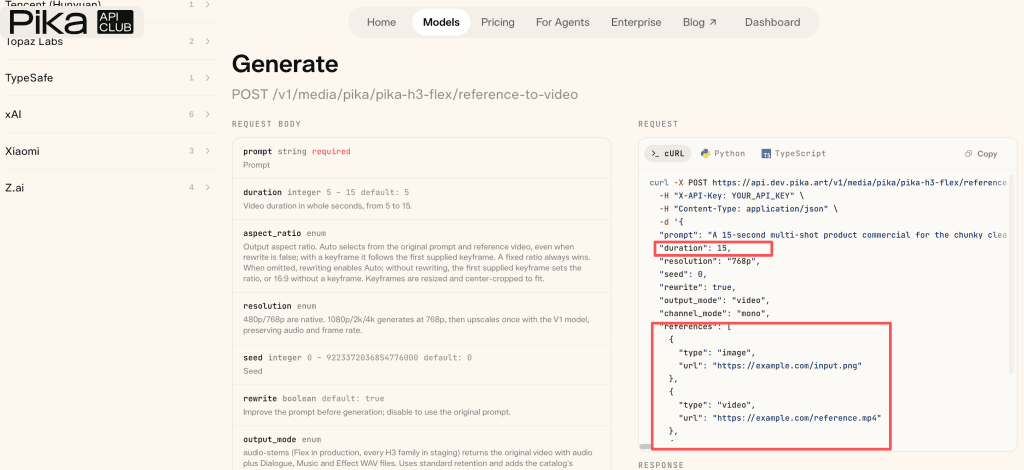
The H3 Flex API outputs 5-15 seconds, so these four-second beats are inside one 12-second clip. For separate API jobs, generate at least five seconds and trim each clip to the planned length in your editor. The reference-to-video API limits also specify the reference counts and media durations. Plan the mug’s end position in shot 2 so shot 3 can begin plausibly.
Assign only the references that support that shot
When using Pika H3 Flex references, map each asset to the shot it should support: the mug photo supplies color and handle details; a short video suggests the lift. These labels tell the model what you intend. They do not guarantee strict shot-level routing: an image or clip can influence more of the output, and a motion reference may bring along its person or background. Inspect for those spillovers after generation.
Use only media you have rights to supply. Get consent or another legal basis for recognizable likenesses, and check permissions for footage, artwork, or music. Pika’s terms put responsibility for uploaded content on the user and restrict unconsented depictions.
Turn the Plan into a First Video Draft
On the H3 Flex page, Try Pika leads to Pika’s general web app; a separate Get Started link leads to API documentation. Those links do not confirm that H3 Flex is selectable in the web generator. Public sources also do not establish account or regional availability. Check your own interface; this guide has not tested a live account.
Use only labels documented for your selected mode. The prompt guide describes Omni Reference labels such as @Image1 and @Video1. A hypothetical prompt for the table above could read: @Image1: mug appearance. @Image2: room. @Video1: lift motion only. [Shot 1] 0-4s: wide table view. [Shot 2] 4-8s: close-up as a hand lifts the mug. [Shot 3] 8-12s: set it beside the notebook. The labels guide the request; they do not bind a reference to one shot.
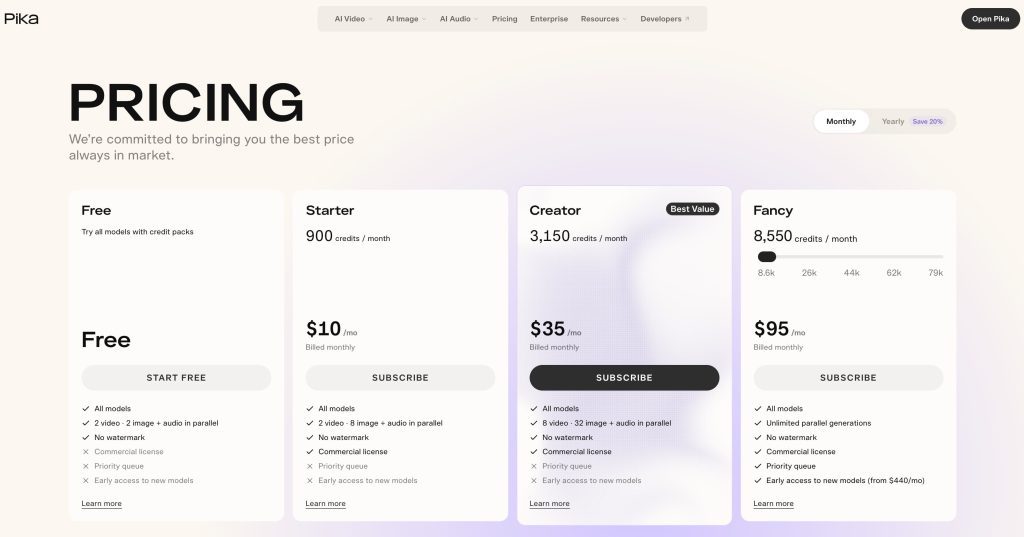
Start with a low-resolution draft if your route supports it. Check the price and leave room for another take. Pika’s H3 Flex pricing bills video-reference seconds as well as output seconds. API rates and web-app credits are separate, so check the price and commercial terms for your actual route.
Review Continuity Across the Planned Shots
Watch once for the action, then pause at each cut. Compare the mug handle and hand position on both sides. If the handle changes but the action works, revise the product description. If the lift is unclear, simplify the motion direction. Change one instruction at a time so you can compare takes.
For separate generations, place the clips together in an editor. Check whether the last frame of one can lead into the next. Reusing a reference may help with identity, but does not lock it across jobs. Our guide to keep characters consistent across scenes covers that wider challenge. You may need to adjust the cut or regenerate one shot.
FAQ
Does Pika H3 Flex accept image and video references together?
Yes. Pika describes combining image and video references in one generation, with audio references also supported. Check the controls and limits of the specific interface you use before preparing files.
How many references can one H3 Flex generation use now?
Pika’s reference-to-video API lists up to 12 files total, with maximums of nine images, three videos, and three audio clips. At least one image or video is required. Video and audio clips each have their own duration limits; other interfaces may differ.
Can a drawn panel serve as a reference image?
Yes. A sketch can communicate the desired composition or camera angle. Add a short instruction explaining what to take from it, especially if another image supplies the finished visual style.
Does H3 Flex preserve a character across separate shots?
Consistency across separate clips is not guaranteed. At the cut, compare one fixed detail, such as the collar or hairline. If it shifts, reuse the same reference and appearance line, then trim or regenerate the mismatched shot.
Can the current Pika interface export a storyboard?
I couldn’t verify a storyboard export feature in the current public documentation. Keep your shot plan in a separate document or spreadsheet until you can confirm what your own interface offers.
Conclusion
A useful Pika H3 Flex storyboard makes the next decision visible: what to keep, what to change, and which reference should guide it. Start with a short scene and a few assets with clear jobs. Once the cuts make sense, you can decide which take deserves a finishing pass.