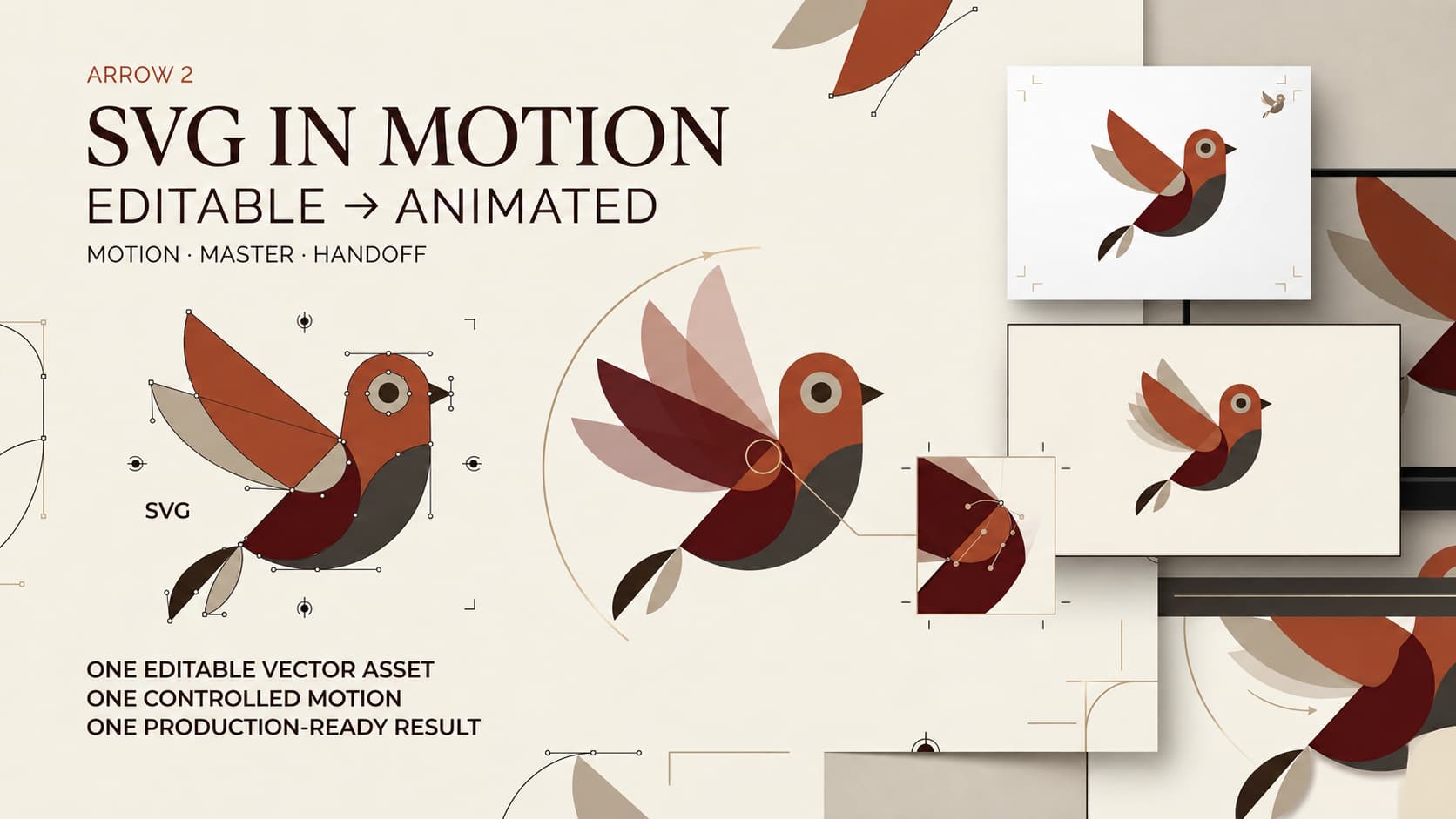
The icon was approved. Then someone asked, “Can it move a little?”
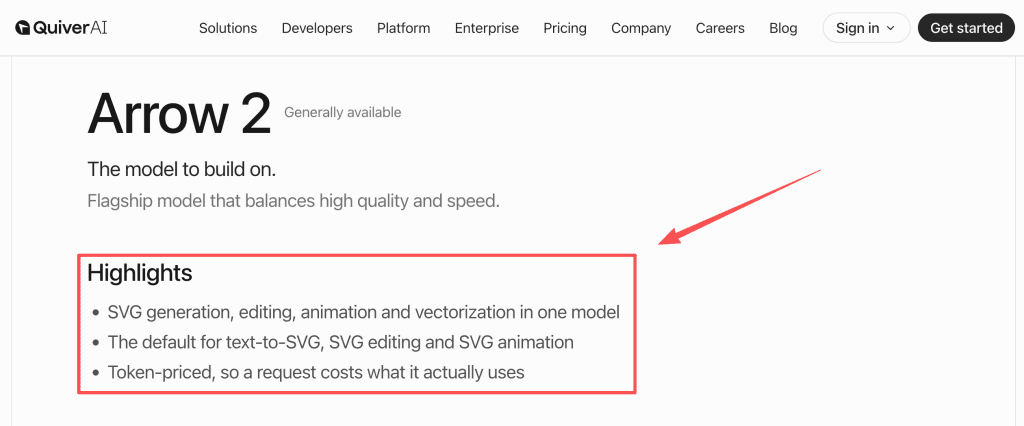
An arrow 2 animation works best when “a little” has one meaning. Imagine an approved sync icon: two arrows rotate once, slow down, and settle. Arrow 2 currently lists SVG animation as a generally available operation, but the result remains an animated SVG rather than a finished video edit.
Choose One SVG Asset and Motion Goal
Choose one logo, icon, diagram, or illustration with final geometry and approved rights. Write one motion sentence: “The arrows rotate once and settle in two seconds.” If it needs several action verbs, trim the brief.
My rule is that motion should explain state, hierarchy, or emphasis. A pulse can confirm activity. A reveal can introduce a logo. Random bouncing may attract attention, but it adds little meaning.
Lock the intended use; loading icons and logo stings need different timing. This workflow follows one animated vector asset through review and handoff.
Prepare the SVG for Animation
Simplify Groups, Paths, and Layer Names
Open the approved SVG. Remove hidden leftovers, duplicate shapes, empty groups, and off-canvas objects. Keep parts that should move separately in separate groups. Names such as outer_arrow and center_dot beat Group_47.
Do not merge every path for neatness. Save the untouched approved file, then make a motion-ready copy.
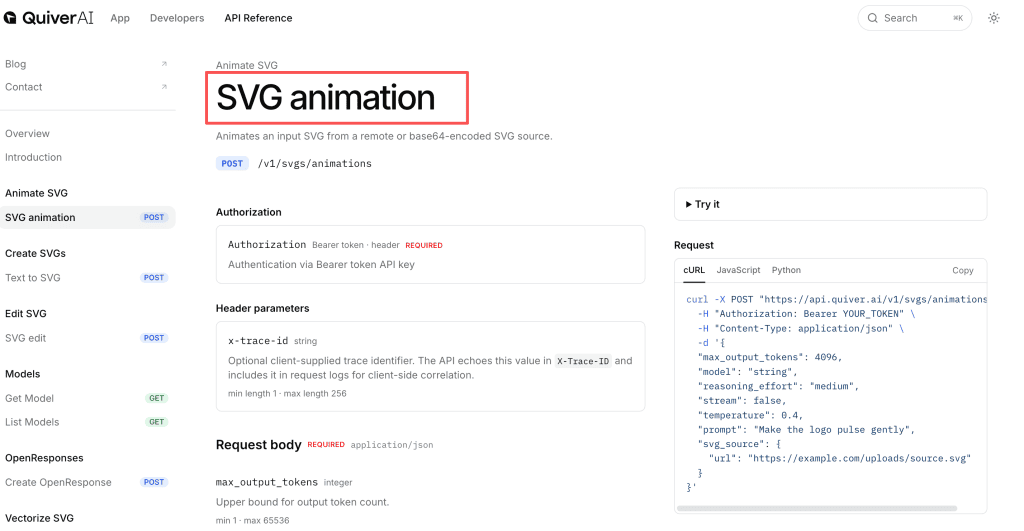
The Arrow 2 animation endpoint accepts a remote or base64-encoded SVG. It does not list PNG, JPEG, or video as source formats.
Preserve Brand Geometry and Safe Areas
Mark what cannot change: logo proportions, trademark spacing, product silhouette, line weight, and protected colors. Leave enough viewBox space for rotation or slight overshoot so the moving shape does not clip.
Specify which pieces move and which stay fixed. An attractive animation still fails if it changes the approved mark.
Generate and Refine the Motion
Describe Timing, Easing, and Loop Behavior
Describe the start, movement, and finish in production language. State whether it plays once, loops, pauses, or returns to its first frame. Include a duration target and easing.
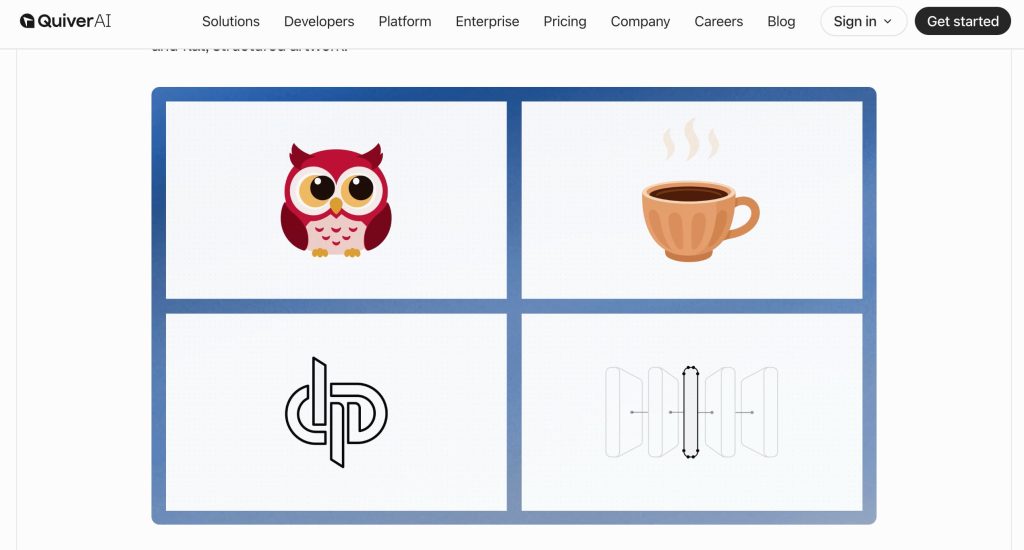
Quiver presents Arrow 2 SVG animation for logos, icons, product illustrations, and motion graphics. Its API accepts an optional animation prompt. Separate fields for duration, easing, frame rate, and loop control are not currently documented, so review those instructions as requested behavior rather than locked settings.
Limit the Animation to One Clear Action
Ask the sync icon to rotate once and settle. Skip the glow, bounce, color sweep, and particle burst. SVG micro-animation works because the action reads immediately.
Check the opening pose too. Editors may hold it before playback. A broken first frame makes the whole asset feel unfinished.
Review the Animated Asset
Check Shape Integrity and Motion Readability
Compare the first and final states with the approved SVG. Inspect curves, spacing, colors, strokes, text, and alignment. Then inspect the returned SVG, not only its preview.
Watch for shapes that stretch, swap order, or drift off center. A clever movement is still a rejection when the logo changes.
Test the Loop at Its Delivery Size
Preview the asset at its real size and on the intended background. Motion that looks graceful at 800 pixels can become a flicker at 80. Watch several cycles; the join should feel deliberate.
Check it without sound and beside nearby text. Avoid distracting flashes or sharp contrast pulses. WCAG guidance sets limits for flashing content, and repeated motion deserves restraint even below that threshold.
Convert the Result for Video Production
Keep the SVG Master With the Rendered Asset
The animation API returns SVG content. Quiver does not currently document native MP4, WebM, frame-rate, alpha-video, or image-sequence controls for this endpoint. Render through a tested path that matches the editor and delivery channel.
Keep the static master, motion-ready input, animated SVG, preview, and rendered asset together. Record canvas size, duration, frame rate, background or alpha behavior, and approval date.
Place the Asset in the Edit Without Rebuilding It
Give the editor a defined start point. Note whether the motion enters on a word, loops during a hold, or plays once between scenes. Add a static fallback for systems that cannot render the animated file correctly.
This animated SVG workflow prevents an irritating kind of rework: rebuilding a tiny icon in the timeline because the source and timing note went missing.
Limits of Vector Micro-Animation
Vector motion suits logos, icons, flat diagrams, interface states, and simple illustrations. Camera depth, textured realism, character acting, complex lighting, and multi-scene movement need a broader production method.
Quiver does not publish a full compatibility matrix for gradients, masks, filters, clipping paths, element IDs, or editing applications. Test a representative file before approving a batch. Current content terms make users responsible for source rights, restrict free-tier output to noncommercial use, and advise users to keep their own copies. API data controls can vary by organization or project.
Use only SVGs, fonts, brands, and people you have the right to use. This article gives general workflow information, not legal or licensing advice.
FAQ
Which source file types can be uploaded for animation?
The current animation endpoint accepts SVG through a public HTTP or HTTPS URL or as base64-encoded SVG data. It does not list raster images or video as animation inputs.
Can Arrow 2 animate gradients, masks, or clipping paths?
Quiver offers no complete compatibility guarantee for those structures. Test each required feature in a small file and compare the output with the approved source.
Does an animated SVG preserve element IDs for later editing?
No public guarantee covers ID preservation. Save the original, inspect the returned markup, and avoid workflows that depend on unchanged IDs until a sample passes.
Does QuiverAI keep version history for animation revisions?
The app supports saved creations and canvas undo, but Quiver does not clearly promise durable animation version history. Export named versions into the project archive.
Can Arrow 2 animations be used in commercial videos?
Current terms limit free-tier content to personal, noncommercial use. Paid use removes that specific restriction, but third-party rights still apply. Check current plan terms and source licenses before publishing.
Conclusion
Arrow 2 animation fits one narrow production job: animate an approved SVG, review the geometry and loop, then hand off both the editable master and the render. The editor gets a usable motion graphics asset without reconstructing yesterday’s approval from a flattened clip.