I’m Dora. Last week a friend dropped one photo of her dog into a tool and sent back a five-second clip of it trotting across the lawn. I stared at it way too long. Then I spent the night testing every ai image to video tool I could log into, running the same still through five different models just to see who’d win.
This guide is the honest version of that night. I’ll walk you through what these tools actually do, which ones I’d reach for in 2026, the exact steps I follow, and the parts that still break on me. No hype — I tested this stuff, and I’ve got the messy clips to prove it.
Quick answer for the busy folks: Upload a still, write a short prompt describing the motion (not the picture), pick a model, generate, then refine. Most clips land at 5–10 seconds. The tech is good enough to publish in 2026 — for a lot of jobs, anyway. The catch is faces, hands, and fast movement, which I’ll get into.
What AI Image-to-Video Is
Turning a still image into a moving clip
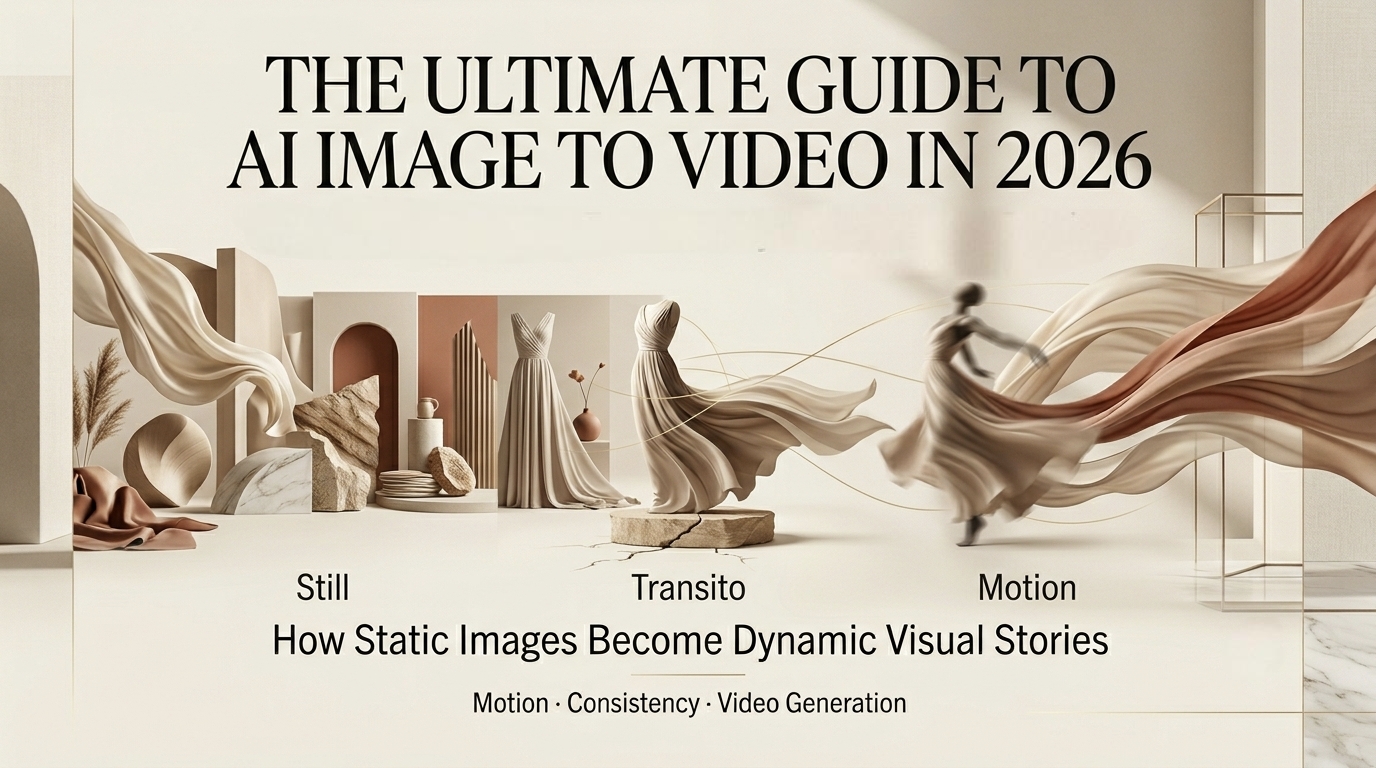
Here’s the plain version: you give the AI a single picture, and it invents the frames that would come after it. The photo becomes frame one. The model fills in everything else — a slow zoom, hair moving, clouds drifting, a product spinning.
It’s different from text-to-video, where you start from nothing but words. With image-to-video ai, your photo already locks the look — the face, the colors, the lighting, the composition. You’re not asking the AI to dream up a scene. You’re asking it to move the scene you already built. That’s why I find it way more predictable than starting from a blank prompt.
People search this a hundred ways — “ai video from image,” “ai image video,” same idea. You bring the picture. The AI brings the motion.
How Image-to-Video Works
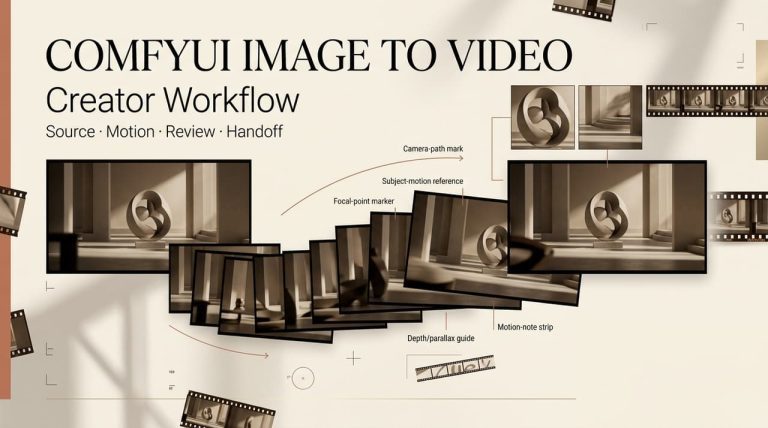
Source image, motion prompt, model generation, and refinement
Four things happen, roughly in order.
Source image. Your photo sets the visual foundation. A sharp, well-lit image gives the model a strong starting point. A blurry one gives it permission to guess, and it will guess wrong.
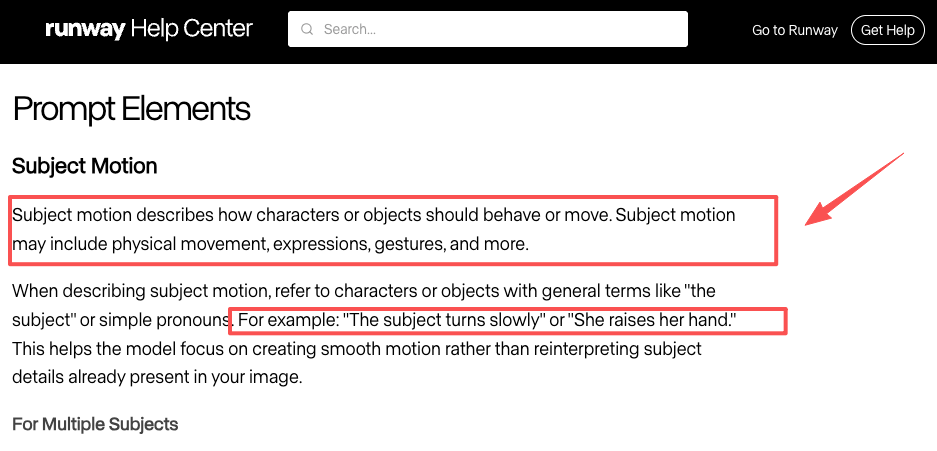
Motion prompt. This is where most people mess up. You don’t re-describe what’s in the photo — the image already did that. You describe what moves. Runway’s own Gen-4 video prompting guide says it straight: since the image carries the subjects and composition, your text should focus almost entirely on the motion. So instead of “a woman in a red coat,” you write “she turns her head and smiles, slow camera push-in.” Big difference in the output.
Model generation. The model predicts a sequence of frames that flow naturally from your still. This takes anywhere from 20 seconds to a couple of minutes depending on the tool and length.
Refinement. First takes are rarely it. You tweak the prompt, dial motion strength up or down, or swap the image, then run again. Honestly, I usually burn three or four generations before I get a keeper.
Best Tools Overview
I’m not going to list twenty tools and call it a guide. Here are the three I actually open, sorted by what they’re best at.
Best for realism
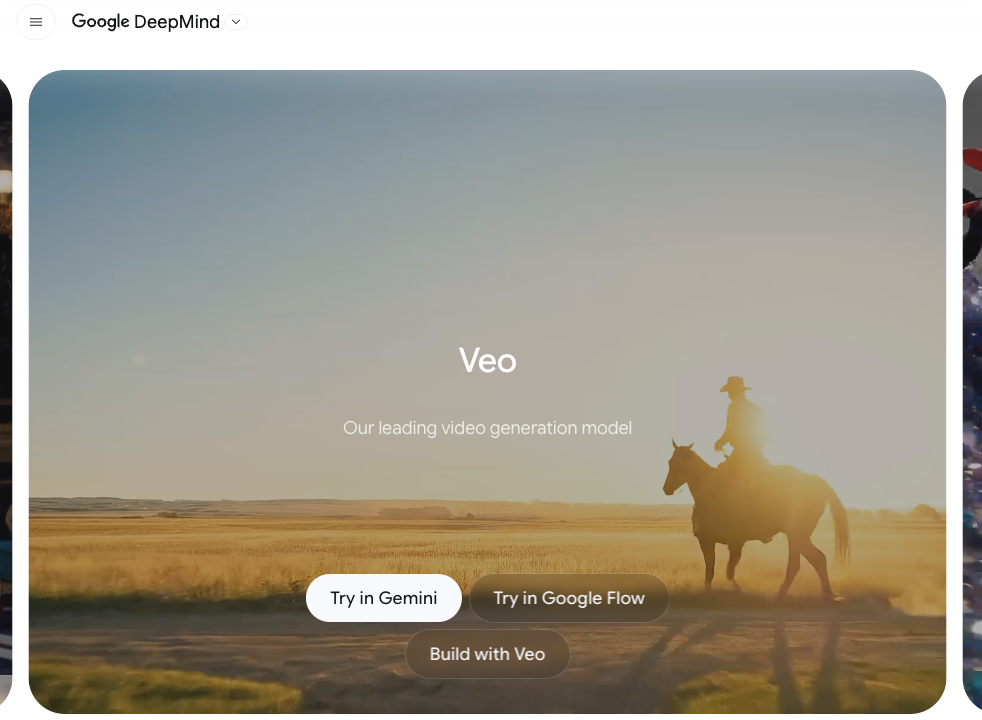
For photoreal results, Google’s Veo is the one I trust most right now. Veo 3.1 generates clips with native audio and strong physics, and in side-by-side human tests on the VBench image-to-video benchmark, raters preferred its outputs for visual quality — you can see the numbers on the official Google DeepMind Veo page. When I dropped in a portrait and asked for a subtle head turn, the skin and eyes held up better than anything else I tried. It’s my pick when “does this look real?” is the whole job.
Best for social content
Kling is my go-to for fast, punchy social clips. Its image-to-video handles expressive character motion and clean product reveals really well, and it pushes 1080p with options to extend the clip — you can poke around its official Kling site to see the reference and start-frame controls. For a vertical hook that needs to grab someone in two seconds, it’s quick and the motion feels lively, not stiff. The audio is weaker than Veo’s, but for muted Reels scrolling, who cares.
Best for creator control
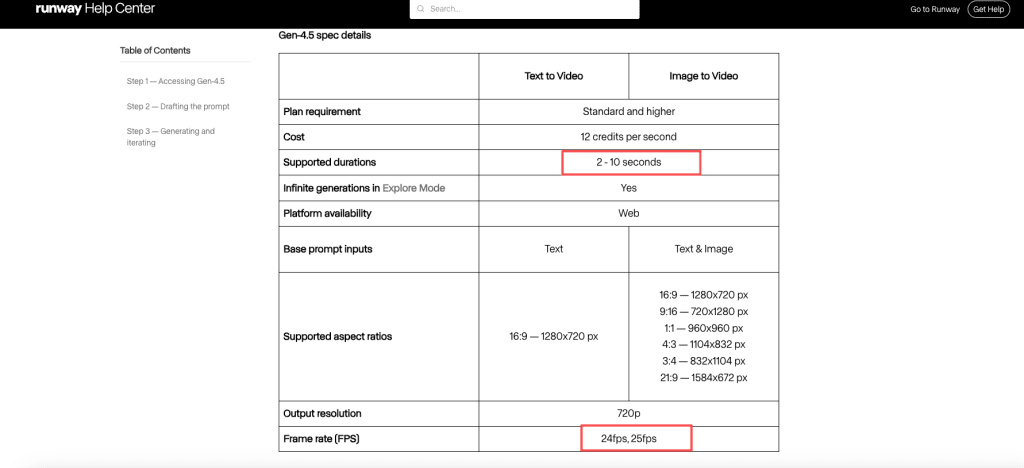
When I want to direct the shot, I go to Runway. Gen-4.5 gives you image-to-video with real settings — pick your duration between 2 and 10 seconds, choose 24 or 25 fps, and steer camera moves through the prompt. The full breakdown is in Runway’s Gen-4.5 help doc. It’s less beginner-friendly than the other two — there’s a learning curve — but when I need a dolly-in to feel intentional instead of random, the control is worth it.
Step-by-Step Workflow
Prepare image, add motion, generate, review, and export
This is the exact loop I use to make ai video from image, every time.
Step 1 — Prepare the image. Pick the sharpest version you have. Crop to the aspect ratio you’ll publish in (9:16 for Reels, 16:9 for YouTube). Clean backgrounds animate cleaner than busy ones. I learned this the hard way after a crowded café photo turned into a soup of melting faces.
Step 2 — Add motion. Write one or two motion ideas, max. “Camera slowly pushes in, leaves rustle.” Don’t stack five actions — the model gets confused and the clip looks frantic. Less is genuinely more here.
Step 3 — Generate. Hit go and wait. Pick a short duration first (5 seconds) so you don’t waste credits testing a prompt that flops.
Step 4 — Review. Watch it three times. Look at the edges — hands, hair, faces, text. That’s where things warp first. If the core motion is right but one detail breaks, tweak and rerun. If the whole thing’s off, change the source image, not just the words.
Step 5 — Export. Once it’s clean, export MP4. If your tool slaps a watermark on the free tier, that’s usually gone on paid plans. Upscale to 4K if the tool offers it and you need the resolution.
What It Is Good At
Product shots, portraits, illustrations, and social hooks
After months of this, here’s where ai image video genuinely shines.
Product shots. A still product photo turning into a slow 360 or a gentle reveal looks expensive and takes two minutes. This is the highest-ROI use I’ve found, full stop.
Portraits. Subtle stuff — a blink, a small smile, a breeze in the hair — adds life without going uncanny. Keep the motion small and it reads as real.
Illustrations. Animating your own artwork or a generated image is honestly the most fun. Parallax, drifting particles, a character’s slow turn. Stylized content forgives little errors that photoreal content punishes.
Social hooks. That first half-second of movement stops the scroll. A static thumbnail that suddenly breathes earns the watch.
What ties these together: small, believable motion on a strong image. That’s the sweet spot.
Limits and Risks
Face drift, unnatural motion, rights, and platform review
Okay, the part the shiny demos skip.
Face drift. Push a clip past a few seconds and faces start morphing — the person at second eight isn’t quite the person at second one. Keep clips short and motion gentle and you mostly dodge it. Mostly.
Unnatural motion. Hands still betray AI video. Fingers fuse, limbs bend wrong, fast movement smears. If a shot needs quick action, lower your expectations or pick a different shot.
Rights and consent. Don’t animate photos of people who didn’t agree to it, and don’t feed in copyrighted images you don’t own. Many models also tag outputs — Veo, for instance, watermarks clips with SynthID so they’re detectable as AI-made.

Platform review. Plenty of platforms now ask creators to label AI content, and search engines reward genuine, people-first work over thin auto-generated filler — Google spells this out in its guidance on creating helpful, people-first content. So animate a still to make your real content better. Don’t pump out empty clips and expect them to rank.
Quick Comparison
Match use case to access, quality, and control
| Your job | Best pick | Why | Clip length |
| Photoreal realism + audio | Veo 3.1 | Top human-rated visual quality | ~4–8s |
| Fast social + product motion | Kling | Lively motion, 1080p, extendable | up to ~15s |
| Director-level control | Runway Gen-4.5 | Camera + fps settings, fine control | 2–10s |
My honest take: pick by the job, not the brand. I keep all three open and run the same image through whichever fits the shot. The “best” tool is just the one that nails your frame.
FAQ
Can AI really turn a still photo into natural video?
Yes — surprisingly well in 2026, as long as the motion is small. A breeze, a smile, a slow camera push from a single photo looks genuinely natural now. Big or fast motion is where ai video from image still struggles. Start gentle.
Is image to video ai good enough for commercial use in 2026?
For a lot of work, yes. I’ve published product reveals and social hooks made with image to video ai that nobody flagged as AI. Just check each tool’s license for commercial rights, keep clips short to avoid drift, and label AI content where the platform asks.
How long can image-generated videos usually be?
Most single generations land between 2 and 10 seconds. Runway Gen-4.5 caps at 10, and some tools let you extend or stitch clips for longer pieces. But quality tends to slip the longer you push, so I keep base clips short and combine them in an editor.
What photos work best with image-to-video AI?
Sharp, well-lit images with a clear subject and a not-too-busy background. High resolution, clean edges, one obvious focal point. Blurry or cluttered photos give image-to-video AI room to guess, and the guesses usually come out wrong.
Do I need a different prompt to make ai video from image versus text-to-video?
Yep. To make ai video from image, your prompt should describe motion only — the photo already handles the visuals. For text-to-video you describe the whole scene. Mixing them up is the number one reason first clips look messy.
I’ll keep animating stills on the days I’m short on time and need a clip that punches above what one photo should. Try it on a product shot first — it’s the easiest win, and it’ll show you fast whether this fits your workflow. Then push it somewhere weirder and see what breaks.
Previous posts: