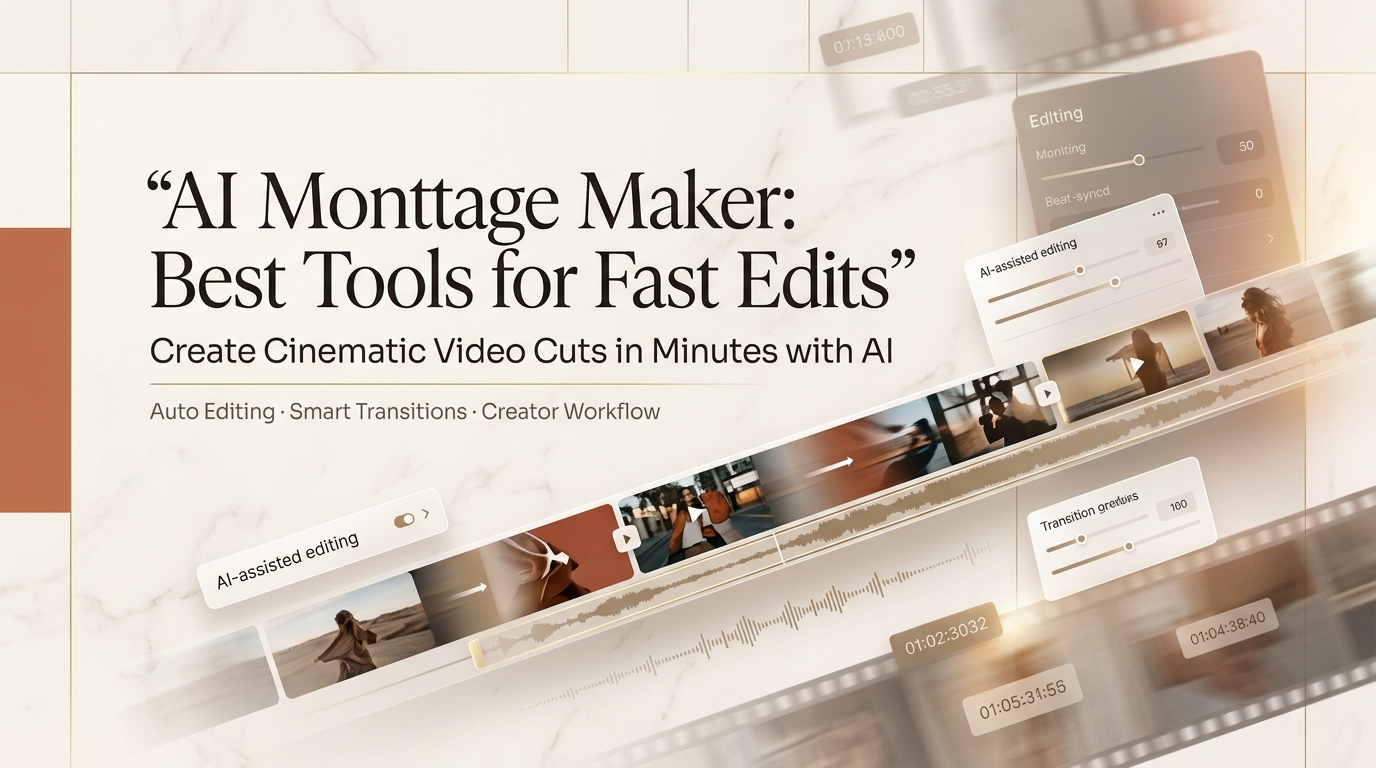
I’m Leo. Someone sent me 200 photos from a brand event and asked for a 60-second montage. Deadline: same afternoon. I didn’t open Premiere. I ran it through an ai montage maker instead — picked the clips, dropped in a music track, let the tool handle the cuts.
It took about 40 minutes to start to finish. Not because the tool was magic, but because I knew which one to reach for and what not to ask it to do.
That’s what this post is about. Not a ranked list of features — a working breakdown of which tools hold up for which jobs, how the photo-to-music workflow actually runs, and where the export limits will catch you off guard before you’ve already shared the thing.
Quick answer: For most social montages with photos and music, CapCut’s AI auto-cut and Canva’s Beat Sync get you to a shareable cut fastest. If you need more control over pacing or shot order, you’ll want to step into a tool with manual override — and I’ll explain exactly when that matters.
What an AI Montage Maker Does
A video montage maker with AI under the hood is doing a few specific things — worth knowing what they actually are so you don’t blame the tool for something it was never built to do.
Most of them handle: auto-sequencing photos or clips based on duration targets, beat-syncing cuts to music tempo, applying transitions and color grades, and generating a rough export at a target aspect ratio. Some add text overlays or animated intros. A few now do basic photo animation maker functions — adding Ken Burns motion, parallax depth, or subtle zoom to still images so they don’t sit flat in the cut.
What they don’t do: make editorial decisions about which moments matter. The tool doesn’t know that the shot of the founder shaking hands is more important than the one of the catering table. You still make that call — or you get a montage that’s technically competent and emotionally flat.
The AI handles pace and rhythm. You handle meaning. Keep that division of labor clear and these tools actually work. Blur it and you’ll be annoyed at the output for the wrong reasons.
According to The Verge’s ongoing coverage of AI creative tools, the shift in 2025–2026 has been toward tools that handle “temporal scaffolding” — the when and how long of each clip — while leaving content selection to the user. That tracks with what I’ve seen across tools.
Best Tools
No scores, no podium. Here’s what each one is actually good at.
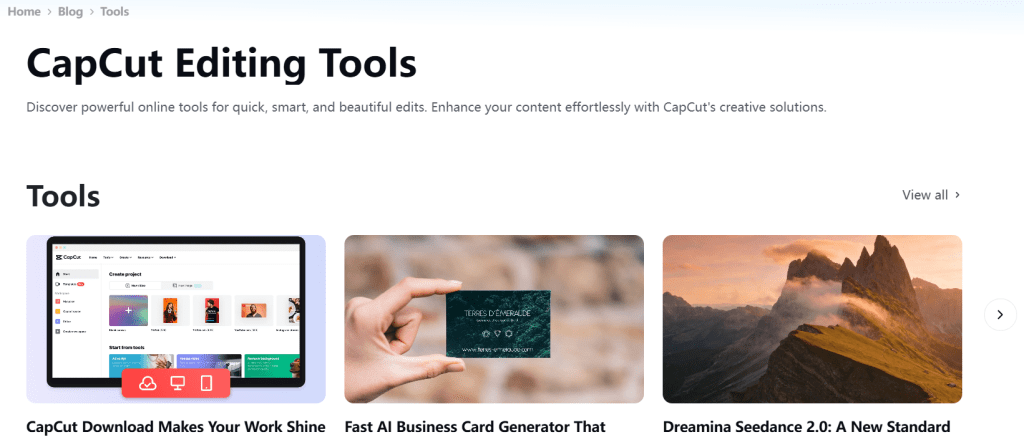
CapCut (AI Auto-Cut + Beat Sync) Still the fastest path from photo dump to watchable cut. Import your images, pick a track, hit Auto-Cut — it sequences and syncs in under a minute. The ai photo montage output is genuinely usable for Instagram Reels and TikTok without touching anything. Weak spot: the beat detection occasionally misreads tracks with complex percussion, and you’ll get cuts that land a half-beat off. Fixable manually, but annoying.
Free tier includes most AI features. Watermark removed on export if you have an account. CapCut’s AI features overview lists what’s included at each tier — worth checking before you assume something’s free.
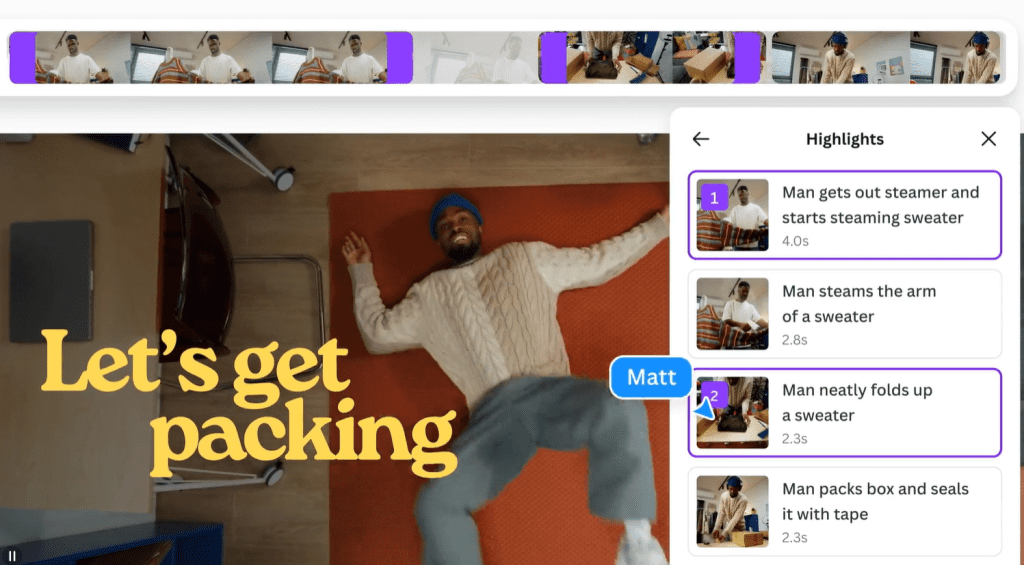
Canva (Magic Studio / Beat Sync) Better for teams and brand-consistent content than CapCut. If you’re working with a brand kit — specific fonts, colors, logo placement — Canva’s montage workflow keeps those consistent without extra steps. Beat Sync works well for tracks under 90 seconds. For longer cuts it starts to drift.
The photo animation maker features (pan, zoom, fade motion) are more polished here than most competitors. Small things, but they make still-image montages feel less static. Canva’s video editor page covers the current feature set.
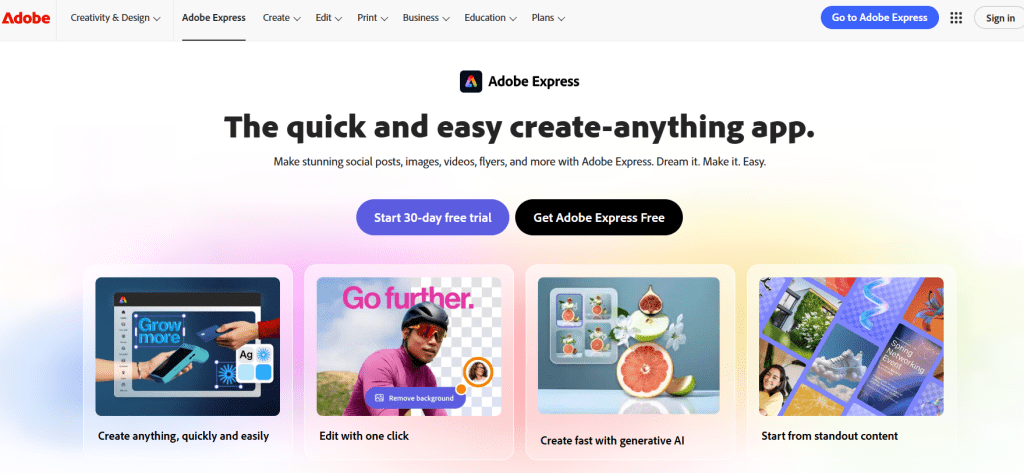
Adobe Express Underrated for people who already live in the Adobe ecosystem. The AI auto-cut isn’t as fast as CapCut’s but the export quality and format flexibility are noticeably better — especially for anything going to a client or a screen larger than a phone. Free tier has watermarks. Paid tier doesn’t. Straightforward. Adobe Express’s montage templates are a decent starting point if you want structure before you start dropping in photos.
Veed.io The one I reach for when someone needs captions on top of a montage — auto-caption quality is better here than the others, and the workflow for adding subtitles without breaking the music sync is less painful. Not the best pure montage tool, but solid when text is part of the brief.
| Tool | Best for | Free without watermark? |
| CapCut | Speed, social-first output | Yes (with account) |
| Canva | Brand consistency, teams | Limited (paid for full) |
| Adobe Express | Quality export, Adobe users | No (paid tier) |
| Veed.io | Captions + montage combo | Limited |
Photo and Music Workflow
The order matters more than most tutorials mention. Here’s how I run it:
Step 1: Cull first, import second. Don’t dump everything in and let the AI pick. You’ll get a 60-second cut that includes the blurry shot and the one where someone’s eyes are closed. Spend 10 minutes pulling your best 30–40% before you touch the tool. The AI sequences well — it does not curate well.
Step 2: Pick the track before you sequence. Every AI beat-sync tool works better when the music is in place before the photos are ordered. The tempo and energy arc of the track should be shaping which photos go where — high-energy section gets your action shots, the breakdown gets the quieter moments. Let the music drive the structure, then fit photos to it.
One thing that catches people: music licensing. If you’re using a track you found on Spotify or YouTube for a client deliverable or anything monetized, that’s a problem. Epidemic Sound’s licensing explainer is the clearest breakdown I’ve seen of what “royalty-free” actually means in practice — worth 5 minutes before you hand something to a client.
Step 3: Override the auto-cuts on anything emotional. Beat sync is good at rhythm. It’s bad at knowing that the photo of the kid seeing snow for the first time deserves two beats, not one. After the auto-cut runs, scrub through and manually extend any shot that carries emotional weight. This is the 10-minute edit that makes the difference between “nice montage” and “she cried watching it.”
Step 4: Export format last. Decide aspect ratio before export, not after. A 9:16 cut for Reels and a 16:9 cut for a website need different framing decisions — if you export 16:9 and then try to reframe for vertical, you’ll lose heads and composition. Most tools let you duplicate and reformat; use that, don’t crop retroactively.
Export Limits
This is where the fine print lives, and it’s worth knowing before you’re 20 minutes from a deadline.
Resolution caps on free tiers: CapCut free exports at 1080p. Canva free caps at 1080p for video. Adobe Express free watermarks everything regardless of resolution. If a client needs 4K or a clean master file, you’re looking at paid tiers across the board.
Duration limits: Some tools cap free exports at 3–5 minutes. For a standard social montage, this doesn’t matter. For an event recap or a longer branded video, check before you build the whole thing.
Watermarks: CapCut removes watermarks with a free account login. Canva requires Pro for watermark-free video exports. Adobe Express requires a paid plan. Veed.io watermarks on free. If watermark-free is non-negotiable, CapCut is currently the most accessible free option.
File format: Most tools export MP4. If you need ProRes, MOV, or anything for broadcast, you’re not getting it from these tools — that’s not what they’re built for, and no AI montage workflow is going to change that in the near term.
FAQ
What is the best AI montage maker for photos and music?
For pure speed and social-first output, CapCut. For brand-consistent team work, Canva. For export quality and Adobe integration, Adobe Express. There’s no single best — it depends on whether you’re optimizing for turnaround time, output quality, or workflow fit with tools you already use.
Can AI montage tools sync clips to music automatically?
Yes — CapCut, Canva, and most major montage video maker tools have beat sync built in. The quality varies. CapCut’s auto-cut is the fastest. Canva’s is more accurate on straightforward tracks. Both drift on complex percussion or variable-tempo music. Auto-sync gets you 80% there; the last 20% is manual adjustment on shots that matter.
Which montage makers are free without watermarks?
CapCut is the most accessible — free account, no watermark on export, up to 1080p. Most free apps for making videos with pictures and music either watermark on free tiers or cap resolution. Canva and Adobe Express both require paid plans for clean exports. If free and watermark-free are both requirements, CapCut is currently the only major tool that checks both boxes without a workaround.
How do I make a fast social media montage with AI?
Cull your photos down to the best 30–40% before importing. Drop your music track in first. Run auto-cut or beat sync. Manually extend any emotionally important shots. Export in the correct aspect ratio for your platform before you finish — don’t reframe after. Start to shareable in under an hour is realistic with this workflow on any of the tools above.
This stack changes fast — CapCut in particular ships updates constantly, and what’s free today has a habit of moving behind a paywall in the next version. I’ll update this when something meaningful shifts.
If you’re running a montage video maker workflow for client work and have a tool or a workaround that’s saving you time, drop it in the comments. I’m especially curious whether anyone’s found a beat-sync tool that handles jazz or classical tracks without falling apart — that’s still the one I reach for a manual edit every single time.
Previous Posts