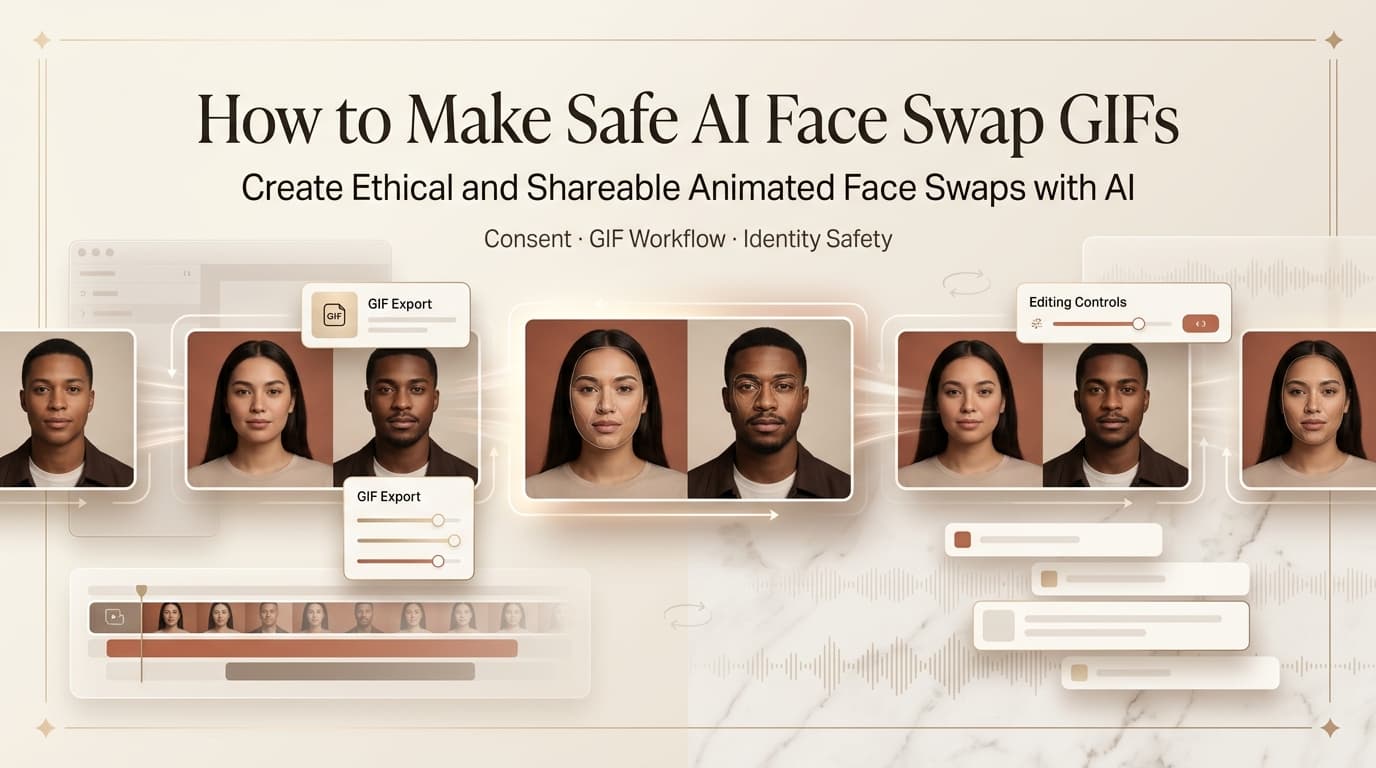
Content engineer who plays with AI like Lego. Good tools I hype, bad tools I call out. I’m Leo. A teammate wanted a reaction GIF of herself for the team Slack. Existing GIF library: not hers. Solution: gif face swap, 10 minutes, done.
That’s the use case I actually run into. Not Hollywood deepfakes — just small, specific, practical things where swapping a face into a looping clip saves time and gets a laugh. This post is for that version of the workflow: authorized use, real tools, honest assessment of what works and what doesn’t.
What this post doesn’t cover: celebrity faces, non-consented use, or anything adult-oriented. WriterNotes on this one were clear, and I agree with them. There’s enough to write about in the legitimate use cases without going near the rest.
What AI Face Swap GIFs Are
A gif face swap is exactly what it sounds like — an AI model detects a face in a looping GIF, replaces it with a source face you provide, and exports a new GIF with the swap applied frame by frame.
The technical challenge GIFs add compared to video: lower resolution, fewer frames per second, and a color palette limitation (standard GIF format maxes out at 256 colors per frame). That combination means ai face swap gif quality tends to be rougher than video face swaps even with the same underlying model. You’re working with less data to begin with.
What that means practically: swaps on high-contrast, well-lit GIFs with a forward-facing subject hold up reasonably well. Swaps on dark, fast-moving, or profile-angle GIFs tend to produce artifacts that are visible even on casual viewing. According to Giphy’s format documentation, standard GIF delivery caps at around 6MB for most platform embeds — that resolution constraint is part of why face swap quality varies so much depending on the source clip.
The format also affects output options. Some tools export the swap as an MP4 and convert it to GIF; others work natively in GIF. The MP4-then-convert path usually produces better quality because you’re not fighting the color palette limit until the final step.
Safe Use Cases
Where gif faceswap workflows actually make sense for creators:
Personal reaction GIFs. Your own face, dropped into an existing meme format or reaction template. Zero consent issues, high entertainment value for team chats and social replies. This is the most common legitimate use case and the easiest to execute.
Brand mascot or avatar content. If you’ve built a synthetic face or licensed a virtual character, dropping it into GIF loops for social engagement — meme replies, product launch reactions, community content — is a clean workflow. The face is yours to use, the GIF format is native to where this content lives.
Consented team/community content. Someone asks you to put their face on a specific GIF. They send you a photo, you run the swap, they get their reaction GIF. Straightforward, fun, low stakes. The consent is implicit in the request.
Creative and narrative projects. Short-form storytelling where the format works — character reveals, visual punchlines, experimental social content. Works best when the GIF is short, the lighting on the source face is clean, and you’re not trying to hold consistency across a long sequence.
Best Tools
No ranked list — just what each tool is actually built for.
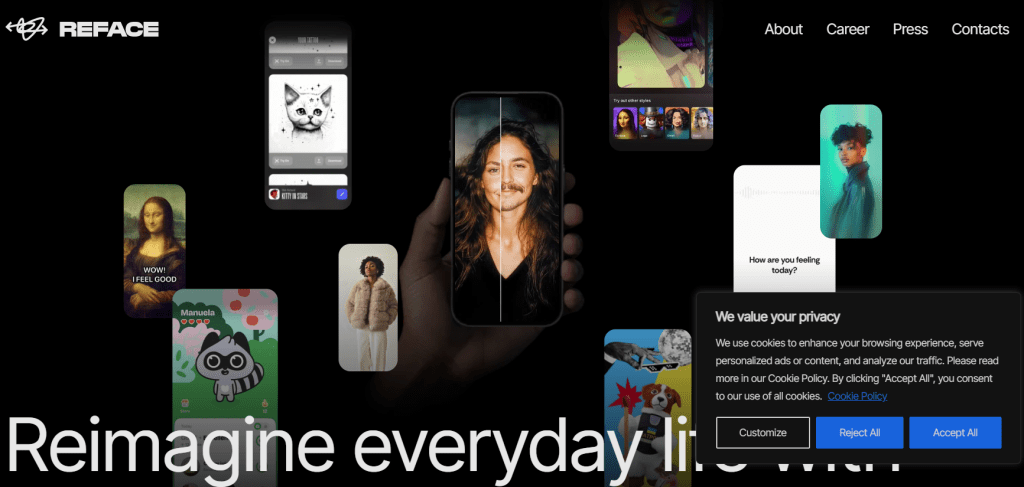
Reface (mobile) The fastest path for single-image-to-GIF swaps on a phone. You upload a selfie, pick a GIF from their library or import one, and the swap runs in under a minute. Quality is good for the format — better than most browser-based options. The Reface app has a free tier that covers basic swaps; some GIF categories and export options are behind a paywall. Watermarks on free exports are small but present.
Vidnoz Browser-based, no install required. Handles gif face swap free use cases reasonably well — the free tier allows a limited number of swaps per day without requiring a credit card. I tested it on the same five-second, forward-facing GIF I used across all tools in this post. Output quality is mid-tier: skin tone consistency held up on well-lit frames, but the tool produced visible color banding on two of the eight frames that had motion blur. Fine for Slack reactions, not fine for anything you’re publishing in a professional context. Worth testing before committing to a paid tool.
Imgflip Primarily a meme generator, but it has face swap functionality that works on GIFs. Imgflip’s face swap tool is free to use with watermark, straightforward interface, no account required. I ran the same test GIF through it: processing time was under 30 seconds, and the output held better on high-contrast frames than Vidnoz did — but at the cost of lower resolution on the swap itself. Not the most sophisticated gif face swapper output, but for quick meme-format swaps it’s the lowest-friction option I’ve found.
GIMP + manual compositing If you want control and don’t mind doing it yourself, GIMP handles GIF frame-by-frame editing. Not AI-assisted — you’re manually masking and placing the face on each frame. Time-intensive, but quality ceiling is higher than any of the automated tools for difficult source material. Useful when the GIF is short enough (under 20 frames) that manual work is actually faster than fighting with an AI tool that keeps breaking on the lighting.
| Tool | Free tier | Watermark free? | Best for |
| Reface | Yes (limited) | No | Mobile, speed |
| Vidnoz | Yes (limited) | Limited | Quick browser tests |
| Imgflip | Yes | No | Meme formats |
| GIMP | Yes (fully free) | Yes | Quality control, manual |
Workflow
Here’s how I actually run an add face to gif workflow start to finish:
Step 1: Source photo quality first. The swap is only as good as your input face. You want: frontal angle, even lighting, no heavy shadows across the face, expression roughly neutral or matching what you’re swapping into. A photo taken specifically for the swap beats a cropped social media photo every time. Resolution matters less than lighting and angle — a well-lit 800px photo outperforms a poorly-lit 4K one.
Step 2: Pick a GIF that will actually work. Not all GIFs are good swap candidates. The ones that work: forward-facing subjects, consistent lighting across frames, moderate motion speed. The ones that don’t: profile angles, fast motion blur, dark or high-contrast lighting, very short loops (under 10 frames gives the model almost nothing to work with). Spend 30 seconds evaluating the source GIF before you commit — it saves you the frustration of running a swap that was never going to hold.
Step 3: Run a test on a difficult frame first. Before processing the whole GIF, isolate the frame with the worst conditions — most extreme angle, most motion blur, most lighting variation — and test the swap there. If it holds on the hardest frame, it’ll hold on the rest. If it breaks there, you know before you’ve wasted time on the full export.
Step 4: QC the loop point. GIFs loop, which means the transition from the last frame back to the first frame is a moment of extra scrutiny. AI swappers sometimes produce a visible flicker or color shift at the loop point even when the rest of the clip is clean. Watch the loop five or six times specifically looking for this — it’s easy to miss on a single playthrough.
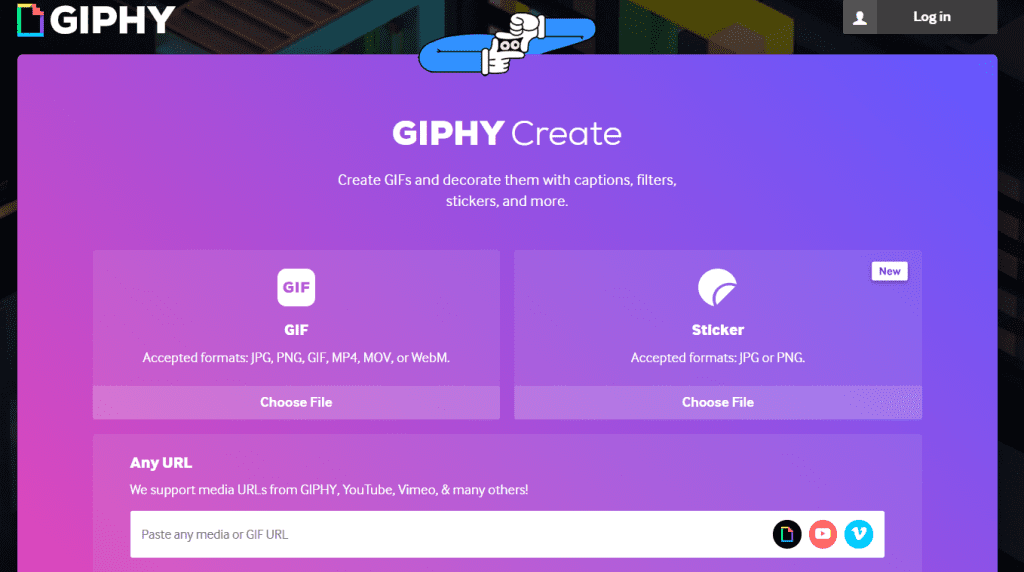
Step 5: Export format decision. If your tool gives you the option to export as MP4 first and convert to GIF after, take it. Run the conversion through Giphy’s GIF maker or a dedicated converter — they handle the color palette compression better than most tools’ built-in GIF export. Final file size check: most platforms cap GIF embeds at 5–8MB. If you’re over that, drop the resolution or frame rate before you try to share it.
Consent Notes
Shorter version of what I covered in more detail in the AI face swap video post — applied specifically to GIFs.
Your own face: No paperwork needed. Go ahead.
Someone else’s face, with their knowledge: Get explicit agreement before you run the swap. For informal use — a teammate’s reaction GIF for Slack — a message saying “can I make a face swap GIF of you for the team chat” and a yes reply is sufficient. For anything published or distributed beyond a private channel, you want something more formal.
Public figures and celebrities: Don’t. Even “just a meme” — the legal exposure varies by jurisdiction but is moving toward stricter, not looser, across the board. Two specific frameworks are worth knowing about:
The EU AI Act’s Article 50(4) — with transparency obligations taking full effect on 2 August 2026 — requires deployers who generate or manipulate image, audio, or video content constituting a deepfake to disclose that the content has been artificially generated. The definition of “deepfake” in Article 3(60) covers AI-generated or manipulated content that “resembles existing persons” and “would falsely appear authentic.” A face swap GIF of a real, recognizable person sits squarely in that definition. Narrow exceptions exist for law enforcement use and evidently artistic or satirical works — a meme doesn’t automatically qualify.
In the US, New York’s SB-8420A — signed December 11, 2025, effective June 9, 2026 — requires conspicuous disclosure when advertisements use AI-generated “synthetic performers,” defined as digitally created assets intended to create the impression of a human performer. California’s AB 2602, effective January 1, 2025, makes unenforceable any contract allowing use of a performer’s digital replica without reasonably specific description of intended uses and proper representation. Neither of these is a niche performer-rights bill — they cover commercial video and advertising production broadly. The GIF format doesn’t create an exemption from either.
Stock or licensed images: Read the license for AI derivative use specifically. “Royalty free” does not cover AI-generated derivatives in most standard licenses. Check before generating.
For anything that could be mistaken for real footage of a real person — even in GIF format — US disclosure obligations in commercial contexts come from the FTC Act’s deceptive conduct prohibition, not from a specific AI disclosure rule. The FTC’s March 2023 guidance makes clear that the FTC Act applies “if you make, sell, or use a tool that is effectively designed to deceive.” Using a synthetic likeness of a real person in brand content, sponsored posts, or anything monetized in ways that could mislead audiences about authenticity falls into that territory. This is an enforcement framework, not a specific disclosure rule — but the practical effect for commercial content creators is the same.
Nothing in this section is legal advice. Laws vary by jurisdiction, change frequently, and the commercial production context matters significantly. If in doubt, consult legal counsel.
FAQ
How do I make a face swap GIF with AI?
Upload a clear frontal photo of the source face to a tool like Reface or Vidnoz, import or select the target GIF, run the swap. QC the loop point and any frames with motion or angle changes. Export as MP4 if the option exists and convert to GIF after — better quality than direct GIF export from most tools.
What is the best free AI face swap GIF tool?
Depends on what “free” means to you. Imgflip is fully free with watermark and requires no account. Vidnoz has a free tier with daily limits. Reface’s free tier covers basic swaps with watermark. GIMP is completely free, watermark-free, and gives you full control — but it’s manual work, not AI-assisted. For most casual use cases, Imgflip or Vidnoz gets the job done without spending anything.
Can I use face swap GIFs for memes or social posts?
For your own face or a synthetic character: yes, straightforwardly. For someone else’s face: only with their knowledge and agreement, and with disclosure if it’s in a commercial or sponsored context. For public figures or celebrities: not recommended — the legal risk isn’t worth the engagement upside, and the trend in regulation is clearly toward stricter rules on synthetic media of real people.
What consent rules apply to face swap GIFs?
Same rules as any synthetic media: you need consent from any real person whose face you’re using, in a form appropriate to how the content will be used. Informal agreement covers informal use; published or commercial content needs more explicit documentation. The GIF format and the “it’s just a meme” framing don’t create exceptions to these rules — they just make violations easier to rationalize and harder to defend later.
The teammate reaction GIF I mentioned at the top? Took three tries to get the loop point clean. First two had a visible color flicker every time it looped — one of those things you can’t unsee once you spot it. Third attempt, exported as MP4 first and converted after, held up fine.
Worth the extra step. Every time.
Previous Posts: