
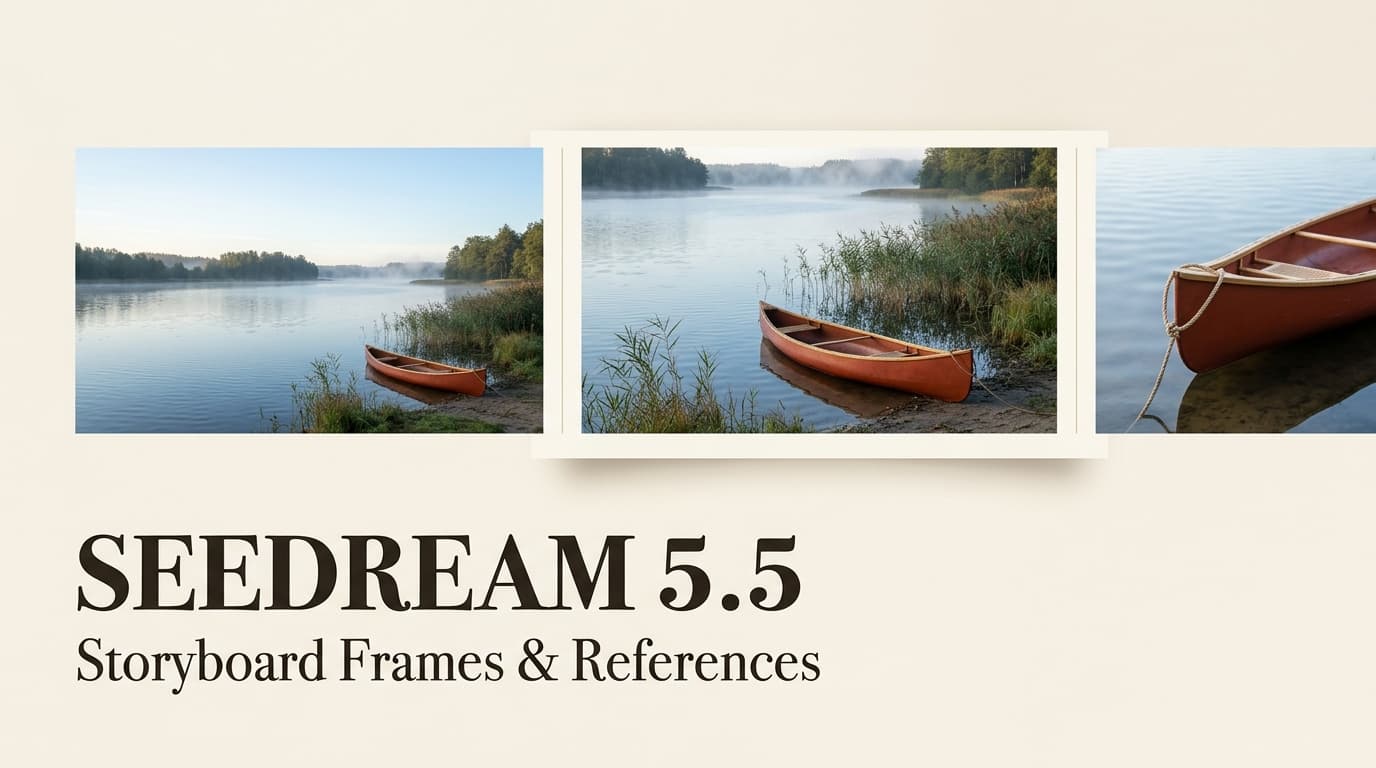
One scene can feel settled in a hero frame, then look different when the next image changes the jacket, light, or eyeline. Can an image model shape a few storyboard stills without pretending they form a continuous video? This Seedream 5.5 review for storyboards uses current documentation, not a hands-on test. It covers static frames, local revisions, and the checks left to the video team.
Is Seedream 5.5 Useful for One Short Video Storyboard?
Seedream 5.5 is an image generation and editing model, not a video generator. ByteDance introduced it on November 9, 2026, highlighting multi-turn editing, RGBA transparency, image realism, and text rendering. Its launch demo shows 100 edits to one image, each based on the prior output. That supports refining a still; it does not show separate frames will match. The release reports vendor film-and-television evaluations, not independent storyboard testing.
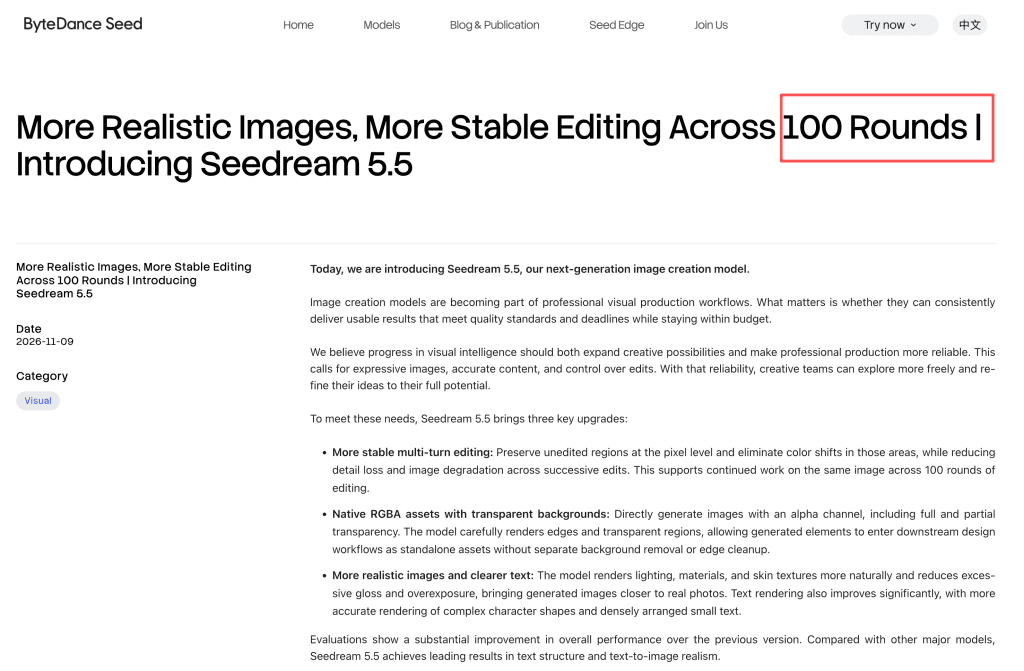
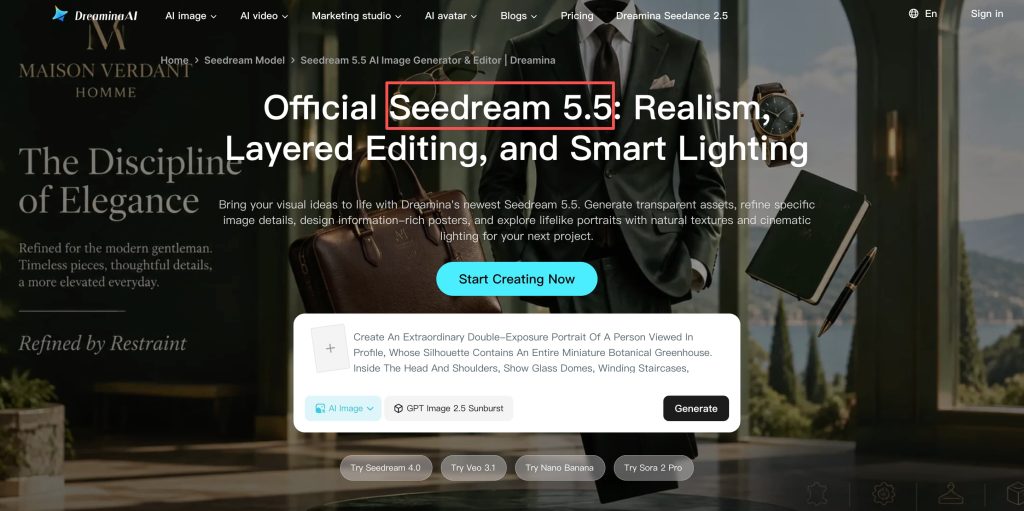
Dreamina lists Seedream 5.5 with a Start Creating route, but access and controls depend on the account; check the model selector before scheduling.
Build a Small Set of Shot References
Define the Subject, Setting, and Shot Roles
Start with three Seedream 5.5 storyboard frames: an establishing view, main action, and detail or reaction. Write a one-sentence brief for fixed elements: subject, clothing, location, time, key prop, and screen direction. Give each frame a role; vary distance, angle, or action.
Label each output as a look reference, composition target, or possible first frame. Separate a useful mood image from a precise shot target. That makes Seedream 5.5 shot references easier to compare before the image to video handoff.
Review Each Frame Against the Scene Brief
Check clothing, silhouette, key props, light, eyeline, screen direction, and fit with the frame’s role. For product scenes, verify shape and small text; polish does not prove label accuracy. Mark each mismatch as a new-frame or focused-edit problem. A side-by-side contact sheet can expose a missing prop or shifting eyeline sooner than reviewing frames one at a time; it is a review aid, not evidence the model preserved the detail. These remain human checks, not a documented storyboard feature. Storyboard continuity is an editorial decision, not a model promise.
Revise a Frame Without Losing the Scene Direction
For image revision for video, name one change and what should remain: “Replace the blue mug with a paper cup; keep the hand, sleeve, table position, framing, and warm window light.” This is a prompt pattern, not a tested recipe.
ByteDance’s examples show successive local edits and describe preserving untouched regions. Compare each revision with the approved version. If the subject or camera drifts, return to the original instead of piling on edits. Save versions so the team can see which still carries the agreed direction. For acceptance, record the change requested, what stayed stable, and whether the next shot still matches. This separates a local image edit from a scene decision.
Hand Approved Stills to a Video Workflow
Send approved files only. For each shot, record its role, whether it is a visual reference or starting frame, intended motion, and details that must stay stable. Keep exploratory images apart. The Google Pics reference-asset workflow covers preparing a reviewed asset pack.
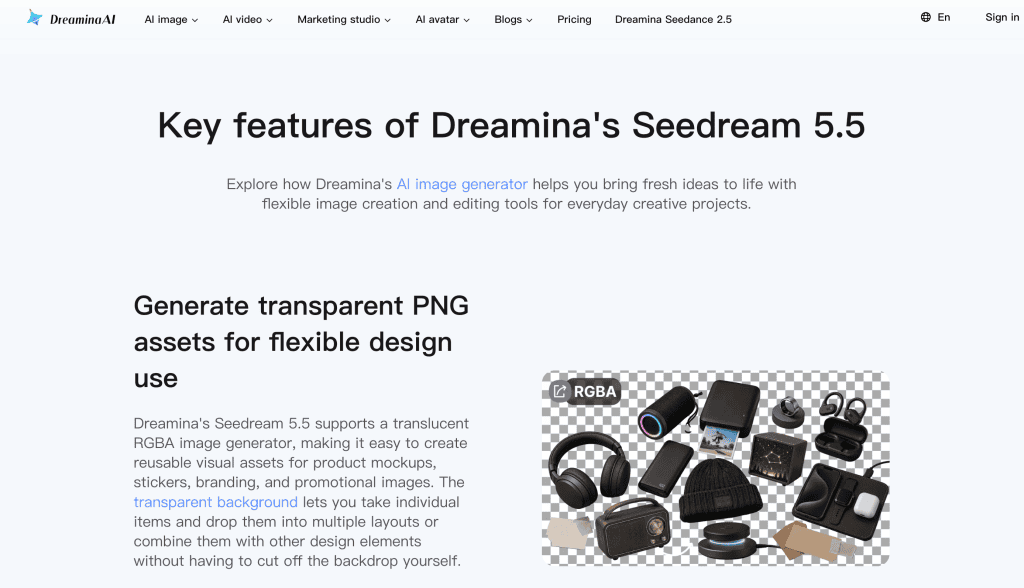
Public materials show reference-image use, but do not specify accepted input file types or a maximum number of references. Confirm those controls before creating a batch. Native transparency helps with compositing, but does not guarantee a separate video tool will preserve it.
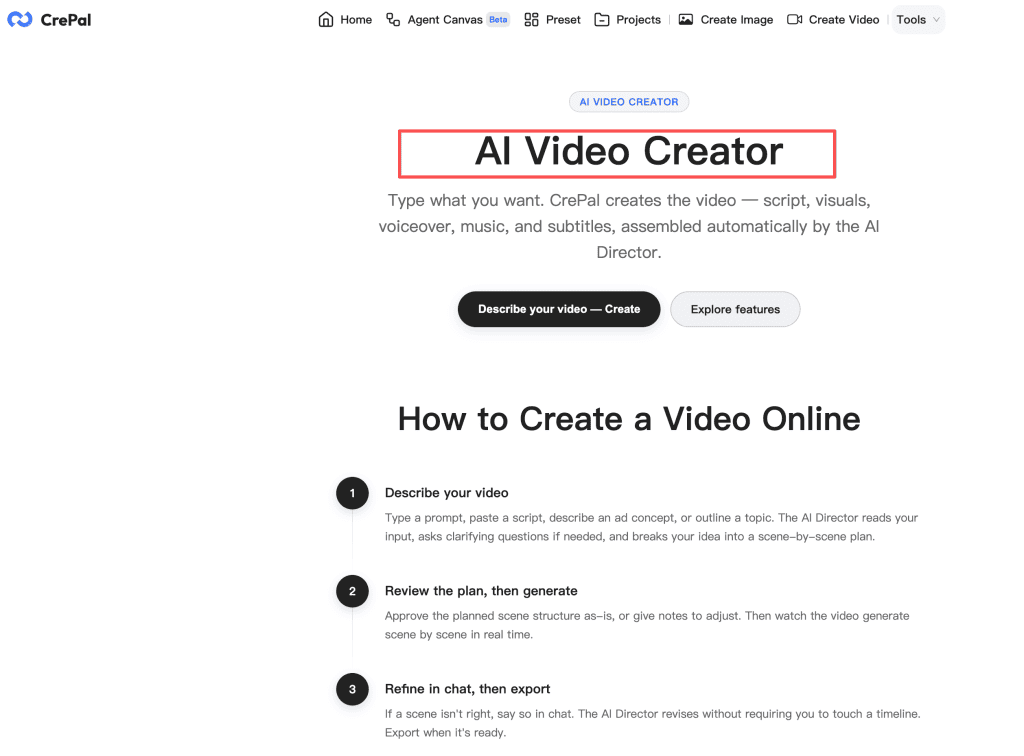
CrePal’s video creator accepts images as source or style references, while its AI Director plans scenes downstream. Use that route only if the approved still can be uploaded through the supported workflow; public documentation does not establish native Seedream 5.5 integration or automatic transfer.
Where the Storyboard Still Needs Human Review
A person still needs to judge whether adjacent shots make sense: gaze, prop hand, action direction, framing, and the crop that will appear on screen. The Qwen-Image-2.1 workflow’s continuity checks across panels are a useful broader reference; this review focuses on Seedream 5.5’s narrower role in making and revising stills.
Rights and data handling deserve the same pause as visual approval. Dreamina’s U.S. terms on ownership and commercial use treat those questions separately; its U.S. privacy policy for prompts, uploads, and responses explains collection, use, and retention. Read the policy for your account and confirm source-material permissions before uploading client assets. This article is not legal advice.
FAQ
Where can creators access Seedream 5.5 now?
The official Dreamina page lists “Start Creating Now” and steps to select Image 5.5 by Seedream 5.5. It gives no rollout date for every region, so check your own selector before scheduling.
Which image formats can Seedream 5.5 export for a video team?
Dreamina documents transparent PNG assets. It does not enumerate every export type or dimension for every account; inspect the download controls and verify the saved file’s alpha channel in your receiving tool.
How many reference images can Seedream 5.5 accept in one request?
The 100-edit launch demo counts revisions to one image, not references submitted together. Public Seedream 5.5 materials publish no cap; check the active controls before creating a batch.
Can Seedream 5.5 outputs be used in a client video project?
The U.S. terms say compliant users own their inputs and outputs, while section 7 restricts commercial use of the service or content unless permitted under applicable terms. Check your feature’s conditions and source rights before delivery.
Does Seedream 5.5 store uploaded reference images after generation?
The U.S. policy does not promise immediate deletion: it treats prompts, uploads, and generated responses as user content, lists model improvement among its uses, and varies retention by information type and purpose. It gives no Seedream-specific deletion timer.
Conclusion
Seedream 5.5 has a plausible place in the still-image stage of one short scene: create a few visual anchors, revise a chosen frame, then hand off approved files after checking compatibility. Public evidence is thinner on cross-frame continuity, reference limits, export details, and per-image retention. Treat each still as a decision for a person to approve, not a promise about the finished video.