Hi, Dora here.
I ended up on Caption Pop AI after someone in a Discord thread called it “the fastest way to get styled captions without touching Premiere.” That’s a specific enough claim that I had to verify it myself — so I spent an afternoon uploading clips and poking at every setting until I’d broken it at least twice.
Not sponsored. I used my own test footage and paid for credits to check the export quality.
Here’s the honest version: what this ai caption writer does well, where it hits walls, and what I’d use instead depending on your setup.
Quick answer: Caption Pop AI is a browser-based captioning tool that auto-transcribes your video and lets you style and export the result. Fast to start, genuinely useful for short-form content — but the free tier is restrictive enough that you’ll need a paid plan before you can properly evaluate it.
What Caption Pop AI Does
At its core, Caption Pop AI is a transcription-to-caption pipeline. Upload a video (or paste a YouTube link), and it runs automatic speech recognition on the audio, generates timed captions, and drops you into a style editor before export.
The style panel covers the basics: font, color, size, stroke, background box, and a handful of animation presets. It’s built for the bold-word-on-dark-background format that dominates Reels and TikTok right now. Nothing exotic, but enough to produce a polished result without touching a proper video editor.
One thing worth noting upfront: Caption Pop doesn’t touch your cuts, color, or audio. It’s a captioning tool — it does one job and stays in its lane. That’s not a criticism; it just sets the expectation right.
How to Access It
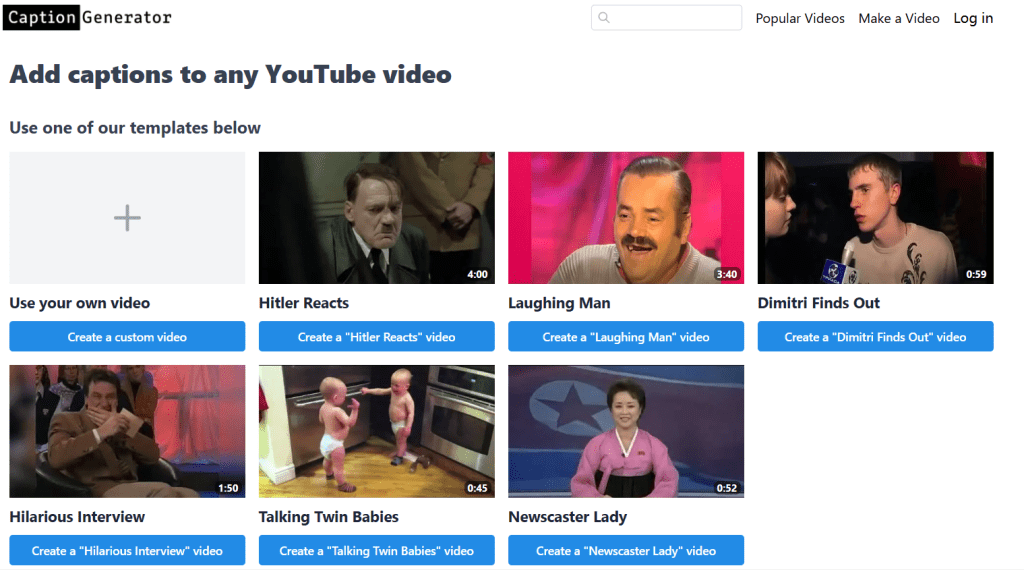
Caption Pop runs entirely in the browser. No download, no plugin. You create an account on the Caption Pop official site, upload your file, and you’re in.
I tested Chrome on a MacBook Air M2. No performance issues, no crashes, load times were fine. The interface is clean and doesn’t require a tutorial to navigate.
The free tier gives you a limited number of exports per month — the exact caps are on their pricing page, and it’s worth checking before you commit to a workflow. Paid plans unlock longer video support, more monthly exports, and watermark-free downloads. More on that in the Limits section.
Caption Features Tested
Auto transcription
I uploaded four clips: a talking-head tutorial (~4 min), a street interview with ambient noise (~2 min), a screencast with voiceover (~3 min), and a product demo with background music.
Results tracked exactly how you’d expect. Clean voiceover → solid. Noise in the background → noticeably worse. The street interview dropped words at the moments where ambient sound spiked, which isn’t a Caption Pop problem specifically — it’s a hard limit for the entire category of auto-transcription tools at this price point.
One UX detail I appreciated: low-confidence words are flagged with a slightly different visual treatment in the editor, so you know exactly where to look when doing a review pass. It’s a small thing, but it saves time.
Style editor
The styling panel is fast to use. I got to a white bold text on a semi-transparent dark pill — the standard short-form look — in about 90 seconds from scratch. Word-by-word highlighting (where the active word changes color as it’s spoken) is available on certain presets. It works cleanly.
Export options
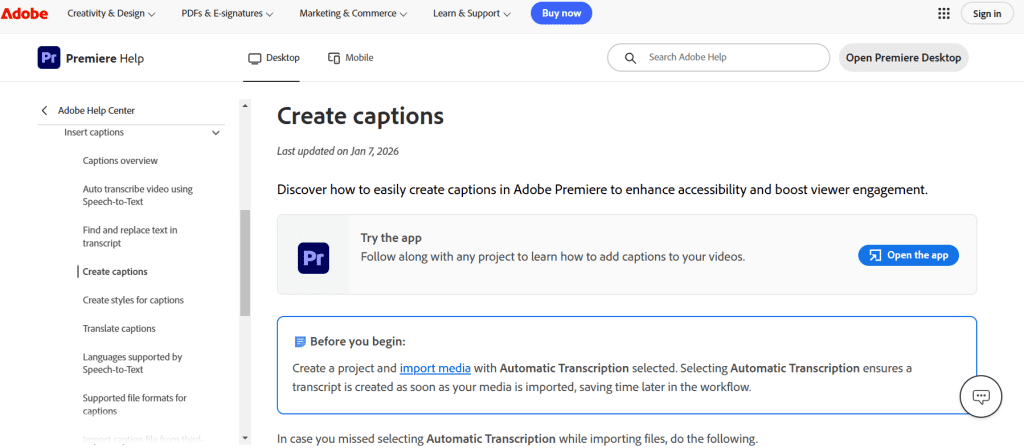
You can export as burned-in captions (baked into the video) or as an SRT file. The SRT option is useful if you’re finishing in your own editor and want captions on a separate track. If you’re already deep in Adobe Premiere Pro’s caption workflow, you may not need Caption Pop at all — Premiere’s built-in auto captions have improved a lot, and the native roundtrip is well-documented. But if Premiere isn’t your setup, Caption Pop is a quicker path to a styled export.
Output Quality
On clean audio, accuracy in my tests landed around 88–92%. Proper nouns were the main failure point — a brand name I use regularly came out garbled on two separate passes. I caught it in the review editor, but it required manual correction.
Timing sync was good. Captions consistently landed within ~0.2–0.3 seconds of the actual speech, which felt natural on playback and didn’t require manual timing adjustments on any of my test clips.
Style quality on a 1080p export looked professional. No pixelation, no weird font rendering. The presets are clearly optimized for vertical video, but horizontal 16:9 rendered fine too.
The one thing I’d flag: longer sentences don’t always break at natural points. I had a few lines that ran long and split mid-phrase — grammatically coherent, but awkward on screen. You can fix these manually in the editor, but plan for it. On a 3-minute clip with a few problem lines, I spent about 8 minutes in review. Not terrible, but not zero.
Limits
Here’s where I’ll be direct, because this section is the part that actually affects your decision.
Free tier is genuinely tight. You’ll hit the export limit faster than expected if you’re testing across multiple clips. The watermark on free exports means you can’t really evaluate the final output quality without committing to a paid plan. I understand why they do it — but it makes meaningful pre-purchase testing harder than it should be.
Video length cap on free tier. For short-form content (under ~5 minutes), this isn’t a problem. For a 15-minute YouTube video, you’ll need a paid plan.
No multi-speaker diarization. If two people are talking, Caption Pop transcribes everything as one undifferentiated voice. There’s no speaker labeling. That’s a meaningful limitation for interviews, podcasts, or any two-person format.
No visual timeline editor. Timing adjustments are done by editing timestamp numbers directly in the interface — not by dragging on a timeline. Workable, but slower than what you’d get in a dedicated editor.
Alternatives
If Caption Pop isn’t the right fit for your workflow, here’s where I’d actually look:
CapCut auto captions — If you’re already cutting in CapCut, their built-in auto caption feature is fast, accurate on clean audio, and requires zero extra steps. This is my default for anything under 3 minutes that’s already in CapCut. No separate tools, no export friction.
Adobe Premiere Pro auto captions — As noted, if you’re in the Adobe ecosystem, the native solution is solid. Accuracy is comparable to Caption Pop on clean audio, and the workflow is documented and stable.
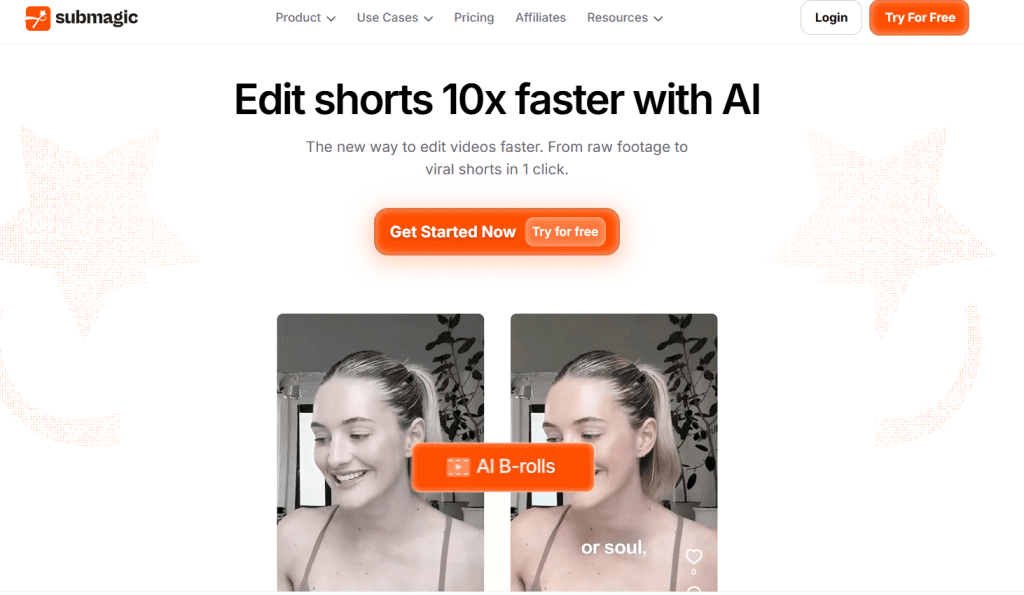
Submagic — Submagic does what Caption Pop does, but with more short-form-native styling options: emoji overlays, animated highlight backgrounds, word-by-word effects. It’s more opinionated in its design language, but if you want that high-energy short-form aesthetic baked in by default, it’s worth testing.
The decision in one line:
- Already in CapCut → use CapCut captions
- Already in Premiere → use Premiere auto captions
- Need a standalone web tool with SRT export → Caption Pop works
- Want aggressive short-form styling by default → test Submagic
FAQ
Is Caption Pop AI free to use?
There’s a free tier, but it’s limited — export count is capped per month, and free exports include a watermark. Check the current pricing page before committing, since plans can be updated. For light testing it works; for anything production-ready, you’ll likely need a paid plan.
Can Caption Pop AI export captions without a watermark?
Only on paid plans. The free tier adds a visible watermark to video exports. If you need clean output for publishing, you’ll need to upgrade — or use the SRT export option and burn captions in your own editor instead.
How accurate are Caption Pop AI auto-captions?
On clean, noise-free audio, I’d estimate 88–92% accuracy in my tests. Background noise drops this meaningfully. Proper nouns and less common terms are the most frequent failure points. Always plan for a manual review pass before publishing — especially for content where caption errors would be visible or embarrassing.
What are the best Caption Pop AI alternatives?
For short-form content: CapCut’s built-in captions if you’re already in that editor; Submagic if you want more styled, animated output. For longer or professional content: Premiere Pro’s auto caption workflow if you’re in the Adobe ecosystem. The right ai captions tool depends less on which one is “best” and more on where your editing already lives.
Caption Pop AI is a functional, no-setup-required option for getting styled captions out of a video. It’s not a full editing workflow, and the free tier won’t let you properly evaluate it before paying. But for short-form content where you need a standalone web-based tool with SRT export and don’t want to open Premiere — it does the job.
I’ll keep it in my toolkit for quick tests. For anything going to a real audience, I still review every line before exporting.
What accuracy numbers are you seeing on your clips? Drop them in the comments — I want to know if the clean-audio estimates hold up across different mic setups and recording environments.
Previous Posts