

A short product clip takes longer to review when its spoken line, scene, and caption carry different messages. A script-first workflow gives creators a clear way to plan these pieces. The CapCut AI video generator can turn a prompt or script into a first cut for that review. I’m Dora, and I write practical creator workflows. Here I’ll follow CapCut’s documented routes to check an editable video draft and prepare it for export.
What Can CapCut Build From a Script?
CapCut can turn a prompt or your own script into a first draft for further editing. Its script-to-video workflow and multi-track editor combine script options, stock footage, captions, voiceover, and timing in one project flow.
For a short product video, the draft could follow four beats: a situation, product detail, use action, and next step. In a fictional desk-organizer example, show loose cables, the organizer, then a hand placing a cable into a slot. Each shot has one job and a matching script line.
CapCut describes a multi-track editor for layering media and adjusting captions, transitions, and voiceovers. The route determines which controls appear, so keep Web and App instructions separate.
Prepare a Script, Visual References, and Format
Start with the viewer, one point the video should communicate, and where it will appear. Write a short line for each scene. For the fictional organizer:
- Show the desk and the loose cable.
- Introduce the organizer in a clear close-up.
- Show the cable being placed into its channel.
- End with a simple prompt to view the product dimensions.
The example sticks to visible actions, which makes it easier to choose a matching shot. Set a vertical or horizontal format for the destination and collect approved references for the product, action, color, or setting. Check that any stock footage fits the spoken line and intended use. Keep narration compact, leave time to see the action, and add a visual note such as “show the cable entering the slot.”
Create an Editable Video Draft
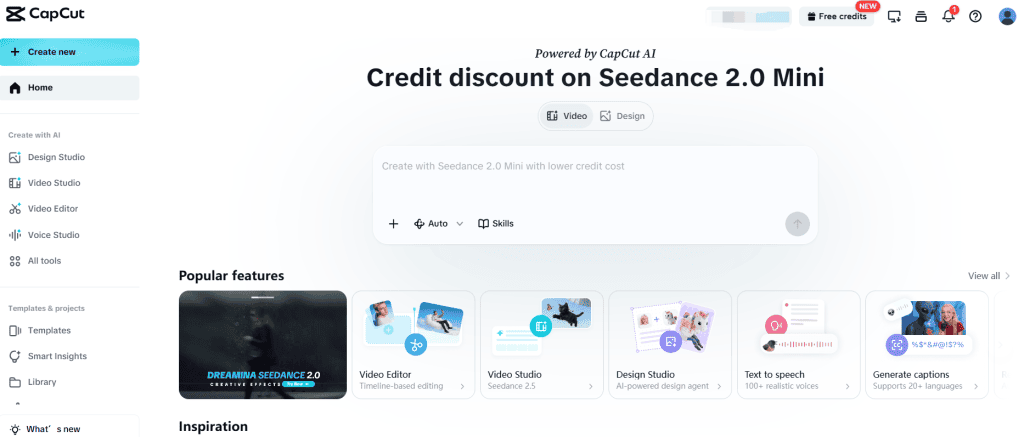
On CapCut Web, start with a prompt or your own script. The page lists Narration for a voice-led script and Commercial for product or service details. Review and edit the script options, then choose Generate video. Check the account’s generation and export options before confirming.
CapCut documents continue in a multi-track editor, where you can layer media, add voiceover or captions, and replace generated stock footage. Keep the script beside the timeline during review.
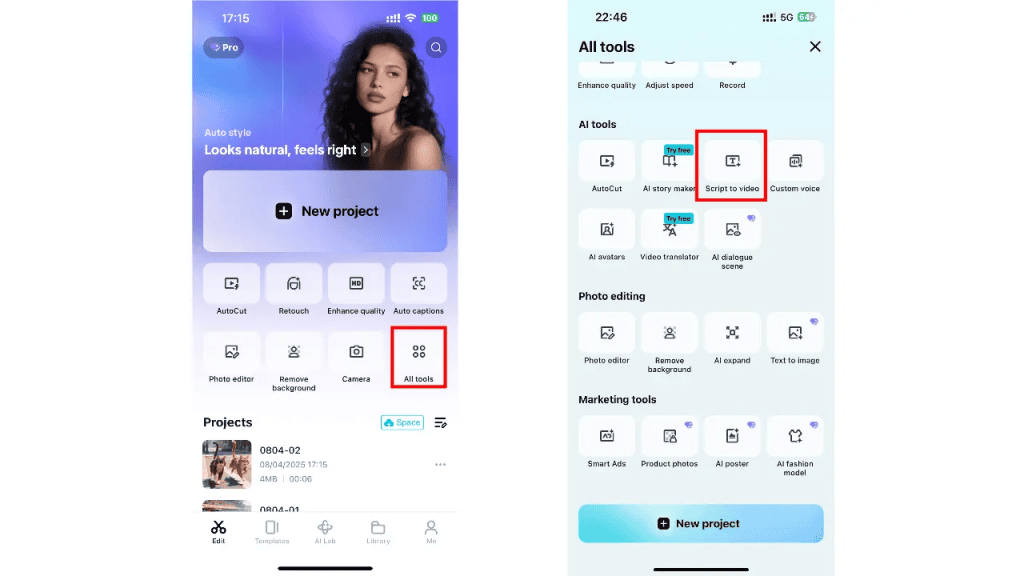
The App follows a separate path: All tools, AI tools, then Script to video. The App script-to-video route and editing steps offer own-script or AI Writer input, Smart generation or Local materials, and a preview editor for timeline, text, and visual changes.
Review the Scene Sequence
Watch once through and match each shot to its line: the opening establishes the situation, a close-up identifies the product, the demonstration shows the narrated action, and the final prompt has time to read. If a visual needs a change, CapCut documents replacing generated stock footage in the multi-track editor. Choose an approved clip that shows the same action, then replay the adjacent scenes.
Correct Captions and Pacing
Create captions from the narration, then check the video captions against the audio. CapCut’s Auto Captions steps for editing text, timing, and style vary between Web and Desktop. Confirm names and product terms, and make sure each caption remains on screen for its line.
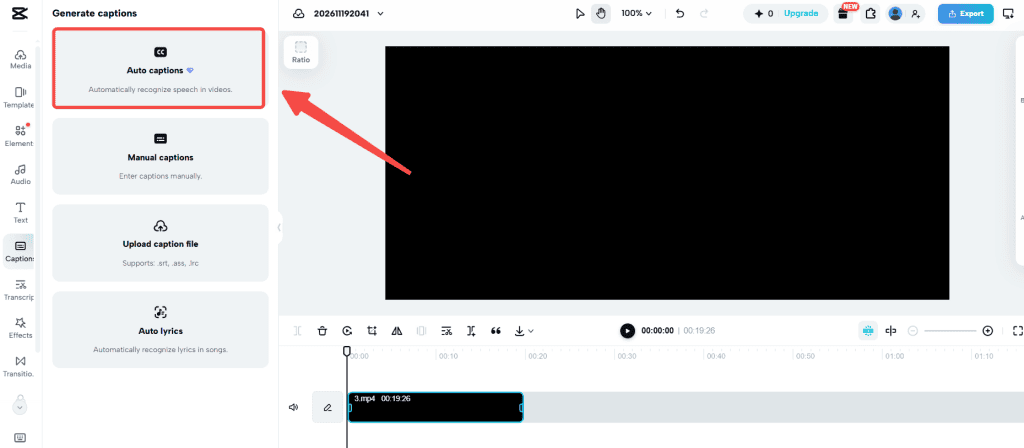
Preview once with sound and once muted to check pacing and whether the visuals still carry the scene. Use the CapCut auto-caption workflow for generating, styling, and correcting text or timing when you need a fuller subtitle pass.
Finish and Export the Short Video
Before export, watch the sequence at its intended aspect ratio. Check the opening, closing card, audio balance, and captions. CapCut’s documented Web export panel includes project name, resolution, frame rate, and format choices; use the options shown for the project.
CapCut’s Web editor documentation describes importing a recorded voiceover and adjusting it on the timeline. The App and Desktop routes use different controls.
For commercial use, review the assets in the project. CapCut’s U.S. Terms assign responsibility for uploaded and generated content to the user. Stock clips, fonts, effects, and music can have separate use conditions.
Where Manual Editing Is Still Needed
An editor can connect the draft to the brief by checking the visible action, spoken claim, captions, pacing, format, and materials together. Match each product statement with a shot that shows the relevant detail. Keep illustrative visuals distinct from recorded proof.
For CapCut Platform Materials, the license distinguishes marked Dual Use from Non-commercial Use materials. A project that mixes them is limited to personal and non-commercial use under the agreement; music has separate conditions. Review the labels on the assets used in an ad.
FAQ
Can you add an external voiceover to a CapCut AI draft?
Yes. CapCut Web documents importing a recorded audio file into a video project and placing it on the timeline. This general Web-editor path applies when the AI draft is open as an editable project. App and Desktop use different menu paths.
Can one generated scene be replaced without starting over?
Yes, for a footage change in the Web multi-track editor. CapCut documents replacing stock footage in the project and continuing to edit its tracks. Scene regeneration controls vary by route.
How long can a scripted CapCut video be?
There is no single duration limit established across the routes covered here. The App guide includes a duration choice, and available options depend on the route and account. Choose a length shown in the surface you use.
Can an editable project be shared with a client for review?
Yes. Share for review lets an external reviewer comment through a link or email. Editing access is a separate workspace permission handoff.
What rights apply when a generated CapCut video is used in an ad?
Rights depend on the generation route, inputs, platform materials, and music. CapCut’s U.S. Terms make the user responsible for uploaded or generated content. Its Materials License Agreement permits specified commercial uses for marked Dual Use materials; projects that include Non-commercial Use materials are limited to personal and non-commercial use under that agreement.
Conclusion
Give each scene a clear job, then check visuals, captions, voiceover, pacing, and export choices in the editor. CapCut documents separate Web and App script-to-video routes. A short review against the script and intended use prepares the draft for its final cut.
Previous Posts