Dora here. I usually notice a video tool’s limits at the least convenient moment: when the concept is approved, the brand colors are locked, and someone asks, “Can we just make three more versions by tomorrow?” That is the real search intent behind canva text to video. People are not only asking whether Canva can generate a clip from a prompt. They are asking whether it can fit into a content workflow without creating extra cleanup.
The short answer is that Canva can be a strong final assembly layer for simple branded videos, especially when the work already lives inside Canva. Its official AI video generator page describes Create a Video Clip as a text-prompt tool that generates short AI video with synchronized audio, then lets users continue editing inside Canva. That makes it useful for creators who want one place for generation, layout, captions, brand assets, and export.
The more careful answer is that Canva text to video AI should not be judged like a dedicated AI filmmaking tool. It should be judged as part of Canva’s broader design system. If your project depends on brand consistency, template reuse, quick approvals, and social-ready exports, Canva may be enough. If your project needs multi-shot planning, model selection, motion control, or a more technical generation pipeline, text to video alternatives may help.
What Canva Text to Video Users Are Trying to Do
Most users searching this topic are not trying to make a feature film. They are trying to turn a rough idea into something publishable: a product teaser, a TikTok-style clip, a short ad, a presentation intro, a launch announcement, or a quick social post. The job is practical. Get a visual draft, shape it to the brand, add text or sound, and export it without dragging the project through five tools.
That is why Canva’s appeal is obvious. The Canva video generator sits near templates, stock assets, brand kits, text tools, timeline editing, resizing, and collaboration. In a creator workflow, that can matter more than raw generation quality. A stunning clip that takes twenty extra steps to resize, brand, caption, and approve is not always better than a simpler clip that moves through production cleanly. I see Canva fitting best when the video is one component inside a designed asset. A product announcement with a short AI clip behind text, a course slide with an animated example, or a social ad with a generated visual and clear CTA all make sense. The generated video does not have to carry the entire creative concept alone. It supports the layout.
Where users get disappointed is when they expect Canva to behave like a full AI video studio. The official page states that Create a Video Clip generates a 16:9 video up to eight seconds and one video per prompt. That is useful, but it also frames the workflow: Canva is better for short generated inserts and fast compositions than for long, controlled scene sequences.
Workflow Fit for Creators
Simple social video
For simple social content, Canva is strongest when the idea is already small. A creator might prompt a short product mood clip, place it into a vertical or square layout, add a headline, apply brand colors, and export for a campaign. That is a clean use case.
The mistake is asking the generated clip to solve every creative problem. I would not prompt “make a complete launch ad” and trust the result. I would prompt for a specific visual moment, then build the actual ad around it. For example, a short atmospheric shot of a desk setup can become the background for a productivity app promo. The human decision is still the hook, message, layout, and offer.
This is where Canva AI video can save time. It compresses the early visual search. Instead of hunting for stock footage that almost fits, you can test a custom scene and quickly see whether the mood works. If it fails, the loss is small. If it works, Canva’s editor gives you a direct path to text, trimming, resizing, and exporting.
Brand templates
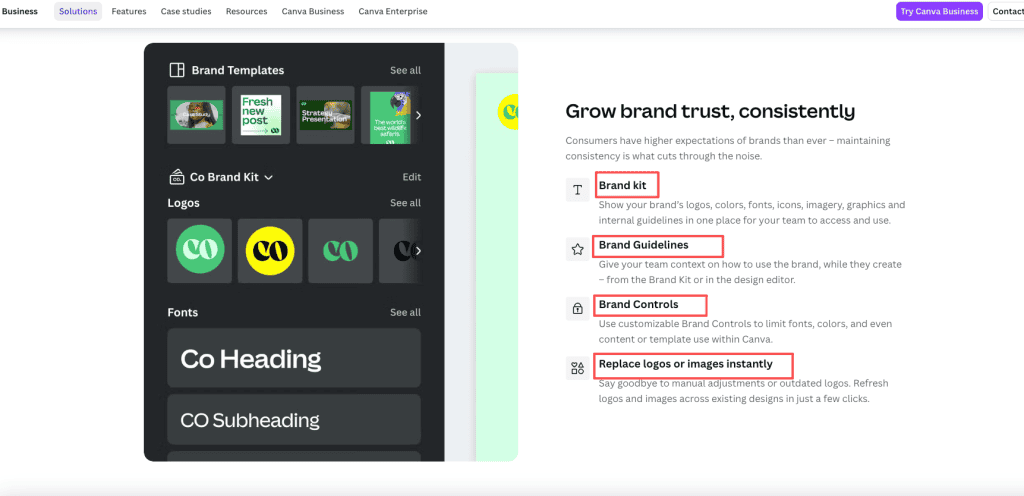
Brand work is where Canva has a real advantage over many generation-first tools. Canva’s brand management tools cover Brand Kit, Brand Guidelines, Brand Controls, shared templates, and locked elements. For teams, that matters because the problem is rarely just “make a video.” The problem is “make a video that twenty non-designers can adapt without breaking the brand.” This is why I would keep Canva in the workflow for campaigns with repeatable layouts. If a team already has branded lower thirds, intro cards, outro cards, captions, product frames, or social templates, generating the clip somewhere else may add friction. You still need to bring it back into the brand system.
A realistic example: a small education brand needs weekly short clips for course promotions. Canva can hold the title card, instructor name style, colors, type scale, logo placement, and export formats. The AI-generated clip can become a background or transition, while the template keeps the weekly output consistent.
Quick revisions
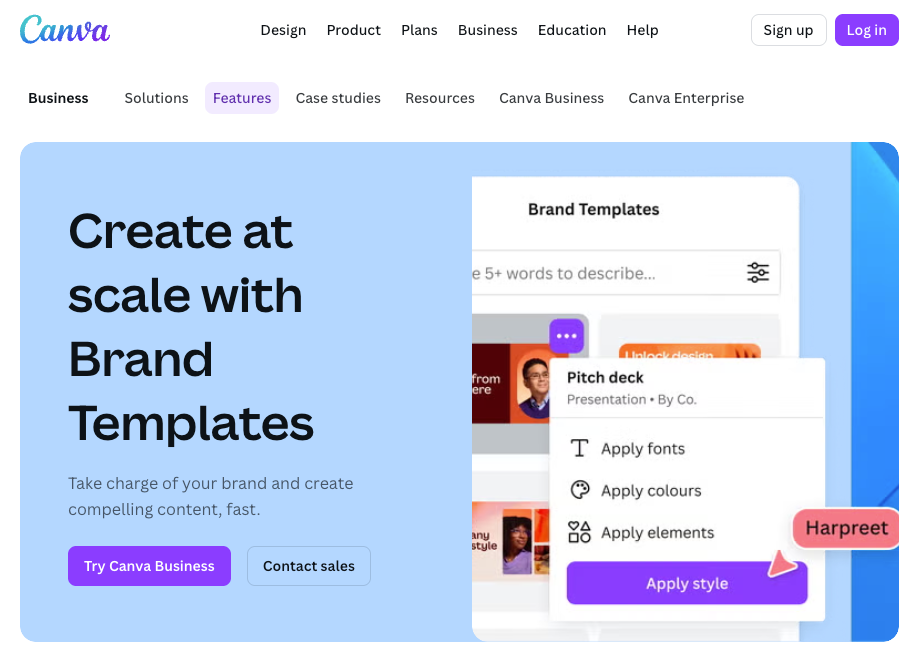
Canva is also useful when revisions are mostly layout-based. If the stakeholder says the title is too long, the logo needs more space, or the clip should become a LinkedIn version instead of a Reel, Canva can handle those edits quickly. Its Brand Templates page specifically talks about shared templates and locked elements, which are the kind of guardrails teams need during fast production.
The limit is that prompt-level video changes are different from design changes. If the generated subject, motion, camera feel, or scene logic is wrong, editing in Canva may not fix the core issue. You may need to regenerate, change tools, or redesign the asset around a different clip. My practical rule is simple: if the revision is about layout, Canva should probably stay in control. If the revision is about the generated video’s motion, shot logic, or realism, test another generation pass or another tool before spending time polishing.
Where Alternatives May Help
Multi-shot planning
Alternatives may help when the video needs more than one visual beat. A single short generated clip can work for a social background, but multi-shot storytelling needs planning: opening shot, detail shot, product interaction, transition, ending frame, and maybe a human reaction. Canva can assemble those pieces, but it is not always the best place to plan or generate each shot.
For a creator making a 30-second product story, I would usually separate the work. Use a planning tool or storyboard document to define each shot. Use a generation tool only where AI footage is needed. Then bring selected clips back into Canva if Canva is the final editing and branding layer.
That keeps the project from becoming prompt chaos. The more scenes you need, the more important it is to treat the script and storyboard as the source of truth.
Model choice
Dedicated alternatives may also help when model behavior matters. Some tools are stronger at cinematic motion, some at character consistency, some at product realism, some at animation style, and some at image-to-video control. Canva’s value is convenience inside the design workflow. A dedicated model workflow may give more control over the generated clip itself.
This does not automatically mean alternatives are better. More model choice also means more decisions, more testing, and more ways for a team to lose time. For most social assets, the best tool is the one that gets a good-enough clip into the final layout fastest.
The comparison should be based on the production risk. If the AI clip is just background texture, Canva may be enough. If the clip is the hero asset of a paid campaign, model choice becomes more important.
Workflow control
Workflow control is the biggest reason to leave Canva during generation. Some projects need prompt versioning, seed reuse, shot references, image-to-video starting frames, approval notes, or a repeatable pipeline between script, storyboard, generation, and edit. Canva may still be part of the final step, but it may not be the whole system.
The cleanest workflow I have seen is not “replace Canva.” It is “use Canva where Canva is strongest.” Generate or plan outside when you need deeper video control. Return to Canva when the job becomes layout, branding, resizing, captions, presentation context, or team review.
That distinction prevents tool switching from becoming a habit. Switching tools should solve a specific production problem, not make the workflow feel more advanced.
Limits and Facts to Verify
Canva’s AI video capabilities can change, so do not publish fixed claims without checking the current official pages. As of the official page I reviewed, Canva describes Create a Video Clip as powered by Google’s Veo-3, creating a 16:9 video up to eight seconds, with synchronized audio, one video per prompt, and limited access for eligible users. Those details should be verified again before publication because AI product limits are not stable.
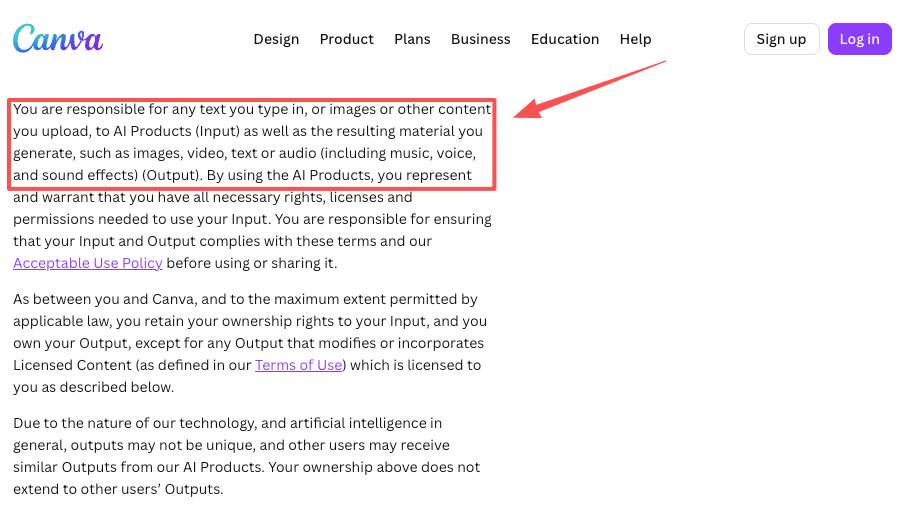
Commercial use also needs care. Canva’s AI Product Terms say users are responsible for inputs and outputs, must have necessary rights and permissions, and may use outputs for lawful purposes while complying with Canva’s terms. The terms also note that AI outputs may not be unique, that Canva may impose AI usage limits, and that Canva does not guarantee output accuracy or suitability for commercial use.
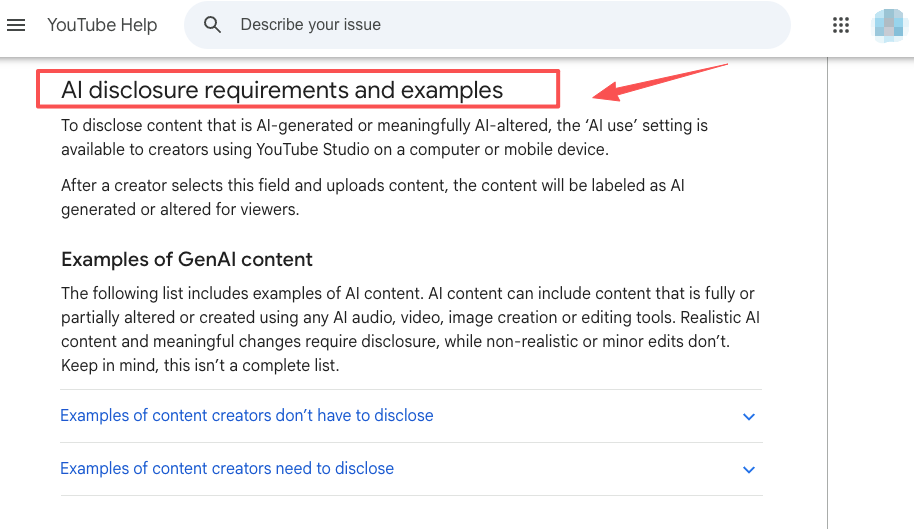
For social platforms, check disclosure rules separately. YouTube’s guidance on altered or synthetic content disclosure is a useful reminder that AI production assistance and realistic synthetic content can have different disclosure implications. Canva may help create the asset, but the publisher still owns the platform decision.
The safest editorial position is this: Canva can be part of a commercial workflow, but the team must verify current Canva terms, content licenses, brand permissions, likeness rights, platform rules, and client approvals before publishing.
FAQ
What should teams export before switching tools?
Before moving out of Canva, teams should preserve the practical context that made the design work: the approved layout, brand colors, typography choices, copy, aspect ratio, timing, and any reference frames. I would also export a clean preview and keep an editable Canva version untouched. That way, if the outside tool creates a better clip but breaks the design direction, the team still has a stable source to return to.
When should Canva stay the final editing layer?
Canva should stay the final layer when the project depends on brand templates, quick resizing, simple captions, stakeholder comments, social exports, or presentation-ready layout. Even if the AI clip is generated elsewhere, Canva can remain the place where the asset becomes usable for the channel. That is especially true for teams already using Canva Business or Brand Kits.
How should brand kits move between tools?
Brand kits should move as rules, not just files. Exporting a logo is not enough. The team should document colors, type hierarchy, safe areas, caption style, logo placement, motion preferences, and forbidden treatments. If an outside tool cannot respect those rules, use it only for raw visual generation and bring the result back into Canva for final brand control.
Who decides whether alternatives are needed?
The decision should sit with the person responsible for final output quality, not the person most excited about a new model. For solo creators, that is the creator. For teams, it is usually the creative lead, content lead, or brand owner. The test is practical: if Canva gets the asset to publishable quality with fewer handoffs, stay. If the generated clip blocks the concept, test alternatives.
What project types should avoid tool switching?
Avoid switching tools for simple quote videos, basic announcements, recurring social templates, internal updates, event reminders, and low-risk posts where Canva already has the brand structure ready. Tool switching makes sense only when it improves the final asset enough to justify extra review, export, naming, permissions, and revision work.
Previous posts: